
Subscribe to Timing
Unlock powerful time tracking and productivity insights.
For individuals tracking their time.
For power users who need more control.
For AI-powered workflows and teams.
Frequently Asked Questions
Everything you need to know about Timing subscriptions.
Yes. Depending on whether you choose an annual or a monthly plan, you will be billed up front for the first year or month, then again after that period has elapsed. You will be shown the exact amounts you will be billed (and the billing frequency) during the checkout process, before you are asked to enter your payment information.
We've been building Timing since 2011 and continue to ship meaningful updates and personal support—have a look at our release notes to see the journey.
Subscriptions let us reinvest directly into development, keep the team available when you need help, and ensure Timing sticks around for the long haul without selling data or chasing ads.
When you subscribe, you will receive an email with a link that lets you manage and cancel your subscription.
Once Timing has been activated, you can also find an entry to manage your subscription in the Timing app's menu.
Finally, you can also enter your email address into our license activation page; if we can find a subscription with that email address, we will email you the subscription management link again.
If you still can't find your subscription management link, simply contact support and we'll help you out.
When you cancel your subscription, you will continue to have full access to Timing until the end of your current billing period. After that, you can still view data up to the day your subscription has ended, but no data tracked after that.
Please note that annual plans offer a discount for committing to a full year of using Timing, so we can not provide pro-rated refunds for annual plans.
During the checkout process, you can change the number of seats to order. Once checkout has finished, follow these steps to add your remaining team members.
- Sign up for a subscription at the top of this page using your own email address.
- Click the subscription management link you receive via email.
- On the subscription management page, click "Add Seat" and add a new seat for each team member.
You can also use the same process to create a subscription for someone else; simply remove the seat with your own email address before adding the seat for the other person.
Yes! You can find your personal referral link on your subscription management page. If someone signs up via that link, both they and you will receive an extra free month of service.
Please note that each new customer can only be referred once. In addition, each subscription can receive at most six months of free credit per calendar year through referrals.
Timing comes in three editions:
- Professional lets you track your time automatically as well as start and stop timers. It also lets you generate reports suitable for sending to your clients.
- Expert is for heavy power users who want maximum control. It adds filters, additional report customization options, and more.
- Connect adds AI integration via MCP, letting your favorite AI agent manage your time for you. It also adds team features: create teams that share projects, review team members' times in the web app, and automate data export via the API and AppleScript.
You can upgrade to a higher edition (or from a monthly to an annual plan) at any time with a pro-rated discount.
Yes, you can upgrade at any time via the subscription management link you receive with your order. The upgrade fee is the difference between the plan prices pro-rated for the portion of your billing period that has already elapsed.
You can use Timing on up to one, two or three (for Timing Professional, Expert and Connect, respectively) personal Macs belonging to you personally. Each subscription seat can be used by one person; if you plan to use Timing in a family, each family member will need their own subscription seat.
Similarly, if you are using Timing in a business, each employee needs their own Timing subscription seat. For example, you can not use the same Timing Expert subscription seat on two Macs used by different employees.
No, and we have no plans right now to change that.
The Mac App Store's sandboxing rules would restrict the details Timing can track for you, resulting in a worse experience.
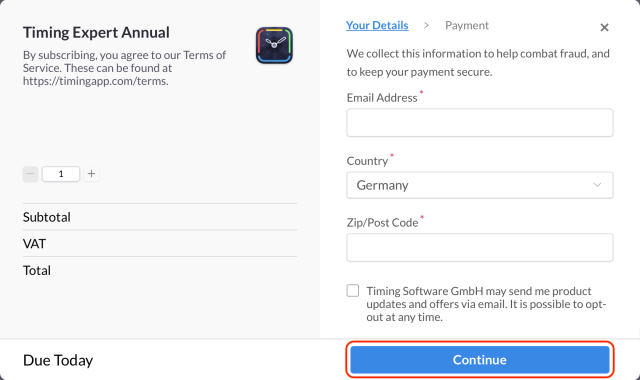
First, enter your email address, country and Zip code, then click "Continue":
Then, click "Add VAT" and enter your company details:
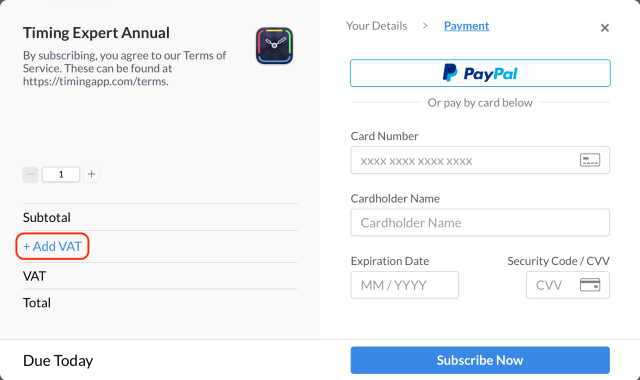
That way, your invoices will automatically contain your company information and have VAT deducted if the "reverse charge" rule applies (e.g. for all EU countries).
If you haven't added your company info during the checkout process, you can still do so later:
Your receipt email contains a link to e.g. customize your address in the receipt and enter your VAT ID if present.
Once you have entered your VAT ID there, you should automatically receive a VAT refund within a few days if you are based
outside the United Kingdom. If the VAT refund does not arrive, please contact help *at* paddle.com with your VAT information and receipt number so that our payment provider can refund the VAT for you.
Note that our payment provider is based in the UK. Thus, UK-based businesses can't have VAT deducted this way but can get it refunded from the UK tax authorities instead.
Ready to take control of your time?
Stop stressing about time. Focus on your best work.
Free DownloadTry Timing free for 30 days. No credit card required.