
The Best Apps for Lawyers in 2026: Top Mac Tools

Image: Sora Shimazaki
TL;DR: Best Apps for Lawyers in 2026
The best apps for lawyers on Mac in 2026 are those that help to streamline your daily tasks and workflow. They should capture your billable hours, like Timing; keep your case files searchable and local, like DEVONthink; and manage your PDFs, like PDF Expert. Clio is a solid practice-management baseline for firms that want one hub, but it’s also worth building up a toolstack that serves your needs exactly.
Every hour a lawyer can’t account for is money left on the table. The time lost to unlogged calls, spent hunting for contracts across folders, and navigating cluttered calendars all adds up. The best apps for lawyers are the ones that help you work quicker, more effectively and more intuitively. They should free up your time and energy from the tedious and mundane so that you can get on with the billable work at hand.
Our list of the top apps for attorneys is specifically for Mac users. It covers the best software for lawyers across every part of the working day: tracking time, drafting and managing documents, handling PDFs, meeting deadlines and issuing invoices. And since confidential client data runs through everything you do, these apps prioritize privacy and data protection, too.
While Clio remains the practice-management standard many firms use as a foundation, it doesn’t solve every pain point. In fact, we recommend a combination of focused tools, with or without Clio, to help you meet your needs. Here’s the full 2026 line-up.
Table of Contents
TOC
How we Chose the Best Software for Lawyers
In making our selection, we had a strict list of criteria that we kept in mind:
- Mac compatibility: We prioritized native Mac apps (the second section below is dedicated to these tools exclusively). But we also looked at cross-platform apps that work well in a Mac browser.
- Confidentiality and privacy: This is non-negotiable for the legal sector. And so we examined where each app stores information, how it handles on-device processing and its overall security posture.
- Workflow fit: We consistently asked whether a particular app improves a real task lawyers do every day.
- Accuracy and reliability: For time tracking and document tools especially, we considered the accuracy and reliability of every output they produce.
- Integrations: We examined how well each tool connects to others that lawyers already use, like Clio, accounting software and cloud storage.
- Pricing: We also considered the investment of every tool, based on what’s reasonable for solo and small-firm budgets.

Image: Pavel Danilyuk
Best Apps for Lawyers at a Glance
In a hurry? The table below offers a quick overview of the apps for attorneys we recommend.
| App | Best for | Mac availability | Price | Rating (out of 5) |
|---|---|---|---|---|
| Clio | Practice-management baseline | Web browser and iOS | Starting at $49 per user | 4.7 (Capterra) |
| 1Password | Secure client and account access | Desktop app and web browser | Starting at $2.99 per month | 4.7 (Capterra) |
| Adobe Acrobat Pro | Bates numbering & heavy PDF work | Desktop app and web browser | $19.99 per month | 4.7 (Capterra) |
| DocuSign | E-signatures and audit trails | Web browser and iOS | Starting at $10 per month | 4.5 (G2) |
| iCloud | All-Apple solo practices; syncs natively with Finder | Native Mac, web and iOS | Free up to 5GB, then starting at $0.99 per month | 4.6 (Capterra) |
| Dropbox | Cross-platform sharing and broad integrations | Desktop app and iOS | Starting at $9.99 per month | 4.4 (G2) |
| Google Drive | Firms already working in Google Workspace | Desktop app and iOS | Free up to 15GB, then starting at $15.99 per year | 4.8 (Capterra) |
| OneDrive | Firms already in the Microsoft 365 ecosystem | Desktop app and iOS | Free up to 5GB, then starting at $19.99 per year | 4.5 (Capterra) |
| Timing | Automatic billable-hour tracking | Native Mac app | Starting at $9 per month, free 30-day trial | 4.8 (Capterra) |
| DEVONthink | Case files and document management | Native Mac app (and iOS) | One-time, starting at $99 | 5.0 (Capterra) |
| MacWhisper | Private transcription and dictation | Native Mac app | Free and one-time paid plan for €64 | 4.9 (Product Hunt) |
| Cotypist | Faster legal writing (smart autocomplete) | Native Mac app | Free and paid, starting at $6 per month | 5.0 (Product Hunt) |
| Fantastical | Scheduling, deadlines, court dates | Native Mac app (and iOS/iPad) | Free and paid, starting at $4.75 per month | 4.8 (Capterra) |
| PDF Expert | Native Mac PDF editing and redaction | Native Mac app (and iOS/iPad) | Starting at $0.96 per week | 4.7 (G2) |
| GrandTotal | Mac-native invoicing | Native Mac app | Starting at €59 per year | 4.5 (Download) |
Cross-platform Apps Every Mac Lawyer Should Know
While the following apps aren’t Mac native, they all work well across Mac browsers and iOS. (The next section deals exclusively with Mac-native solutions.)
1. Clio
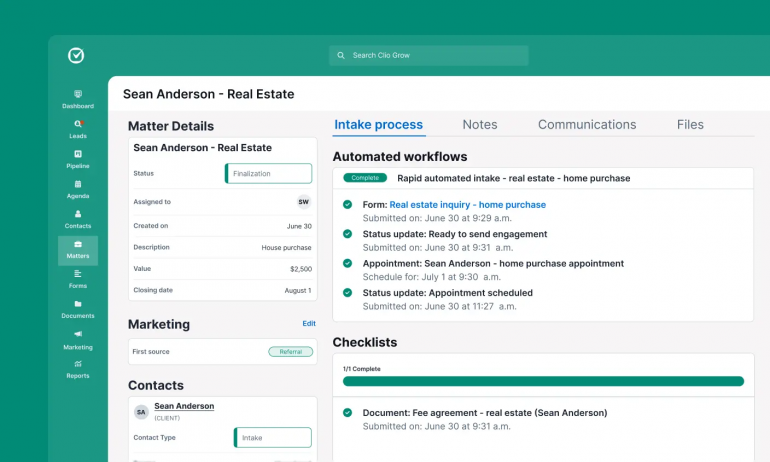
Image: Clio
Best for: One cloud hub for matters, contacts, calendaring, billing and trust accounting.
Mac access: Web browser and iOS
Clio is the practice-management platform most firms encounter first. It brings matters, contacts, calendaring, billing and trust accounting into one cloud system, with integrations that stretch across the accounting and legal tech world. Accountants and bookkeepers tend to already know it, which simplifies onboarding at tax time. While we generally advocate for building up your toolstack based on your needs, Clio works well as a hub everything else plugs into. It integrates seamlessly with the automatic time tracking solution, Timing, for example, which ensures your billable hours are never reconstructed from memory. Clio’s main drawback is that it runs in a browser rather than as a native Mac app, but it still offers a smooth and efficient experience.
Pros:
- Covers nearly every part of running a practice in one place
- Widely adopted platform that most firms already know
- Bookkeepers and accountants tend to work with it comfortably
Cons:
- Not Mac-native
- Built and priced as a full practice-management suite, which may be more than some solo lawyers need
Pricing: Clio has a Starter plan that starts at $49 per user. Core, Signature and Elite plans are also available by contacting Clio and discussing your unique needs.
2. 1Password
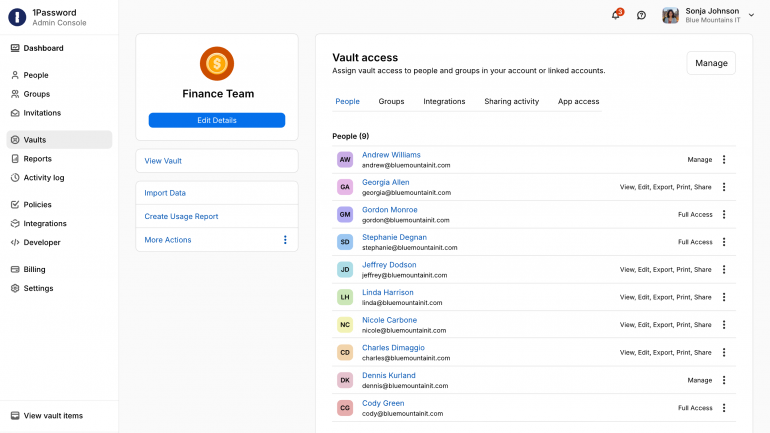
Image: 1Password
Best for: Protecting client data, court-portal logins and shared firm credentials.
Mac access: Desktop app and browser extensions (and iOS/iPad)
1Password gives you a secure, shared place to store passwords, court-portal logins, and other credentials that would otherwise live in browsers. Team vaults let firms share access to shared accounts without everyone knowing the actual passwords, and Watchtower alerts you to breached or weak credentials before they become a problem. 1Password also works well alongside Clio and the rest of your stack, running quickly and accurately whenever logins are needed. Be aware, though, that getting vaults and permissions set up properly across a firm takes more preliminary work than most solo lawyers are prepared to give.
Pros:
- Broad trust across both individual users and firms
- Team vaults make sharing credentials across a firm straightforward and secure
- Watchtower actively flags breached or weak passwords before they become a liability
Cons:
- Setting up vaults, permissions and sharing correctly takes some initial planning
- As firms grow, managing access and permissions takes ongoing admin work
Pricing: 1Password’s Individual plan costs $2.99 per month, the Families plan costs $4.49 per month, the Teams Starter Pack costs $24.95 for 10 users per month, and the Business plan costs $8.99 per user per month, all billed annually. Quotes for enterprise plans are also available on request.
3. Adobe Acrobat Pro
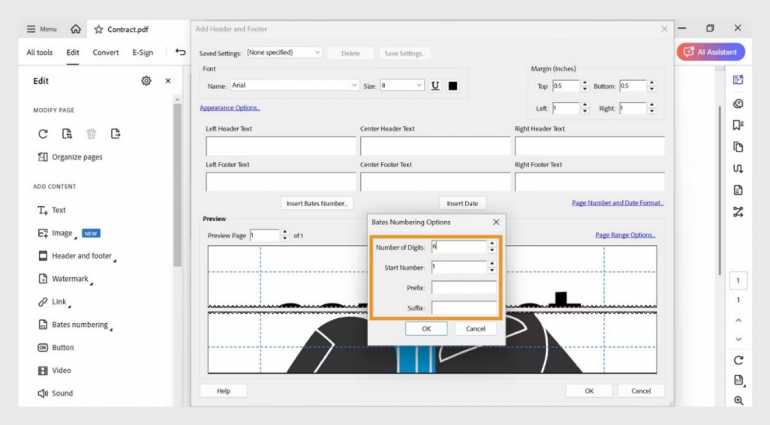
Image: Adobe Acrobat Pro
Best for: Firms working through discovery, where large batches of exhibits need Bates numbering, careful redaction, OCR and bookmarking.
Mac access: Desktop app and web
Adobe Acrobat Pro remains the established standard for serious legal PDF work. Bates numbering, defensible redaction, optical character recognition (OCR) and bookmarking are all built to hold up in discovery and exhibit production, which is why so many firms turn to it by default. It handles large, multi-thousand-page exhibit sets without complaint, and opposing counsel, courts and co-counsel all recognize its output. It’s the tool to reach for when a matter demands full discovery-grade rigor rather than everyday PDF editing. Be aware that since it’s built for cross-platform, enterprise-wide use, it never quite matches the speed and polish of a dedicated Mac PDF app.
Pros:
- Covers the full range of legal PDF needs in one application
- Courts and legal professionals trust its output as the industry standard
- Works consistently across Mac, Windows and web
Cons:
- Runs on Mac but doesn’t feel like a native Mac app in daily use
- More firepower than most lawyers need for everyday PDF tasks, where PDF Expert is the lighter fit
Pricing: Adobe Acrobat Pro costs $19.99 per month.
4. DocuSign
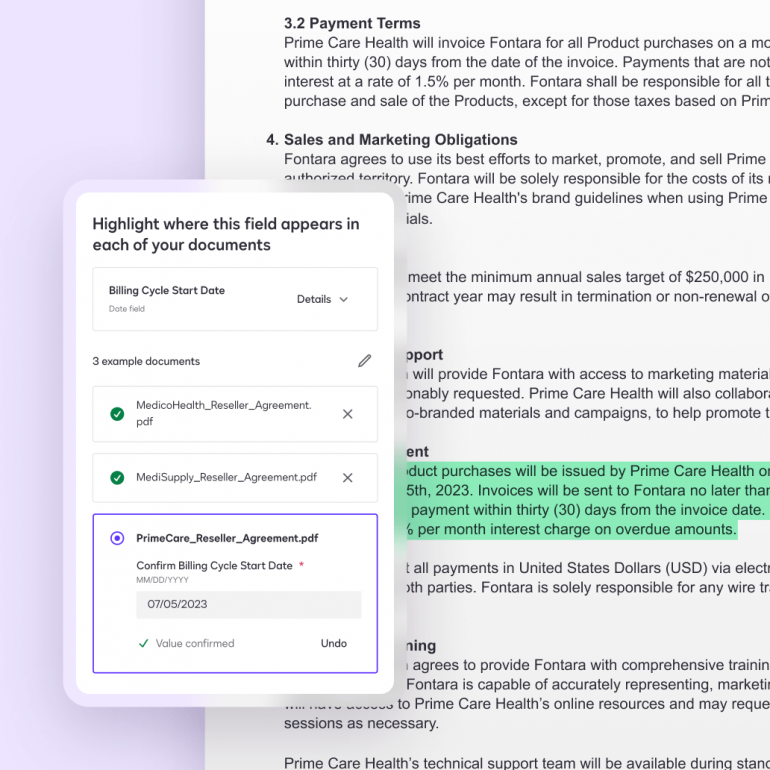
Image: Docusign
Best for: Legally binding signatures on engagement letters, POAs and contracts.
Mac access: Web browser and iOS
DocuSign is the e-signature platform clients and courts recognize, which is important when a signature needs to hold up down the line. It meets ESIGN and eIDAS standards and logs a detailed, tamper-proof audit trail for every signed document. It also connects directly with Clio, so signed documents can flow straight into a matter without extra steps. Firms wanting a simpler or more affordable option can look at Dropbox Sign (formerly HelloSign) or Adobe Sign if they’re already paying for Acrobat. Like the others in this section, DocuSign isn’t a native Mac app, which may be frustrating if you’re trying to keep your open tabs to a minimum.
Pros:
- Clients, courts and opposing counsel widely trust and recognize it
- It meets ESIGN and eIDAS compliance standards for legally binding signatures
- It integrates directly with Clio for a smoother document workflow
Cons:
- It has no native Mac app and runs entirely through a browser or iOS
- Per-envelope and per-user pricing can climb quickly for a firm sending a high volume of documents
Pricing: Docusign costs $10 per month for a Personal plan, $25 per user per month for a Standard plan, and $40 per user per month for a Business Pro plan, billed upfront annually. Enhanced plans are also available on request.
5. Cloud Storage: iCloud Drive, Dropbox, Google Drive and OneDrive
Best for: Secure, accessible document storage that keeps case files synced across a firm.
Every firm needs a central portal where documents can be stored, backed up and easily shared. Cloud storage is essential, but which platform is right for you depends on the ecosystem your firm already has in place:
- iCloud Drive is the natural choice for an all-Apple solo practice. It syncs with Finder with no extra setup.
- Dropbox works well for cross-platform sharing and has the broadest integrations across legal apps.
- Google Drive is ideal for firms already working in Google Workspace.
- OneDrive makes sense if you’re part of the Microsoft 365 ecosystem.
Whichever service you choose, it’s worth checking the encryption, access controls and cloud-storage guidance from your relevant bar association before you store client data there.
Note that pairing cloud storage with DEVONthink as a local library gives you a belt-and-suspenders setup. Your files will be synced and accessible, with a searchable local copy that doesn’t depend on an internet connection. Read our DEVONthink review below for more.
Mac-native Apps for Lawyers: Tools for a Faster Legal Workflow
These apps are truly Mac native and integrate seamlessly with the Apple ecosystem.
1. Timing
Best for: Lawyers who bill by the hour and want to stop losing billable minutes to manual timers.
Mac access: Native macOS app (and web app companion)
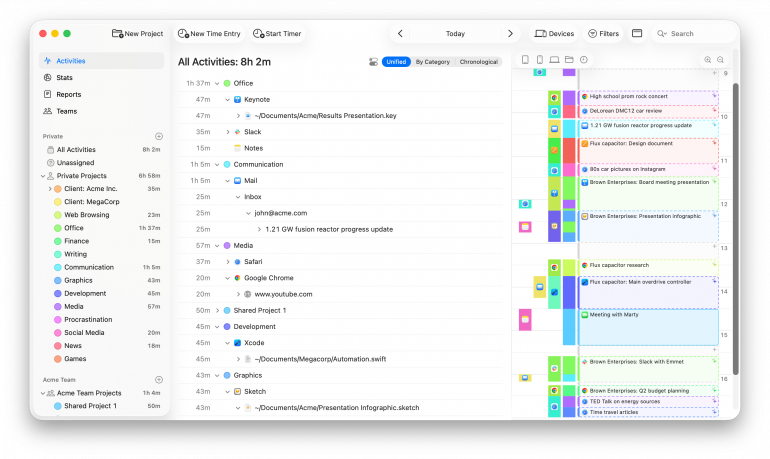
Timing tracks the time you spend in apps, documents, websites, calls, meetings, calendar events and reminders automatically. There’s no need to start or stop a manual timer, although that option is available if you need it. Through Timing’s rules functionality, all your activities can easily be assigned to the right client and client matter. And you can easily split your day between billable casework and non-billable admin, through Timing’s built-in Billing Status. This feature allows you to tag every time entry as Not Billable, Billable, Billed or Paid, either one at a time or in bulk.
You can also assign your time via a drag and drop feature, using the timeline’s smart suggestions to combine blocks of time that belong together. AI Summaries turn raw activity into plain-English descriptions.
These descriptions are useful when it comes to invoicing. Speaking of which, Timing also connects to GrandTotal to pull tracked hours straight into an invoice, and to Clio and other tools via Zapier and its Web API. Activity data stays on the Mac unless sync is turned on, which matters when you’re handling privileged information. Timing comes with a free 30-day trial, making it easy to test against a real caseload.
Pros:
- Captures billable time you might otherwise forget to log
- Runs as a fast, native Mac app rather than a browser tool
- Keeps activity data on the Mac by default, which suits privileged information
Cons:
- Mac-only, so it won’t help firms running Windows or shared cross-platform setups
Pricing: Timing has a free 30-day trial. Billed annually, its Professional plan costs $9 per user per month, its Expert plan costs $11 per user per month, and its Connect plan for teams and AI costs $16 per user per month.
2. DEVONthink
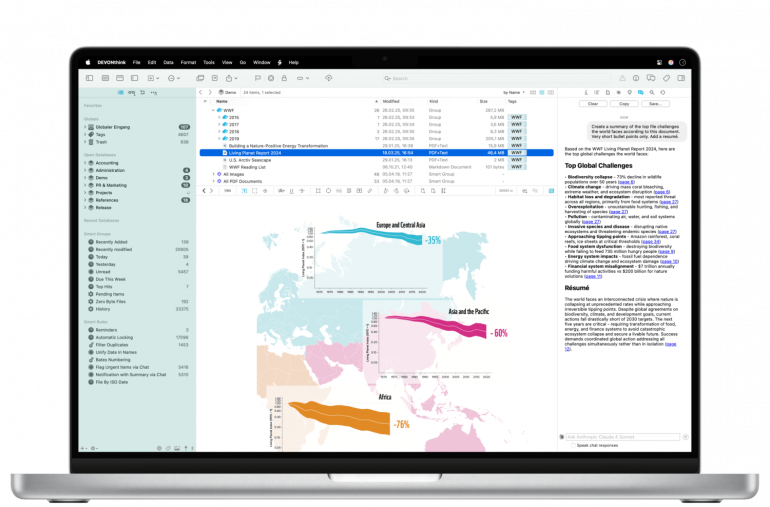
Image: DEVONthink
Best for: One searchable, local library for case files, research, contracts and correspondence.
Mac access: Native Mac app (macOS Ventura or later), with optional DEVONthink To Go companion for iPhone and iPad
DEVONthink works as a document brain. Custom metadata, tagging and version history keep case files organized as a matter grows. And on-device machine learning learns how you file documents and suggests where new ones belong. Everything lives in local databases rather than a proprietary cloud, so there’s no lock-in, and it pairs with Timing to track time spent per document. If you’re on the Pro or Server plans, its OCR capabilities make scanned exhibits and contracts fully searchable, and it can imprint documents with configurable stamps or Bates numbers directly. DEVONthink is built natively for Apple Silicon, and is popular among law firms that want a private, local-first alternative to cloud document management. Be aware that the learning curve is real, however, and may be too demanding if you’re just looking for a simple solution.
Pros:
- Keeps case files searchable, tagged and organized in one local library
- Data stays local by default, with no cloud lock-in
- It integrates with Timing to track time spent per document
Cons:
- It has a real learning curve, especially for setting up databases, tags and filing rules well
- Its local-first design means it lacks the real-time multi-user collaboration built into cloud-native document platforms
Pricing: DEVONthink has three tiers. The Standard tier costs $99, the Pro tier costs $199 and the Server tier costs $499.
Curious about how much time you spend on DEVONthink? Tracking Time Spent in DEVONthink with Timing
3. MacWhisper
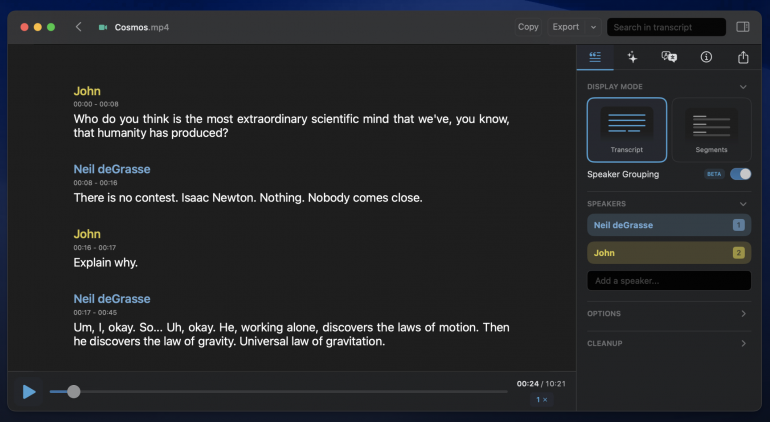
Image: MacWhisper
Best for: Transcribing interviews, hearings, voice memos or dictating notes.
Mac access: Native Mac app (and iOS)
MacWhisper runs OpenAI’s Whisper models entirely on-device, so once a model is downloaded, the transcription runs without an internet connection. When using its local models, transcription runs on-device and the audio doesn’t need to leave your Mac. Since legal recordings often involve privileged conversations, this is a real advantage over cloud transcription tools like Otter, Rev or Descript. MacWhisper’s free Small and Base models cover everyday dictation, while the Pro tier adds the Large v3 and Turbo models for higher accuracy, along with speaker diarization, batch and real-time transcription, and AI summaries. If you’re transcribing a client interview or dictating notes after a hearing, MacWhisper offers an excellent way to turn audio into text without a third party ever hearing it. One shortcoming is that it’s built as a general transcription tool, and not necessarily with legal workflows in mind.
Pros:
- Processes everything on-device, so privileged audio never leaves your Mac
- Transcription accuracy holds up well against cloud-based alternatives
- Automatically records and transcribes meetings across Zoom, Teams, Webex and other platforms, with no bot needing to join
Cons:
- Larger models take up 1 to 3GB of storage to download
- General transcription tool, not specifically built for legal workflows
Pricing: MacWhisper has a free forever plan and a Pro plan that costs €64one off.
If you’re interested in other apps to support your dictation and note-taking needs, be sure to take a look at our articles on The Best Mac AI Meeting Note Takers in 2026 and Dictation on Mac: How to Use Talk-to-Text & the Best Dictation Apps (2026).
4. Cotypist

Image: Cotypist
Best for: Drafting letters, memos, emails filings, helping you write faster wherever you type.
Mac access: Native Mac app; works system-wide
Cotypist is an AI-powered auto-completion app that works in any text field on your Mac. Its completions are generated in real time as you type, allowing you to write faster and more efficiently, while reducing the risk of errors and typos. Because Cotypist’s suggestions follow your own phrasing rather than a generic template, the writing still sounds like you. But the speed at which it allows you to type makes it a serious advantage for lawyers who are drafting letters, memos and correspondence all day. It also pairs well with text expansion tools like TextExpander or Rocket Typist. The free plan is capable enough to use on its own, with the Plus and Pro tiers adding per-app behavior. There’s a 30-day Pro trial if you want to try it out first. Cotypist is entirely Mac native, running locally on Apple Silicon.
Pros:
- Speeds up everyday drafting while keeping your own tone and phrasing
- Works system-wide across Mail, Word, Pages and any other Mac app
- Free tier is capable enough to use as a standalone tool
Cons:
- Only suggests completions as you type, so it will not draft a document or summarise a file for you
Pricing: Cotypist has a free plan. Its Plus plan costs $6 per month and its Pro plan costs $9 per month, both billed annually. Cotypist has a free 30-day trial.
5. Fantastical
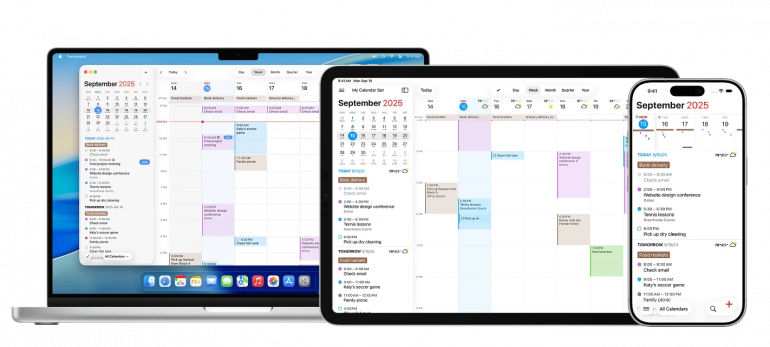
Image: Fantastical
Best for: Managing court dates, filing deadlines, client meetings and shared firm calendars.
Mac access: Native Mac app (and iPhone/iPad)
Fantastical is a heavyweight in the calendar app space, widely loved for its natural language processing capability (among other features). Simply type in phrases like, “Deposition next Tuesday at 2pm”, and it’ll automatically create an event for you. It can bring every calendar you juggle into one unified view, handle time zones for remote depositions or out-of-state co-counsel, and make proposing and confirming meetings straightforward. Calendar sets let you separate court dates, client meetings and personal appointments, while still seeing everything together. And templates make recurring matter-related events quick to set up. Fantastical is comprehensive, though, and might be overkill if your scheduling needs are fairly simple.
Pros:
- Polished, native Mac calendar with a beautiful, sleek design
- Natural-language entry makes adding court dates and deadlines faster than clicking through menus
- Brings multiple calendars together into one clear, unified view
Cons:
- If you have simple scheduling needs, you may find it more calendar than you need
Pricing: Fantastical has a free forever plan. Its Individual plan costs $4.75 per month, its Family plan costs $7.50 per month, and its Team plan costs $4.75 per user per month, billed annually.
Looking for other good calendar apps? Be sure to read our detailed review on The 11 Best Calendar Apps for Mac in 2026.
6. PDF Expert
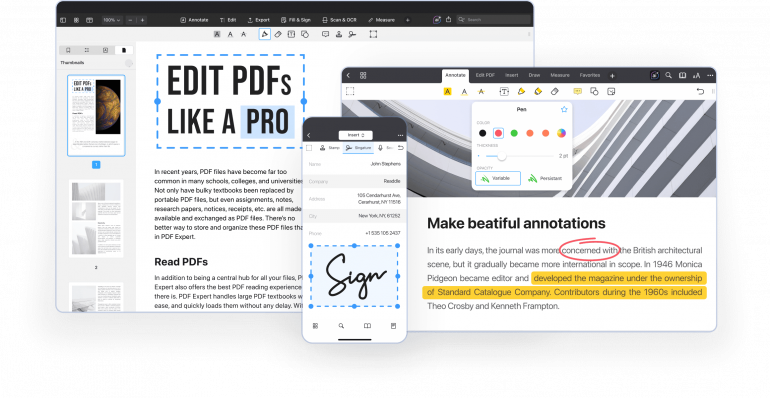
Image: PDF Expert
Best for: Everyday legal PDF work, including reviewing, annotating, redacting, and signing contracts and exhibits.
Mac access: Native Mac app (and iPad/iPhone)
PDF Expert handles the PDF work lawyers run into daily: annotating and marking up drafts, filling out and signing forms, redacting confidential sections, and merging or splitting exhibit files. It’s built as a native Mac app rather than a repackaged web tool, so it opens large files quickly and feels at home on Mac. OCR makes scanned contracts and exhibits searchable, and the iPad companion makes it a solid option for reviewing documents from court or during a client meeting. For firms whose PDF needs are mostly day-to-day rather than discovery-heavy, it covers the ground well, with its redaction tool handling everyday confidentiality needs. However, if you need the volume and audit rigor of full discovery production, Acrobat’s redaction still has the edge.
Pros:
- Fast and native on Mac rather than a browser tool
- Interface stays clean and easy to navigate even with heavy annotation and redaction work
- iPad companion makes document review on the go quick and easy
Cons:
- Redaction is more everyday-use than discovery-grade, so large exhibit sets still call for Acrobat
- Doesn’t include tools to build new fillable forms from scratch
Pricing: PDF Expert has an Essential plan for $0.96 a week, billed annually at $49.99, and Pro plan for $1.53 per week, billed annually at $79.99. There’s also a once-off Lifetime plan that costs $139.99.
7. GrandTotal
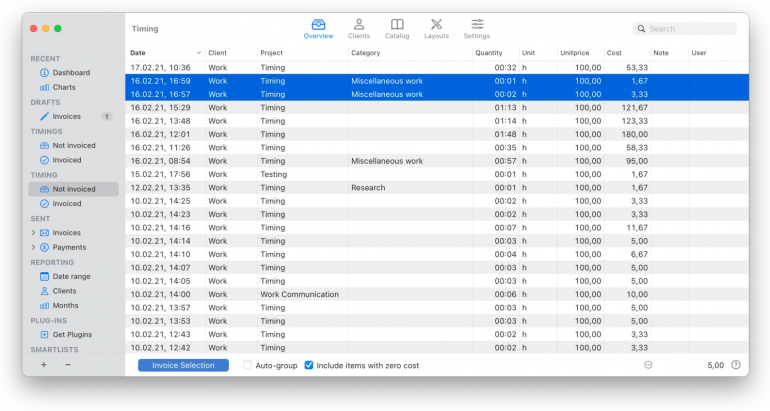
Image: GrandTotal
Best for: Solo and small-firm lawyers who want to invoice clients from their Mac and pull in tracked hours.
Mac access: Native Mac app
GrandTotal is built exclusively for Mac, and it shows in how quickly invoices and quotes come together. Even long, itemized documents take shape fast, with custom templates that match your firm’s letterhead. Its plugin connects directly to Timing, so tracked hours can flow straight into an invoice without retyping a single line item. Financial data stays on your Mac rather than a forced cloud service, with AES-256 encryption available for firms that want it, and it still works offline, too. For a solo or small-firm lawyer who just needs to turn billable hours into a clean invoice, it covers the job without the overhead of a full accounting platform. That said, it’s invoice-focused, so if you’re after a full bookkeeping service, you’ll likely need other tools alongside it.
Pros:
- Fast and native, and built specifically for Mac
- Plugin pulls tracked hours straight from Timing into an invoice
- Keeps financial data on Mac by default, with encryption available if needed
Cons:
- Isn’t a full practice-management or accounting suite, so bookkeeping-heavy firms will still need something else alongside it
Pricing: GrandTotal has four plans. The S plan costs €59 per year, the M plan costs €79 per year, the L plan costs €99 per year and the XL plan costs €149 per year.
Read more: Top Invoicing Software for Mac: Reviews, Ratings and Tips for the Best Tools in 2026
Also Worth Knowing for Lawyers on Mac
A final honorable mention: Fastcase isn’t a Mac-workflow tool, but it’s worth knowing about. It’s a legal research staple that’s free through many bar associations, giving solo and small-firm lawyers access to case law and statutes without a separate subscription. Fastcase is now part of vLex, which Clio acquired in a $1 billion deal in late 2025. So if your firm is already on Clio, you’ll likely find that you have access to research tightly folded into your existing platform.
One more thing: a few of the picks listed above also work well on iPad. Fantastical, PDF Expert and DEVONthink To Go all have solid iPad apps for lawyers. This makes them especially useful if you need to check your calendar or review a document when you’re away from your desk.
How to Choose the Right Apps for Your Legal Practice
If you’re still unsure which of the best apps for lawyers suit your firm’s toolstack, try thinking of the particular job (or jobs) you’re trying to solve.
- Losing billable time? Timing captures it automatically in the background, and it pairs with whatever practice-management suite you already run.
- Drowning in case files and research? DEVONthink gives you one searchable, local library with Bates stamps built in.
- Transcribing privileged audio? MacWhisper does it entirely on-device, so nothing leaves your Mac.
- Drafting a lot of repetitive text? Cotypist speeds up original writing, while a text expander like TextExpander or Rocket Typist handles standard boilerplates.
- Juggling court dates and deadlines? Fantastical keeps every calendar in one clear view.
- Handling everyday PDF review and signing? PDF Expert is fast and Mac native.
- Facing heavy discovery or Bates numbering? Adobe Acrobat Pro is the established standard for it.
- Invoicing from your Mac? GrandTotal does the job here, and integrates with Timing to ensure your hours flow straight in.
- Want one cloud hub for the whole practice? Clio is a solid baseline on which you can layer your additional focused tools.
- Protecting client logins and data? 1Password keeps credentials secure and shareable across your firm.
- Getting documents signed? DocuSign covers it with a strong audit trail. You might also consider Dropbox Sign for simpler needs.
How Timing Fits a Mac Lawyer’s Billable-Hours Workflow
Every tool in this list helps you complete a range of important legal tasks. Timing is the one that makes sure you get paid for it.
Timing runs in the background while you work. And because it tracks every small task you undertake, with no need to start or stop a manual timer, it ensures that every minute is logged and, if necessary, billed. Open it up at the end of the day or week and reconstruct any matter accurately, even if you can barely remember what you did.
The gap between time worked and time billed is where firms lose money. Delayed, end-of-day time entries can cost lawyers a large share of their billable hours, sometimes more than half, simply because nobody recalls exactly what happened three days ago at 4:15pm. With Timing, all the data you need is right there in front of you.
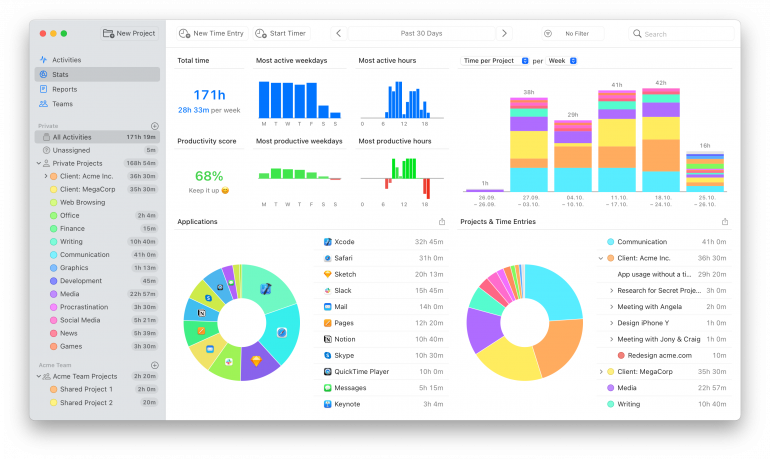
Timing also makes it easy to drag tracked time to the right client or matter, and its rules feature learns your patterns so future work sorts itself. Move entries through Not Billable, Billable, Billed and Paid, with rounding built in so your timesheets stay clean and defensible.
If you work as part of a team, Timing makes it easy for your team members to report time towards shared projects. You view their reports in the Timing web app, without having access to their personal times or private details.
Timing integrates well with Clio, as well as the other apps listed here. And because your activity data stays on your Mac unless you choose to sync it, nothing about a client’s matter leaves your machine by default.
If a good stack helps you work faster, Timing makes sure every one of those minutes is billed accordingly.
Summary: Building a Faster, Mac-First Legal Workflow
The best apps for lawyers on Mac usually comprise a small set of focused tools, each matched to a specific job. Timing captures billable hours automatically. DEVONthink keeps case files searchable and local. PDF Expert handles everyday PDF work, while Adobe Acrobat Pro covers discovery-grade Bates numbering. Fantastical tracks court dates and deadlines. And GrandTotal turns tracked hours into invoices.
Clio remains a solid practice-management baseline if you want one hub, but solo and small-firm lawyers rarely need everything a full suite offers. A focused, native stack tends to be faster to use, more respectful of client confidentiality, and often better value.
Whatever your stack looks like, your billable hours matter most. Try Timing free for 30 days. Stop reconstructing your day from memory and instead capture your time automatically and accurately.
Frequently Asked Questions: Best Apps for Lawyers
What are the Best Apps for Lawyers on Mac?
The best software for lawyers covers the everyday jobs of a practice. They might include Timing for automatic billable-time tracking, DEVONthink for searchable case files, PDF Expert for everyday PDF work, and Fantastical for court dates and deadlines. Clio is a solid practice-management baseline, but is best used in conjunction with other solutions.
What’s the Best App for Tracking Billable Hours on a Mac?
Timing is the best app for tracking billable hours. It runs in the background while you work, automatically tracking your time across apps, documents, websites, calls and meetings. In this way, it ensures nothing gets lost to a forgotten manual timer.
Do Lawyers Need Practice-management Software like Clio, or is a Stack of Apps Enough?
Whether you opt for a practice-management tool, a selection of apps, or a combination depends on your practice. Clio works well as a hub for matters, billing and trust accounting, especially if you want everything under one roof. Solo and small-firm lawyers can often get just as far, or further, with a focused Mac stack. Plenty of firms land somewhere in between, running Clio alongside a few of these tools.
What Apps are Secure Enough for Confidential Legal Client Data?
If you’re concerned about confidentiality, look for tools that keep data local by default. DEVONthink stores case files on your Mac, MacWhisper transcribes audio entirely on-device, and Timing keeps activity data local unless you opt into sync. Pair these with 1Password to secure your client logins and shared credentials.
What’s the Best PDF App for Lawyers on Mac?
For most Mac-based legal work, PDF Expert is the best pick. It is a native app and covers annotation, redaction, OCR, signing and Bates numbering, including custom prefixes, suffixes and starting numbers. Adobe Acrobat Pro remains the stronger fit for discovery-heavy firms that need more advanced document-production workflows, large-scale Bates numbering and discovery-grade redaction and sanitization.