
The 12 Best Apps Mac Power Users Leverage to Supercharge Their Productivity in 2026

Image generated by Dall-E
Your Mac is a powerful machine — are you using it to its full potential? Mac power users are aware of the force beneath their fingertips. They know that by understanding the deeper capabilities of their system and leveraging the right tools, they can supercharge their workflow and boost their productivity. While casual users might be content with basic functionality, power users seek to optimize every action so that they can work quicker and smarter.
The key difference often lies in an arsenal of specialized apps. These tools aren’t just nice-to-have additions; they’re game-changing solutions that fundamentally alter how you interact with your machine. They include everything from automatic time management tools to lightning-fast app launchers and powerful automation software.
Here, we define what a Mac power user is, outline some of their key character traits, and explore 12 apps designed to elevate your computing experience.
Table of Contents
TOC
What is a Mac Power User?
A Mac power user is someone who seeks to understand and master their Mac’s advanced capabilities, going beyond the basic features that everyday users employ. They actively leverage their machine’s potential by integrating powerful third-party apps and customizing certain settings. Mac power users try to maximize the control and efficiency they have over their system. In doing so, they optimize their workflow, boost their productivity and efficiency, use the best Mac apps available, and hone their focus.
Mac power users exist on a spectrum. At one end, you’re likely to find workflow optimizers — professionals who use specialized tools and automation features to streamline their daily tasks. They’re into productivity tools like Timing, AI-powered solutions like Raycast, and scheduling software like Fantastical. While they might create their own Automator shortcuts and Quick Actions, they won’t necessarily dive into the Terminal commands. The Mac Terminal allows users and developers to communicate with the Mac operating system, and requires advanced technical know-how.
The power users who do engage with their Macs on this level sit on the other end of the power user spectrum. They’re highly skilled users who are comfortable engaging with the UNIX operating system, writing shell scripts, and even creating their own tools. These users often customize their Mac at a system level by tweaking hidden macOS settings.
For the purposes of this piece, we’re focusing mostly on the power users who are interested in coming to grips with and making the most of their Mac’s full capabilities, without necessarily altering the code.
Does this sound like you? If so, skip ahead to a list of the top apps that will take your skills and abilities to the next level. If this definition sounds like someone you aspire to be, take a look at some of the key habits of Mac power users first, so that you can start nurturing a power user mindset.

Image generated by Dall-E
The Key Character Traits of Mac Power Users
What sets Mac power users apart? In what ways do they differ from users who accept the Mac status quo? Let’s take a look at some of the most common character traits you’re likely to see among power users:
- They’re inherently inquisitive and knowledge-hungry. What unifies all power users is their curious nature. They’re never satisfied with the default way of doing things and are constantly looking for new and better ways to perform the task at hand. Part of this involves staying up to date with the latest tools and techniques through online communities and forums such as the Mac Power Users Podcast’s Forums. Speaking of which, the Mac Power Users Podcast is a particularly well-loved resource.
- They prioritize automation: Repetitive tasks should be a thing of the past. There’s simply no reason to allow them to swallow valuable hours anymore. Apps like Hazel, Automator and Siri Shortcuts complete mundane tasks with a simple click. They free up your mind and your time for the deep work you need to focus on.
- They’re obsessed with efficiency: Power users understand that it’s worth spending an hour setting up an automation that will save them time whenever they use it.
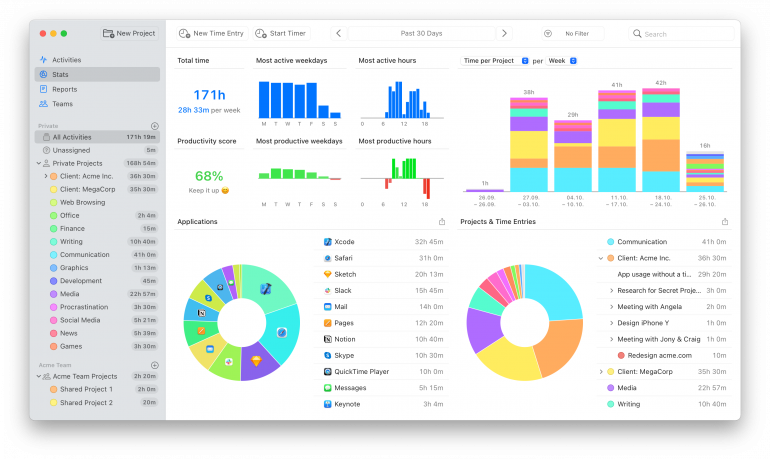
- They understand their own working behavior: Mac power users are self-aware. They know how they like to work and have explored ways to make this process more efficient. By analyzing when they’re most productive, for example, they can choose when to focus on specific tasks. Timing’s Stats tab provides this valuable information, indicating which days and which times of the day users are most productive. Power users will analyze this data and time block certain periods so that they get the most out of their time.
- They love solving problems: For power users, any obstacle or limitation is an opportunity to learn and develop a solution. They view their Macs as remarkably powerful and infinitely customizable. There’s an answer to everything.
- They’re ruthless in their tool selection: Mac power users carefully select and maintain their suite of utilities, regularly evaluating new tools and refining their setup. Their app choices are deliberate, and they’re likely to quickly weed out those they find ineffective.
And with that, let’s get into the top 12 apps that Mac power users love.
12 Top Apps for Mac Power Users
Each of the apps we’ve outlined below helps with a particular task. Here’s a high-level overview of their primary benefit before we dive into the detail:
- Timing: Know where your time goes to boost productivity
- Raycast: Launch apps and commands faster with your keyboard
- Hazel: Keep files organized automatically with custom rules
- BetterTouchTool: Create gestures and shortcuts for a faster workflow
- iStat Menus: Monitor system health for smoother performance
- Bartender: Keep your menu bar clean and organized
- Fantastical: A polished calendar across every Apple device
- Backblaze: Keep your data safe with automated cloud backups
- ChatGPT: Get quick content and ideas from an AI assistant
- Cotypist: Type faster with personalized auto-completions
- DaisyDisk: Visualize and free up disk space
- CleanShot X: Capture, annotate, and share screenshots and screen recordings
1. Timing
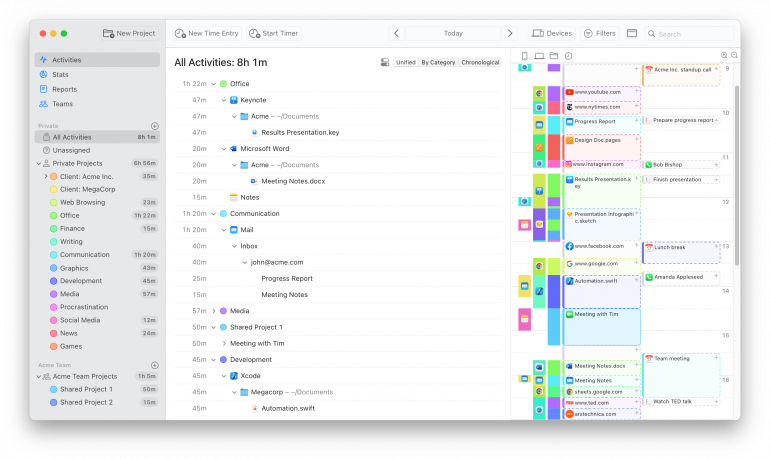
If there’s one tool every Mac power user needs to use, it’s Timing. How you spend your time influences how efficiently you work, how accurately you quote and invoice for projects, and ultimately how successful your business is over the long term.
Unlike manual time tracking solutions, Timing runs in the background while you work, gathering data on every app, web page and document you open. Its rules functionality enables you to automatically assign tasks to certain clients or projects, so that, at the end of the day, you can immediately see how much time you’ve spent on a particular piece of work. Its useful AI summaries augment this data, providing quick insights into your activities. Once enabled, these summaries group related activities together so that it’s easier to identify patterns and create more accurate time entries. Of course, you still have full control over these time entries, and can adjust them before saving them.
Timing’s powerful reporting engine also offers useful productivity analytics, including report rounding (up, down, or nearest in configurable intervals) for polished, professional timesheets. And its seamless calendar and Screen Time integration means that even work done away from your machine, or on other devices, is properly logged. Between its ability to track time across multiple projects simultaneously, quick menu bar access, handy keyboard shortcuts, and useful online resources, Timing is an indispensable tool for power users.
Recent updates have made Timing even more capable for power users. A full billing status lifecycle (Not Billable, Billable, Billed, Paid) now tracks every time entry from capture through to payment — essential for freelancers and agencies managing multiple clients. The “@” shortcut lets you instantly assign projects while typing a time entry title, and a Linear integration displays completed issues directly on your timeline. Timing also tracks AI coding tools like Claude Desktop and Claude Code, and it’s ready for macOS 27 Golden Gate, with Liquid Glass support that keeps it looking at home on every version of macOS it supports.
2. Raycast
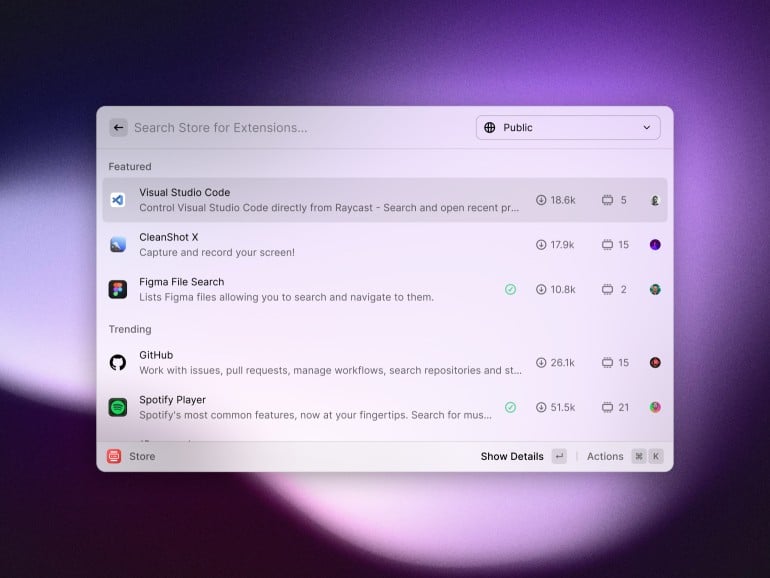
Image: Raycast
Keyboard shortcuts are a critical power user tool, and Raycast knows this. It’s a Spotlight alternative that offers a blazingly fast command center that can launch apps, search for files, convert currencies, and deliver immediate answers through its built-in AI. You can even build, save and share AI commands to reduce your manual tasks.
Power users particularly love Raycast’s scriptable workflows, clipboard history, snippet management, and native integrations with tools like GitHub and Jira. Its clean, modern interface and customizable hotkeys make common tasks lightning-fast, while its low resource usage ensures it never slows down your system.
In 2026, Raycast’s AI capabilities have become a major draw. The Pro tier ($8/mo billed annually) unlocks access to over 32 AI models — including models from OpenAI, Anthropic, Google, and others — and lets you bring your own API keys if you prefer. MCP (Model Context Protocol) support means Raycast can act as an AI agent that connects directly to GitHub, Notion, and Google Drive through simple @mention commands. You can even run local AI models through Ollama integration if privacy is a priority.
Read more: The 14 Best Productivity Apps for Mac
3. Hazel
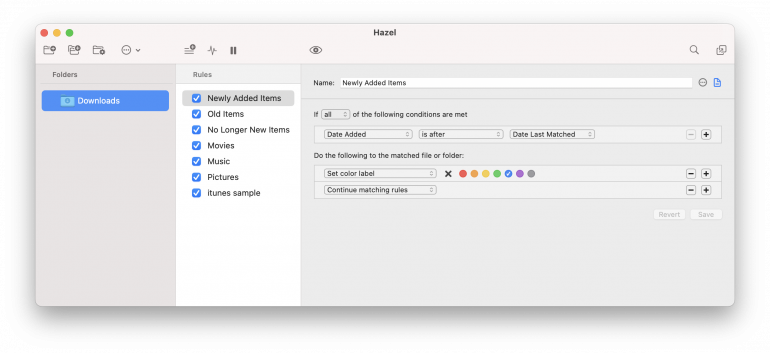
Image: Hazel
Hazel is the silent guardian of your Mac’s file system, automating organization tasks that could otherwise eat up hours of your time. This intelligent productivity tool watches your designated folders and automatically performs actions based on your custom rules. (In this regard, it’s not dissimilar from the rules that Timing uses.) You can trigger actions based on any combination of file attributes, from name patterns to content types, and can even run shell scripts. Hazel 6 ($42 single license, $65 family pack, $20 upgrade) adds on-the-fly OCR when matching file contents — so you can create rules that act on scanned PDFs and images without needing to pre-process them — along with full macOS Tahoe and Liquid Glass support.
Hazel can also sort downloads, rename files, organize photos by date and metadata, and automatically clean up old or redundant files. With Hazel, you have a Mac that’s constantly organizing itself just the way you like it.
4. BetterTouchTool
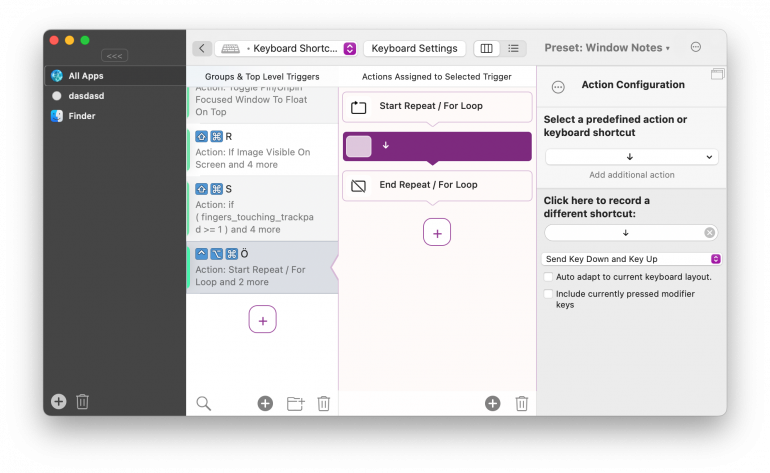
Image: BetterTouchTool
What shortcuts would help you work more quickly and intuitively? BetterTouchTool ($12 for a standard license with 2 years of updates, or ~$24 for a lifetime license; also on Setapp) is a highly customizable solution that lets power users create sophisticated gesture controls for trackpads, map complex actions to mouse buttons, and build floating menus that appear on hover or with modifier keys.
Beyond its well-known gesture controls, power users particularly love BetterTouchTool’s advanced window management system, which enables pixel-perfect window snapping and custom layouts across multiple displays. Recent versions have added native Logitech mouse support (replacing the need for Logitech’s own software), a built-in clipboard manager with drag-and-drop for files, text, and images, and a “Selected Text Did Change” trigger that can show contextual floating menus whenever you highlight text. If the options feel overwhelming, an AI-powered suggestion feature helps you spot automation opportunities you might have missed.
Read more: The 17 Best Freelance Apps for Mac
5. iStat Menus
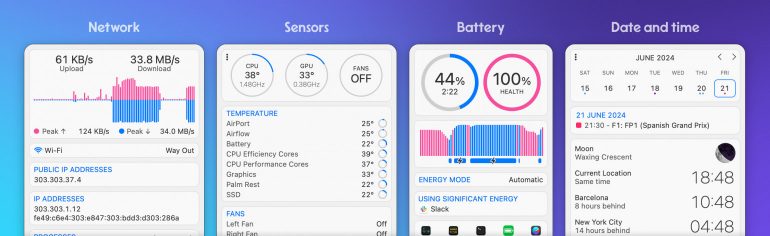
Image: iStat Menus
iStat Menus turns your Mac’s menu bar into a command center for system monitoring and control. With the release of iStat Menus 7, the app received a complete redesign and now uses just one-fifth the CPU resources of version 6 — a significant improvement for a tool that runs constantly. It provides detailed real-time insights into every aspect of your machine: from CPU usage and network activity, to battery health and sensor temperatures. A single license costs $11.99 ($14.99 for a family pack of up to 5 users), and it’s also available on Setapp.
Customizable “menulets” deliver critical information at a glance, without cluttering your precious screen real estate. The weather module integrates seamlessly with calendar appointments, while the network tools provide deep insights into connectivity issues. iStat Menus balances comprehensive data with an elegant design — including Liquid Glass styling on macOS Tahoe — that makes complex system monitoring easy and accessible.
6. Bartender
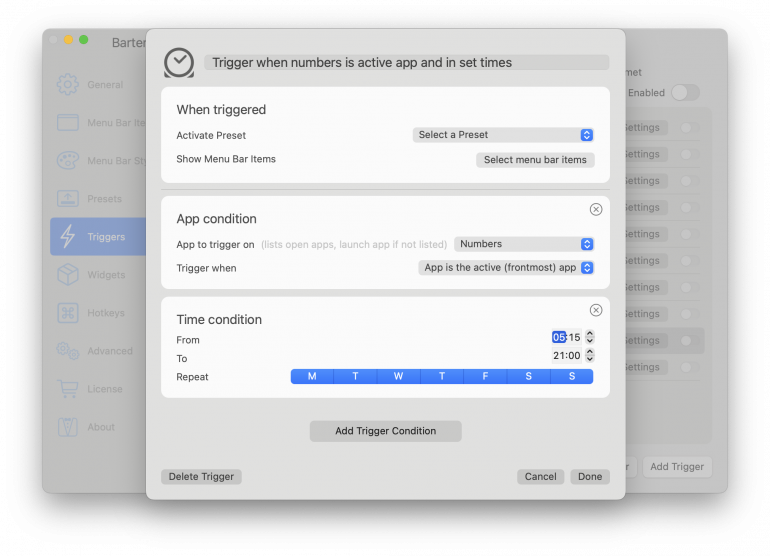
Image: Bartender
Bartender is another menu-related tool, but it works differently to iStat Menus. This solution is all about bringing order to your menu bar icons by letting you create a perfectly organized secondary menu bar. Here, you can save icons you don’t use as often, so that they’re tucked away but still easily accessible.
If you’re running multiple displays or numerous utilities, Bartender is capable of transforming an overwhelming mess of icons into a clean, professional interface that adapts to your needs. Fans also love its intelligent activation triggers, which automatically reveal themselves based on updates, system status or custom rules. Recent Bartender releases add powerful features like keyboard navigation, icon spacing control and menu bar scripting.
A word of caution: in mid-2024, original developer Ben Surtees quietly sold Bartender to Applause Group, sparking a controversy when users discovered that telemetry had been silently added (and subsequently removed after backlash). The Bartender 6 launch was rocky as well, with reports of bugs and instability. As of 2026, recent updates have improved things considerably — 9to5Mac reports that Bartender is “good again” — and it remains the most feature-complete menu bar manager available. That said, if you’d prefer a free, open-source alternative, Thaw is a spiritual successor to Ice (another popular menu bar tool) that offers icon hiding, drag-and-drop layout, auto-hide rules, and full macOS Tahoe compatibility.
Read more: The 14 Best Productivity Apps for Mac
7. Fantastical
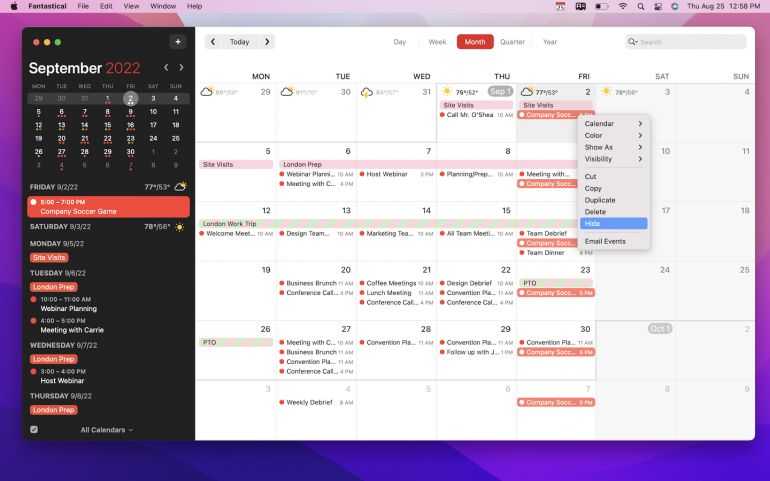
Image: Fantastical
We can’t talk about workflow optimization without diving into calendar management. A disorganized and overwhelming schedule is a surefire way to disrupt your productivity goals. With Fantastical (Flexibits Premium from $4.75/mo billed annually; free tier available), you can take control of your time. Its Apple Intelligence-assisted parser and intelligent scheduling mean it can create an event from plain English, such as “Virtual marketing meeting with John on Wednesday at 2pm.” Apple Calendar picked up its own version of this in macOS 27, so the reason to pay for Fantastical is now its depth across services and devices. On macOS Tahoe, Fantastical’s parser is further enhanced by Apple Intelligence for handling more complex sentence structures. And its unified calendar seamlessly blends events, reminders and tasks across multiple accounts.
Fantastical’s menu bar-first design provides instant access to your schedule, and you can now open multiple windows on Mac — each with a different view like Day, Week, or Month — so you can plan across timeframes simultaneously. Features like calendar sets, weather integration, conference call detection, and a Claude MCP connector (which lets you manage your calendar through natural language inside Claude) are designed to streamline your daily planning.
Read more: The 9 Best Calendar Apps for Mac
8. Backblaze
Image: Backblaze
Backblaze offers a straightforward, unlimited cloud solution to help you backup your data. In fact, it’s the ultimate set-and-forget tool that power users trust to safeguard their digital life. Unlike traditional backup offerings, Backblaze provides unlimited cloud storage for a flat fee and automatically backs up everything except system files and apps.
What sets it apart is its seamless operation. After setup, Backblaze works continuously in the background, using minimal system resources while ensuring every file is protected. All plans now include a free 1-year Extended Version History (previously a paid add-on), so you can recover older versions of any file from the past year. Rapid restore options and the ability to inherit backup states when you migrate to a new Mac round out the package.
Read more: How to Backup Your MacBook: Top 7 App Reviews and Tips
9. ChatGPT
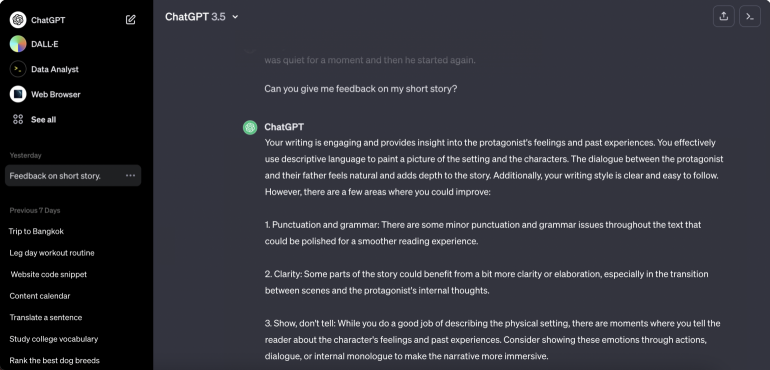
Image: OpenAI
ChatGPT’s native Mac app has evolved far beyond a simple chat window. Press Option+Space from anywhere on your Mac, and you have immediate access to a powerful AI assistant — no browser tab required. The companion window mode keeps ChatGPT floating above your other apps, so you can reference its output while working in another tool side by side.
What makes the Mac app a genuine power user tool in 2026 is its deep integration with your workflow. ChatGPT can write and edit code directly inside VS Code, Cursor, and JetBrains IDEs. Canvas mode lets you collaborate visually on documents and code. Conversation search lets you find anything across your entire chat history. And Apple Handoff means you can start a conversation on your iPhone and pick it up on your Mac without missing a beat.
ChatGPT is free to use, with a Plus tier ($20/mo) that unlocks faster models and higher usage limits, and a Pro tier for heavy users who need the most capable models available.
10. Cotypist

Cotypist is an AI-powered auto-completion app (free plan available; paid Plus and Pro plans start at $6/month, with a 30-day Pro free trial) that works in any text field on your Mac. It runs entirely locally on Apple Silicon, so nothing you type ever leaves your machine — a meaningful distinction for anyone handling sensitive documents or client data. Completions are generated in real time as you type, allowing you to write faster and more efficiently, while reducing the risk of errors and typos.
While ChatGPT and other generative AI tools are useful, they often replace your writing with content that doesn’t really sound like you, and usually needs to be substantially edited. Cotypist is a response to this. It augments your writing rather than replacing it, suggesting words or phrases that you would likely write anyway. It’s designed to enhance your unique style and tone, but save you hours in the process. Cotypist can be used in any text-based app, including emails, social media posts, documents, customer support platforms and even other AI tools.
11. DaisyDisk
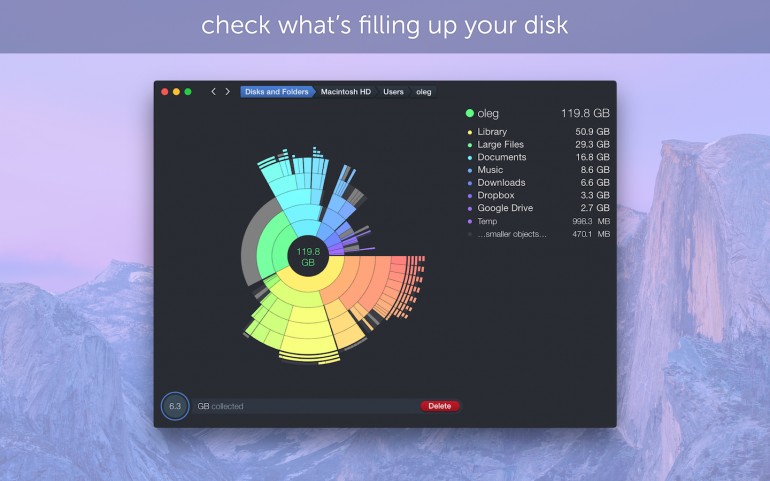
Image: DaisyDisk
DaisyDisk transforms disk space management into a visually intuitive experience with its signature sunburst diagram interface, now updated with Liquid Glass styling on macOS Tahoe. With it, you can scan multiple disks simultaneously, quickly identifying storage-hogging files and folders, and detecting hidden storage consumed by system files.
DaisyDisk’s quick preview feature and ability to clean up large files through its drag-and-drop functionality make bulk file management effortless. For users with multiple drives or complex storage setups, its scanning engine provides lightning-fast results while revealing hard-to-find space wasters like cache files and forgotten downloads.
12. CleanShot X

Image: CleanShot X
If you take screenshots regularly — for bug reports, documentation, tutorials, or client communication — macOS’s built-in tools start to feel limiting fast. CleanShot X ($29 one-time with one year of updates, also available on Setapp) picks up where they leave off, packing over 50 capture and recording features into one polished Mac-native app.
The standout feature for most power users is scrolling capture, which handles long web pages, sticky headers, and lazy-loaded content better than anything else on the platform. But the depth goes well beyond that: a built-in annotation editor with arrows, highlights, blur tools, and numbered steps; screen recording with webcam overlay; GIF creation; OCR text recognition from any capture; and a Quick Access overlay that keeps your recent captures floating for batch workflows. CleanShot X can even hide your desktop icons automatically during capture, so every screenshot looks clean. Its cloud sharing feature generates instant shareable links with optional password protection and self-destructing URLs. For anyone who captures their screen more than a few times a week, it quickly becomes indispensable.
Mastering Your Mac’s Power Settings
Of course, Mac power users are also interested in getting the most out of the features and tools that come pre-installed on a Mac. Before we go, here are some macOS system settings that are worth exploring — click on the links for direct access to the corresponding System Preferences section:
- Activate hot corners: Hot corners allows you to set actions for every corner of your screen. You can choose to show your desktop, for example, or quickly activate your screensaver, simply by moving your cursor into a particular corner. Go to: System Settings > Desktop & Dock > Hot Corners. You may also choose to enable gestures for navigation and app control by adjusting your trackpad gestures. Go to: System Settings > Trackpad.
- Make the most of your keyboard shortcuts: This may seem like a fairly obvious feature, but it’s often vastly underutilized. You can customize your Mac to create tailor-made keyboard shortcuts for apps and system functions, or to modify existing ones. Go to: System Settings > Keyboard > Keyboard Shortcuts.
- Manage your startup items: Manage which apps and background processes start automatically when you log in. Do you want to launch your email straight away? Perhaps there’s a go-to tool that always starts your day? This hack can save precious minutes. Go to: System Settings > General > Login Items.
- Adjust your Mission Control: Customize how you organize and switch between different desktops and apps. This is particularly useful if you tend to have several complex projects running simultaneously. Go to: System Settings > Desktop & Dock > Mission Control.
- Save on energy: Mac power users often tweak their power settings to strike the right balance between battery longevity and system performance. Is yours working as well as it should? Go to: System Settings > Battery.
- Change your Finder view options: You can customize how your folders display their contents, including showing hidden files. In Finder, go to: View > Show View Options.
- Refine your text replacements: Are there phrases or symbols you regularly use in your work. Setting up custom text shortcuts can be an excellent time saver. Go to: System Settings > Keyboard > Text Input > Text Replacements.
- Tweak your Spotlight preferences: Customize your search categories and keyboard shortcuts for Spotlight so that everything you need is right at your fingertips. Go to: System Settings > Siri & Spotlight.
Mac Power Users: Building Your Productivity Toolkit
Becoming a Mac power user isn’t about mastering every available tool or memorizing endless keyboard shortcuts. It’s about developing an efficiency mindset and building a personalized toolkit — one that helps your Mac reach its potential and, most importantly of all, works for you.
The tools we’ve explored here are just the beginning. Assess what your unique needs and goals are, evaluate our list to see which ones apply, and sample them. If you like a particular tool, master it, and let your curiosity guide you to others that will further your abilities as a power user.
Whether you’re at the beginning of your power user journey or you’re well on your way, Timing is a critical tool in managing your time and enhancing your productivity. Download Timing’s free 30-day trial today to set yourself up for success.