

Automatic Time Tracking for Clio…
…and all other apps!
Timing integrates with Clio, letting you see exactly when you completed your tasks and assign times to them.
You can then seamlessly sync those times back to Clio as Activities without any extra effort.
This is a great combination with Timing's automatic time tracking, which shows you how much time you spend on each
app, document, and website.
Download the Timing app and start tracking your time in conjunction with Clio today!
Try Timing free for 30 days. No credit card required.
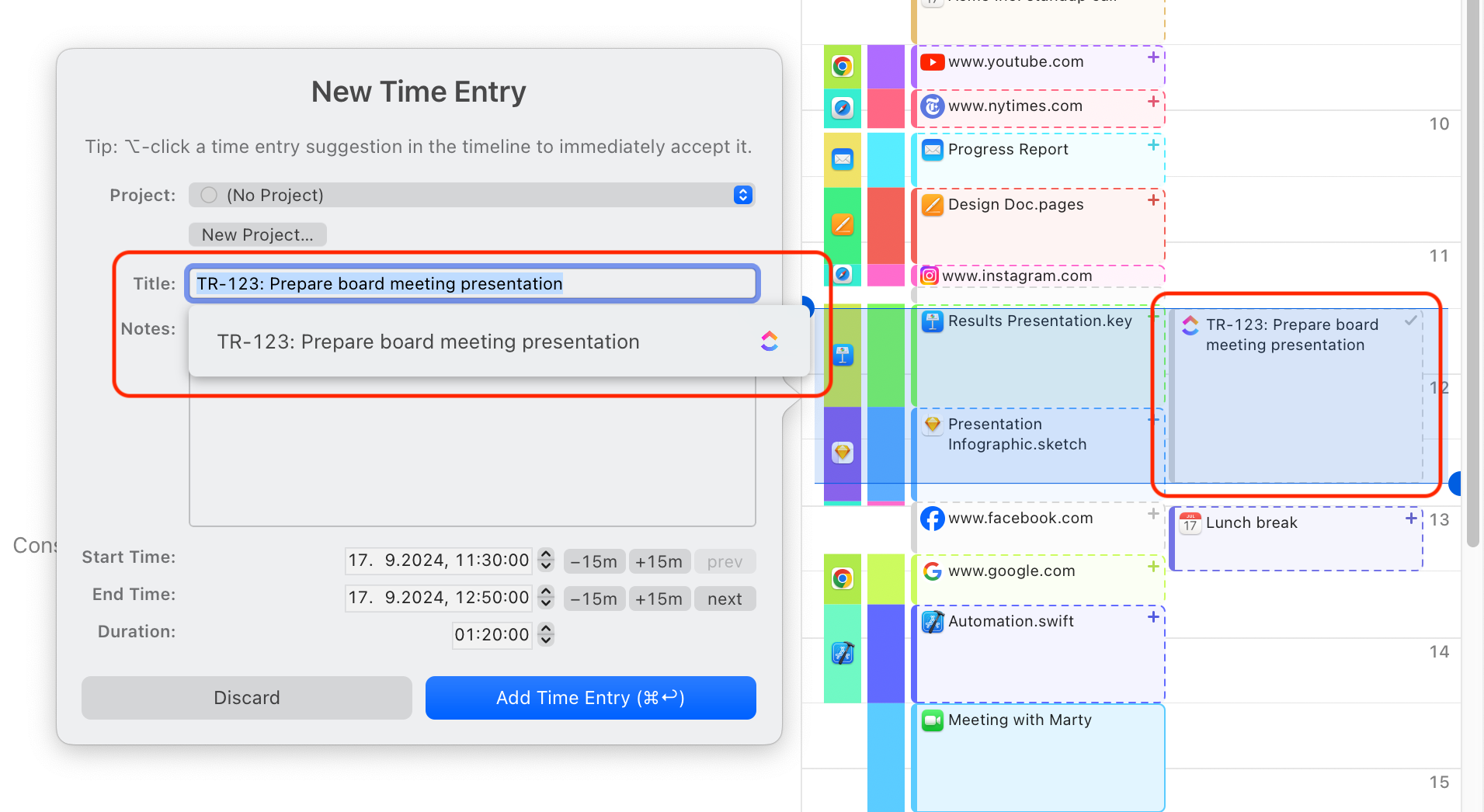
Automatic Time Tracking for Clio: How It Works
Simply start by connecting the Timing web app to Clio.
Within a few minutes, the Timing app on your Mac will start showing your assigned Clio tasks on your timeline. In addition, when you create a new time entry in Timing, you can select your Clio tasks in the auto-complete list.
A few minutes later, Timing will automatically sync those time entries back to Clio as Activities. If you'd like to learn more, have a look at the corresponding article in our knowledge base.
Assign your time to projects.
Simply assign your time via drag and drop, then use the timeline's smart suggestions to combine blocks of time that belong together.
You have never accounted for so much time with so few clicks!
Manual time entries: Giving you full control.
Not all your work happens in front of the computer. Timing’s interactive timeline makes it easy to add “offline time” such as meetings with just a few clicks.
And when you want to focus on a specific task, Timing lets you start and stop timers just like any other time tracking app.
Privacy-friendly time tracking for teams.
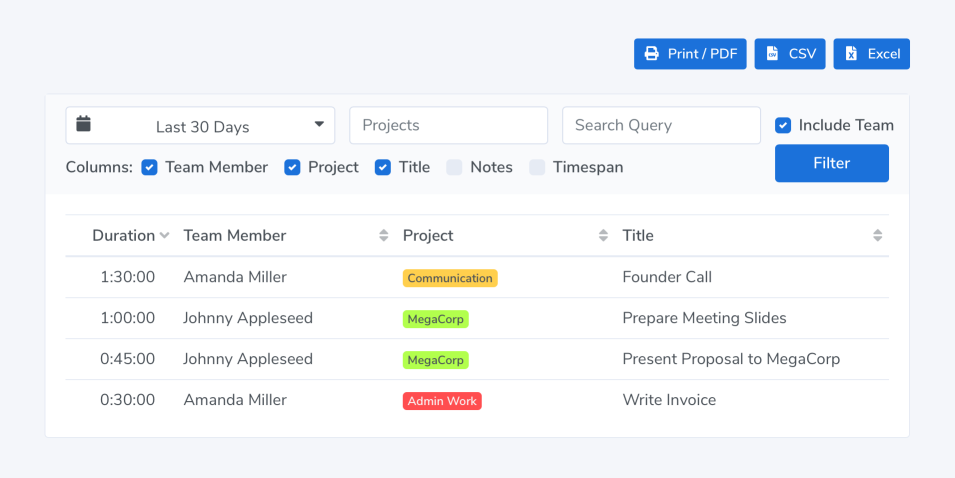
Timing also supports working in groups. Your team members can report time towards shared projects; you view their reports in the Timing web app. No personal times or private details are shared.
Getting Started
Connect Timing to Clio in just a few steps and start tracking time against your tasks.
- Set up a Timing sync account if you haven't already.
- Sign in to the Timing web app using your sync credentials.
- Navigate to the Integrations page and click "Connect with Clio".
- Select the region your Clio account is in and authenticate with Clio to grant Timing access.
- Select which matters you want to import tasks from. You can also enable syncing time entries back to Clio.
- Wait a few minutes for the initial import to complete. Your assigned Clio tasks will then appear on your Timing timeline, and their titles will be available as suggestions when creating time entries.
For more details and troubleshooting tips, see our full Clio integration guide.
Try the leading Clio time tracker!
Stop stressing about time. Focus on your best work.
Free DownloadTry Timing free for 30 days. No credit card required.