
The Best Apps for Time Management on Mac in 2026: A 4-Stage Toolkit
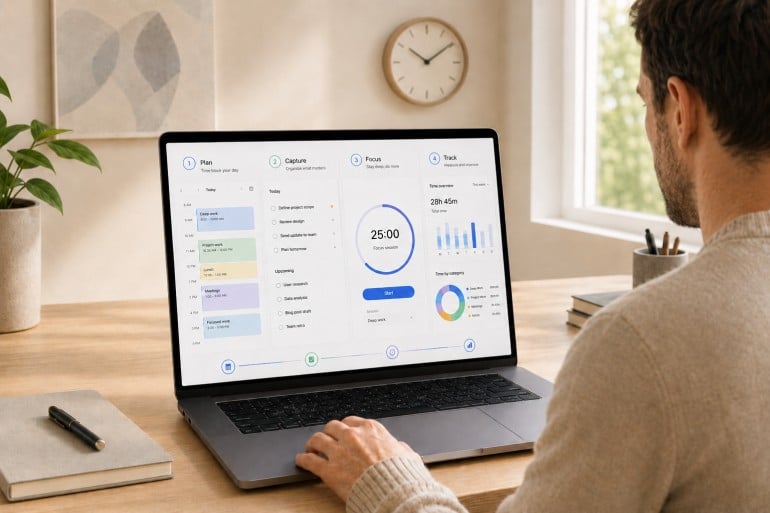
Image: Generated with ChatGPT
Most “best time management apps” lists pick fifteen random apps and rank them as if they’re solving the same problem. They aren’t. Time management isn’t one job. It’s four. The best apps for time management on Mac are the ones that fit cleanly into the four stages of a workday: plan, capture, focus, and track.
Mac users assemble their stack from specialists for a reason. The right calendar won’t make your day distraction-free. The strictest distraction blocker still won’t tell you where last Tuesday actually went. Each stage answers a different question, and trying to cover all four with one app usually means doing all four poorly. If you’re already looking at your habits, our guides on time management tips and how to limit distractions are good companion reads.
This guide is a curated stack rather than a feature list. We reviewed thirteen of the strongest apps for time management on Mac across the four stages, drawing on deep dives we’ve published this year on calendar apps, Pomodoro timers, distraction blockers, and time tracking apps.
Table of Contents
TOC
TL;DR: Best Apps for Time Management on Mac in 2026
The best apps for time management on Mac form a 4-app stack: a calendar for planning, a task manager for capture, a focus app (Pomodoro timer or distraction blocker) for protecting the session, and an automatic time tracker so you actually know where your hours go.
- 13 apps reviewed across 4 workflow stages
- Top all-rounder pairing: Fantastical + Things 3 + Focus/Freedom + Timing
- What to look for: Mac-native design, Apple ecosystem integrations, and apps that complement rather than overlap
The Time Management Stack: 4 Stages Every Mac User Needs
Time management is best understood as a stack. In practice, each stage answers a different question, and the right Mac app for each stage is the one that answers that question well without trying to take over the others.
Plan and Schedule. Calendars and time blocking. The question they answer is “what am I doing today, and when?” A good Mac calendar deliberately reserves time for the work that matters, syncs across iCloud, Google, and Exchange, and surfaces your schedule in the menu bar and widgets. Best Mac pick: Fantastical.
Capture and Organize. Task managers and todo apps. The question they answer is “what needs to get done?” A good capture app is a low-friction inbox for the things that pop into your head while you’re doing something else, and a calm place to sort them out later. Best Mac pick: Things 3.
Focus. Pomodoro timers and distraction blockers. The question they answer is “will I actually do it without getting pulled away?” A timer structures the session. A blocker enforces it. Most Mac users benefit from one of each. Best Mac picks: Focus (by Meaningful Things) for Pomodoro, Freedom for distraction blocking.
Track. Automatic time tracking. The question it answers is “where did my time actually go?” This is the stage most people skip and the one that turns the other three from a stack of tools into a system that improves over time. Best Mac pick: Timing.
For more on the planning side specifically, see our guide to time blocking and our overview of task batching.
How We Picked the Best Apps for Time Management on Mac
We evaluated each app by how well it supports one stage of a Mac-based time management workflow: planning, capture, focus, or tracking. We prioritized Mac experience, Apple ecosystem fit, practical workflow value, transparent pricing, and clear trade-offs.
- Mac experience. We prioritized apps that feel at home on macOS, while noting useful cross-platform exceptions.
- Apple ecosystem fit. We considered Calendar, Reminders, Shortcuts, Apple Watch, Vision Pro, and Apple Intelligence support where it genuinely adds value.
- Pricing clarity. We used developer pricing pages first, with App Store or reputable review-platform data where needed.
- Workflow fit. Each app earns its place by solving one part of the workflow well, not by having the longest feature list.
- Honest trade-offs. We include real limitations, especially where an app is not Mac-native, not cross-platform, or not ideal for the use case.
Quick Comparison: 13 Best Apps for Time Management on Mac
| App | Stage | Best for | Price | Rating |
|---|---|---|---|---|
| Fantastical | Plan | Power users who want deep multi-calendar support | Free, or from $4.75/mo annual (Premium) | 4.2/5 (App Store) |
| Apple Calendar | Plan | Free, no-setup option built into macOS | Free, included with macOS | 4.9/5 (App Store) |
| BusyCal | Plan | One-time purchase plus built-in to-dos | $49.99 perpetual | 96% (Setapp) |
| Things 3 | Capture | Apple-only design-first task manager | $49.99 one-time (Mac) | 4.8/5 (App Store) |
| Todoist | Capture | Cross-platform task manager | Free, or from $3/user/mo annual | 4.5/5 (G2) |
| Apple Reminders | Capture | Free, deeply integrated with Siri and Apple Intelligence | Free, included with macOS | 4.8/5 (App Store) |
| Focus (by Meaningful Things) | Focus (Pomodoro) | Apple-first Pomodoro with built-in task management and Apple ecosystem depth | $39.99/yr | 4.4/5 (App Store) |
| Session | Focus (Pomodoro) | Mindful Pomodoro with deep automation integrations | Free or $4.99/mo and $39.99/yr | 4.8/5 (App Store) |
| Cold Turkey Blocker | Focus (Blocking) | Strict blocking for users who need firm enforcement | Free or $39 one-time | — (direct download) |
| Freedom | Focus (Blocking) | Cross-device blocking (Mac plus iOS plus more) | Free or from $3.33/mo annual | — (direct download) |
| Timing | Track | Automatic Mac time tracking with AI Summaries | From $9/mo | 4.8/5 (Capterra) |
| Toggl Track | Track | Free manual timer with broad cross-platform support | Free or $9/user/mo | 4.6/5 (G2) |
| RescueTime | Track | Productivity score and habit-building | From $7/mo annual | 4.2/5 (G2) |
Prices and ratings verified as of May 2026. Verify current pricing before purchasing.
Because several picks don’t have an aggregate Mac App Store rating, the rating column varies: some have too few Mac ratings to show an average and some apps are direct downloads. Where we can’t show a Mac App Store number, we cite the next-best labeled source so you can verify it.
Stage 1: Plan and Schedule — Best Calendar Apps for Mac
Among the best apps for time management on Mac, calendar tools handle the Plan stage: “what am I doing today, and when?” A good Mac calendar lets you block time deliberately, syncs across iCloud, Google, and Exchange, and surfaces your schedule at the moments you need it (menu bar, widgets, notifications). The strongest Mac calendars also pull in tasks and meeting links so you’re not switching apps mid-block.
Read more on time blocking: Time Blocking: The Productivity Hack used by the World’s Most Efficient People
1. Fantastical
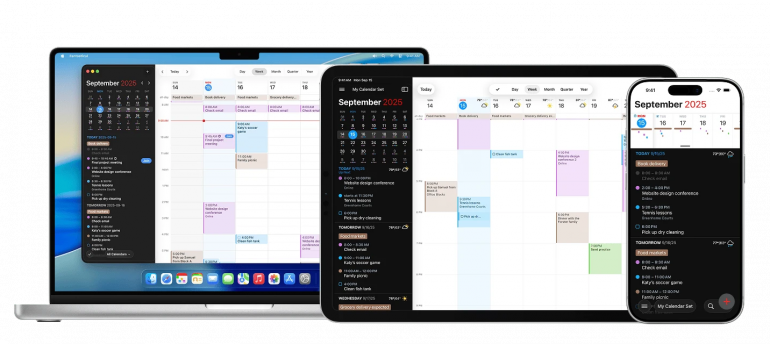
Image: Flexibits
Best for: Power users who want deep multi-calendar support and a polished cross-platform calendar
Type: Calendar plus tasks
Platforms: Mac, iPhone, iPad, Apple Watch, Vision Pro, Windows (since v4.0, October 2024)
Fantastical has long been the Mac calendar power users reach for, and the 2026 version doubles down on what made it that way. Type “Marketing meeting with Sarah at 1pm Friday” in the menu bar, and Fantastical parses it into a structured event with the right calendar, attendee, and time zone.
The newer additions (a task list, weather forecast inline, and a Windows client for mixed-device teams) turn it from a calendar app into something closer to a daily command center. The Premium subscription is what pushes it ahead of one-time alternatives, but it also pays for a steady release cadence and Cardhop, the contacts companion.
Pros
- Natural language event entry that genuinely saves time
- Apple Design Award and Mac App of the Year winner — design quality you can feel
- Strong cross-platform reach now spans Mac, iOS, Vision Pro, and Windows
- Apple Intelligence integration for smarter event recognition (macOS 26+)
Cons
- Steeper learning curve than Apple Calendar for newcomers
- The interface gets dense once you turn on tasks, weather, and multiple calendar accounts
Pricing: Free to download and use, with premium features available via Flexibits Premium from $4.75/month (billed annually). Individual, Family (up to 5), and Team plans available.
Rating: 4.2 out of 5 stars on the App Store.
What users say
“Such a great app and useful way to remain organized. I used to use several apps to keep track of events and reminders, but Fantastical helped me streamline the process.” — AlxDReview07, Mac App Store reviewer
2. Apple Calendar
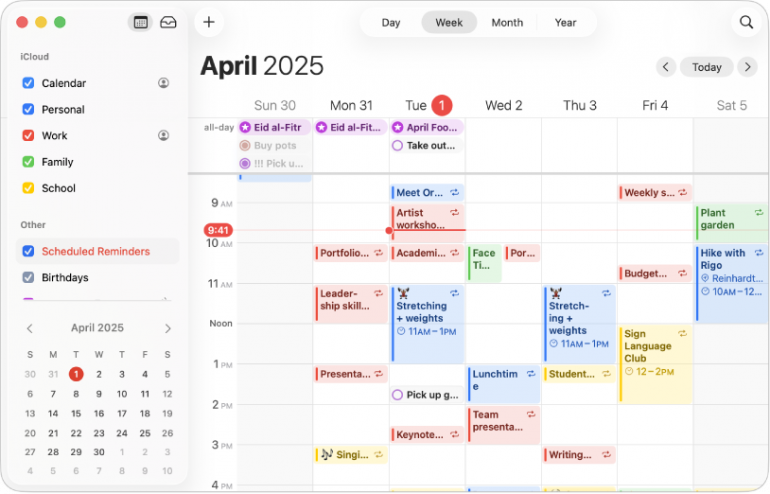
Image: Apple
Best for: Mac users who want a free, no-setup option that syncs across Apple devices
Type: Calendar (built-in)
Platforms: Mac, iPhone, iPad, Apple Watch, Vision Pro, iCloud.com web
In many workflows, Apple Calendar is the database that nearly every other Mac calendar app reads from. It’s free, sync is automatic across iCloud, and Siri can create events from voice. For users with simple scheduling needs and an all-Apple device set, the built-in app covers the basics without adding a subscription or a configuration step.
What it doesn’t do: natural language parsing, third-party integrations, advanced views, or task management. If those matter to your workday, you’ll move on to Fantastical or BusyCal. Most Mac users start here, though, and many never need to leave.
Pros
- Already installed and configured on every Mac
- Seamless iCloud sync across all Apple devices, including Apple Watch and Vision Pro
- Siri integration for voice event creation
- Acts as the underlying calendar source for nearly every third-party Mac calendar app
Cons
- No natural language event parsing
- Limited customization compared to third-party alternatives
Pricing: Free, included with macOS.
Rating: 4.9 out of 5 stars on the App Store.
3. BusyCal
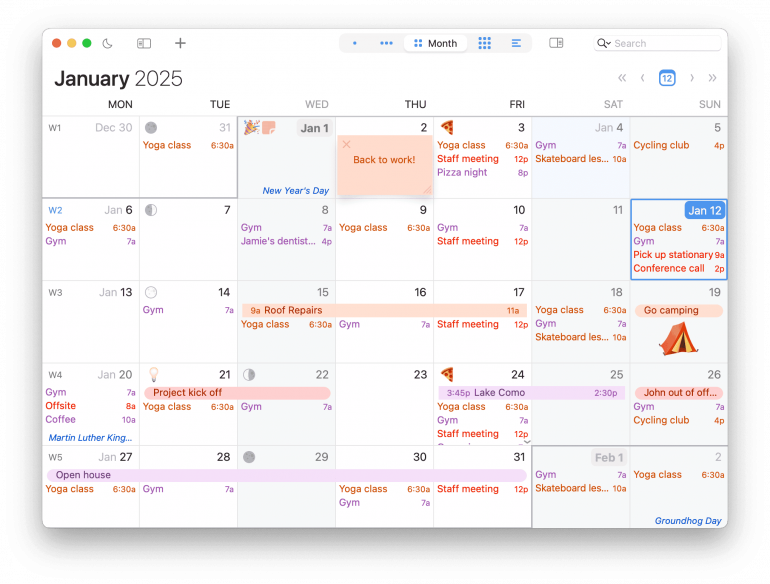
Image: BusyMac
Best for: Mac users who want one-time-purchase pricing and built-in task management
Type: Calendar plus to-dos
Platforms: Mac, iPhone, iPad
BusyCal is one of the longest-standing Mac calendars, and the appeal hasn’t changed: deep customization, broad sync support (iCloud, Google, Exchange, Office 365, Yahoo, Fastmail, Nextcloud), and a built-in to-do list that can pull from Apple Reminders or Todoist. It’s also one of the few serious Mac calendars sold as a perpetual license rather than a subscription.
However, the trade-off is the interface. BusyCal’s density makes it powerful but it can feel cluttered next to Fantastical’s calmer layout. For users who’d rather pay once and customize deeply, that trade-off is exactly the appeal.
Pros
- Perpetual license ($49.99) with 18 months of updates included
- Built-in to-do list pulls from Apple Reminders, Todoist, or manual entries
- Broad calendar service support (iCloud, Google, Exchange, Office 365, Yahoo, Fastmail, Nextcloud)
- Available on Setapp for users who already subscribe
Cons
- Interface is dense and can feel dated next to newer alternatives
- iPhone and iPad apps are sold separately
Pricing: $49.99 perpetual license (includes 18 months of updates), 14-day free trial. Also available via subscription on the Mac App Store and through Setapp.
Rating: 96% on Setapp (the Mac App Store listing doesn’t show an aggregate rating).
Read more: The 11 Best Calendar Apps for Mac in 2026 — full reviews of these and 8 more calendar apps.
Stage 2: Capture and Organize — Best Task Manager Apps for Mac
The Capture stage answers “what needs to get done?” A good Mac task manager is a fast, friction-free inbox for the things that pop into your head while you’re doing something else. The best ones get out of your way for capture, then help you organize when you actually have time to plan.
Read more: Task Batching: Simplify Your Schedule and Increase Productivity
4. Things 3
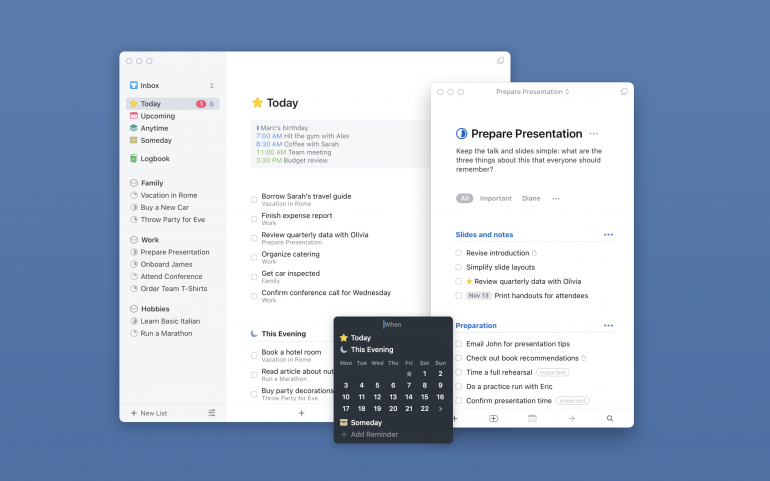
Image: Mac App Store
Best for: Mac users who want a beautifully designed, Apple-only task manager with one-time pricing
Type: Personal task manager (GTD-influenced)
Platforms: Mac, iPhone, iPad, Apple Watch, Vision Pro (Apple-only)
Things 3 is the design benchmark for task managers on Apple platforms. It’s a two-time Apple Design Award winner, and the interface gets out of your way: Today, Upcoming, Anytime, Someday — four clear lenses on what’s in front of you. Quick Entry (with the Magic Plus button) lets you capture from anywhere on the Mac, including the page title and URL of supported browsers.
That said, Things is deliberately Apple-exclusive. There is no Windows, Linux, web, or Android client. Each Apple platform is sold separately ($49.99 Mac, $19.99 iPad, $9.99 iPhone and Watch), so the total entry cost is higher than competitors with a single subscription. For solo Mac users in the Apple ecosystem, that’s a one-time outlay rather than a recurring one, which is exactly the point.
Pros
- Apple Design Award winner (twice) — design quality is the headline
- Things Cloud sync across Mac, iPhone, iPad, Apple Watch, and Vision Pro is fast and free
- Native Mac keyboard workflow with Spotlight, Quick Entry, and shortcut depth
- Clean planning structure (Today / Upcoming / Anytime / Someday) without GTD jargon overhead
Cons
- No real-time collaboration or shared projects
- Each Apple platform is sold separately, so the total cost is higher than a single subscription
Pricing: $49.99 one-time on the Mac App Store. iPhone and Apple Watch: $9.99. iPad: $19.99. Free 15-day trial.
Rating: 4.8 out of 5 stars on the App Store
What users say
“You would be hard-pressed to find a better looking to-do app than Things.” — MacStories review of Things 3
5. Todoist
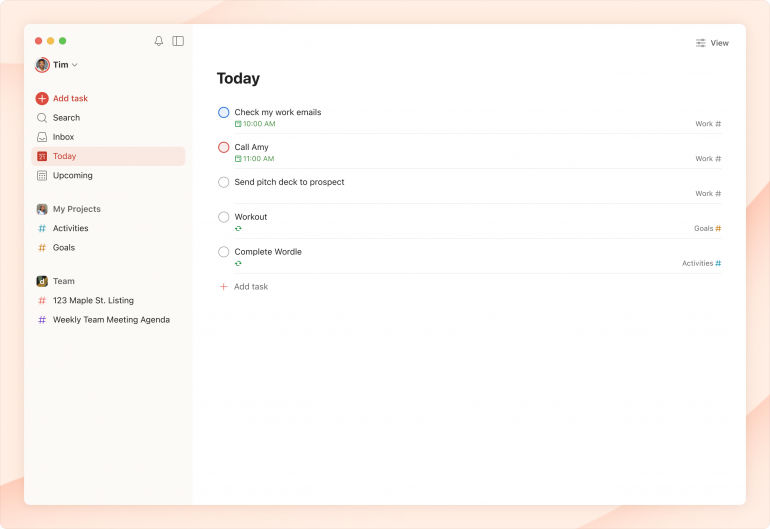
Image: Doist
Best for: People who want a fast, cross-platform task manager that travels between Mac, web, Windows, and Android
Type: Cross-platform task manager with light project management
Platforms: Mac, iPhone, iPad, Apple Watch, web, Windows, Linux, Android
Todoist is the cross-platform answer where Things isn’t an option. Same task list on Mac, web, Windows, and Android, with natural language quick-add (“Submit report tomorrow at 5pm p1 #Work”) that’s easily the fastest entry surface in the category. Shared projects, comments, and assignments make it usable for couples, small teams, and freelance-client coordination in a way Things and Apple Reminders aren’t designed for.
However, there is one trade-off Mac users should know about: the Todoist Mac client is built on a cross-platform stack rather than as a fully native AppKit app. It works, it syncs reliably, and the keyboard shortcuts are good, but it doesn’t feel quite as “Mac-like” as Things or Reminders.
Pros
- Genuinely cross-platform — Mac, web, Windows, Linux, and Android all in sync
- Natural language quick-add is fast and accurate
- Shared projects and team collaboration are built in
- Frequent update cadence and stable sync across devices
Cons
- Mac client is not a fully native AppKit app — feels less Mac-like than Things or Reminders
- Free tier limits you to 5 personal projects and 3 filter views
Pricing: Beginner Free. Pro from $3/user/month ($36 billed yearly). Business plan also available per user/month.
Rating: 4.5 out of 5 stars on G2
6. Apple Reminders
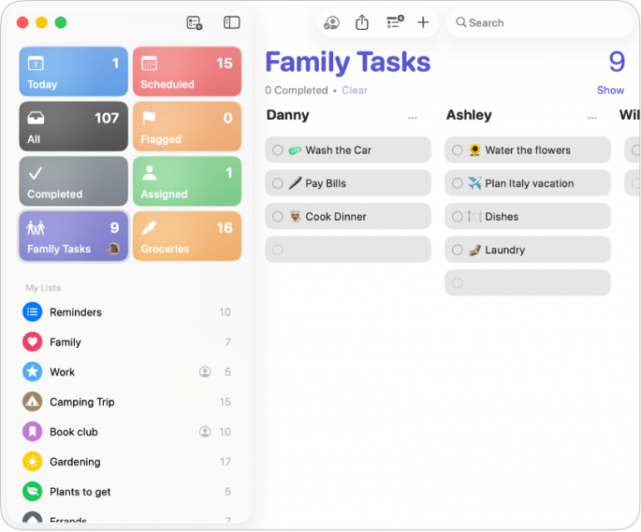
Image: Apple
Best for: Mac users who want a free task list that ships with macOS and works hands-free with Siri and Apple Intelligence
Type: Personal task and reminder app (built-in)
Platforms: Mac, iPhone, iPad, Apple Watch, Vision Pro, iCloud.com web
Apple Reminders has quietly become a serious task manager. Smart Lists, subtasks, sections, tags, and grouped lists cover what most people actually need. Apple Intelligence in macOS 26 surfaces suggested reminders from Mail, Safari, and Notes. Siri creates them by voice across every Apple device. Shared lists work via iCloud across the family or team without per-seat cost.
By comparison, what you give up versus Things or Todoist is project hierarchies, areas, review modes, and natural language quick-add as fluent as Todoist’s parser. For most Mac users, that gap is smaller than the cost and friction of switching to a third-party app.
Pros
- First-party Apple Intelligence integration — surfaces reminders from Mail, Safari, and Notes
- Deep Siri integration across Mac, iPhone, iPad, Apple Watch, and Vision Pro
- Already installed and synced via iCloud — zero setup
- Shared lists with collaboration via iCloud across family or team
Cons
- Lacks advanced GTD features (project hierarchies, areas, review modes)
- No natural-language quick-add as fluent as Todoist’s parser
Pricing: Free, included with macOS.
Rating: 4.8 out of 5 stars on the App Store.
Read more: The 15 Best Mac Productivity Apps in 2026 — covers task managers, note apps, and other productivity tools in depth.
Stage 3: Focus — Best Pomodoro Timers and Distraction Blockers for Mac
The Focus stage is where the best apps for time management on Mac help protect the time you’ve planned: “will I actually do it without getting pulled away?” There are two complementary approaches: Pomodoro timers (structured work intervals with breaks) and distraction blockers (sites and apps locked away during work sessions). Most Mac users benefit from one of each — the timer to structure the session, and the blocker to enforce it. Our top Pomodoro pick is Focus by Meaningful Things for Apple-ecosystem polish, with Session as a strong runner-up for users who want deep automation and intention-setting. On the blocker side, Freedom is our headline pick for cross-device coverage, with Cold Turkey Blocker as the strictest enforcer for deadline-driven work.
Read more: Why Do I Get Easily Distracted? 8 Tips to Help You Focus
7. Focus (by Meaningful Things)
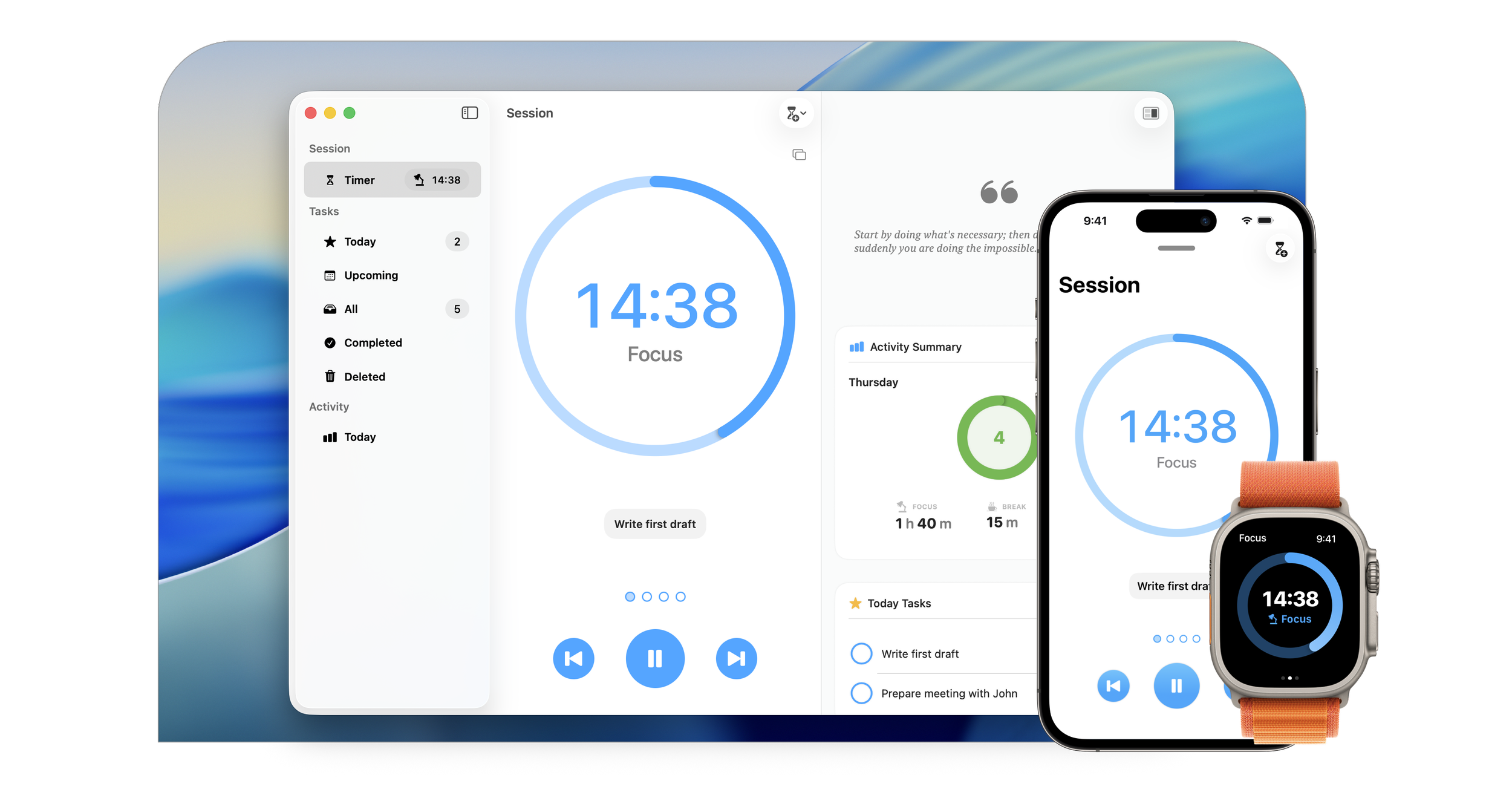
Image: Meaningful Things
Best for: Apple-ecosystem professionals who want a polished, proven Pomodoro workflow with built-in task management
Type: Pomodoro timer with task management
Platforms: Mac (macOS 14+), iPhone, iPad, Apple Watch, Apple Vision Pro
Focus has been around for over a decade, and it shows. It implements the classic Pomodoro cycle (25 minutes of work, 5 minutes of break, longer break after a set of rounds) and pairs the timer with built-in task management and activity statistics, so you can attach sessions to specific tasks and review your work over time. That makes it the cleanest fit for the Pomodoro slot in a Mac time-management stack — fewer reasons to leave the app once a session starts.
Focus also goes deeper into Apple’s ecosystem than most competitors. Sessions sync across Mac, iPhone, iPad, Apple Watch, and Apple Vision Pro via iCloud, and Handoff lets you pick up your current work on another device. The developer tends to adopt new Apple platform capabilities early, including Shortcuts, interactive widgets, StandBy, Live Activities, and Apple Vision Pro support. The main trade-off is that Focus doesn’t include built-in website or app blocking — Meaningful Things makes a separate companion app (Filter) for that, or you can pair Focus with Freedom or Cold Turkey (below).
Pros
- One of the most polished Apple-first Pomodoro apps we reviewed — Mac, iPhone, iPad, Apple Watch, and Vision Pro
- Built-in task management with activity statistics for tracking your work over time
- Developer is quick to adopt new Apple platform features (Shortcuts, interactive widgets, StandBy, Live Activities, Vision Pro)
- Fast iCloud sync and Handoff across all Apple platforms
Cons
- No built-in website or app blocking — you’ll need a separate blocker like Filter, Freedom, or Cold Turkey
Pricing: Free to download with a 7-day trial of the full subscription. After the trial: $39.99/year, covering all Apple platforms. Family Sharing supported.
Rating: 4.4 out of 5 stars on the App Store.
8. Session
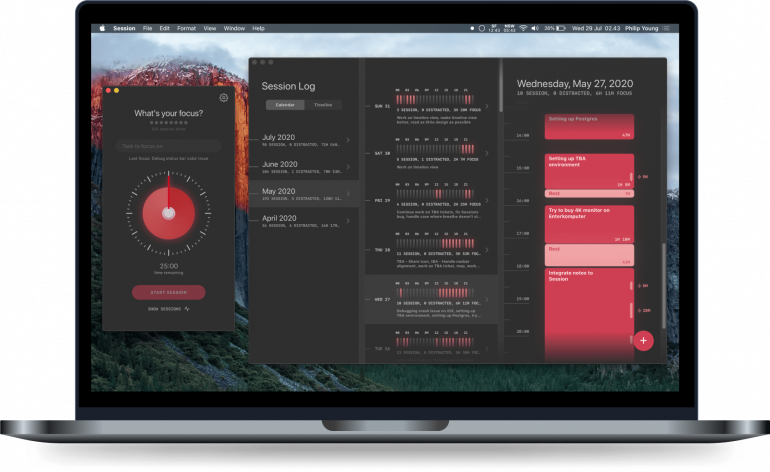
Image: Session
Best for: Mindfulness-oriented professionals who want strong Apple integrations and intention-setting
Type: Pomodoro timer plus focus app
Platforms: Mac, iPhone, iPad, Apple Watch (notifications)
Every Session begins with a breathing prompt and an intention field — what are you working on, and why does it matter? It sounds slight, but it changes the texture of the session. Slack status updates automatically. Past sessions appear as Apple Calendar events. Shortcuts and AppleScript depth turn it into something you can wire into other workflows. There’s also a built-in app and website blocker that covers both focus and break phases.
The headline-grabbing feature is “overflow mode,” which lets a session extend if you’re in flow rather than abruptly stopping at 25 minutes. The trade-off is that Session’s onboarding is feature-heavy. It can feel like a lot the first time you open it. Once configured, though, it’s one of the deepest-integrated Pomodoro apps on Mac.
Pros
- Deep automation ecosystem — Slack, Apple Calendar, Shortcuts, AppleScript
- Overflow mode respects flow state instead of forcing hard stops
- Built-in app and website blocking for both focus and break phases
- Mindfulness workflow (breathing, intention, reflection) adds depth most timers don’t have
Cons
- Feature-heavy onboarding can feel overwhelming
- Stop button hidden under a “…” menu — UX could be clearer
- End-of-session overlay can be disruptive if you’re already in flow
Pricing: Free with limited features. Pro: $4.99/month or $39.99/year (about $3.33/mo annual).
Rating: 4.8 out of 5 stars on the App Store.
9. Cold Turkey Blocker
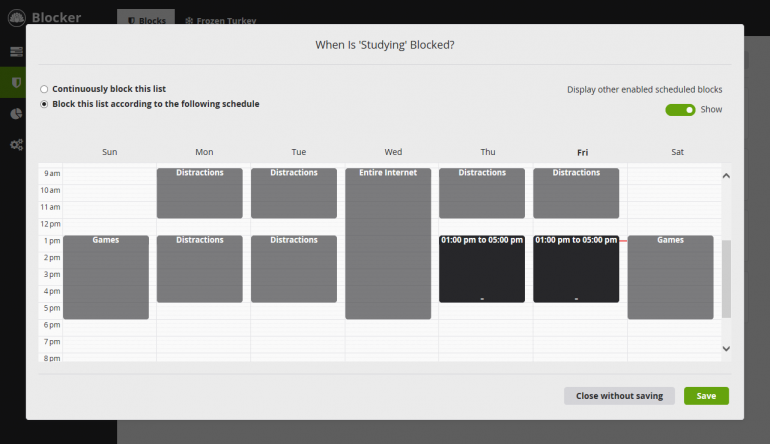
Image: Cold Turkey
Best for: Mac users who need strict blocking and firm enforcement
Type: Distraction blocker (strict)
Platforms: Mac, Windows
Cold Turkey Blocker is among the hardest distraction blockers to bypass that we’ve reviewed. Once you start a block, it’s designed to be extremely difficult to stop through the usual workarounds, including restarting your Mac, deleting the app, or changing system time. Frozen Turkey mode goes further: it can lock down the entire computer except for a small allowlist. For deadline-driven work where softer focus tools are too easy to ignore, that strictness is the feature.
The free tier covers website blocking. Pro adds app and screen blocking, scheduled blocks, and the Frozen Turkey lockdown.
Pros
- Among the hardest blockers to bypass, with safeguards against restart, uninstall, and time-change workarounds
- Frozen Turkey mode can lock the entire computer for deadline-driven work
- Privacy-first design stores all data locally
- Multiple block lists with custom schedules
Cons
- Desktop-focused in this workflow — it won’t cover your phone, which can become the new distraction vector
- Strict enforcement may feel rigid if you need occasional flexibility
Pricing: Free plan covers website blocking. Pro is $39 (single device) or $49 (unlimited personal devices), one-time with lifetime updates and a 30-day refund window.
Rating: Cold Turkey is distributed direct from the developer and isn’t on the Mac App Store. Independent user reviews are largely positive.
10. Freedom
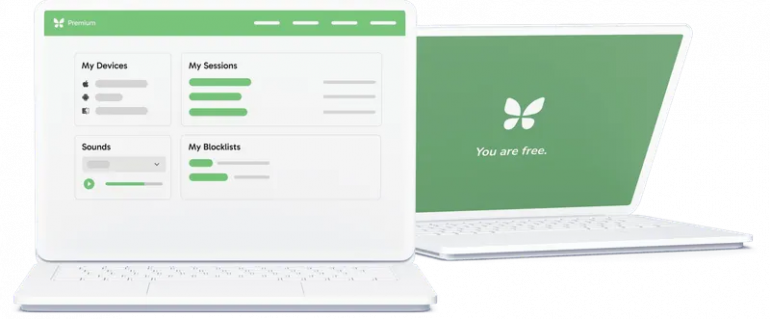
Image: Freedom
Best for: Users who need cross-device blocking that covers Mac plus phone
Type: Distraction blocker (cross-device)
Platforms: Mac, iPhone, iPad, Windows, Android, Chromebook
Freedom is one of the best-known distraction blockers for a reason: one session blocks distracting sites and apps across every device on the account at the same time. Mac alone isn’t enough if your phone is the leak, and Freedom’s cross-device sync closes that gap. Locked Mode makes sessions much harder to bypass once started.
What sets it apart from Cold Turkey is breadth rather than strictness. Cold Turkey is more aggressive on Mac. Freedom is more comprehensive across the device set. For Mac users whose phone is the bigger distraction risk, Freedom is the right pick.
Pros
- Cross-device sync blocks Mac, iPhone, iPad, Windows, Android, and Chromebook simultaneously
- Locked Mode for firmer enforcement
- Recurring schedules automate blocking during work hours
- Ambient focus sounds built in
Cons
- Locked Mode can feel too restrictive if you need occasional flexibility
Pricing: Free plan with basic blocking. Premium $8.99/month or $3.33/month billed annually. Forever (lifetime) $99.50 one-time.
Rating: Distributed direct from freedom.to, so there’s no Mac App Store aggregate.
Read more:
- Best Pomodoro Apps for Mac in 2026
- Best Distraction Blocker for Mac in 2026
- How to Block Websites on Mac (2026)
Stage 4: Best Time Tracking Apps for Mac
The Track stage is what many lists of the best apps for time management on Mac miss: “where did my time actually go?” It’s the stage most people skip and the one that turns the other three from a stack of tools into a system that improves over time. Without tracking, you’re guessing about whether your calendar plan matched reality, whether your task manager priorities were right, and whether your Pomodoro sessions were as productive as they felt.
Broadly speaking, Mac time trackers fall into two camps. Automatic trackers record your activity in the background — every app, document, and website — and let you assign time to projects later. They capture the time you’d otherwise forget: quick emails, short calls, context switches between tasks. Manual timer-based trackers ask you to start and stop a timer for each task, which works if you’re disciplined about it but leaks revenue when you’re not. For anyone who bills by the hour, delayed manual time entry can mean incomplete records and missed billable work. The same dynamic applies to consultants, freelancers, lawyers, and anyone else who needs an honest record of the workday.
11. Timing
Best for: Mac freelancers, consultants, lawyers, developers, designers, and small teams who bill by the hour or want honest data about their workday
Type: Automatic time tracking (Mac-native)
Platforms: Mac (web app companion for starting and stopping timers from any device)
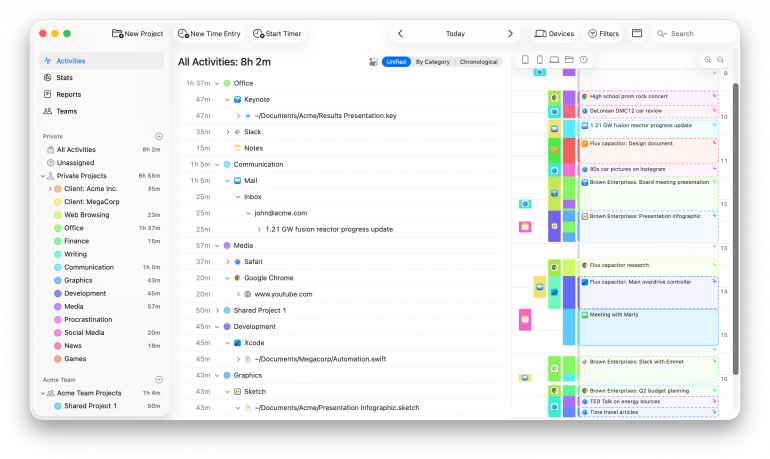
Timing is the automatic time tracking app for Mac. It runs silently in the background, recording every app, document, and website you use, then lets you assign time to projects with drag-and-drop. Rules learn from each assignment so future activities get categorized automatically. The result is more accurate time records with far less manual effort.
Timing’s biggest strength is its document-level tracking. Timing tracks not just apps but specific files, URLs, email subjects, and conversation partners. AI Summaries turn raw activity into natural-language summaries of what you worked on. Screen Time import pulls iPhone and iPad app usage into your Mac timeline, so the picture is more complete across devices. Automatic call detection prompts you to log time when a Zoom, Teams, or FaceTime call ends.
For freelancers and lawyers, the full billing lifecycle (Not Billable, Billable, Billed, Paid) and report rounding (in 1-60 minute intervals) turn raw time into invoice-ready output. For teams, the privacy-preserving team view shows project totals without exposing personal app usage. Timing has been built since 2011 and ships 12-14 releases per year.
Pros
- Automatic tracking at the document level — apps, files, URLs, email subjects, all captured without manual timers
- AI Summaries turn raw activity into natural-language daily summaries
- Screen Time import pulls iPhone and iPad usage into your Mac timeline
- Full billing lifecycle (Not Billable, Billable, Billed, Paid) for freelancers and small teams
- Native Mac app, not Electron — fast, low memory footprint, supports macOS Tahoe and Liquid Glass
- 30-day free trial with no credit card
Cons
- Timing can be a bit on the expensive side (but you get what you pay for).
- It doesn’t include native invoicing support, but integrates well with a variety of billing apps that can help you with that.
Pricing: From $9/month (Professional, billed annually). Expert $11/mo. Connect $16/mo. 30-day free trial, no credit card.
Rating: 4.8 out of 5 stars on Capterra.
What users say
“I love that this software tracks all I do, and when, while using any applications on my computer. I do not always remember to start the timer when I am working between clients, but I can go back and see what I was doing and on what application, along with for how long, afterwards. I use it for multiple clients to track my time, and the time clock is great, too, because you can add in what you are doing. I also like that you can set shortcuts for starting and stopping the clock and edit any entry if needed, and even add an entry after the fact.” — Management consulting, small business
12. Toggl Track
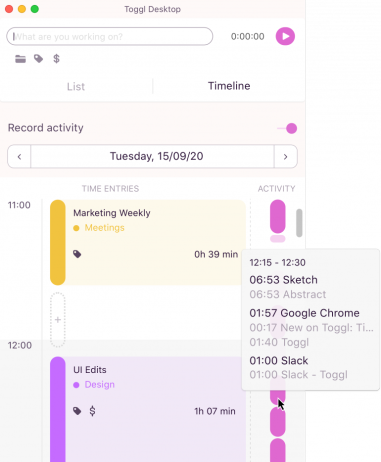
Image: Toggl
Best for: Solo professionals and small teams who want a free, easy manual timer with broad cross-platform support
Type: Manual time tracking (with optional background tracking)
Platforms: Mac, iPhone, iPad, Apple Watch, web, Windows, Linux, Android, Chrome extension
Toggl Track is widely considered the easiest manual timer to use. Start a task without filling in client or project info — fill those in later. The Chrome extension drops a timer button into nearly every web app you use. The free tier is generous, and team features start at the Starter tier.
Mac users typically pair Toggl Track with Timery, a native Mac and iOS client built on top of Toggl’s API. Toggl’s own Mac app isn’t very user-friendly, and the automated tracking option in their app is cumbersome. Toggl plus Timery is what we recommend for users who prefer manual tracking discipline over automatic tracking.
Pros
- Generous free tier with team features at the Starter level
- Best paired with Timery on Mac for a native experience
- Cross-platform support — Mac, iOS, web, Windows, Linux, Android, Chrome
- Chrome extension drops a timer button into most web apps
Cons
- Manual timer means you have to remember to start and stop (the gap automatic tracking fills)
- Toggl’s own Mac app is less polished than Timery’s third-party client
- Background tracking option is cumbersome and limited
Pricing: Free or $9/user/month (Starter, billed annually). Premium $18/user/mo. Enterprise custom.
Rating: 4.6 out of 5 stars on G2.
13. RescueTime
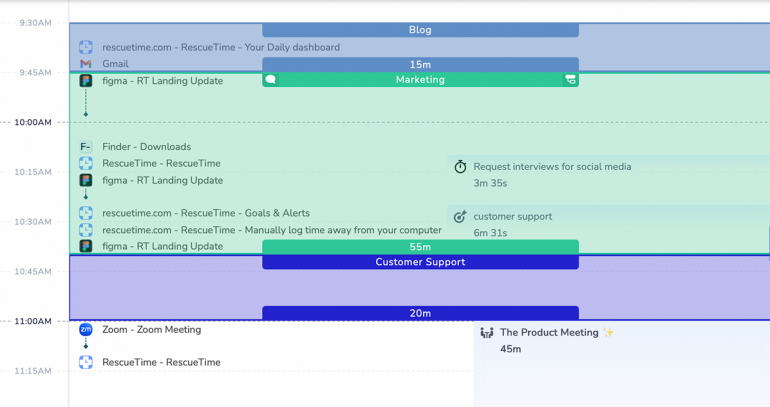
Image: RescueTime
Best for: Knowledge workers who want productivity scoring and habit-building first, with optional timesheets for project/client tracking
Type: Automatic time tracking (productivity-focused)
Platforms: Mac, iPhone, Android, Windows, Chrome extension
RescueTime takes a different angle. Rather than starting with billable-hour reporting, it focuses on how productively you spend your day. Apps and websites are categorized into productivity buckets, and reports show focus trends, distraction patterns, category breakdowns, and productivity levels over time. It also includes Focus Sessions for blocking distracting apps and websites in paid plans.
However, the trade-off is that RescueTime is stronger as a productivity and habit-building tool than as a billing-first tracker. Its Timesheets plans add client, project, task, billable-rate, rounding, and export features, but the core RescueTime experience is still built around focus patterns, categories, and productivity insight rather than invoice-ready Mac time tracking.
Pros
- Productivity reports surface focus trends and habits over time
- Focus Sessions can block distracting apps and websites in paid plans
- Optional Timesheets plans add client, project, task, and billable-rate tracking
Cons
- No invoice or export workflow for hours
- Limited customization for project-level reporting
- Limited AI-specific functionality compared with newer AI-focused productivity tools
Pricing: Solo Focus from $7/month billed annually. Solo+ $12/mo annual. Team Focus $10/user/mo annual.
Rating: 4.2 out of 5 stars on G2.
Read more: 11 Best Time Tracking Apps for Mac in 2026 — full reviews of these and 8 more time trackers.
How to Build Your Time Management Stack on Mac
The best apps for time management on Mac work best as a stack, because the four stages chain together day-to-day. In the morning, your calendar tells you what’s on, and your task manager tells you what to capture for later. During work, your focus app keeps the session intact. At the end of the day or week, your time tracker tells you what actually happened, which feeds back into how you plan and prioritize the next round.
| Use case | Plan | Capture | Focus | Track |
|---|---|---|---|---|
| Most Mac users | Fantastical | Things 3 | Focus (by Meaningful Things) | Timing |
| Freelancers billing by the hour | Fantastical | Todoist | Cold Turkey Blocker | Timing |
| ADHD users | Apple Calendar | Apple Reminders | Freedom | Timing |
| Free Mac stack ($0 to start) | Apple Calendar | Apple Reminders | Cold Turkey Blocker (free) | Toggl Track (free) |
For most Mac users: Fantastical (Plan) + Things 3 (Capture) + Focus by Meaningful Things (Focus) + Timing (Track). Apple ecosystem-deep, every pick is Mac-native.
For freelancers billing by the hour: Fantastical + Todoist (cross-platform if you work with Windows clients) + Cold Turkey Blocker (deadline enforcement) + Timing (the billable hours backbone). See our guide to freelance time tracking for more tips.
For ADHD users: Apple Calendar (no setup friction) + Apple Reminders with Apple Intelligence (voice-first capture) + Freedom (cross-device, because the phone is usually the leak) + Timing (automatic capture is the headline; you don’t have to remember to start a timer). Our ADHD time management guide goes deeper.
Free Mac stack: Apple Calendar + Apple Reminders + Cold Turkey Blocker (free tier) + Toggl Track (free tier). $0 to start. Free is a good way to learn what each stage gives you, but the free tiers often skip the features that make a stack worth keeping — automatic categorization, advanced reporting, cross-device sync — so most people graduate to at least one paid pick once they know what they actually use.
Know Where Your Hours Actually Go
The Track stage is what turns your other apps into a system that improves over time. Your calendar tells you what you planned, your task manager tells you what you prioritized, and your focus app tells you what you ran a session on. None of them tell you where your hours actually went. That’s the gap a Mac time tracker fills — and it’s where Timing can do the heavy lifting for you, automatically, without asking you to remember to start a timer.
Validate that your stack actually works
Your calendar said you’d spend two hours on the client report. The task manager confirmed it was your top priority. Your focus app ran for the full session. But did you actually spend two hours on the report, or 30 minutes on the report and 90 minutes responding to “quick” emails that crept in?
Timing’s Stats screen shows where your time actually went, broken down by project, app, and document. The gap between intention and reality is where the next round of planning gets sharper. For a deeper walkthrough, see our guide to running a time audit.
Capture the time your other apps miss
Pomodoro timers track session length. Task managers track completion. Calendars track meetings. None of them track the 12 minutes you spent in Slack between sessions, the 8 minutes you spent looking up a contract, or the 23 minutes you spent in your browser before the focused work started.
Timing’s automatic tracking captures all of it — at the document, file, and URL level — so the picture is complete. AI Summaries turn that raw data into natural-language daily summaries you can adapt for a status report or invoice note.
Bill accurately without remembering to start a timer
For freelancers, lawyers, and consultants, the full billing lifecycle (Not Billable, Billable, Billed, Paid) and report rounding turn raw time into invoice-ready output. The 30-day free trial is no-credit-card, longer than the 7-14 day industry standard, and gives you real billable data to work with from day one.
Ready to build your time management stack? Download Timing’s free 30-day trial — no credit card required.
Summary: Choosing the Best Apps for Time Management on Mac
There’s no single winner among the best apps for time management on Mac because time management isn’t one job. It’s a four-stage workflow, and the right setup is the four apps that fit your particular workday. For most Mac users, that’s Fantastical for planning, Things 3 for capture, Focus by Meaningful Things for the Pomodoro side of focus (paired with Freedom for cross-device blocking when needed), and Timing for tracking. Freelancers can swap Things 3 for Todoist and lean on Cold Turkey Blocker for stricter enforcement; ADHD users can lean on Apple’s built-in apps and let Freedom handle cross-device blocking.
Whichever calendar, task manager, and focus app you pick, pair it with Timing as the Track stage. Time tracking is the part that turns the other three from a collection of apps into a system that actually improves over time. You’ll see where your hours go, validate that your other apps are doing what you think they are, and never miss a billable minute. Download Timing’s 30-day free trial — no credit card required.
Frequently Asked Questions: Best Apps for Time Management on Mac
What’s the best time management app for Mac?
There’s no single best time management app for Mac because time management isn’t one job — it’s four. The best setup combines specialist apps for planning (calendar), capture (task manager), focus (Pomodoro or distraction blocker), and tracking (automatic time tracking). For most Mac users, that’s Fantastical, Things 3, Focus by Meaningful Things (paired with Freedom if you also need blocking), and Timing. The “best app” question is really four questions in disguise.
Do I really need separate apps for each stage?
Most people end up with separate apps because each stage has different design requirements: a calendar needs sync and scheduling logic, a task manager needs fast capture and organization, a focus app needs blocking and timer logic, and a time tracker needs automatic activity capture. The all-in-one apps that try to cover multiple stages (notably some project management tools) typically do one stage well and the others adequately. Specialists win on Mac.
What’s the difference between time management and time tracking?
Time management is the broader discipline of planning, prioritizing, and protecting your time. Time tracking is one piece of that — the part that records where your time actually goes so you can compare reality to intention. A Mac user might use a calendar and a Pomodoro timer for time management without ever tracking, and they’d be missing the feedback loop that makes the system improve over time.
Can Apple’s built-in apps replace third-party time management apps?
For the Plan and Capture stages, Apple Calendar and Apple Reminders cover what most Mac users actually need, especially since Apple Intelligence in macOS 26 added meaningful capability to Reminders. However, when it comes to Focus, macOS Focus modes plus Screen Time only give you basic blocking, while a dedicated app like Cold Turkey or Freedom gives you more control. Similarly, for Track, Apple Screen Time gives you device-level totals, but it can’t assign time to specific projects or clients — which is where automatic time tracking apps like Timing fit in. In other words, built-in apps cover the basics; paid third-party apps tend to give you more depth, flexibility, and workflow control.
Which time management apps work best for ADHD?
ADHD-friendly Mac time management benefits from automatic capture (low cognitive load) and cross-device coverage (the phone is often the bigger distraction). The setup we’d recommend: Apple Calendar (no setup friction) plus Apple Reminders with Siri (voice-first capture) plus Freedom (cross-device blocking) plus Timing (automatic tracking — you don’t have to remember to start a timer). For more on this, see our ADHD time management guide.