
How to Block Websites on Mac (2026): Top Apps and Tips for Focus and Deep Work

Image: Anna Tarazevich
| TL;DR You can block websites on a Mac using Screen Time (built-in), or a dedicated website blocker like Freedom, Cold Turkey or SelfControl. Screen Time is great for setting simple limits. But you might need a dedicated blocker for scheduling, multiple-browser coverage, or stricter sessions that are harder to bypass. |
If you’re wondering how to block websites on Mac, there are several options available to you. You can opt for Apple’s built-in Screen Time if you’re after a free, pre-installed solution that offers basic blocking. Or you can install a dedicated website blocker for Mac like Freedom, Cold Turkey Blocker or SelfControl. These solutions provide features Screen Time can’t match, including scheduled sessions, cross-device syncing, unbreakable enforcement, and the ability to block both websites and desktop apps.
Wondering where to start? We’ve reviewed the best Mac focus tools and website blockers for 2026. They range from gentle friction approaches that encourage you to focus, to hardcore lockdown modes that won’t let your distraction impulses win.
Let’s dive in.
Table of Contents
TOC
How to Block Websites on Mac: A Step-by-Step Guide
Installing a distraction blocker is easy. Follow a few simple steps and you’re good to go.
How to Block Websites with Screen Time
Apple’s Screen Time offers basic blocking without third-party software:
- Open System Settings → Screen Time
- Click App Limits → Add Limit… → select Apps, categories and websites
- Choose the sites and apps that hinder your focus and set a one-minute limit. This effectively works as a block, pushing you away after you’ve spent a minute on them
- You can also block access entirely through the Screen Time → Content & Privacy → Limit Adult Websites functionality. Simply add sites to “Never Allow” and you won’t be able to access them at all
The shortcoming of Screen Time is that it’s easy to disable and inconsistent across browsers. It’s more for casual blocking than serious accountability.
How to Block Websites with a Dedicated Website Blocker
Dedicated apps like Freedom or Cold Turkey offer more control. They tend to work in much the same way:
- Download and install your chosen tool
- Add websites to your blocklist (or create an allowlist to block everything except certain sites)
- Start a session and test that it’s working as it should
- Adjust your settings so it suits your working style and needs
How to Block Websites During Work Hours
You might only want to use your distraction blocker at specific times of the day, like during work hours. This is easily done by automating blocking with recurring schedules:
- In your tool, set daily blocks, such as Monday to Friday, 9am to 5pm
- Create timed sessions with built-in breaks, such as 25 minutes work, 5 minutes rest or 50 minutes work, 10 minutes rest
- You can also integrate this feature with macOS Focus mode so that it activates automatically
How to Block Websites in a Way That’s Hard to Bypass
Want a solution that forces you to focus? Look for apps that have some of these features:
- Password protection: Consider giving your password to someone else for external accountability
- Friction-based blocking: Apps like one sec add delays before site access
- Deep focus modes: Freedom and Opal prevent premature session ending
- Locked sessions: Tools like Cold Turkey and SelfControl can’t be stopped early, even by restarting or deleting the app
How to Choose the Best Website Blocker for Mac

Image: cottonbro studio
Selecting the solution that works the way you do takes a bit of effort. As you go about your choice, keep the following criteria in mind:
- Setup complexity: Some blockers work in minutes, while others require a bit of configuration. Consider what you want to get out of your app and whether it’s worth going the extra mile.
- Blocking scope: Decide whether you need to block just websites or both websites and apps. Tools like HazeOver only dim windows visually, while Freedom and Cold Turkey block websites and apps outright.
- Browser support: Most blockers work across Safari, Chrome, Firefox and Arc. It’s worth verifying this, though, especially if you use niche browsers like Brave or Vivaldi. System-level blockers like Focus Firewall work across all browsers without extensions, but others may require browser-specific setup.
- Scheduling flexibility: Do you need simple recurring blocks or complex calendar-like rules? Freedom and Focus provide straightforward recurring sessions, while Jomo offers creative scheduling.
- Anti-bypass strength: Be honest about whether you’re likely to bypass your chosen tool. What are your actual tendencies, not your aspirational ones? Some tools are fairly easy to unblock, while others are completely unbreakable.
- Cross-device coverage: Mac-only tools like Cold Turkey won’t protect you when you reach for your phone. Freedom, Opal and one sec, however, sync across devices so even your phone won’t serve as a distraction.
- Team vs. personal use: Managing blocking for employees or family? Look for tools with admin controls and shared policies. If you’re just after personal use, prioritize simplicity and individual customization.
As you start experimenting with a couple of options, be sure to pair your distraction blocker with an automatic time tracking solution like Timing. By running a time audit, you’ll be able to see exactly how much time your new solution is saving you.
Quick Picks of the Best Website Blockers for Mac in 2026
Short on time? Before we dive into our full list of reviews, here’s a high-level summary of what each tool does best.
- Best overall cross-device app: Freedom
- Best strict blocker: Cold Turkey
- Best free “no excuses” option: SelfControl
- Best minimalist blocker: Focus Firewall
- Best for breaking autopilot scrolling: one sec
- Best built-in option: Screen Time
- Best “visual noise” reducer: HazeOver
- Best for scheduled website blocking: Focus (HeyFocus)
| App | Best for | Blocks websites/apps/both | Strictness | Works with Safari? | Pricing model |
|---|---|---|---|---|---|
| Freedom | Cross-device focus (Mac and iPhone/iPad), scheduling blocks | Both | Medium | Yes | Subscription |
| Cold Turkey Blocker | Hard-to-bypass blocking and locked focus sessions | Both | High | Yes | One-time |
| Focus | Mac-first website and app blocking with schedules | Both | Medium | Yes | One-time |
| SelfControl | Simple, free “nuclear” website blocking | Web | High | Yes | Free |
| Focus Firewall | Minimalist “make distracting sites feel offline” | Both | Medium | Yes | Subscription |
| one sec | Adds friction to stop autopilot scrolling | Both | Low | Yes | Subscription |
| Raycast | Website blocking as part of a broader productivity launcher setup | Web | Low/Medium | Yes/Partial | Free + Subscription |
| Jomo | Habit and screen-time-style blocking | Both | Medium | Yes | Subscription |
| Opal for Mac | Focus sessions and difficulty levels (Normal/Deep Focus) | Both | Medium | Yes | Subscription |
| HazeOver | Reduce visual noise (complements blockers) | — (visual dimmer) | Low | N/A | One-time |
| Apple Screen Time | Built-in time limits and website/app limits | Both | Low | Yes | Free, built-in |
The 9 Best Focus and Distraction-blocking Apps
1. Freedom
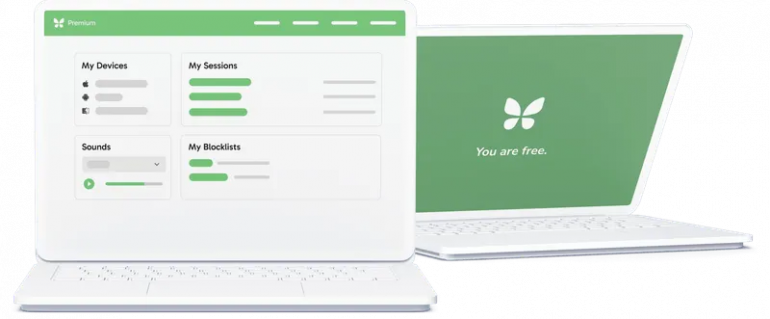
Image: Freedom
Best for: Cross-device productivity with system-level blocking.
Blocks: Websites and apps
Freedom is all about cross-device synchronization. Start a block session on one device and it automatically and simultaneously applies the session on your other devices. This system-level blocking means distractions stay blocked even if you switch browsers, use private windows or pick up your iPhone or iPad. And its standout Locked Mode prevents you from ending sessions early, so it’s genuinely difficult to work around. You can also schedule blocks in advance or set recurring sessions to build lasting routines. The main drawback is that power users may find Freedom’s interface slightly less customizable than some specialized alternatives.
Pros:
- Syncs seamlessly across unlimited devices including Mac, iPhone and iPad
- System-level blocking works across all browsers and apps, not just one browser
- Locked Mode and recurring schedules help build lasting focus habits
Cons:
- Locked Mode’s strictness may feel too restrictive for users who need occasional flexibility
- Interface customization options are somewhat limited compared to niche competitors
Pricing: Freedom has a free plan. Its Premium plan costs $3.33 per month, billed annually. And the Forever plan costs $199 one-off.
2. Cold Turkey Blocker
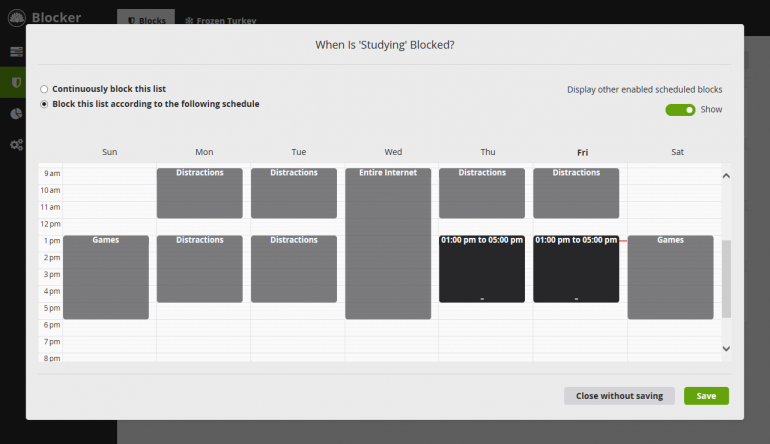
Image: Cold Turkey Blocker
Best for: Users who need strict enforcement and unbreakable blocking.
Blocks: Websites and apps
If you’re after serious accountability, Cold Turkey Blocker is a worthwhile consideration. It lives up to its name by making it nearly impossible to bypass blocks once they’ve been activated. Its robust locking system prevents you from disabling extensions, uninstalling the software, or ending sessions early. And you can block everything from individual websites to entire applications. You can even lock yourself out of the internet entirely with select exceptions. Cold Turkey Blocker’s privacy-conscious design also stores all your data locally on your device. However, its lack of mobile support means your phone remains a potential distraction escape route, and the aggressive blocking approach may feel overly restrictive for casual users.
Pros:
- Extremely strict locking mechanisms prevent cheating or early termination
- Can block specific websites, apps or the entire internet with exceptions
- Privacy-focused with all settings and statistics stored locally on your device
Cons:
- No mobile device support limits cross-platform blocking capabilities
- Aggressive enforcement may be too rigid for users who prefer flexible blocking
Pricing: Cold Turkey Blocker has a Free plan. Its Lifetime Access plan costs $45 one-off and is available across all computers you personally use.
3. Focus
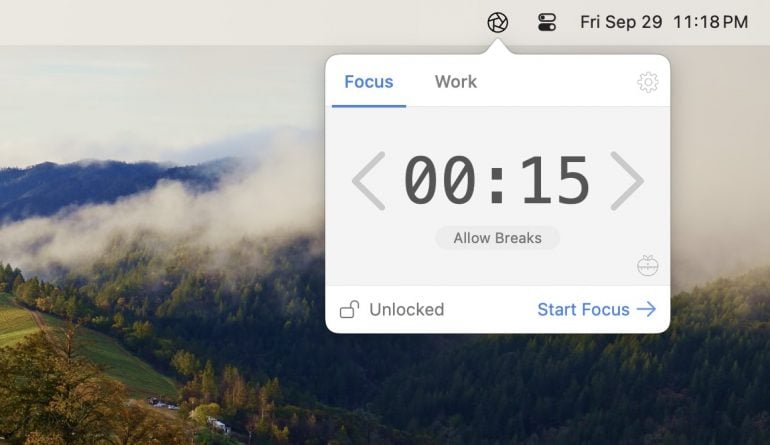
Image: Focus
Best for: Mac users seeking customizable productivity routines.
Blocks: Websites and apps
Fans of Focus love its scripting capabilities, which allow you to create custom productivity workflows that integrate with other apps on your system. The built-in Pomodoro timer seamlessly integrates with blocking features, automatically managing work sessions and breaks. And its multiple profiles let you switch contexts instantly. You might want to set one for writing and another for research, for example, each with tailored blocklists. Focus’s scheduling system supports daily, weekly and weekend routines that run automatically, and you can lock a session so that it can’t be stopped once you start. The main limitation is that its advanced scripting features require a little technical knowledge. And you might find its workarounds a little simple if you’re after stricter blocking functionality.
Pros:
- Powerful scripting system enables custom productivity workflows and integrations with other apps
- Multiple profiles allow quick switching between different work contexts with tailored settings
- Lock functionality allows for deep, focused work
Cons:
- Advanced scripting features have a learning curve and require technical knowledge
- Limited to a single platform ecosystem without cross-device synchronization
Pricing: Focus has a free trial. The Focus 2 plan costs $49 one-off and the Lifetime plan costs $129 one-off.
4. SelfControl
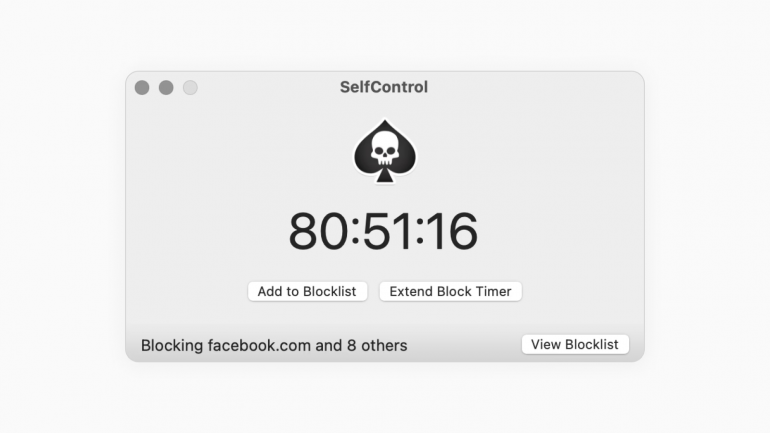
Image: SelfControl
Best for: Minimalists who want simple, unbreakable blocking at no cost
Blocks: Websites only
SelfControl takes the nuclear option approach to website blocking. Once you start a block, there’s absolutely no way to stop it. Not by restarting your computer, deleting the app, or any other workaround. This uncompromising strictness makes it perfect if you know you’re the kind of person likely to try to cheat your own system. What’s more, SelfControl is an open-source project maintained by volunteers, which means it offers impressive blocking power without any cost. Its interface is refreshingly simple with no bells and whistles. SelfControl’s major limitation is the complete absence of built-in scheduling features. You need to be pretty tech-savvy, and able to set up third-party command-line extensions, if you want to implement recurring blocks.
Pros:
- Absolutely unbreakable blocking once started — no workarounds or early exits possible
- Completely free and open-source
- Simple, straightforward interface that’s easy to understand and use
Cons:
- No built-in scheduling or recurring block functionality without third-party extensions
- Incompatible with VPNs and lacks cross-device synchronization capabilities
Pricing: SelfControl is totally free to use.
5. Focus Firewall
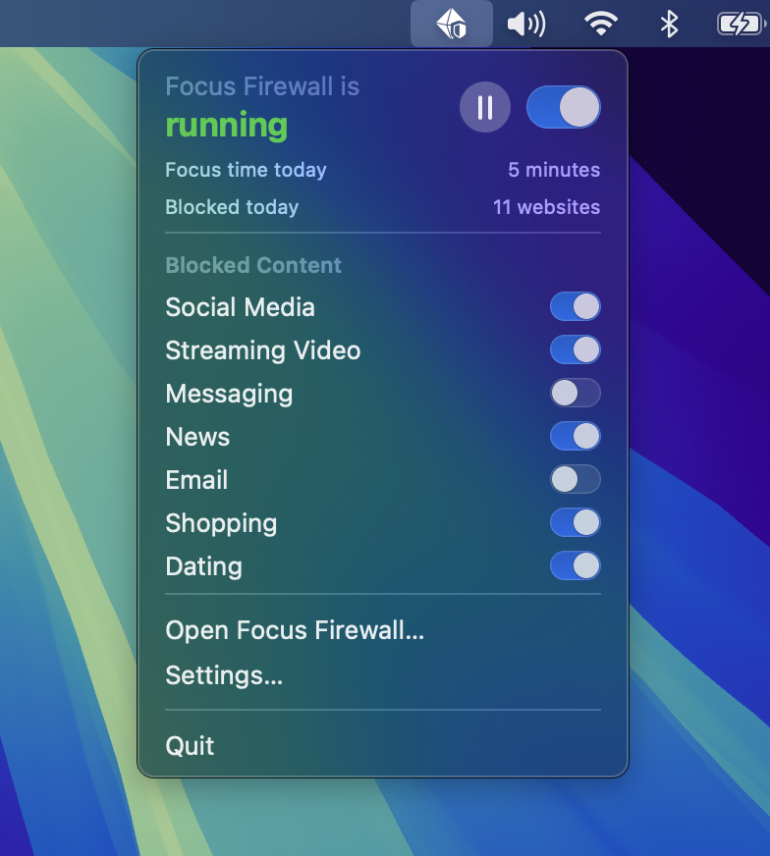
Image: Focus Firewall
Best for: Users who want gentle accountability without rigid enforcement
Blocks: Websites and apps
In contrast to hardcore blockers like SelfControl, Focus Firewall uses gentle friction rather than unbreakable locks. It’s an effective, minimalist blocker that works at the system level without requiring browser extensions. This means it can intercept distractions before they load while still allowing you to bypass blocks when you genuinely need to. This softer approach recognizes that strict blocking often leads to abandoning blockers entirely. Instead, it focuses on creating just enough resistance to make you pause and reconsider. The built-in curated blocklist includes over 140 common time-wasters, and its scheduling features put blocking on autopilot during work hours. Of course, if you’re after ironclad accountability, you may find this intentional flexibility a little too permissive.
Pros:
- Works system-wide across all browsers without requiring any extensions
- Thoughtful pause feature and category-based blocking allow flexible, mindful breaks
- Curated blocklist with over 140 common distractions saves time on initial setup
Cons:
- Intentional bypass options may not provide enough accountability for some users
- Single-platform limitation means no protection on mobile devices or tablets
Pricing: Focus Firewall costs $2.99 per month or $19.99 per year. There is also a Lifetime option for $29.99 one-off.
6. Raycast
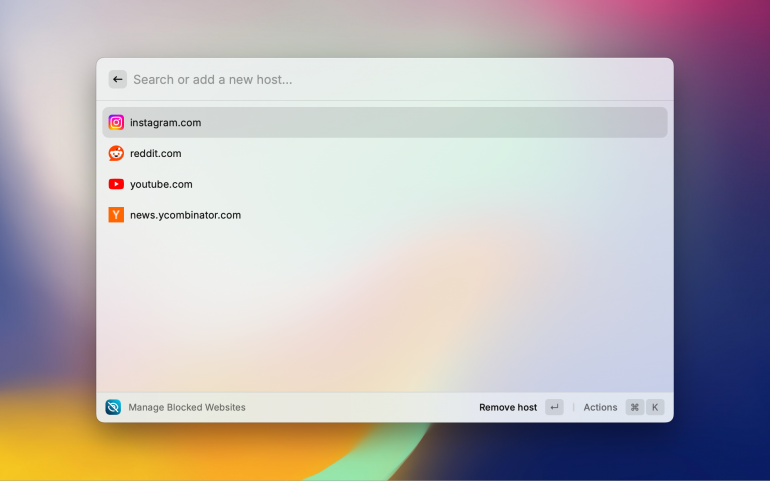
Image: Raycast
Best for: Power users who want distraction blocking integrated into their productivity command center.
Blocks: Websites and apps (via Raycast Focus) and websites only (via the Website Blocker extension)
Raycast is a productivity launcher for Mac that replaces Spotlight, with tools like clipboard history, snippets, window management and AI. For blocking distractions, it’s important to separate two different options inside the Raycast ecosystem:
- Raycast Focus: This built-in feature lets you start timed focus sessions, during which you can block both apps and websites. It includes a floating focus bar, works in your browser without extensions, and lets you pause, snooze or edit blocks mid-session.
- Raycast Website Blocker: This is a separate extension that blocks websites only, and it does so by changing your Mac’s hosts file. It’s a handy add-on if you specifically want host-level site blocking from within Raycast, but it’s not the same thing as Focus.
Unlike standalone blockers, both approaches live inside Raycast’s command interface. This means that starting a Focus session (or managing a block list) can feel seamless if you already run your work through Raycast. Just note that Raycast’s command-based workflow can feel like a learning curve if you only want a simple “install-and-block” tool.
Pros:
- Focus sessions block apps and websites with a floating focus bar, and no browser extensions required
- The Website Blocker extension provides website-only blocking via hosts file control
- Everything is accessible from Raycast’s fast command UI
Cons:
- Most value gained only if you’re willing to adopt Raycast’s command-based workflow
- Focus includes snoozing or editing, which can feel very malleable if you’re looking for a more robust solution
Pricing: Raycast has a free forever plan. Raycast Pro costs $8 per month, billed annually. And Raycast Pro + Advanced AI costs $16 per month, billed annually. Teams plans are also available for $12 per user per month, billed annually for Teams Pro. Teams Pro + Advanced AI is available for $20 per user per month, billed annually.
Read more: The 12 Best Apps Mac Power Users Leverage to Supercharge Their Productivity
7. Opal for Mac
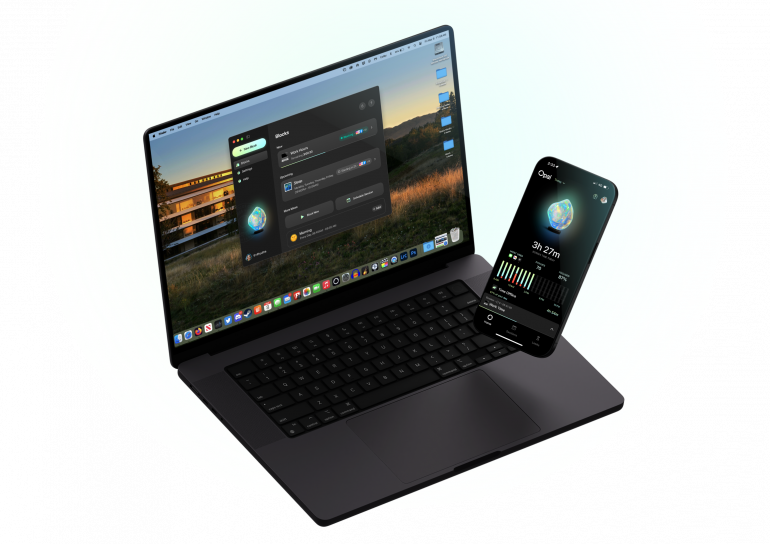
Image: Opal for Mac
Best for: Community-focused users who want gamified focus with social accountability.
Blocks: Websites and apps
Opal believes that distraction blocking works best if it’s a social experience. So its approach uses leaderboards, streaks and collectible gems that celebrate milestones among a vibrant community of over 4 million users. This doesn’t mean Opal isn’t serious about changing habits, however. Its standout Deep Focus mode provides genuinely unbreakable blocking — even uninstalling the app won’t bypass it during sessions! Three difficulty levels let you scale enforcement from gentle nudges to total lockdown. On iOS, detailed analytics track pickups, how much you use the app, and your productive versus unproductive time. Be warned that the gamification features that motivate some users may feel like unnecessary bloat for those seeking a streamlined blocking experience. And your data won’t sync across your devices due to its privacy-first design.
Pros:
- Deep Focus mode provides genuinely unbreakable blocking that persists even if the app is deleted
- Gamification with gems, streaks and leaderboards creates social accountability and motivation
- Beautiful, polished interface with detailed analytics tracking pickups and productive versus unproductive screen time
Cons:
- Extensive gamification features may feel irritating for users wanting simple, straightforward blocking
- No cross-device data syncing means separate setups and statistics for each device
Pricing: Opal has a free forever plan. Opal Pro costs $8.29 per month, billed annually. And you can contact Opal for a customized Teams plan.
8. HazeOver
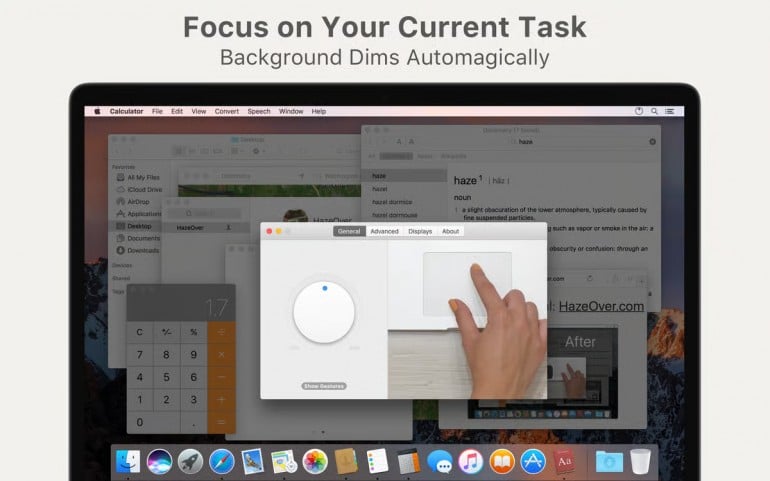
Image: HazeOver
Best for: Multi-window users who need visual focus without blocking access.
Blocks: Neither websites nor apps (uses visual dimming instead)
HazeOver takes a fundamentally different approach, opting for visual psychology rather than enforcement. It automatically dims all your background windows with a customizable overlay, keeping only your active window fully visible and vibrant. This simple, elegant solution helps you focus on the task at hand without the rigidity of blocking. It’s ideal for workflows that require several open windows, like research, writing or design work. The customizable dimming intensity ranges from subtle hints to complete darkness, and it works well across multiple monitors. Integration with Focus Filters and keyboard shortcuts also makes toggling effortless. However, HazeOver’s visual-only approach provides zero enforcement if you need strict accountability to avoid opening distracting sites or apps.
Pros:
- Visual dimming provides gentle focus without restricting access to any applications or websites
- Lightweight app works seamlessly across multiple monitors and all system windows
- Highly customizable dimming intensity, colors, and keyboard shortcuts for different workflows
Cons:
- Provides no actual blocking or enforcement—relies entirely on visual cues for self-discipline
- Not suitable for users needing strict accountability or struggling with compulsive app checking
Pricing: HazeOver costs $4.99.
9. Screen Time
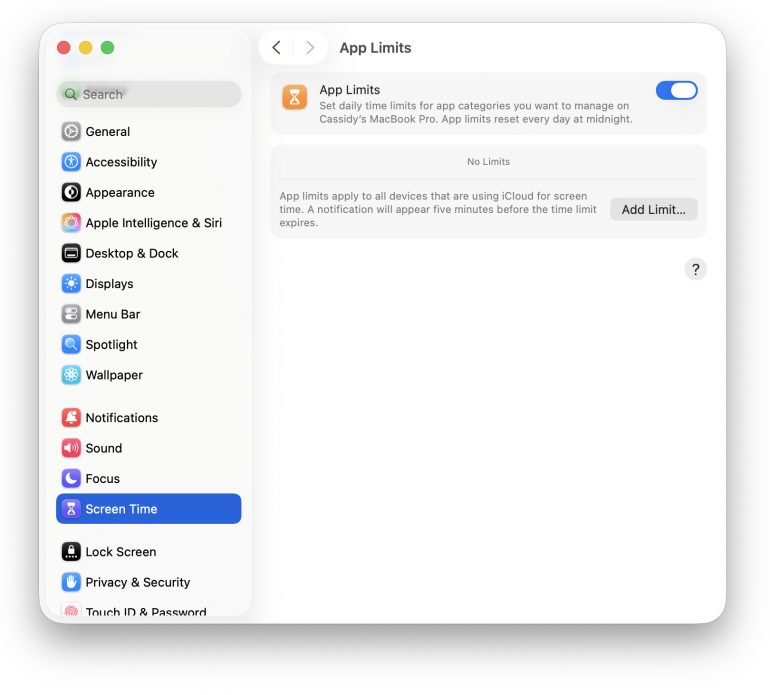
Image: Screen Time
Best for: Budget-conscious users wanting basic blocking without installing anything new.
Blocks: Websites and apps
Screen Time is Apple’s free, pre-installed blocking option. It offers straightforward website and app blocking and is easy and intuitive to use. You can use Screen Time as a distraction blocker by setting one-minute limits on the apps you find most distracting and scheduling downtime when certain apps become inaccessible. You can block websites completely through your Content & Privacy settings, and you can integrate Screen Time with Apple Focus so that your blocking rules activate automatically when you switch to Work or Personal modes. Be aware, however, that Screen Time works inconsistently across non-Safari browsers, is relatively easy to disable, and lacks the sophisticated scheduling and accountability features of dedicated tools.
Pros:
- Completely free and already installed; no additional software or subscriptions required
- Seamless integration with Apple Focus modes automatically activates blocking rules when context shifts
- Parental Controls allow managing blocking across family devices from a single account
Cons:
- Easy to bypass by disabling Screen Time or using browsers other than Safari
- Limited scheduling options and no support for advanced features like locked sessions or allowlists
Pricing: Screen Time is free and comes pre-installed on all Apple products.
Two Mobile-first Distraction Blockers
1. one sec

Image: one sec
Best for: Breaking unconscious social media habits through behavioral psychology.
Blocks: Websites and apps
One sec takes a radically different approach from traditional blockers by using behavioral psychology rather than rigid enforcement. When you try to open your chosen distraction apps, like Instagram or TikTok, the app intervenes with a breathing exercise, shows you your reflection in the camera, or asks you to spin your phone three times. In this way, it’s trying to break the automatic muscle memory of mindless scrolling. Backed by peer-reviewed research from the Max-Planck Institute, the app has proven to reduce screen time by over 50% on average. You can also set complete blocks and time limits when needed. However, you might find that one sec’s interventions start to feel routine over time. Eventually, you may stop actually completing the breathing exercises and simply wait for the time to pass instead.
Pros:
- Scientifically validated behavioral interventions break unconscious app-opening habits effectively
- Multiple intervention types including breathing exercises, mirror reflections and physical phone movements
- Works across mobile and desktop via browser extension, though functionality is stronger on mobile
Cons:
- Intervention may start to feel routine and lose their effectiveness
- May lack sufficient enforcement for users who are seeking a stricter solution
Pricing: one sec has a free tier for you to use with one app. You can also upgrade to one sec pro for $3.99 per month, $19.99 for a year, or pay $99.99 one-off for the Lifetime plan. Family plans are also available.
2. Jomo
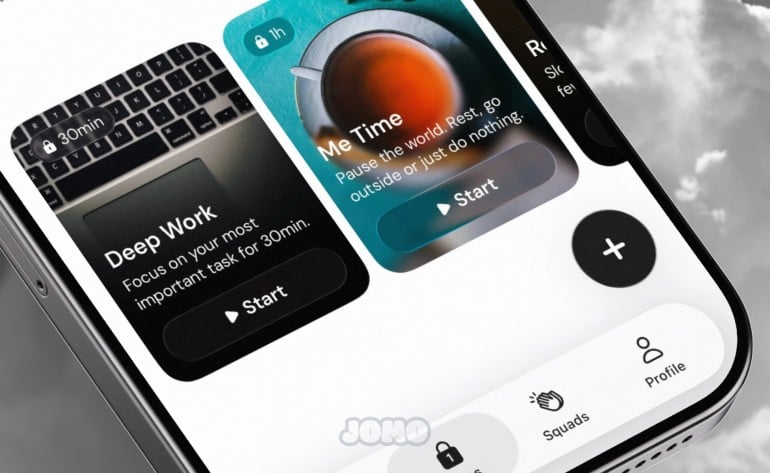
Image: Jomo
Best for: Users who want creative, action-based blocking tied to healthy habits.
Blocks: Websites and apps
Jomo uses an unusual and inventive approach to unlocking apps through real-world actions rather than just setting limits. What does this mean in practice? Instead of simply scheduling blocks, you can require yourself to run 3km, complete 10,000 steps, or even use AI verification to confirm you’ve finished breakfast before accessing your blocked sites. This gamification of distraction blocking connects screen time reduction to positive behavior change. And Jomo’s flexible block strength system lets you choose between quick intentional unblocking or strict enforcement mode. Some users report reclaiming nearly two hours every day, with blocking rules proving five times more effective than native settings. However, Jomo is more of a mobile app, which means that its desktop website blocking capabilities are limited.
Pros:
- Unique action-based unlocking system ties app access to exercise, tasks or healthy habits
- Flexible block strength allows both gentle friction and strict enforcement depending on goals
- Screen time journaling helps identify patterns and adjust blocking strategies over time
Cons:
- Primarily mobile-focused with limited desktop website blocking compared to dedicated browser blockers
- Action-based requirements may feel gimmicky rather than effective for users needing simple enforcement
Pricing: Jomo has a free plan. Its Annual plan costs $29.99 and its Single Purchase plan costs $99.99 one-off.
An Honourable Mention
Brick
A final word needs to be said about Brick, which takes a radically physical approach to app blocking. It’s a small magnetic NFC puck that you tap against your phone to lock and unlock access to distracting apps. The genius is in the friction: you can leave the Brick on your nightstand, fridge or desk and walk away, making your phone almost inaccessible until you physically return. (There are some workarounds, but they’re deliberately cumbersome and complicated.) On the whole, it works like a charm. However, since it’s a mobile-only solution with no desktop blocking capabilities, it doesn’t work at all for Mac-based distractions.
Which Website Blocker for Mac Should You Choose?
Choosing the right tool is always a personal decision, one that depends on your needs, unique working style, and what you’re trying to accomplish. But there are some tools that work better for some users than others. We’ve divided our list into freelancers and small teams.
Best Distraction Blocker for Mac if You’re a Freelancer
Freelancers typically need a strong combination of flexibility and accountability. You set your own schedule but you can’t afford to waste billable hours scrolling.
- Freedom is the standout choice here. Cross-device blocking means you can’t escape to your phone and Locked Mode prevents you from bailing mid-session.
- Cold Turkey Blocker is the best option if you know you’ll try to cheat. Once a block starts, there’s genuinely no way out. It’s unforgiving but effective for deadline-driven work.
Best Website Blocker App for Small Teams
If you’re looking for team solutions, it’s worth avoiding employee monitoring software that tracks every website visit. These tools damage trust and rarely improve productivity. Rather opt for solutions that feel more like support and less like surveillance.
- Freedom for Teams strikes this balance well. Admins can set organization-wide blocking policies, but there’s no keystroke logging or screenshot monitoring. Team members see aggregate focus statistics without invasive tracking.
- Opal also offers team features with a focus on collective goals. The gamification and leaderboards work well for teams that enjoy friendly competition.
Here are a few other options worth considering, based on your needs:
- If you need cross-device consistency: Freedom, Jomo or Opal
- If you need maximum strictness: Cold Turkey or SelfControl
- If you want deep work rituals: Focus
- If you mostly struggle with visual clutter: HazeOver
How to Measure Distractions and Improve Focus with Timing
The best way to get a proper handle on a) what your greatest distractions and time sinks are, and b) how much time your distraction blocker is saving you, is to incorporate Timing into your tool stack.
Timing operates in the background while you work, tracking every app, web page and document you open. This makes it easy to use Timing to see which apps or sites distract you most, and whether you’re spending more time reading the news or scrolling through social media than you should. Your Stats tab offers this insight in granular detail, and includes data on your most active and most productive working hours and days of the week.
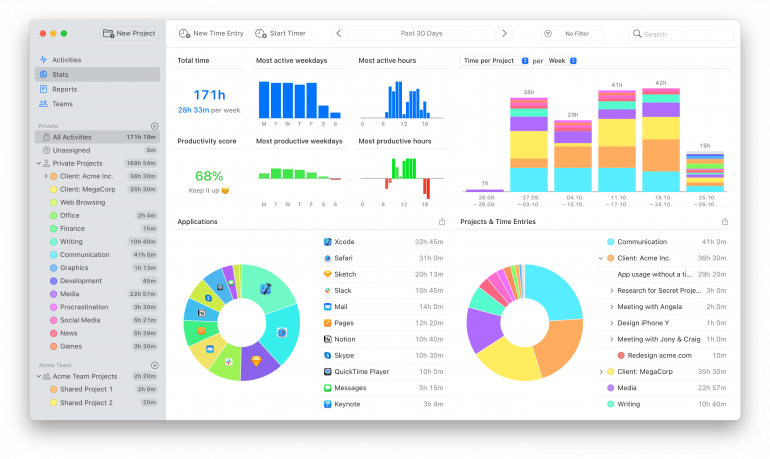
Use Timing alongside your chosen blocker to measure, block, review and improve your behavior:
- Spot your real distraction hotspots: Since Timing shows exactly where your time goes, you can use it to inform which websites and apps you choose to limit or block. Timing can also import your iPhone/iPad usage from Screen Time, helping to give you a sense of your distractions across all the devices you use. Analyze this data carefully so that you can identify problematic patterns of behavior.
- Block your most distracting apps: Then, use this information to inform which apps and sites you block. You can also let Timing guide which times of day you schedule your blocking. For example, if Timing tells you that your most productive hours are weekdays between 8am and midday, then make sure you schedule your distraction blocker for those hours. Protect your deep focused work.
- Review your progress over time: By conducting an audit of your time pre and post-website blocker, and at regular intervals, you can observe how much time your chosen solution is saving you. This will help you to see whether it’s the right solution for you, or whether you perhaps need a tool with stricter or more lenient capabilities.
- Improve your behavior: With a firm grasp on where your time goes, you can adjust your schedule so you’re limiting your distractions as much as possible. Observe your behavior over time, and you’ll likely see dramatic improvements in your levels of focus and productivity.
With Timing’s free 30-day trial, you can start getting to grips with time tracking today.
Summary: How to Block Websites on Mac
Blocking websites on Mac is all about finding a solution you’ll actually stick with. Apple’s Screen Time works for basic needs and costs nothing. But dedicated tools like Cold Turkey, SelfControl or Jomo offer the customization, blocking capabilities and scheduling options that serious focus work demands.
Match your tool to how likely you are to bypass it. Likely to cheat? Choose unbreakable blocking. Just looking for a bit of support? Opt for one that nudges you to focus or gamifies the process.
Whatever your decision, pair your blocker with Timing to measure where your time really goes and how much time you’re saving. Download Timing’s free 30-day trial to get started.
Frequently Asked Questions: How to Block Websites on Mac
How do I Block Websites on My Mac Using Screen Time?
Open System Settings → Screen Time → App Limits to set a one-minute daily limit on websites. Content & Privacy → Content, then scroll to “Limit Adult Websites” and add specific sites to the “Never Allow” list. Alternatively, use App Limits to set a daily cap for specific apps or websites – setting it to as little as one minute effectively blocks them during your work hours.
What’s the Best Distraction Blocker App for Mac?
Freedom offers the best balance of features for most people, with cross-device blocking, Locked Mode for accountability and flexible scheduling. For completely free unbreakable blocking, SelfControl is excellent, while Cold Turkey Blocker provides another strict alternative if you’re willing to pay.
How Can I Block Websites on Mac in a Way That’s Hard to Bypass?
Cold Turkey Blocker and SelfControl offer genuinely unbreakable blocking: once a session starts, you cannot disable it by restarting, deleting the app, or any other workaround. Opal’s Deep Focus also provides strong enforcement that prevents early termination, though it’s slightly less strict than the truly unbreakable options.
Will a Website Blocker Slow Down my Mac or Affect My Privacy?
Most website blockers are lightweight and won’t noticeably slow down your Mac. Privacy varies by tool, but many store all your data locally and don’t collect or upload any user information. Always dive into your chosen solution’s privacy policy to be sure.