
The 11 Best Calendar Apps for Mac in 2026
Image: Generated with Dall-E
Whether you’re arranging work meetings or personal engagements, having the best calendar app for Mac is critical to managing your time effectively. The right calendar app can help you organize your schedule, improve your productivity, and collaborate well with others. It’s an essential value-add in maintaining control of your time and spending it wisely.
But with so many calendar apps on the market in 2026, how do you find the one that’s right for you? We’ve drawn up a list of the eleven best calendar apps for Mac and MacBook — including several free options. Each app has a few important characteristics that we recommend you look out for, as well as a couple of defining features that separate them from the rest. Whether you’re a freelancer, a small business owner, or part of a larger team, there’s a calendar app here that fits your workflow.
Table of Contents
TOC
TL;DR: Best Calendar Apps for Mac in 2026
- Best free option: Apple Calendar — built into every Mac and MacBook, syncs across all Apple devices
- Best for power users: Fantastical — deep multi-calendar support, gorgeous design, Apple Design Award winner
- Best for customization: BusyCal — highly flexible views, built-in to-dos, one-time purchase
- Best free for Google users: Google Calendar — seamless Gmail and Google Meet integration
- Best for enterprise teams: Outlook Calendar — deep Microsoft 365 integration with room booking
- Best menu bar calendar: Dato — your whole schedule one click from the menu bar, plus time zone tracking
All of these calendar apps work with Timing’s automatic time tracking, so every meeting is logged without manual timers.
What Are The Benefits of Using a Calendar App?
By and large, schedules today are busy and unpredictable. Many of us feel pulled between a number of different priorities that need to be planned for and diarized. Whether we’re slotting in performance reviews or our kids’ piano lessons, we need to be able to add these events on the run, view them at a glance, and reschedule them with ease.
Using a calendar app can transform your daily routine, making life simpler and more streamlined. Here are a few key benefits you can expect.
Improved Organization
Calendar apps centralize your appointments, meetings and deadlines. By having them all in one place, you’re less likely to miss something important. Having a full view of your daily, weekly and monthly commitments can also help you see whether you’re running at capacity, or whether you have space to take on more work. It can ensure you stay conscious of maintaining a good work-life balance.
Using a calendar app you enjoy and which you’re likely to use regularly — ideally every day — is critical.
Enhanced Productivity
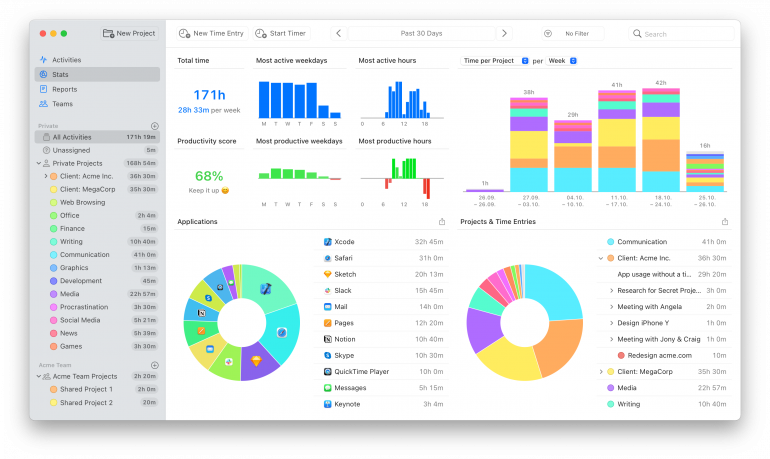
By integrating your calendar with an automatic time tracking tool (like Timing), you can schedule your working time around your most productive hours. In Timing’s Stats tab below, for example, it’s clear that this person is most productive between 12 and 4pm. It might be worthwhile for them to time block or block schedule these hours in their calendar app to ensure that they’re undertaking deep work during their most productive periods.
Calendar apps also often come with features like reminders and task lists. Use these tools well, and you’re more likely to prioritize the right work at the right time.
Effortless Collaboration
Many calendar apps allow you to share your schedule with colleagues, family or friends. This makes it easier to coordinate meetings and events at mutually convenient times, and helps to keep everyone on the same page. If you work remotely, a good calendar app is a key part of your remote work tool stack.
Flexibility and Accessibility
Our professional and personal lives aren’t confined to a particular time and place. Work meetings can creep into our diaries while we’re enjoying a family meal. And an emergency doctor’s appointment might need to be squeezed into the middle of a workday. By accessing your calendar at any time, and from any device, you can make real-time updates to your schedule as it evolves.
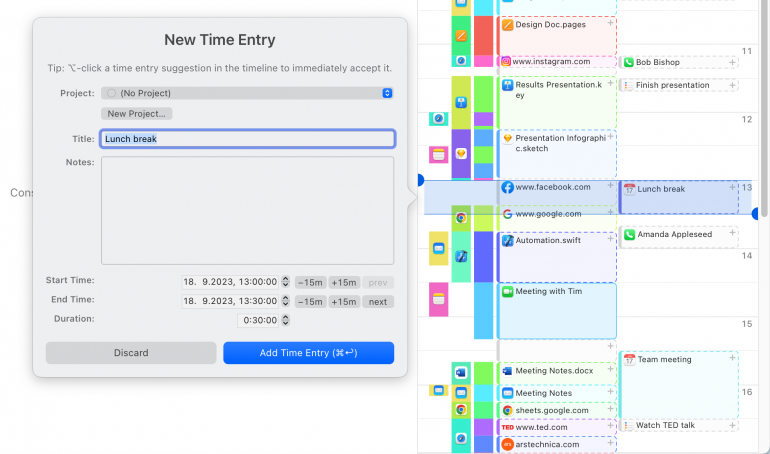
What’s more, if you integrate your calendar with your time tracking solution, you can ensure that every meeting you attend is automatically categorized to the right client or project. Timing even picks up meetings that you schedule on your iPhone or iPad. And it automatically recognizes when you start a video or audio call in many popular meeting apps. Once your call has ended, you will receive a notification to open a time entry editor where you can enter the meeting’s details. This way, nothing billable ever gets missed.

Read more: The 11 Best Time Tracking Apps for Mac: A Comprehensive Market Overview
The right calendar apps should make your life smoother and more manageable, helping you to stay on top of your commitments and find time for what truly matters. Looking for more ways to boost your Mac workflow? Check out our guide to the best Mac productivity apps.
What Should You Look for in a Good Calendar App?
Everyone uses their calendar in different ways, and what makes one calendar app better than another will vary from person to person. But there are a few criteria you should keep in mind as you sift through your options. The best calendar apps for Mac will all have the following characteristics. Those that don’t should be filtered out of your shortlist. They’re only likely to frustrate you and waste your time.
Intuitive and Easy to Use
Your calendar is meant to make your time management processes easier, not harder. A good calendar app should have an accessible interface that allows you to add, edit, and view events quickly and intuitively. Apps that require a steep learning curve are likely to irritate you and slow you down — unless their features are worth the time invested.
Native to macOS
If you’re a Mac or MacBook user, it’s important that you use solutions that have been designed with macOS in mind. Your calendar app should abide by Apple’s design language and offer native keyboard shortcuts. In addition, native Mac apps are also often faster and consume fewer system resources than web apps — an important consideration if you’re working on a MacBook Air or MacBook Pro on the go.
Advanced Features
Consider additional features like natural language processing to create events, as well as weather forecast and to-do list integrations. These can make managing your schedule more efficient. If you regularly work with others, choose an app that supports shared calendars and allows you to easily schedule meetings for everyone involved.
Seamless Syncing
Does your calendar app sync well between devices? If you add a meeting to the app on your iPhone, for example, does it automatically reflect on your Mac, too? Ensure the app shows the updates you make across your devices in real-time.
Easy Integration
Look for an app that integrates seamlessly with other tools and services you use, such as email, time tracking software, task managers, and virtual meeting platforms.
Timing integrates well with all calendars that are stored in Apple’s Calendar app. Even if you’re using a third-party tool, it often just stores your events in Apple’s Calendar app, which means that it can be integrated into Timing. Once you have set up the calendar integration in Timing, your calendar events will start showing up on Timing’s timeline as colored blocks. You can then click an event to create a time entry.
Clever Customization
Tailor your calendar app with color-coded meetings and personalized alerts to suit your unique way of working. These customization options can make your app easier and more fun to use, which can make you more likely to stick to it over the long term.
How We Chose the Best Calendar Apps for Mac
We evaluated a wide range of calendar apps available for Mac and MacBook, focusing on the criteria that matter most to Mac users: native macOS design, syncing reliability, integration with other tools, and real-world usability. Each app was assessed on its interface quality, feature set, pricing model, and how well it fits into a Mac-centric workflow — including compatibility with automatic time tracking tools like Timing.
The 11 Best Calendar Apps for Mac in 2026
| App | Best For | Price | Rating |
|---|---|---|---|
| Apple Calendar | Apple ecosystem users | Free | 4.9/5 (App Store, iOS) |
| Fantastical | Power users & multi-calendar depth | From $6.99/mo | 4.2/5 (Mac App Store) |
| BusyCal | Customization & to-do integration | $49.99 (one-time) | 4.5/5 (Mac App Store) |
| Calendar 366 | A full calendar that also lives in the menu bar | Free / $19.99 per year or $49.99 one-time | 3.4/5 (Mac App Store) |
| Google Calendar | Google ecosystem & teams | Free (personal) | 4.5/5 (App Store, iOS) |
| Outlook Calendar | Microsoft ecosystem & enterprise | From $9.99/mo | 4.8/5 (Mac App Store) |
| Notion Calendar | All-in-one workspace users | Free | 4.8/5 (Mac App Store) |
| Hey Calendar | Simplicity & email integration | From $99/yr | — |
| Morgen | Team scheduling & time blocking | From $15/mo | — |
| Calendars by Readdle | Cross-platform calendar + tasks | Free / $19.99/yr Pro | 4.7/5 (Mac App Store) |
| Dato | Menu bar quick access & time zones | $18 (one-time) | Not enough ratings yet (Mac App Store) |
These are the eleven best calendar apps for Mac that made it onto our list. If you don’t have time to go into them in detail, here’s a quick summary of what sets them apart from one another.
- Apple Calendar: Apple’s built-in calendar. It works seamlessly across all Mac devices.
- Fantastical: A well-regarded app, known for its beautiful and user-friendly design.
- BusyCal: BusyCal is all about customization and flexibility. It’s easy to make it your own.
- Calendar 366: A full Mac calendar that also puts an optional calendar in your menu bar.
- Google Calendar: Google Calendar comes free with a Google account. It’s well known and very intuitive.
- Outlook Calendar: A Microsoft product, Outlook integrates well across the entire Microsoft ecosystem.
We’ve also listed five other calendar apps you might want to consider. Bear in mind that some of these apps aren’t necessarily Mac-specific.
1. Apple Calendar
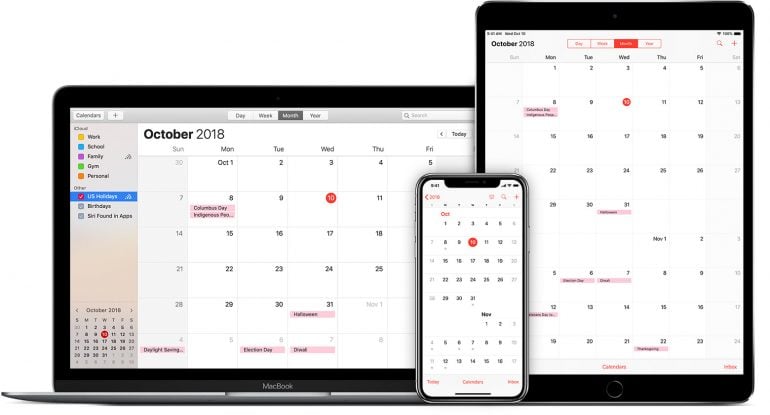
Image: Apple
As a Mac user, this is likely to be the very first calendar app you come across. It comes preinstalled on every Apple device and, as a result, integrates seamlessly.
Its unique features include iCloud synchronization, Siri integration for voice-controlled event creation, and a clean, intuitive interface. macOS 27 Golden Gate added Smart Event Details: type an event in your own words and Apple Intelligence fills in the title, time, location and invitees as you go, highlighting the parts it has recognised. Visual Intelligence ties in as well, so you can capture a flyer or an event listing on screen and have the details pulled into Calendar. You can easily manage multiple calendars, set up shared calendars, and receive notifications across your devices. It works especially well with other Apple apps, including Apple Maps, FaceTime, iMessage and Mail.
Apple Calendar was originally called iCal, and is still referred to by this name from time to time.
When it comes to automatic time tracking, Timing integrates seamlessly with Apple Calendar. Though other apps that use Apple Calendar’s database, including many of those listed below, will integrate just as well.
Pros:
- Seamless Apple ecosystem integration
- Offers all the basic features you’re likely to need in a user-friendly interface
- Smart Event Details in macOS 27 builds events from a plain-English description
- Free with macOS
Cons:
- Apple Calendar doesn’t have many advanced features or customization options — if you’re looking for something with greater functionality, you’re better off installing (and probably paying for) a third-party app
Mac App Store rating: 4.9 out of 5
Pricing: Apple Calendar comes free with any Apple device.
What users say:
“One thing I like about iCal is its seamless integration across Apple devices. I have an iPhone and MacBook Air, and the ability to automatically sync meetings and reminders wherever I am has allowed me to stay organized and prompt on my daily tasks.” — Production coordinator, small business
2. Fantastical
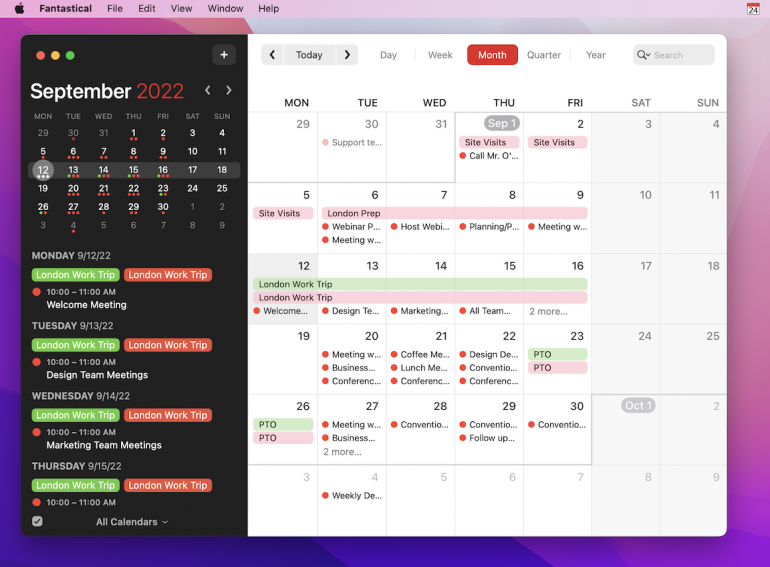
Image: Flexibits
Fantastical regularly makes the list of best calendar apps for Mac. It’s a market leader in the space, known for its beautiful, sleek design and powerful features. And you can rest assured that it’s Mac native. In the past, Fantastical has won both an Apple Design Award and Mac App of the Year Award. With the launch of Fantastical 4.0 in October 2024, the app also expanded to Windows for the first time, making it a strong cross-platform option for mixed-device teams.
Fantastical’s best-known feature is its natural language processing. Type “Marketing meeting with Sarah at 1pm on Friday” and it builds the event for you, and Flexibits added Apple Intelligence to the parser in Fantastical 4.1 to help it cope with longer, messier sentences. That used to be the clearest single reason to pay for a calendar app on the Mac. Since macOS 27 Golden Gate, Apple Calendar does a version of the same thing with Smart Event Details, so the honest case for Fantastical now rests on depth rather than on parsing alone: it connects to far more calendar services, and it adds the views, weather forecasting, scheduling links and task management that Apple Calendar has no answer to.
Pros:
- Exquisitely designed and easy to use, with a customizable interface
- Jam-packed full of features — some users say it offers the same features as three or four other apps combined
- Strong integration with other apps
Cons:
- Slightly steeper learning curve for beginners
- Since it uses a subscription model, Fantastical is on the expensive side for a calendar app
Mac App Store rating: 4.2 out of 5 (22,000+ ratings)
Pricing: Fantastical is part of the Flexibits Premium subscription, which comprises Fantastical and a contacts app called Cardhop. There is a free 14-day trial. The Premium subscription is $6.99 per month (or $56.99 per year) for individuals and team members. Families of up to five people pay $10.49 per month (or $89.99 per year).
What users say:
“I don’t know another calendar app that is packed with functionality while being well designed. New features are continually added. Apart from the natural language entry for appointments, there are very well-designed views (monthly, weekly and daily, and brand-new quarterly views are available) and basic necessities (syncs with calendar providers such as MS Outlook, Exchange, iCloud, Google Calendar, etc.). — Professional training and coaching, self-employed
3. BusyCal
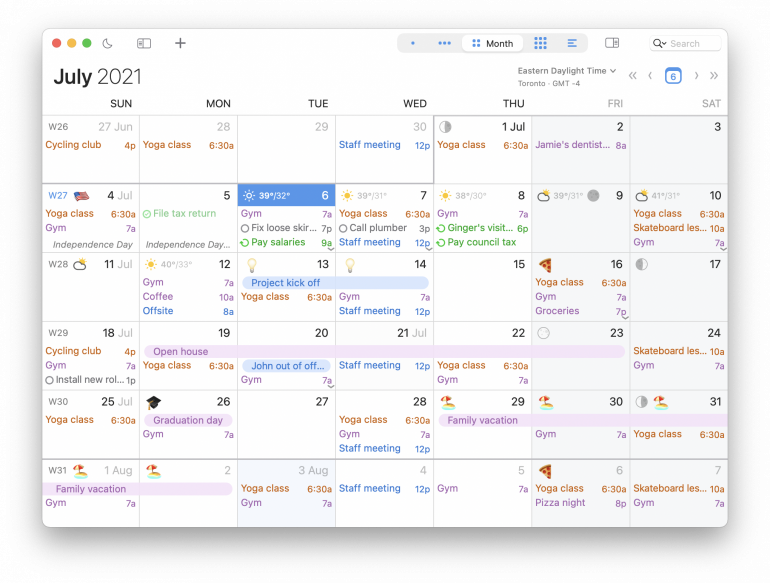
Image: BusyCal
BusyCal is one of the longest-standing calendar apps for Mac, loved for its flexibility and extensive customization options. It may look a lot like Apple Calendar initially, but dig a little deeper and you’ll soon realize that you can personalize views, set custom alerts, and color-code events to your liking.
Unique features include a built-in to-do list, which can either be pulled in from apps like Reminders or Todoist or added manually, and support for multiple calendars and time zones. BusyCal also offers robust syncing with iCloud, Google Calendar, and other services, ensuring your schedules are always up-to-date across devices. And its powerful search functionality and menu bar integration make it easy to find appointments quickly.
Pros:
- BusyCal is highly customizable — you can truly make it your own
- It integrates to-do lists well
- It has excellent syncing capabilities
Cons:
- Ironically, the interface can feel a bit cluttered and has been criticized for appearing a bit dated
- It’s on the pricey side
Mac App Store rating: 4.5 out of 5
Pricing: BusyCal has a free 30-day trial. Its perpetual license costs $49.99 and includes 18 months of updates. BusyCal is also available as a subscription on the Mac App Store and through Setapp.
What users say:
“BusyCal has all the time-saving features and is compatible with all leading cloud services, which includes Reminders, iCloud, Google, Exchange, Office 365, Yahoo, Fastmail, Kerio, Nextcloud and many more integrations. I like how it also integrates with online conference solutions from Google Meet to Zoom, Webex, GoToMeeting and many more.” — Team lead manager, mid-market
4. Calendar 366
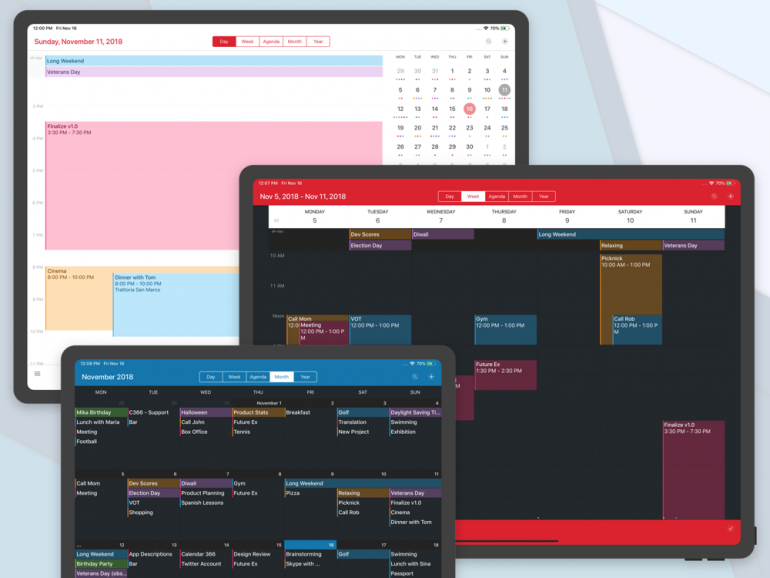
Image: Calendar 366
Calendar 366 was rebuilt from the ground up in 2026, and the change matters if you knew the old version. Calendar 366 II was a menu bar app first and foremost — the menu bar essentially was the product. Version 3 is a full Mac calendar application that also offers an optional menu bar app alongside it, so you can keep a formatted date in the menu bar and open your schedule with a global keyboard shortcut, but the main window is now where most of the work happens.
It’s a single universal purchase covering Mac, iPhone, iPad and Apple Watch. It uses natural language processing to create events, supports multiple calendar services (iCloud, Google, Outlook, Microsoft 365, Todoist, Fastmail and CalDAV), and offers detailed event views, tasks, travel time and a large set of widgets. The drag-and-drop appointment rescheduling makes handling shifts in your schedule a breeze.
Calendar 366 is also available in twelve different languages.
One thing to know before you buy: owners of Calendar 366 II were not given an upgrade path to version 3, and the older app has been removed from the Mac App Store. If you are coming from Calendar 366 II, you are buying afresh at the new price.
Pros:
- A full calendar app plus an optional menu bar companion, so you can work either way
- One universal purchase covers Mac, iPhone, iPad and Apple Watch
- Extensive customization options
Cons:
- No upgrade path for existing Calendar 366 II owners, who have to buy again at full price
- The interface might be a little bit overwhelming for new users
Mac App Store rating: 3.4 out of 5
Pricing: Calendar 366 is free to download with a limited free tier and a 7-day trial of the Pro features. Pro then costs $19.99 per year or $49.99 as a one-time purchase, with family options at $29.99 per year or $69.99 one-time.
What users say:
“This new version has a welcome refresh in the design language. Having said that, the update process could have been communicated better.” — Mac App Store reviewer
5. Google Calendar
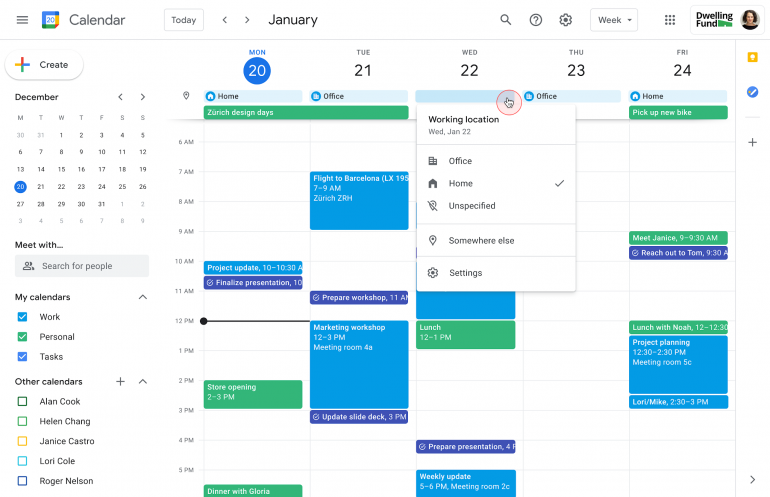
Image: Google Workspace Updates
If you’re a Gmail user, you’re likely familiar with Google Calendar. Unsurprisingly, Google Calendar integrates well with other Google services. It can add events from Gmail and automatically provides Google Meet links to streamline scheduling.
Google Calendar’s distinguishing features include smart event suggestions, color-coded calendars, and shared calendar capabilities. If you’re part of a team, viewing other people’s calendars to find a convenient meeting time is quick and painless.
While most people use Google Calendar in their browser, it can be installed as a web app, too. This enables you to have your Google Calendar readily available in your Launchpad and your Dock. You can also do this through Safari 17, which allows you to turn websites into standalone Mac apps. Simply go to the webpage on Safari 17 and click File > Add to Dock.
If you’re looking for a dedicated app for Google Calendar on your iPhone and iPad, you can use Google’s official calendar app.
Pros:
- Seamless integration across all Google services
- A simple and user-friendly interface
- Excellent for collaboration
Cons:
- Limited offline functionality
- Fewer customization options compared to some competitors
Mac App Store rating: 4.6 out of 5
Pricing: Google Calendar comes free with a personal Google account, which is also free. Businesses may want to upgrade to Google Workspace, which costs $7 per user per month for the Business Starter plan, $14 per user per month for the Business Standard plan, and $22 per user per month for the Business Plus plan.
What users say:
“Everything is instantly integrated, updated, and synced to take into account my availability, scheduling preferences, and time zone. When working with international clients I never have scheduling misunderstandings, something that happened to me frequently before switching to Google Calendar.” — E-learning, self-employed
6. Outlook Calendar
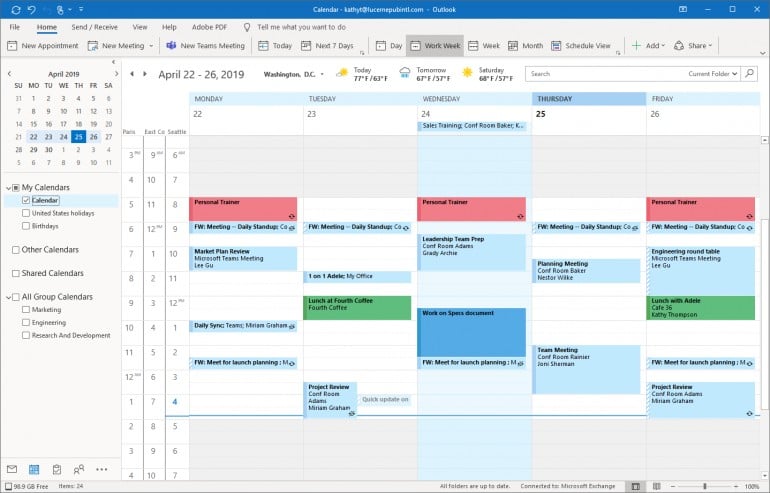
Image: Microsoft Tech Community
If your work requires you to use Microsoft products on your Mac — and especially if you use Outlook for your work emails — you might want to consider Outlook Calendar.
Outlook Calendar integrates well with Outlook’s email, contacts and tasks. It’s a little more cumbersome to schedule a meeting, with a separate window popping up every time you do so, but it’s not complicated. Unique features include comprehensive event scheduling with room booking and attendee management. And you can create events directly from your inbox if you wish.
The app’s ability to sync with various devices and platforms, along with shared calendar functionality, makes it ideal for teams. Its advanced features and enterprise-level security are also important for businesses as they scale and grow.
Pros:
- Seamless email integration
- Excellent for team collaboration
- Robust security
Cons:
- Can be cumbersome and complex for personal use
- Mac users tend to find Microsoft products less intuitive than Mac native or other third-party solutions
- Requires a Microsoft 365 subscription for full features
Mac App Store rating: 4.8 out of 5
Pricing: Outlook Calendar is included with a Microsoft 365 subscription. There’s a free one-month trial, after which you can choose between a $9.99 monthly plan or a $99.99 yearly plan.
What users say:
“The best thing about Microsoft Outlook is how it brings together email, calendar and contacts in a single, easy-to-use platform. The integration with Microsoft Teams and other Office apps makes collaboration effortless. I also appreciate the mobile app for staying connected on the go.” — Co-founder, small business
Other Common Calendar Apps
7. Notion Calendar
Notion Calendar started life as Cron, a keyboard-first calendar app that was acquired by Notion in 2022 and relaunched under its current name in January 2024. It’s completely free to download and use as a standalone calendar app, and it integrates deeply with the broader Notion workspace for those who use it. Notion Calendar inherits Cron’s fast, keyboard-driven design, making it a particularly appealing choice for users who want to manage their schedule without reaching for the mouse.
Beyond the basics, Notion Calendar includes built-in scheduling links (similar to Calendly, but free), cross-platform support across Mac, Windows, iOS, and Android, and the ability to block time directly from Notion databases. With Notion 3.0, the app also gained AI-powered features through the Notion Agent, which can analyze your calendar alongside notes and messages.
Pros:
- Completely free with a rich feature set, including scheduling links
- Keyboard-first design inherited from Cron makes navigation fast
- Deep integration with the Notion ecosystem for project management
Cons:
- Limited offline capabilities
- Full value depends on being a Notion user — standalone users may not leverage all features
Mac App Store rating: 4.8 out of 5 (6,100+ ratings)
Pricing: Notion Calendar is free. Deeper Notion integration features (like syncing databases) are available on paid Notion plans starting at $10 per user per month.
8. Hey Calendar
Hey Calendar, from 37signals (the makers of Basecamp), focuses on the basics and stands out for its simplicity. It integrates tightly with the Hey email platform, so if that’s your go-to email provider, you’ll appreciate the ability to create calendar events directly from your emails. It boasts a clean and minimalist design with smart notifications that are informative without being overwhelming. Recent updates have added search, a year view for seeing your entire schedule at a glance, and location suggestions when adding event details.
Note that Hey Calendar is bundled with a Hey email subscription — you cannot purchase it separately. The functionality might be a little rudimentary if you’re looking for more comprehensive features, but that’s by design: Hey Calendar is intentionally opinionated about keeping things simple.
Pros:
- Clean, opinionated design that avoids feature bloat
- Tight integration with Hey email, including event creation from messages
- Smart notifications that respect your attention
Cons:
- Requires a Hey email subscription ($99/yr) — not available as a standalone calendar
- Limited advanced features compared to Fantastical or BusyCal
Pricing: Hey Calendar is included with a Hey for You subscription at $99 per year. Hey for Work starts at $10 per user per month. A 30-day free trial is available.
9. Morgen
Morgen is a dynamic calendar app that’s particularly useful when it comes to collaborating with others. It not only shows you when your colleagues are available, but also suggests a time that disrupts everyone’s daily schedules the least. With the launch of Morgen v4, the app added a web version, a redesigned interface, and an AI Planner that offers daily scheduling recommendations. It’s also great for time blocking, as you can drop items straight from the task manager into your calendar. Its cross-platform compatibility ensures that you can manage your schedule from any device.
Note that Morgen removed its free plan in March 2025, so it now requires a paid subscription after a 14-day trial.
Pros:
- Excellent for team scheduling — finds the least disruptive meeting time for everyone
- AI Planner provides daily scheduling recommendations
- Strong integration with task managers like Todoist, Notion, and Apple Reminders
Cons:
- No free plan — the cheapest option is $15 per month billed annually
- Expensive compared to alternatives like Notion Calendar (free) or Fantastical ($6.99/mo)
Pricing: Morgen offers a 14-day free trial. The Pro plan costs $15 per month billed annually ($30/mo monthly). A Team plan is available at $10 per seat per month billed annually. Students, academics, and nonprofits receive 25% off.
10. Calendars by Readdle
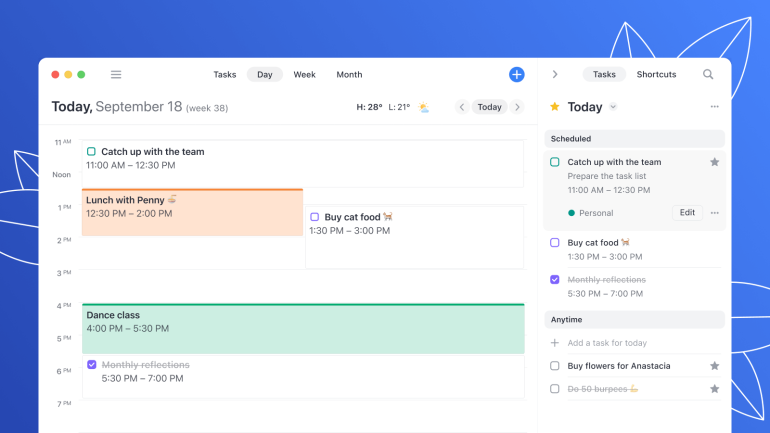
Image: Readdle
Calendars by Readdle is a polished, cross-platform calendar app from Readdle, the company behind popular productivity apps like Spark and PDF Expert. Available on Mac, iPhone, iPad, and Apple Watch, it brings together Google, iCloud, and Outlook calendars into a single unified view. With over 30 million iOS users and a Red Dot Design Award to its name, Calendars by Readdle has earned a reputation for clean design and thoughtful usability.
One of its standout features is natural language input — type “Lunch with Sam at noon on Thursday” and it creates the event for you. The app also includes a built-in task manager, video call integration for quick-joining Zoom or Google Meet links, and support for multiple calendar accounts. If you’re already using other Readdle apps, you’ll appreciate the consistent design language across the suite. And like many of the apps on this list, Calendars by Readdle stores events in Apple Calendar’s database, meaning it works seamlessly with Timing’s calendar integration for automatic time tracking.
Pros:
- Clean, award-winning design with a unified view across multiple calendar accounts
- Built-in task manager lets you manage to-dos alongside your schedule
- Generous free tier — Pro features available for a reasonable $19.99/yr or $29.99 lifetime
Cons:
- Some advanced features (like custom notifications and weather) require a Pro subscription
- The Mac app is relatively newer than the iOS version and may lack some power-user features found in BusyCal or Fantastical
Pricing: Calendars by Readdle offers a free basic version. The Pro upgrade costs $19.99 per year or $29.99 for a lifetime purchase. A 7-day free trial of Pro features is available.
11. Dato
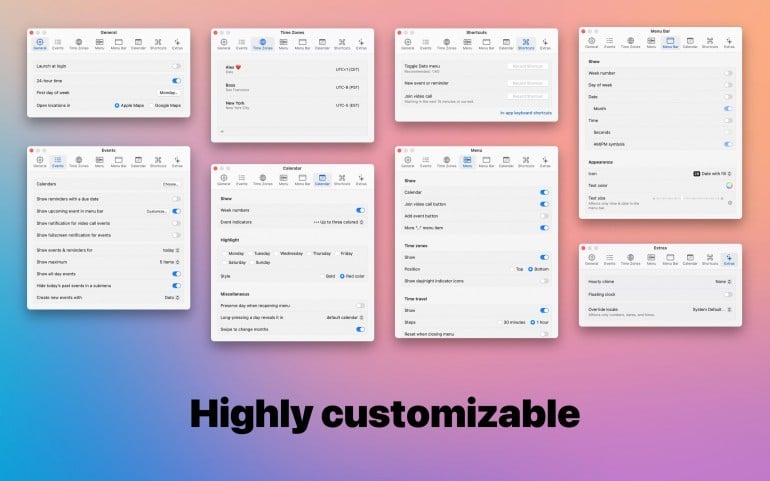
Image: Sindre Sorhus
Dato is a lightweight menu bar calendar app from Sindre Sorhus, one of the most prolific indie Mac developers. Unlike the full-featured calendar apps above, Dato is designed as a quick-access companion — click the menu bar clock and you get an instant overview of your upcoming events, multiple time zones, and world clocks. It’s a different kind of tool, and it complements a full calendar app rather than replacing one.
What makes Dato particularly useful is its time zone management. If you regularly work with colleagues or clients across different time zones, you can add multiple world clocks to the menu bar dropdown and instantly see what time it is anywhere. Dato also shows event notifications with one-click video call joining, supports macOS keyboard shortcuts, and integrates with the Apple Calendar database — so it picks up events from whichever calendar app you use. For remote workers juggling meetings across time zones, it’s a valuable addition to your Mac productivity stack.
Pros:
- Instant access to your schedule from the menu bar — no need to open a separate app
- Excellent time zone support with multiple world clocks
- One-time purchase with lifetime updates
Cons:
- Not a full calendar app — you can create events, but managing and editing them still happens in your main calendar
- Best suited as a complement to another calendar app rather than a standalone solution
- Requires macOS 26 or later
Pricing: Dato costs $18 as a one-time purchase with lifetime updates. It’s also available through Setapp.

Image: cottonbro studio
Which Calendar App Is Best for Your Mac?
So, is there a winner? Is there an app worthy of the title of best overall calendar app for Mac or MacBook?
Ultimately, no, not really.
The best calendar app is the one that you find so easy to use that it becomes an immediate and daily part of your life. If you’re running a small business, look for apps that support shared calendars, room booking, and integration with your existing tools. Most of the apps we’ve listed come with a free trial — and several (Apple Calendar, Google Calendar, Notion Calendar, and Calendars by Readdle’s basic version) are completely free. Consider trying a few different options out before making a purchase. You’ll likely find that you very quickly have a sense of the calendar app you like most.
Whichever calendar app you choose, make sure that it integrates well with your time tracking solution. Timing allows you to integrate most calendar apps, including Google and Outlook Calendar, provided that they’ve been set up in your Mac’s Apple Calendar. This is a simple process, however this guide can help you if you get stuck with Google, and this guide can help you if you get stuck with Outlook. Apps like Fantastical and BusyCal also work with the Apple Calendar database, which means Timing can leverage their info easily, too.
With your time tracking solution integrated with your calendar, you can see exactly how you’re spending your time. Use it to:
- Plan your day by time blocking or block scheduling certain periods of time
- Ensure all your meetings and calls, no matter which device you use, are logged as billable hours
- Be conscious of time constraints and your short, medium and long-term deadlines
- Assess whether you’re sticking to your intended schedule, and whether you’re dividing your time appropriately between your clients, projects and commitments
- Use Google Calendar Time Insights to see who you’re meeting with the most and how much time you’re spending in meetings
How to Clean Up Your Calendar for Better Time Management
Even with the best calendar app for Mac, your schedule can get cluttered with outdated meetings and low-value commitments. A quick cleanup helps you focus on the work that matters most.
Audit Your Current Calendar Usage
Look at where your time actually goes. An automatic time tracker like Timing can show patterns across apps and meetings so you can spot recurring events that no longer deliver value and identify the ones that move the needle.
Eliminate Time-Wasting Events
Review recurring meetings and ask: Is there a clear agenda and outcome? Is my presence essential? Could this be async? Cancel or decline what no longer aligns with your priorities. For the rest, reduce frequency or duration. Many 60-minute meetings work in 30-minutes with tighter prep.
Implement Strategic Calendar Blocking
Group similar activities to reduce context switching. Keep your existing time blocking routine (or use block scheduling), and use color-coding to distinguish focused work, meetings, admin, and buffer time for the unexpected. Blocking time for deep work helps you protect your most valuable hours.
Set Boundaries and Default-Decline
Create criteria for saying yes: agenda, outcome, and your specific role. Add “meeting-free” blocks to protect deep work. If an invite is unclear, ask for your expected contribution before accepting.
Pro tip: After making changes, keep an eye on your time data for a week or two. If you’re spending less time in low-value meetings and more in focused work, your cleanup worked. Continue to adjust as needed with insights from Timing.
Time tracking and calendar management go hand in hand. By tracking and analyzing your time, and optimizing it for your calendar, you’re likely to stay organized, focused and productive. Find and maintain a balance between your professional and personal commitments, too.
Start tracking your time straight away. Download Timing’s free 30-day trial today and use it together with your favorite calendar app to get the most out of every day.
Frequently Asked Questions: Best Calendar Apps for Mac
What Is the Best Calendar App for Mac?
The best calendar app is an app that you find easy and intuitive to use. There are several options available to you, including built-in Apple, Google and Microsoft apps and third-party apps like Fantastical and BusyCal. To get the most out of your calendar, make sure you’re using it in conjunction with an automatic time tracking solution like Timing.
What Is the Best Free Calendar App for Mac?
Apple Calendar is the best free calendar app for Mac and MacBook — it comes preinstalled on every Apple device, syncs via iCloud, and integrates with Siri. Google Calendar is another excellent free option, especially if you use Gmail and Google Meet. Notion Calendar is also free and works well if you already use Notion for project management.
Is There a Google Calendar App for Mac?
Google Calendar doesn’t have a dedicated Mac app, but you can install it as a web app through Safari 17 (File > Add to Dock) or Chrome. This gives you a standalone app in your Dock and Launchpad. You can also sync your Google Calendar with Apple Calendar, which then works with any Mac calendar app that uses the Apple Calendar database — including Timing for automatic time tracking.
Is There a Better Calendar App than Apple Calendar?
While Apple Calendar is simple to use, there are other apps that boast more comprehensive functionality. Apps like Fantastical and BusyCal offer beautiful interfaces, support for many more calendar services, and advanced features like weather integration and built-in to-do lists. Apple Calendar closed the natural-language gap in macOS 27 with Smart Event Details, so that alone is no longer a reason to switch. Their color-coding options make it easy to time block your diary.
What Is the Best Calendar App for Mac for Small Business?
For small businesses, Outlook Calendar offers enterprise-grade features like room booking, attendee management, and Microsoft 365 integration. Google Calendar is a strong free alternative with shared calendars and Google Meet links. If your team uses Macs, Fantastical’s scheduling links and shared calendar views make coordinating across a team simple. Whichever you choose, pairing it with Timing ensures every meeting is tracked as billable time.
Is Mac Calendar or Google Calendar Better?
Deciding which option is better out of two or more calendar apps depends on your specific needs. Apple Calendar synchronizes well across the Apple ecosystem and works natively on every Mac and MacBook, while Google Calendar does the same across Google services. Fortunately, both can be used with Timing, which offers useful calendar integration functionality.