
Why Do It Yourself When Your Mac Can? Mac Automation from Basics to AI

Image generated by Nano Banana Pro
Routine and repetitive tasks are inevitable — we all have to complete them, often several times a day. Copying the same phrase into emails. Hunting for our most-used folders and documents. Sifting through desktop clutter. Rearranging windows. These activities sap our time, slow our productivity, and draw our attention away from the tasks that really matter. Fortunately, many of them can be automated through a host of Mac automation tools.
Mac automation solutions have a bit of a reputation for being overly complex and technical, better suited for coders and power users than everyday knowledge workers. But times have changed. Today, these tools range from easy-to-install apps that offer daily wins to powerful AI agents that can operate your Mac for you. It’s a ladder that anyone can climb.
To show you how this works, we’ve divided our list of the best Mac automation tools into five levels that increase in complexity and impact. The apps in every level take a little more time to set up, but reward you with greater functionality:
- Level 1: Quick wins with low effort and instant payoff
- Level 2: Power launchers and built-in automation
- Level 3: Dedicated “do this one job for me” tools
- Level 4: Custom macros, system scripting and full workflow orchestration
- Level 5: AI or “have my computer just do it for me”
You don’t need to progress through the different levels if they don’t suit your purposes. Simply select the apps that meet your needs and stop at the level that feels appropriate to your skill set. Of course, if either changes, you can always dive back in and layer in more automation as your needs grow.
Start with Timing
Before you install anything, start with an automatic time tracking solution like Timing. Run it for a week before you install your chosen tools and keep it running after you install them, too. When you conduct a time audit, Timing will be able to show you how much time you’re saving as a result of using them, and whether the setup effort was worth it.
And with that, let’s break down each level and the tools within them.
Table of Contents
TOC
Level 1: Quick Wins with Low Effort and Instant Payoff
Relatively new to Mac automation? Level 1, as you might imagine, is a good place to start. The apps listed here are all small, simple interventions that will have a positive impact instantly on the way you work. You don’t need to learn scripting or build workflows. You just need to download and install them and you’re good to go.
Text Expansion and Snippets
Cotypist

Cotypist is an AI-powered autocomplete tool that helps you type as fast as you can think. It suggests words or sentences that you would write anyway, generating them in real time as you type. It’s designed to help you write faster and more efficiently, while reducing the risk of errors and typos.
While other writing and AI tools are useful, they often replace your writing with content that doesn’t really sound like you. This means that, the time that you do save, you end up using on fairly substantial edits. Cotypist is a response to this. It augments your writing rather than replacing it, suggesting words or phrases that are aligned with your unique style and tone of voice — and giving you the option to reject any suggestion you don’t like.
Cotypist works in every text-based app, and complements the text expanders below. For words and phrases that can be compressed into an easy-to-remember snippet, use a text expander. For everything else that isn’t quite repetitive enough for text expansion, use Cotypist.
Cotypist offers a free plan (up to 100 words a day). Paid plans start at $6/month for Plus and $9/month for Pro (billed annually), with a 30-day Pro free trial on every install.
TextExpander
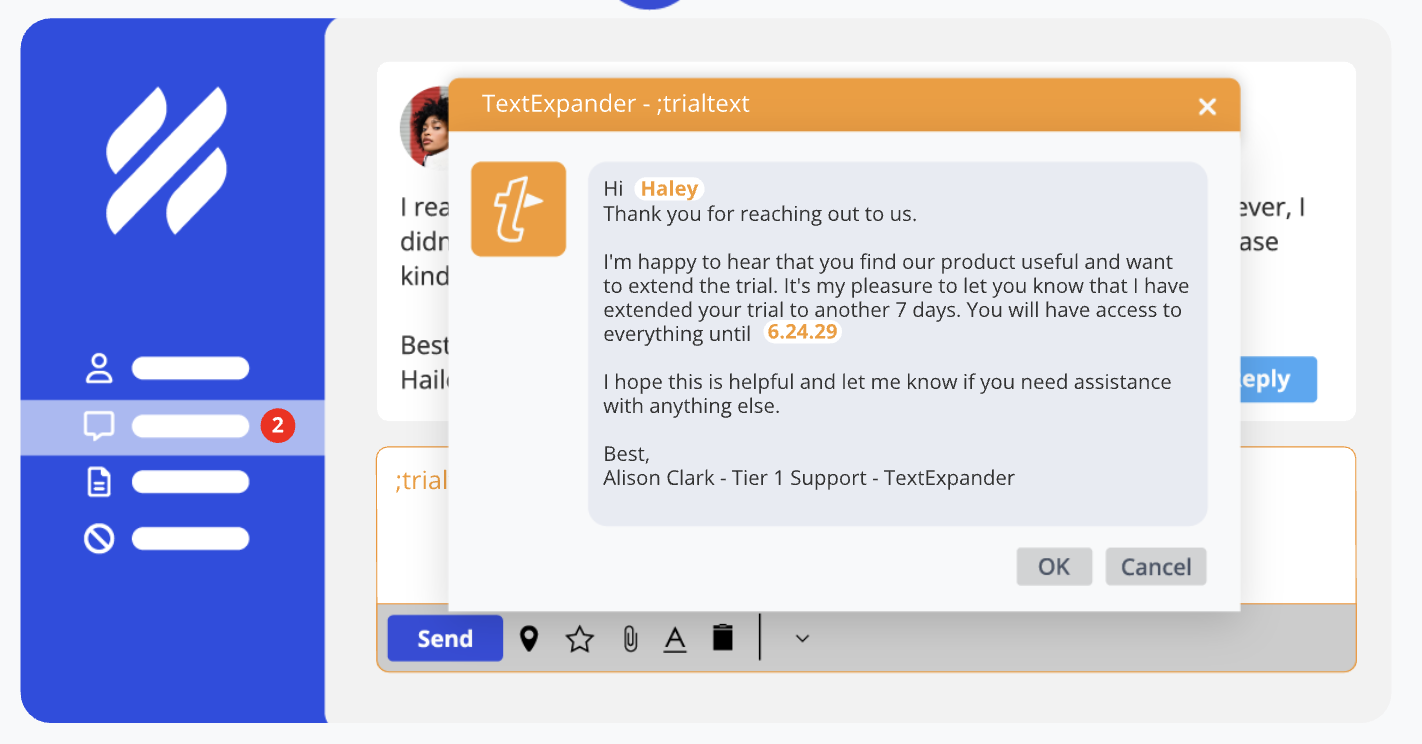
Image credit: TextExpander
Widely regarded as one of the best text expansion solutions available, TextExpander is a remarkably powerful tool. It allows you to create sophisticated snippets with handy fill-in-the-blank fields. And its inline search function (Cmd+/) lets you quickly find snippets without memorizing every abbreviation. TextExpander is especially useful if you work with a team, since admins have detailed permission controls that allow them to manage who can access, edit or share specific snippet groups. This makes it easy to ensure every one uses approved, consistent messaging.
Pairing TextExpander with Cotypist will dramatically speed up your non-templated prose.
TextExpander is one of the few text expanders that only offers a subscription model. It’s not hugely expensive, but might not work for you if you don’t feel you’ll get enough use out of it.
View TextExpander’s pricing structure here.
aText
aText does the basics well — and affordably, too. Its interface is clean and intuitive, and it’s remarkably flexible to use. You can choose your preferred cloud service from iCloud, Dropbox, Google Drive or OneDrive, rather than being locked into a single sync solution. And its built-in snippet groups for spelling corrections, HTML coding and emojis are great productivity boosts. Unfortunately, aText doesn’t offer native support for iOS. If you’re a mobile-heavy user, you might find this frustrating.
View aText’s pricing structure here.
Typinator
Typinator is synonymous with blazingly fast text expansion and rock-solid reliability. It’s often significantly faster than its subscription-based competitors — if you’re on an Apple Silicon processor, you’ll likely have no lag at all. It also offers a thoughtful approach to snippet management, providing predefined snippets and easy-to-create dynamic templates. The interface is a little dated compared to other Mac apps, however. Take a look and see how you feel — you might prefer a sleeker design.
View Typinator’s pricing structure here.
Espanso
Espanso is a completely free, open-source text expander that works across macOS, Windows and Linux with the same configuration files. Its advanced functionality includes integrating shell commands and custom scripts directly into snippets, eliminating the need to copy-paste from terminals. Espanso follows a Unix-like configuration philosophy using simple YAML files rather than a graphical interface. This makes it different to other text expanders and also means that it’s not really ideally suited for entry-level users. If you aren’t pretty tech-savvy, try another text expander first.
Espanso is totally free and open-source.
Rocket Typist
Rocket Typist is all about its AI-powered “Smart Snippets” feature, which uses OpenAI technology to proofread your writing, adjust your tone and summarize content. It also has a new SwiftUI interface with real-time snippet previews that show you how your text will expand before inserting it. And it offers genuine iOS integration. It’s worth mentioning that some users report occasional reliability concerns with Rocket Typist’s iCloud synchronization. You might want to test the free version to make sure you’re happy with its stability.
View Rocket Typist’s pricing structure here.
Read more: The Best Text Expansion Tools for Mac: Save Hours with Snippets and Smart Autocomplete
Simple Window and Desktop Assistants
Rectangle
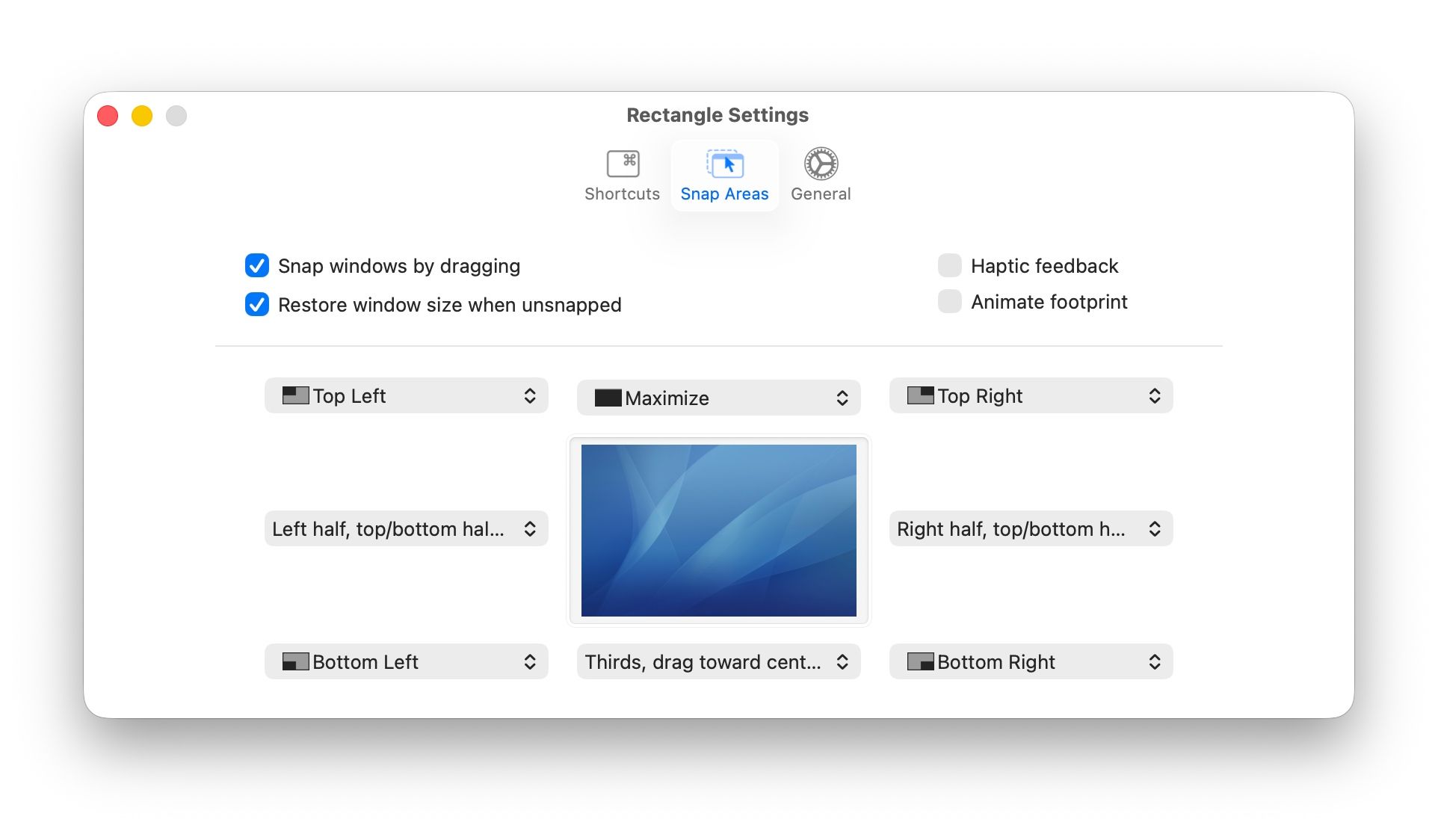
Image credit: Rectangle
If easy workspace organization is what you’re after, Rectangle is an excellent place to start. It offers window snapping through keyboard shortcuts, drag-to-snap functionality, and fully customizable hotkeys for moving windows to halves, quarters, thirds and corners. What truly sets Rectangle apart, however, is its open-source, forever-free model — an incredible offer for such a high-quality product. There is a Pro version if you’re looking for custom shortcuts and other advanced features, however. Rectangle feels native to macOS and runs lightweight in the background while you work.
Be aware that some default shortcuts require three modifiers, which means they can feel cumbersome if you use them regularly.
View Rectangle’s pricing structure here.
Magnet
Magnet declutters your screen by snapping windows into organized tiles through drag gestures or customizable keyboard shortcuts. It supports half, quarter and third configurations, and syncs seamlessly with iCloud. Magnet’s interface feels native and intuitive, and it can cater for up to six external displays. Some users report unresponsive customer support when issues arise, which can be frustrating if you need assistance.
View Magnet’s pricing structure here.
Moom
An exceptional window management tool, Moom makes moving and resizing windows fast and easy. Its standout feature is its saved window layouts, which automatically activate when you connect or disconnect displays. If you regularly work across multiple monitors, you’ll likely love this feature. You can also use a visual grid to draw precise window positions, chain custom actions together, or hover over the green button for quick presets. It’s possible that having to hit a hotkey to invoke Moom’s functionality will feel a bit disruptive to your workflow. Give it a shot and see how you feel.
View Moom’s pricing structure here.
Custom Gestures and One-tap Shortcuts
BetterTouchTool
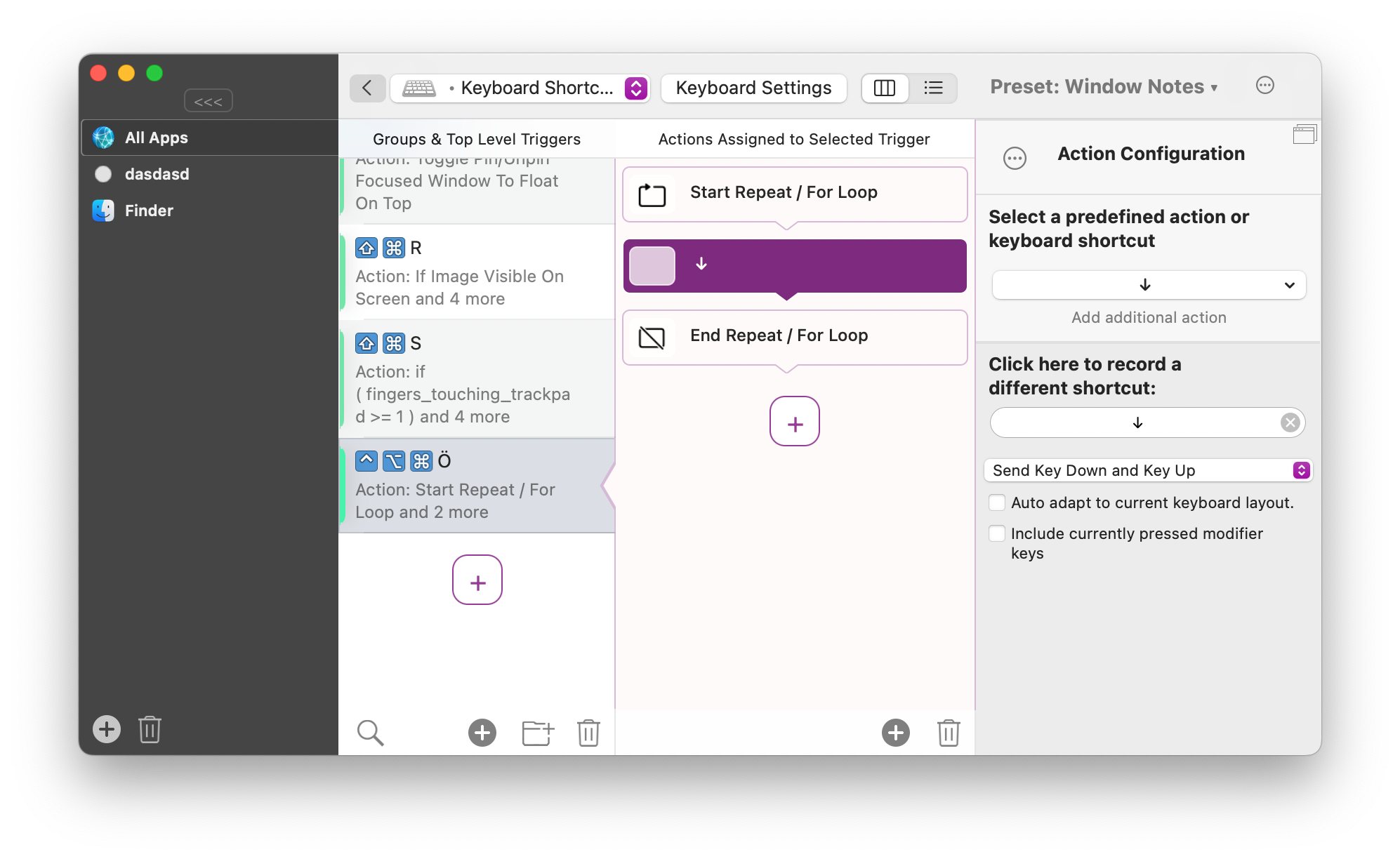
Image credit: BetterTouchTool
BetterTouchTool uses extensive customization options to transform how you work. Through it, you can create custom trackpad gestures, keyboard shortcuts and Touch Bar presets for any workflow. Its window management features allow you to snap windows into place with gestures or hotkeys. And you can automate routine tasks, design app-specific shortcuts, and even create complex multi-touch commands with just a few clicks. If you’re feeling daunted by the sheer number of options it offers, there’s an active community forum that’s always willing to help.
View BetterTouchTool’s pricing structure here.
Level 2: Power Launchers & Built-in Automation
Level 2’s apps are all about driving your Mac from a central command centre, whether that’s your launcher, shortcut palette or gesture settings. With just a few simple clicks or movements, these apps help you jump several steps ahead — getting you where you need to be as quickly as possible.
Like level 1’s apps, you can install these apps and start using them fairly easily. There’s still no coding or scripting required. But they might take a little more time to get used to. Give them a chance, and you’ll notice the difference they make to your productivity. Of course, it’s always worth measuring this impact through Timing.
Command Launchers
Raycast
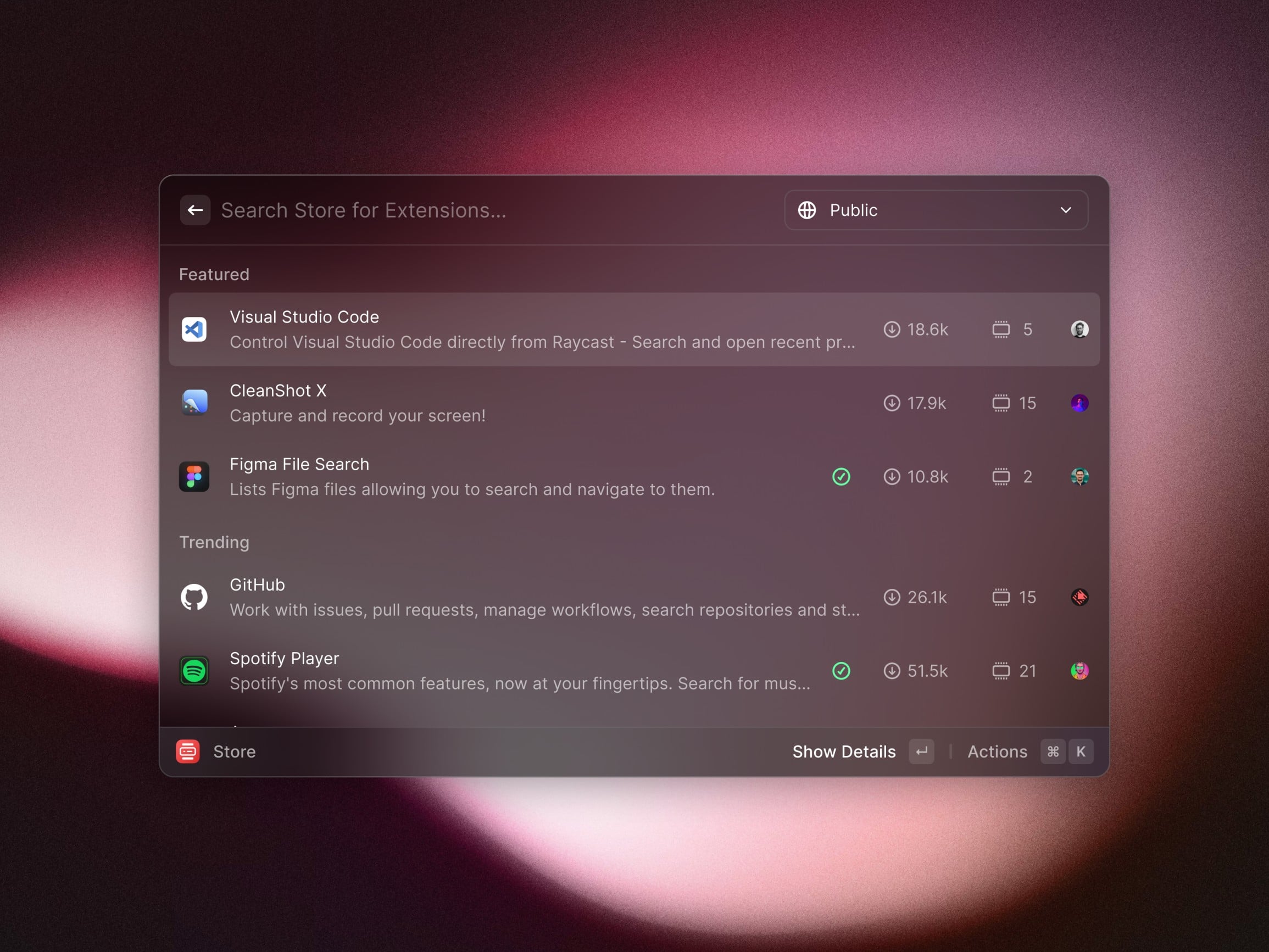
Image credit: Raycast
Raycast is an important level 2 tool. It’s essentially a super sophisticated launcher that enables you to perform any task just by typing it into the Raycast bar on your Mac. It’s a bit like Spotlight Search, but with way more functionality. This powerful launcher provides quick access to apps, files and system controls through keyboard commands you can customize.
Raycast’s AI integration offers ChatGPT accessibility and text analysis tools, while its window management features give you precise control over your workspace. One shortcoming that trips it up is that its file search is noticeably slower and less accurate than competitors like Alfred. This might be frustrating if you regularly need to locate files across your system without knowing their exact locations.
View Raycast’s pricing structure here.
Alfred

Image credit: Alfred
Alfred is pitched as a lightning-fast app launcher and search tool, but it’s so much more. This Swiss Army Knife of Mac productivity is a powerful command center that enables you to control music playback, manage your clipboard history, search through files, and create custom workflows that automate complex tasks.
The real magic lies in its flexibility. Practically anything you can imagine doing on your Mac can be triggered from Alfred’s simple search bar. It should come as no surprise, then, that getting your head around Alfred’s full offering can sometimes be its greatest limitation. Give it some time though. After a little experimenting, you might find that Alfred is the mac automation tool you can’t live without.
View Alfred’s pricing structure here.
LaunchBar
LaunchBar is a super-efficient keyboard launcher that combines app launching, text expansion, clipboard history and file navigation. Its built-in actions allow you to run Automator workflows, invoke services, perform calculations and execute web searches. And its adaptive algorithm learns from your habits, prioritizing results based on how you use it. With its integrated clipboard manager and snippet support, LaunchBar consistently streamlines repetitive tasks. The caveat is that, like Alfred, it takes a little learning to find your groove — but these are level 2 apps, after all.
View LaunchBar’s pricing structure here.
Spotlight
Spotlight (accessed by hitting command–space bar) is Mac’s built-in search feature that lets you quickly find files, apps, and information across your computer and online. In macOS Tahoe, Spotlight has evolved beyond search with actions mode. This lets you execute tasks directly, including starting timers, sending messages and creating calendar events without opening apps. The new clipboard manager also tracks copied items for eight hours, while built-in calculator and unit conversions handle quick computations. Since these are macOS Tahoe features, however, you need to have a Tahoe-compatible Mac on your hands.
Spotlight comes free and pre-installed on every Mac.
Gesture and Surface Triggers
BetterTouchTool
We’ve touched on BetterTouchTool before, but it’s worth mentioning again. Beyond its trackpad gestures, BetterTouchTool excels at chaining multiple actions into complex macros, and offering advanced triggers like ambient light detection and screen text recognition. As a level 2 user, you can leverage floating menus, clipboard history, window snapping zones, and dynamic variables for sophisticated automation. These advanced options can feel like an overwhelming rabbit hole, but if you dip your toes in slowly, you’ll find you learn as you go.
View BetterTouchTool’s pricing structure here.
Shortcuts
macOS Shortcuts
Apple’s visual automation tool uses drag-and-drop “LEGO blocks” to chain actions together. This makes it perfect for resizing images, batch-renaming files, or launching your morning apps. Its gallery offers ready-made shortcuts you can customize without coding, while quick actions put automations in right-click menus. Since it’s a built-in Mac solution, it also syncs seamlessly across your devices. Unfortunately, though, the lack of a native scheduling feature means automations require manual triggering or awkward workarounds.
macOS Shortcuts comes free and pre-installed on every Mac.
Auto-trigger Helpers
PopClip
PopClip displays a customizable action bar whenever you select text, offering instant access to copy, paste, search and spelling corrections. It also gives you the option to install up to 25 extensions for translation, web searches, or integration with note-taking apps like Evernote and Bear. The downside is that, until you adjust to its constant presence, PopClip might initially feel obtrusive in your workflow. Give its micro automations a chance and see how you feel.
View PopClip’s pricing structure here.
Shortery
Shortery fills a glaring gap in macOS by adding automation triggers to the Shortcuts app mentioned above (a functionality curiously absent on Mac despite being available on iOS). With over 17 triggers, including app launches, time schedules, device connections and folder changes, Shortery revolutionizes manual shortcuts into automatic workflows. It comes with a paid version, however, which holds a lot of the essential time-based triggers you’re likely to want.
View Shortery’s pricing structure here.
Level 3: Dedicated ‘Do This One Job For Me’ Tools
Time to level up again. These level 3 specialist tools are designed to take annoying tasks off your plate permanently. Every tool addresses a particular recurring painpoint, which means it’s important that you establish whether it addresses a challenge you’re having before putting it to the test.
Quick note: after you set up tools like Hazel or Sparkle, outlined below, you should spend way less time in Finder doing manual cleanups. Monitor this time saving with Timing — it’ll be able to show you how many hours and minutes you’ve recouped.
File Cleanup & Routing
Hazel
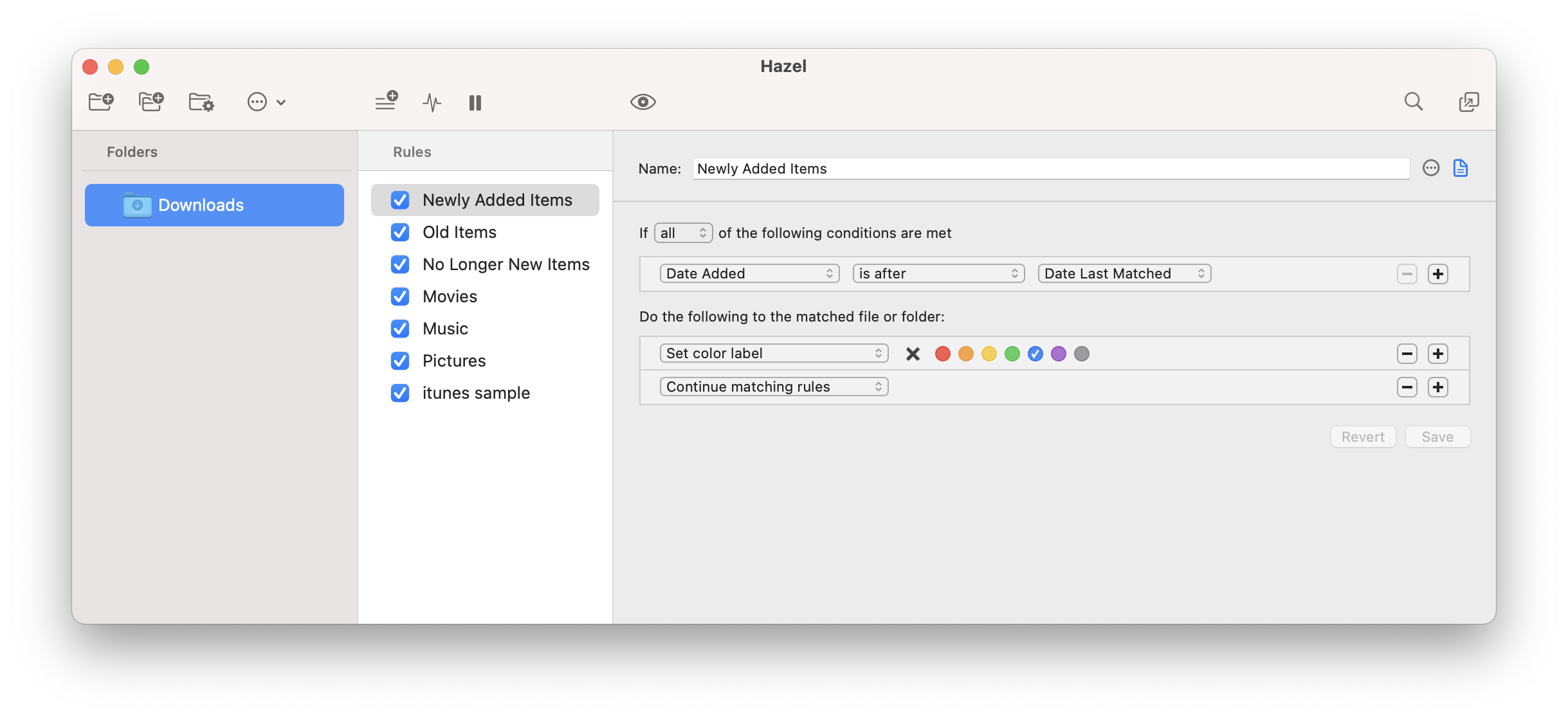
Image credit: Hazel
Make it part of your tool stack and Hazel will be the silent guardian of your Mac’s filing system. This intelligent productivity tool watches your designated folders and automatically performs actions based on your custom rules. (In this way, it’s not dissimilar from the rules that Timing uses.) You can trigger actions based on any combination of file attributes, from name patterns to content types, and can even run shell scripts. Hazel can also sort downloads, rename files, organize photos by date and metadata, and automatically clean up old or redundant files.
Since Hazel is one of our “do this one job for me” apps, it’s worth remembering that it’s focused exclusively on file organization. This means it doesn’t handle broader task automation outside file management. You’ll need to find other solutions to fill those gaps.
View Hazel’s pricing structure here.
Sparkle
Sparkle uses GPT-4 to automatically categorize files in your desktop, documents and downloads folders, creating custom subfolders based on file names. It works seamlessly with cloud storage like Dropbox and Google Drive, and has strong privacy structures in place since it only analyzes file names locally. Be warned that it has limited control over AI sorting rules, though, and that it doesn’t work with partitioned hard drives.
View Sparkle’s pricing structure here.
Dropzone
Dropzone is an intelligent workflow system with a customizable grid that appears when files are dragged to the top of your screen. Actions include moving files, uploading to FTP/Amazon S3, launching apps and URL shortening. The drop bar lets you temporarily stash files for batch processing, and its scripting API lets you build your own custom actions. Its main limitation, as with many other solutions, is that its advanced features like AppleScript actions and unlimited cloud uploads require the pro version.
View DropZone’s pricing structure here.
Screenshot → Annotate → Share
CleanShot X
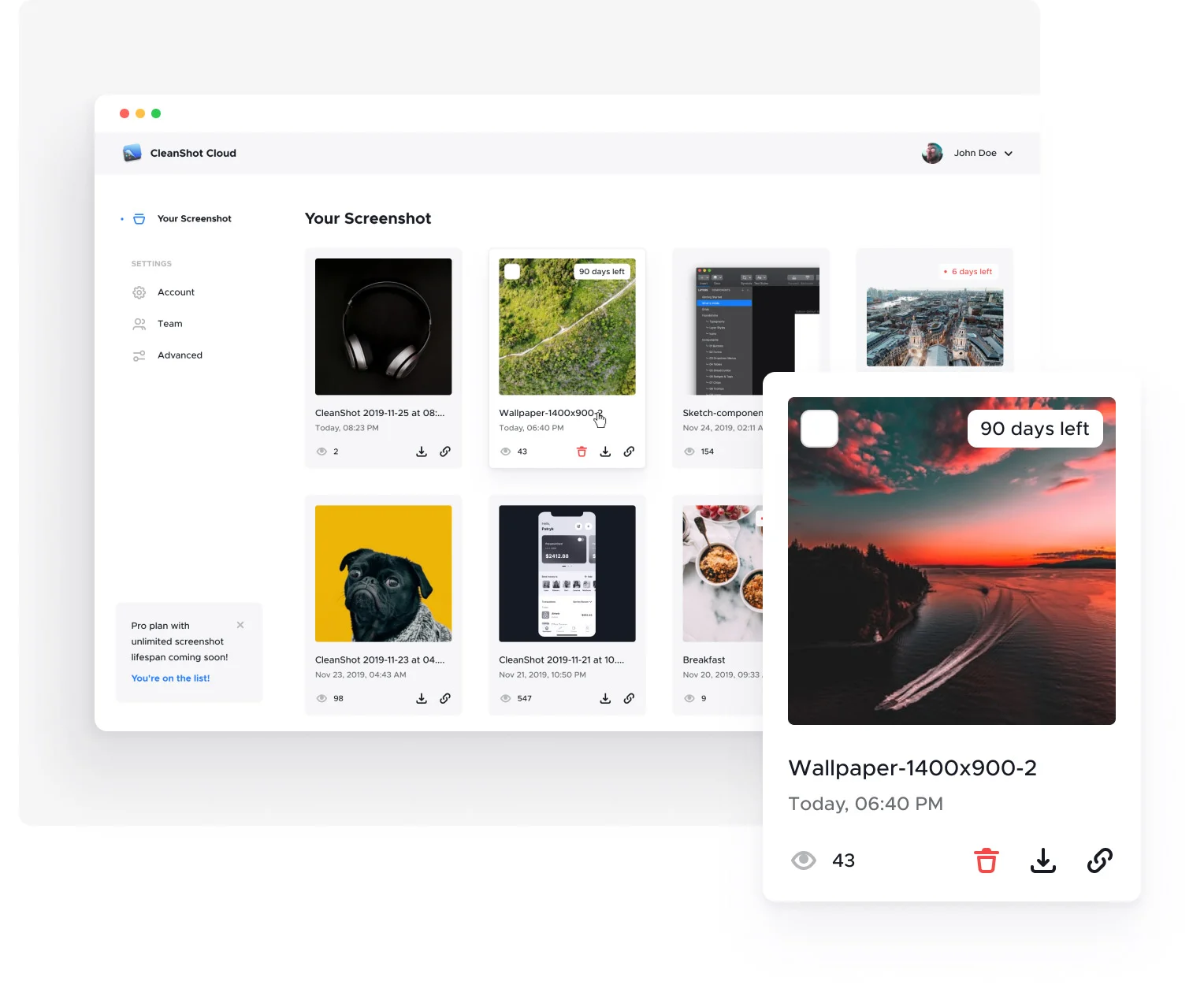
Image credit: CleanShot X
CleanShot X helps you capture your Mac’s screen like a pro. It offers scrolling capture, built-in annotation tools, OCR text recognition and integrated cloud sharing, automatically hiding desktop icons for clean captures. The quick access overlay lets you instantly edit, annotate or share without opening separate apps. And the annotation editor includes numbered steps, customizable shapes and blur effects, all of which you can edit later on. Screen recordings and GIF creation are equally effortless. CleanShot X also integrates seamlessly into macOS.
Unfortunately, there’s no free trial, which means you can’t test it before you commit. But there is a money-back guarantee if you find you don’t like or don’t use it much.
View CleanShot X’s pricing structure here.
Monosnap
Monosnap also offers screen capture with built-in annotation tools including arrows, text, blur effects and shapes. Its 8x magnifier and pixel-level measurements provide precision for designers and developers, while screen recording supports both MP4 and GIF formats. Its cloud uploads integrate with FTP, SFTP and WebDAV servers. Concerningly, some users have reported being unexpectedly classified as “commercial” users and forced to upgrade. This has raised privacy concerns about how usage is monitored.
Snagit
Snagit excels at scrolling capture for entire web pages and step-by-step tutorial creation. Its extensive editor offers professional callouts, arrows and effects like torn edges and shadows. Presets allow you to create automated workflows with stacked effects and custom shortcuts. And its picture-in-video feature lets you integrate your webcam video into screen recordings for a more personal and engaging viewer experience. Its main drawback is that the capture interface can feel clunky, and it’s on the pricey side compared to its competitors.
View Snagit’s pricing structure here.
Shottr
Shottr is known for its blisteringly fast screenshot capture — and we mean screenshots-captured-in-17ms-and-displayed-in-165ms kinda fast (bear in mind that this is optimized for Apple Silicon). Its built-in OCR extracts text and reads QR codes, while the pixel ruler measures exact distances for designers. And its scrolling capture, text removal and annotation tools complete the package. Shottr is basically a lightweight CleanShot X alternative if you don’t need all the extra frills. Unfortunately, though, it doesn’t integrate with third-party storage services like Dropbox or Google Drive, and will require manual file management.
View Shottr’s pricing structure here.
Clipboard Memory and Reuse
Paste
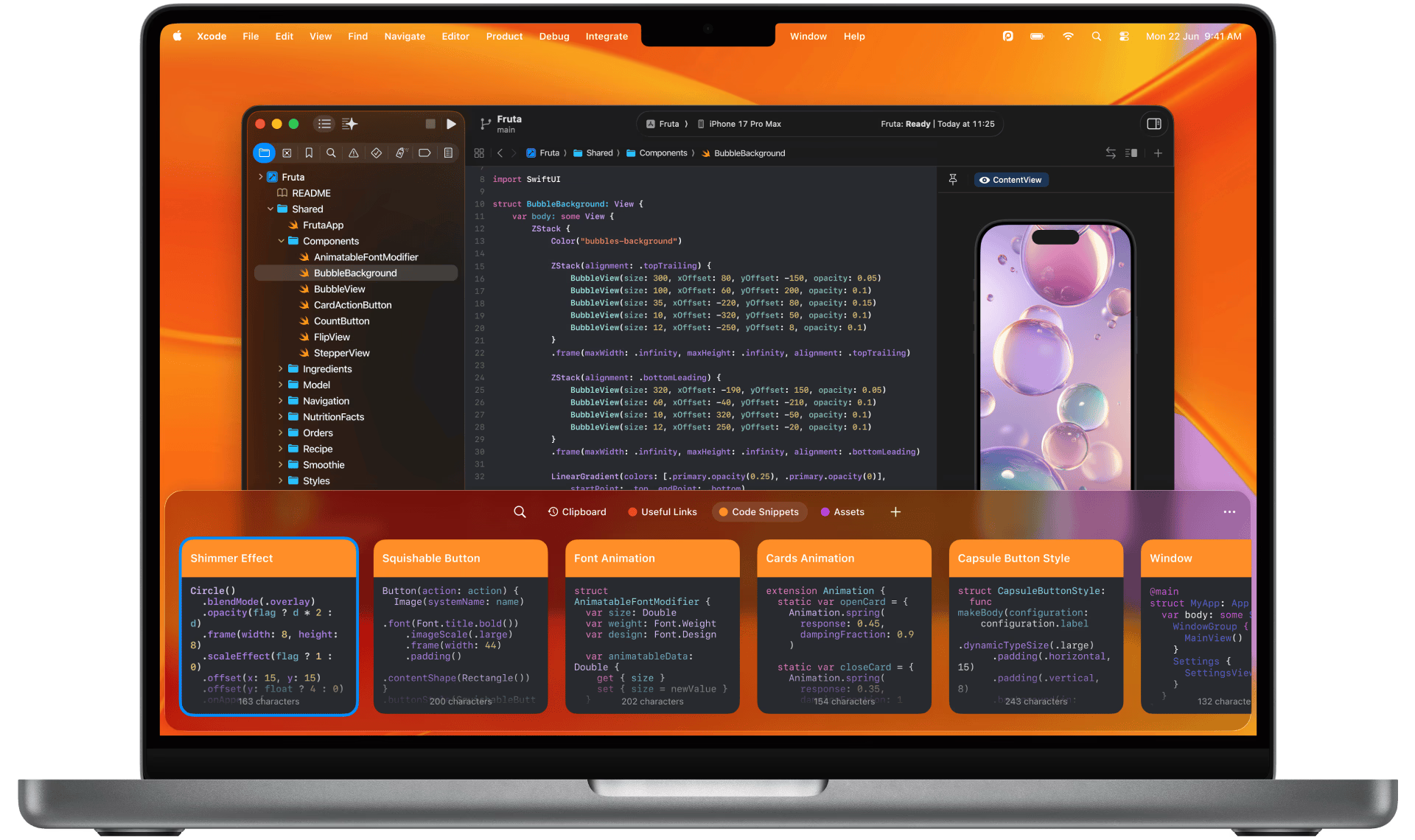
Image credit: Paste
Paste is a clipboard management solution that automatically saves everything you copy — text, images, links — into an organized, searchable visual history. Pinboards let you save frequently used snippets like email templates, code snippets or color codes for instant access. Its tile-based interface feels native to macOS, while the hex colors display as colored cards for designers. Paste stores all data locally and syncs via your iCloud, never touching third-party servers.
Paste’s iCloud sync keeps your clipboard history available across your Mac, iPhone and iPad. Unfortunately, however, this cross-device sync only works within the same iCloud account. This means you can’t use Paste across your personal and work machines if you use different iCloud accounts. Setapp may be able to help you here, however.
View Paste’s pricing structure here.
PastePal
PastePal is a native Mac clipboard manager with unlimited history and blazing-fast search. Its flexible side window positions on any screen edge, while collections and smart filtering keep everything organized. Its quick mode feature lets you navigate clipboard items by holding the shortcut key. And its iCloud sync works seamlessly across Mac, iPhone and iPad. Be aware, however, that PastePal doesn’t run in the background on iOS like it does on Mac. On your iPhone or iPad, you’ll have to open the PastePal app for it to capture and sync your clipboard items.
View PastePal’s pricing structure here.
Maccy
Maccy is an open-source clipboard manager that does the job of keeping your copy history accessible exceptionally well. Its keyboard-first approach and super-fast search let you find items in fractions of a second. And its minimalistic interface blends seamlessly with macOS, appearing only when summoned. It also automatically ignores password managers for security. However, Maccy’s intentional simplicity means no cross-device syncing or advanced formatting features, which you might find a little limiting.
View Maccy’s pricing structure here.
Pastebot
Another excellent copy and paste productivity tool, Pastebot allows you to quickly recall clippings that you have copied and apply powerful text filters before pasting. You can also copy multiple items to paste individually in order — perfect for filling forms. Custom pasteboards organize frequently-used clips, while iCloud sync keeps everything available across Macs. However, there’s no iOS companion app, which limits cross-device workflows beyond Pastebot’s universal clipboard.
View Pastebot’s pricing structure here.
Inbox Triage
SaneBox
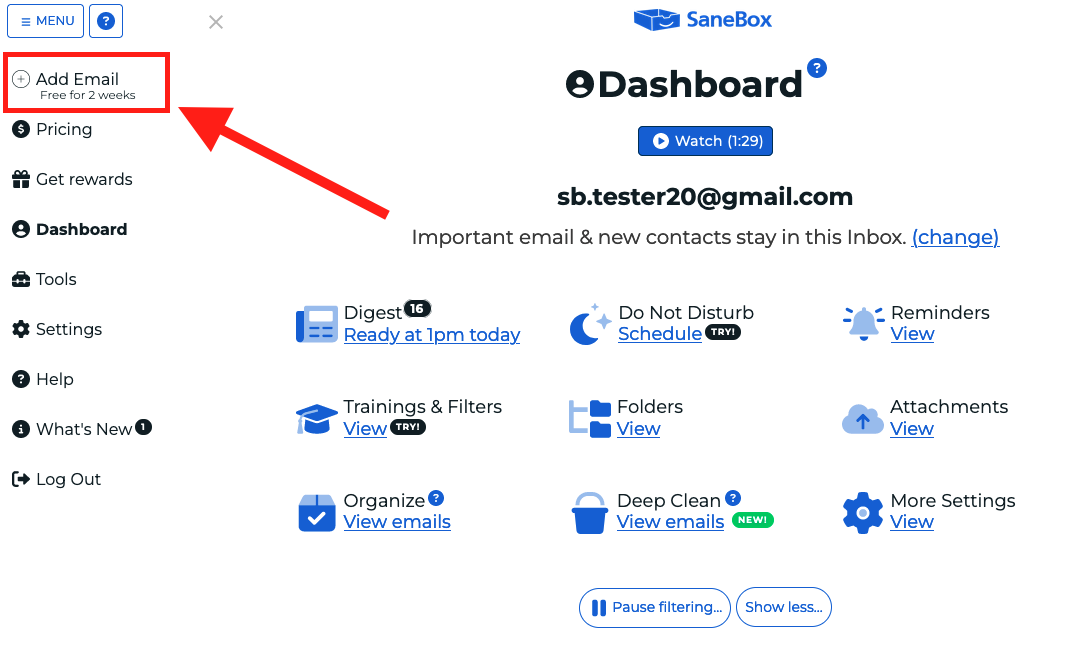
Image credit: SaneBox
SaneBox uses AI algorithms and machine learning to automatically sort incoming emails by importance, moving non-essential messages to separate folders. The SaneBlackHole feature permanently banishes unwanted senders without manual unsubscribing, while SaneReminders ensures you never forget to follow up on important emails. Daily digests summarize filtered messages so nothing slips through the cracks. SaneBox integrates seamlessly with Gmail, Outlook, Apple Mail and other major email services.
Perhaps SaneBox’s best feature is that it learns your email behavior over time, becoming smarter with every interaction. However, this process does involve an initial training period where you’ll need to manually sort emails to teach the system your preferences.
View SaneBox’s pricing structure here.
SpamSieve
SpamSieve uses Bayesian filtering to analyze word frequency in spam mail versus legitimate mail, becoming increasingly accurate over time. It color-codes your emails, indicating which ones are probably spam, so that you can glance through them quickly. SpamSieve integrates seamlessly with Apple Mail, Outlook and other Mac email clients, and all data remains on your Mac, so it’s totally secure. However, like SaneBox, you need to train it by indicating which of your emails are spam. Aim to label 65% of your emails as spam up to a maximum of 1,000 emails. Use fewer emails in the initial training.
View SpamSieve’s pricing structure here.
Scheduled Backup and Sync Safety Nets
Carbon Copy Cloner
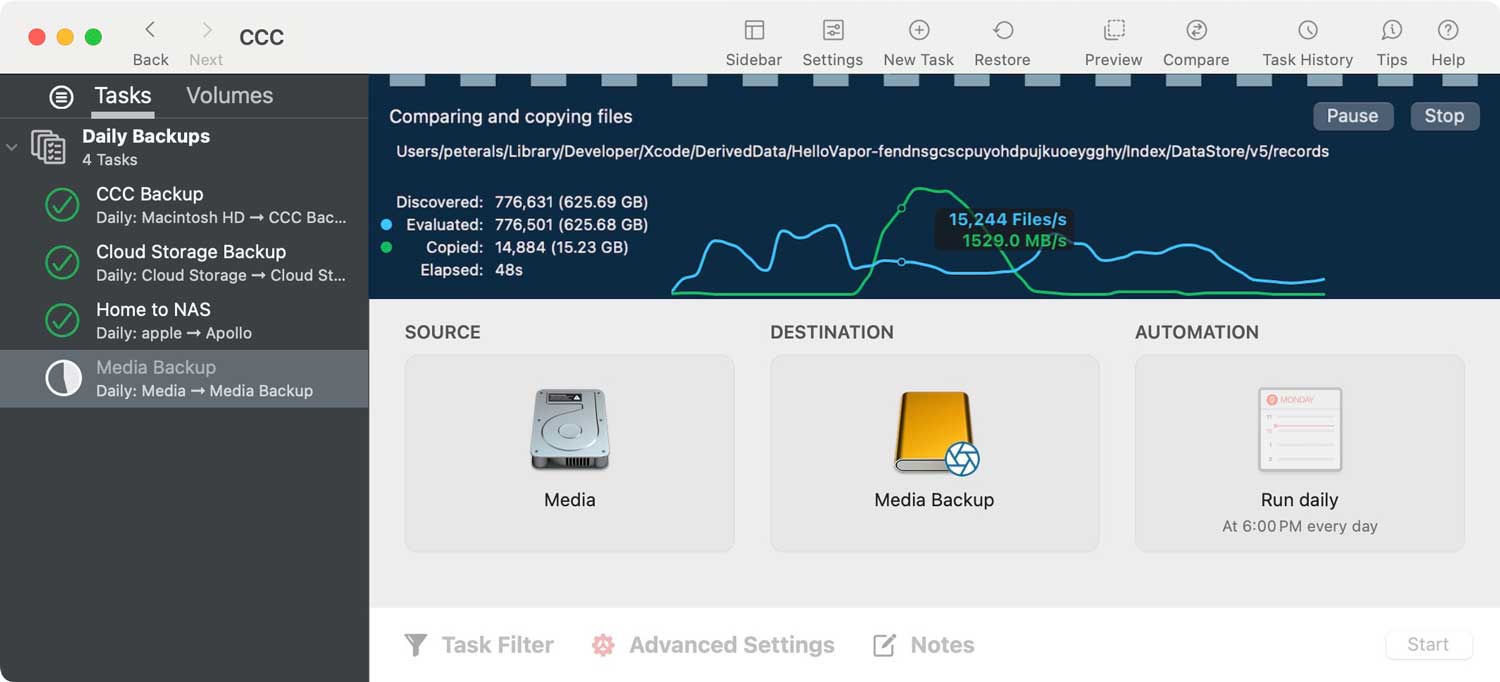
Image credit: Carbon Copy Cloner
Carbon Copy Cloner pitches itself as “everything you wish Time Machine did — and more!” It creates comprehensive backups of your Mac with detailed task audits, showing exactly what changed and why. Its incremental backup system only copies modified files, saving significant time and storage space. And its APFS snapshot support creates read-only point-in-time backups that are impenetrable to ransomware and malware. Flexible scheduling allows backups hourly, daily, weekly, monthly or even when a threshold of changes is detected, and it can temporarily download and back up cloud-only files. Built-in verification features proactively detect “bit rot” on your drives.
Be aware, however, that Apple Silicon Macs can’t boot from external drives if your internal storage fails. This limits many of the advantages that make bootable backups so valuable in the first place.
View Carbon Copy Cloner’s pricing structure here.
ChronoSync
ChronoSync is a multi-purpose tool that manages backup, bootable clones and bidirectional folder synchronization. Its preview feature lets you see exactly what will happen before making any changes, while its event-based schedules can trigger backups when drives connect or computers join your network. ChronoAgent enables encrypted Mac-to-Mac transfers that are significantly faster than standard file sharing. If you’re after the professional-level configuration options, though, be aware that they come with a steeper learning curve than simpler backup utilities.
View ChronoSync’s pricing structure here.
SuperDuper!
SuperDuper! creates fully bootable clones of your Mac’s startup drive, allowing immediate recovery if your internal drive fails. Its Smart Update feature copies only changed files rather than re-cloning everything, while the unique Sandbox feature creates a bootable partition for safely testing software updates. The interface is remarkably simple and user-friendly. However, it doesn’t copy files from external drives like USBs, portable hard disks or optical media.
View SuperDuper!’s pricing structure here.
Backblaze
Backblaze is one of our favorites. It offers a straightforward cloud solution to help you backup your data. Unlike traditional backup offerings, Backblaze provides unlimited cloud storage for a flat fee and automatically backs up everything except system files and apps. After setting it up, Backblaze works continuously in the background, using minimal system resources while ensuring every file is protected. It also has excellent version history control and rapid restore options. And it easily inherits backup states when you migrate to a new Mac. Be warned that it only keeps deleted files and previous for 30 days. Anything longer and you’ll need to upgrade.
View Backblaze’s pricing structure here.
Read more: How to Backup Your MacBook: Top 7 App Reviews and Tips
Meeting Capture & Follow-up
Granola
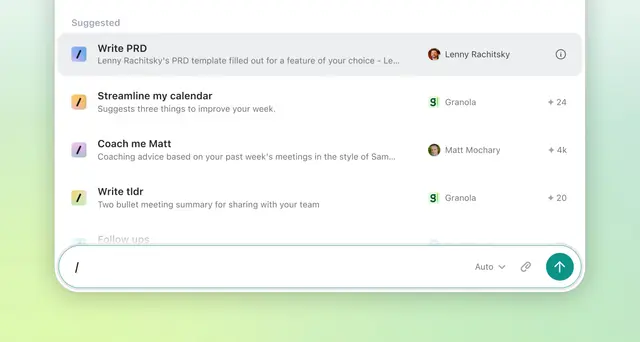
Image credit: Granola
Granola takes a collaborative approach to AI note-taking, letting you write your own notes while AI fills in the details from meeting transcripts. And you can use its built-in AI chat to ask questions about meetings or generate follow-up emails. Granola transcribes your Mac’s audio directly without meeting bots joining, which helps your calls feel seamless and unobtrusive. And its notes hyperlink to transcript summaries for fact-checking. Granola connects to your calendar and works seamlessly across Zoom, Google Meet and other platforms.
While Granola offers 25 trial meetings, there’s no ongoing free tier. After 25 calls, you’ll need to invest in a paid subscription.
View Granola’s pricing structure here.
Fathom
Fathom automatically records, transcribes and summarizes meetings on Zoom, Google Meet and Microsoft Teams, supporting 28 languages. The Highlight feature lets you flag key moments during calls, while transcripts use a chat-style format that makes it easy to distinguish speakers. It automatically syncs with Salesforce, HubSpot, Slack and Asana, which helps to eliminate post-meeting data entry. However, Fathom does join meetings as a visible bot, which some find intrusive and awkward.
View Fathom’s pricing structure here.
Otter
We’re big fans of Otter, an intelligent meeting assistant that auto-joins your Zoom, Google Meet and Microsoft Teams calls. As soon as it does, it automatically takes notes on your behalf, allowing you to focus on the meeting at hand. Otter generates simple and streamlined meeting summaries, and automatically captures and assigns action items. And it offers real-time transcription with impressive accuracy in English, Spanish and French. If you work as part of an international team, however, you might need an app that has greater language functionality.
View Otter’s pricing structure here.
Read more: Dictation on Mac: How to Use Talk-to-Text & the Best Dictation Apps (2026)
Level 4: Custom Macros, System Scripting & Full Workflow Orchestration
Things shift slightly in level 4. Here, we’re moving into apps that are less hands-off than those we’ve already discussed. With level 4 apps, you need to tell your Mac what to do, step by step. The results are worth it though! With a little groundwork into the solutions that best suit your needs, you’ll emerge with a superpowered tool that can do a number of tasks at once. Invest in these apps and you can start chaining logic, conditions, timing, scheduling, UI clicks and even image-based click targets. The result is fewer irritating interruptions, a greater fluidity in your work and incredible time savings.
Advanced Shortcuts & Automators
Shortcuts
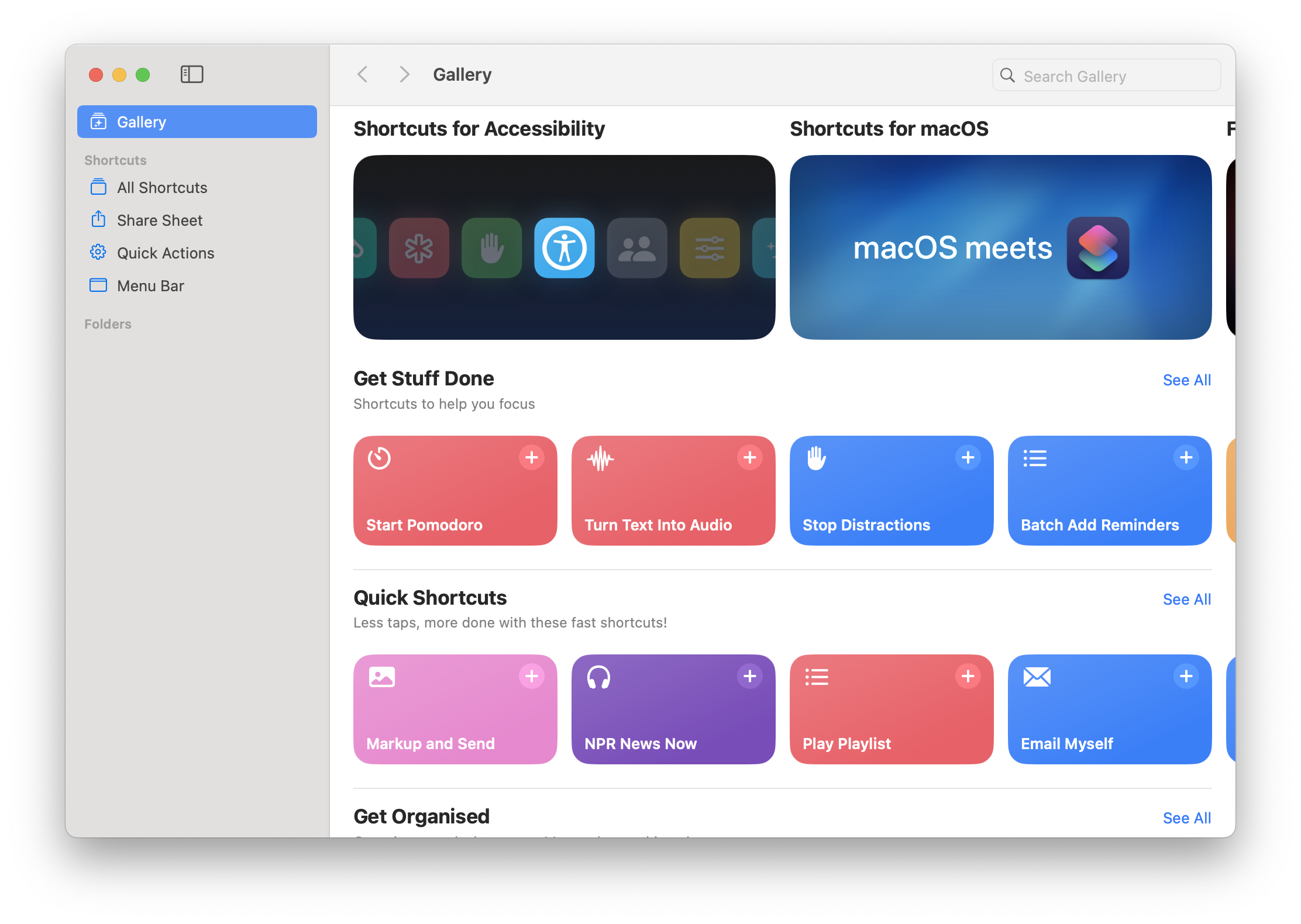
Image credit: Shortcuts
Apple’s free, built-in Shortcuts app uses a visual drag-and-drop interface to create automated workflows that chain together actions across apps and system functions. Since it’s Mac native, it integrates seamlessly with Mail, Calendar and Photos, as well as many third-party apps. Power users can leverage AppleScript or JavaScript for automation, and shell scripts for deeper customization. Shortcuts can also import existing Automator workflows, which makes migrating data simple and easy. And with Siri, it’s easy to execute it through voice triggers.
What truly sets Shortcuts apart is its accessibility. Despite the fact that this is a level 4 app, you can automate tasks without any coding knowledge. Be aware, however, that the Mac version lacks the native automation triggers that you’ll find in its iOS counterpart. This means you’ll need to use workarounds through Automator or third-party apps like Shortery.
Shortcuts comes free and pre-installed on every Mac.
Automator
Automator is a legacy Apple app that uses a visual drag-and-drop interface to automate tasks by chaining actions sequentially. It works with Finder, Safari, Calendar, Microsoft Office and Adobe Photoshop, handling batch renaming, image resizing, PDF combining and more. Workflows can be saved as standalone applications, quick actions or folder actions. If you’re an advanced user, you can incorporate AppleScript, JavaScript and shell scripts but, generally Automator doesn’t require any programming knowledge at all. Be aware that Apple is largely phasing it out in favor of Shortcuts.
Automator comes free and pre-installed on every Mac.
Macro Engines with Triggers
Keyboard Maestro

Image credit: Keyboard Maestro
This one’s a heavyweight. Keyboard Maestro is largely considered the gold standard for Mac automation, and is worth exploring if you’re serious about getting your Mac to work for you, not with you. It lets you automate virtually anything through custom macros using a visual drag-and-drop builder. There’s no coding knowledge required, but it does support AppleScript, JavaScript and shell script integration for advanced users. Triggers include hotkeys, typed strings, time schedules, USB device connections, clipboard changes and Wi-Fi networks. Its action palettes eliminate the need to memorize countless shortcuts, while flow control with conditions and loops enables complex multi-app workflows. It also offers built-in clipboard history and text expansion. Best of all: it’s a one-time purchase with no subscription.
Keyboard Maestro’s extensive feature set can feel overwhelming and intimidating if you’re new to a lot of these sorts of solutions. If you’re interested and you see its potential: give it time. A little experimenting and you may find that Keyboard Maestro becomes an indispensable part of your tool stack.
View Keyboard Maestro’s pricing structure here.
BetterTouchTool
We keep coming back to BetterTouchTool because of its broad and increasingly powerful feature set. The more you dig into it, the more you get out of it. In addition to the features described above, BetterTouchTool’s advanced arsenal includes dynamic variables running JavaScript and AppleScript, screen text recognition for automation triggers, and ambient light detection. Power users leverage conditional logic, sequential action chains, and clipboard manager with OCR. The scripting API enables ChatGPT integration and custom workflow orchestration. Again, getting your head around all of this is likely to take quite a bit of time and energy.
View BetterTouchTool’s pricing structure here.
Elgato Stream Deck
Elgato Stream Deck is a physical panel with customizable LCD buttons that connects to your Mac via USB, serving as a tactile automation controller. It’s an ultra-fast trigger surface for many of the automations in this category, including Keyboard Maestro, Shortcuts, AppleScript and hundreds of others. Its app-specific profiles automatically switch button layouts when you change applications. Each key can execute multi-step actions with one tap, whether you want to “open these three tools”, “move these windows”, “toggle Do Not Disturb”, or “paste boilerplate”. Be warned that it’s on the pricey side so might feel like a bit of an investment if you’re still venturing into this category of tools.
View Elgato Stream Deck’s pricing structure here.
App Scripting & UI Control
AppleScript
Apple’s native automation language offers unmatched system integration, controlling Mac apps and macOS through readable, English-like commands. It’s perfect for simple task automation and cross-app workflows. AppleScript is a great starting point if you’re new to scripting because there’s no installation required, it affords deep OS-level access, and there’s decades of community support available online if you get stuck. Its syntax is often considered a bit verbose and dated, however, and can be cumbersome compared to modern scripting languages. This can feel a bit tedious if you’re dealing with complex automation.
AppleScript comes free and pre-installed on every Mac.
Shell scripting (Zsh and Bash)
The ultimate Mac power tool for automation, shell scripting offers direct system access through simple text commands. Zsh (macOS default) brings smart autocomplete and customization via Oh My Zsh, while Bash ensures universal compatibility. Shell scripting offers unlimited potential for chaining commands, processing files and integrating with any Unix tool. Its cryptic syntax and steep learning curve can intimidate newcomers, but if you’re interested, forge ahead. Getting shell scripting under your belt is an exceptional way to make serious headway in terms of Mac automation.
Shell scripting is built into every Mac through Terminal.
FastScripts
This script management menu bar utility puts your AppleScripts, shell scripts and Automator workflows in your menu bar, and assigns hotkeys so that they’re easy to run. Through it, you can simply give the instruction, “In Mail, build this draft, file it and move on,” instead of doing it manually click-by-click. ScriptLight search instantly filters your script library, while parallel execution runs multiple scripts simultaneously. App-specific scripts and smart context switching make it easy for you to stay focused and in flow. You’ll need to have fairly advanced scripting knowledge to get the most out of this one.
View FastScript’s pricing structure here.
Programmable Mac Brain
Hammerspoon
This Lua-scripted powerhouse bridges macOS system APIs to automate virtually anything, including window management, hotkeys, wifi triggers, audio controls and application workflows. With it, you can replace multiple standalone utilities with one endlessly customizable tool. Hammerspoon offers an unmatched depth of system access and complete flexibility for programmers. You’ll need to have Lua programming skills up your sleeve though.
Hammerspoon is totally free and open-source.
Karabiner-Elements
This keyboard remapping powerhouse lets you customize every key on your Mac, from simple swaps to complex multi-key combinations and hyper keys. You can choose between accessing hundreds of community-created rules or writing your own in JSON. It’s full orchestration — control that isn’t far off reshaping macOS input at an OS level. You’re writing daemons that watch your environment and react in real time. This keyboard control is unrivaled and isn’t available anywhere else. Be aware that it requires extensive system permissions that may feel invasive, and complex modifications demand JSON editing skills.
Karabiner-Elements is totally free and open-source.
Level 5: AI or ‘Have My Computer Just Do It For Me’
We’re now into serious power user territory. These apps take considerable time to set up and master, but once they’re working, your machine is almost on auto-pilot. And best of all, it’s working exactly the way you want it to work.
These level 5 apps aren’t just about triggering automations anymore. Instead, you’re delegating whole tasks. You’re instructing your Mac to “find last week’s blog post draft”, “update it for the new launch”, and “drop the refreshed copy into WordPress as a formatted draft with a new hero image”. And AI has done almost all of that for you.
This is AI at its most powerful. It can reason about your goals, touch multiple apps, and even click around macOS interfaces on your behalf. Your role is simply to supervise a capable assistant instead of manually doing all the work yourself.
System-level AI built into your Mac
Apple Intelligence
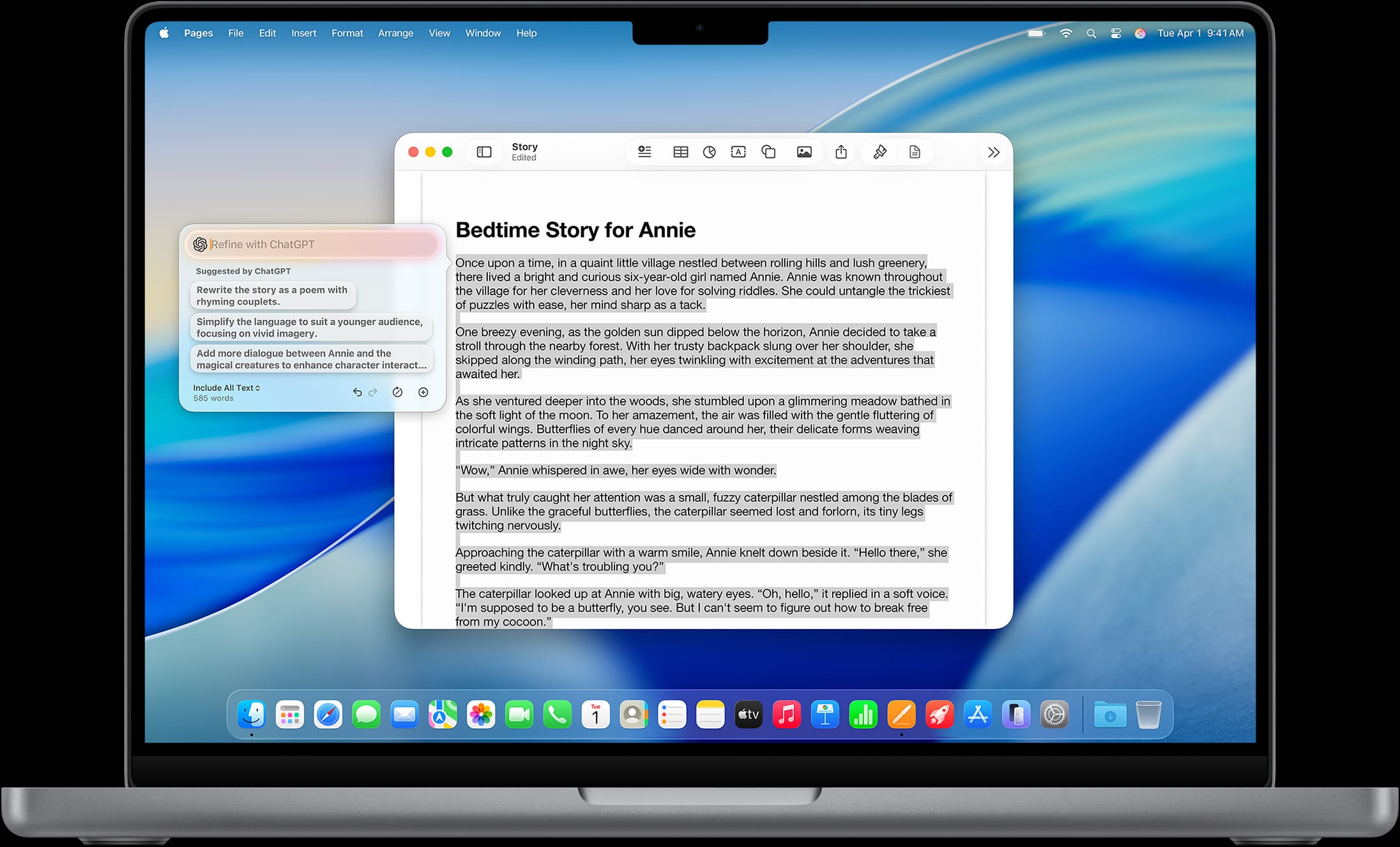
Image credit: Apple Intelligence
Apple Intelligence is Apple’s system-wide AI layer for its Silicon Macs. It helps you rewrite text, summarize long threads, draft replies, extract key points and clean up screenshots and photos — mostly on-device for privacy. It centers on the Foundation Models framework, which supports guided generation for structured outputs, tool calling, multi-turn stateful sessions and streaming APIs. Xcode 26 integrates ChatGPT directly into the coding experience, with support for alternative LLM providers or local models on Apple Silicon.
Its major shortcoming is that it isn’t designed for general world knowledge or chatbot functionality. It’s great at narrow tasks like entity extraction and summarization but lacks the reasoning depth you may expect from modern LLMs. You’re building features around a specialized extraction engine, not a general-purpose AI.
Apple Intelligence comes free and pre-installed on every Apple Silicon Mac running a supported version of macOS (macOs 15.1+).
Siri
Apple Intelligence also upgrades Siri. Siri can now keep more context between requests and, when you allow it, call out to OpenAI’s ChatGPT for deeper answers. This includes information on things on your screen like photos or documents. You get a heads-up before that happens unless you explicitly allow automatic requests.
It’s worth noting that typing to Siri (by pressing Command twice) routes requests through Apple’s servers to OpenAI, adding noticeable latency compared to direct ChatGPT access. While it’s convenient and saves app-switching, it’s essentially a proxy layer — OpenAI’s models still do the heavy lifting.
Siri comes free and pre-installed on every Mac.
ChatGPT Extension In Apple Intelligence
It’s worth touching on Apple Intelligence’s ChatGPT functionality in a bit more detail. With the built-in ChatGPT extension, you can highlight text in any text-based app and ask the system to proofread, rewrite in a different tone, summarize or generate text for you. In Writing Tools, the ChatGPT extension can even draft content from scratch. Of course, you’re still in full control, and can edit or amend your work before anything gets sent out or published.
It also plugs AI directly into Shortcuts. This means you can start saying, “When I run this Shortcut, ask ChatGPT for X, then paste the result here”, which turns AI into another block in your automation chain.
Remember to keep an eye on your time savings in Timing. If Apple Intelligence starts drafting your replies and summaries, you should see less manual typing time in Mail orNotes and more time in “Review/Edit”, which is much shorter. Timing can show that shift.
The ChatGPT extension comes pre-installed in Apple Intelligence.
AI Co-pilot You Can Summon Anywhere
ChatGPT for macOS
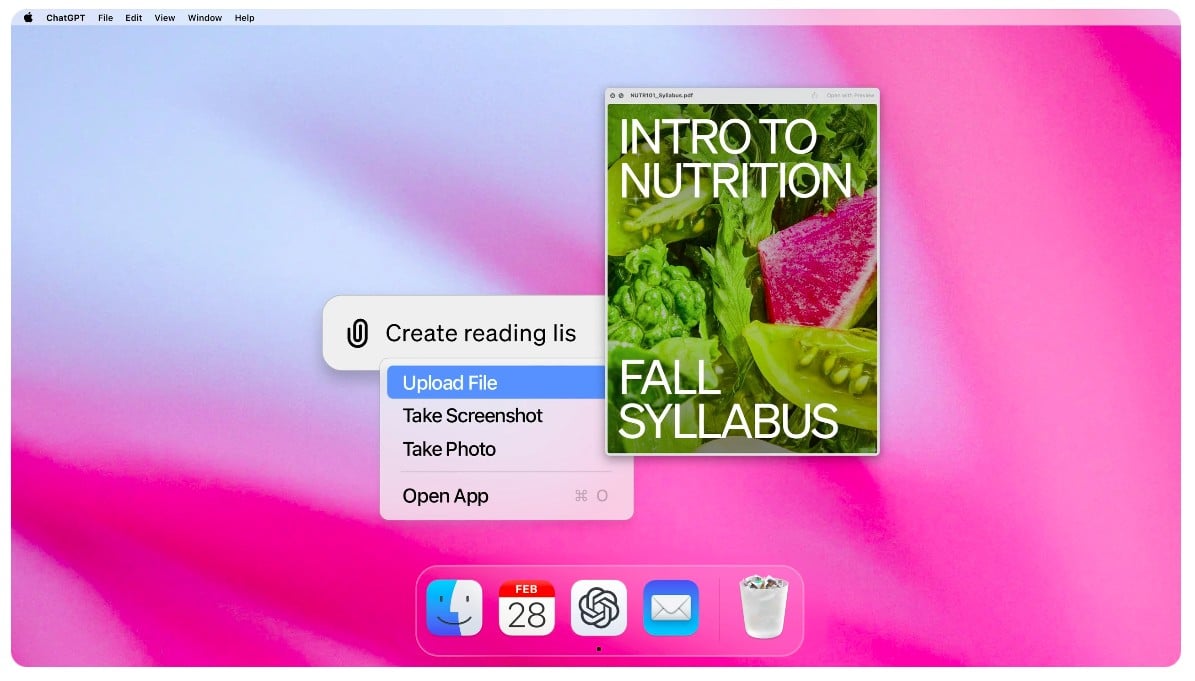
Image credit: ChatGPT
With ChatGPT’s native desktop app, you have an instant AI companion available to you at your fingertips. Summon it with a hotkey, ask questions about what you’re doing right now, and even upload files and screenshots for instant analysis and feedback. (You can also use it for browser-based automations like form-filling or site updates, but you’ll need to run these tasks through ChatGPT Atlas.) It’s optimized for Apple Silicon Macs.
The app’s Work with Apps feature directly reads and edits code in VS Code, JetBrains IDEs and terminals via the macOS Accessibility API. Option+Space launches the companion window that floats above all apps, with keyboard shortcuts for screenshots (Command+Shift+2) and quick model switching. It generates reviewable diffs for code edits with auto-apply options and CMD+Z revert support. Advanced Voice Mode allows for hands-free coding discussions with emotional recognition. On top of this, integration with Apple Notes, Notion and Quip allows seamless content manipulation across your productivity apps.
Be aware that Work with Apps requires full Accessibility API permissions, meaning ChatGPT can query content from any active application. This is a significant privacy trade-off that sends your entire workspace context to OpenAI’s servers. It might be a dealbreaker if you’re a security-conscious developer.
View ChatGPT’s pricing structure here.
ChatGPT Atlas
OpenAI has also launched ChatGPT Atlas: an AI-first browser. Atlas bakes ChatGPT right into the browsing experience. It can summarize pages, compare sources, fill forms, and book things like travel or restaurant reservations. It can even run Agent Mode, where it carries out multi-step tasks online for you instead of just describing how. This means you’re no longer copy-pasting and context switching between your usual browser and ChatGPT. Instead, the AI now sits inside whatever you’re researching.
With ChatGPT desktop and Atlas, you now have an AI layer that can see context, act on that context, and hand back a finished product.
View ChatGPT’s pricing structure here.
Autonomous On-computer Operator
Claude Desktop App for macOS
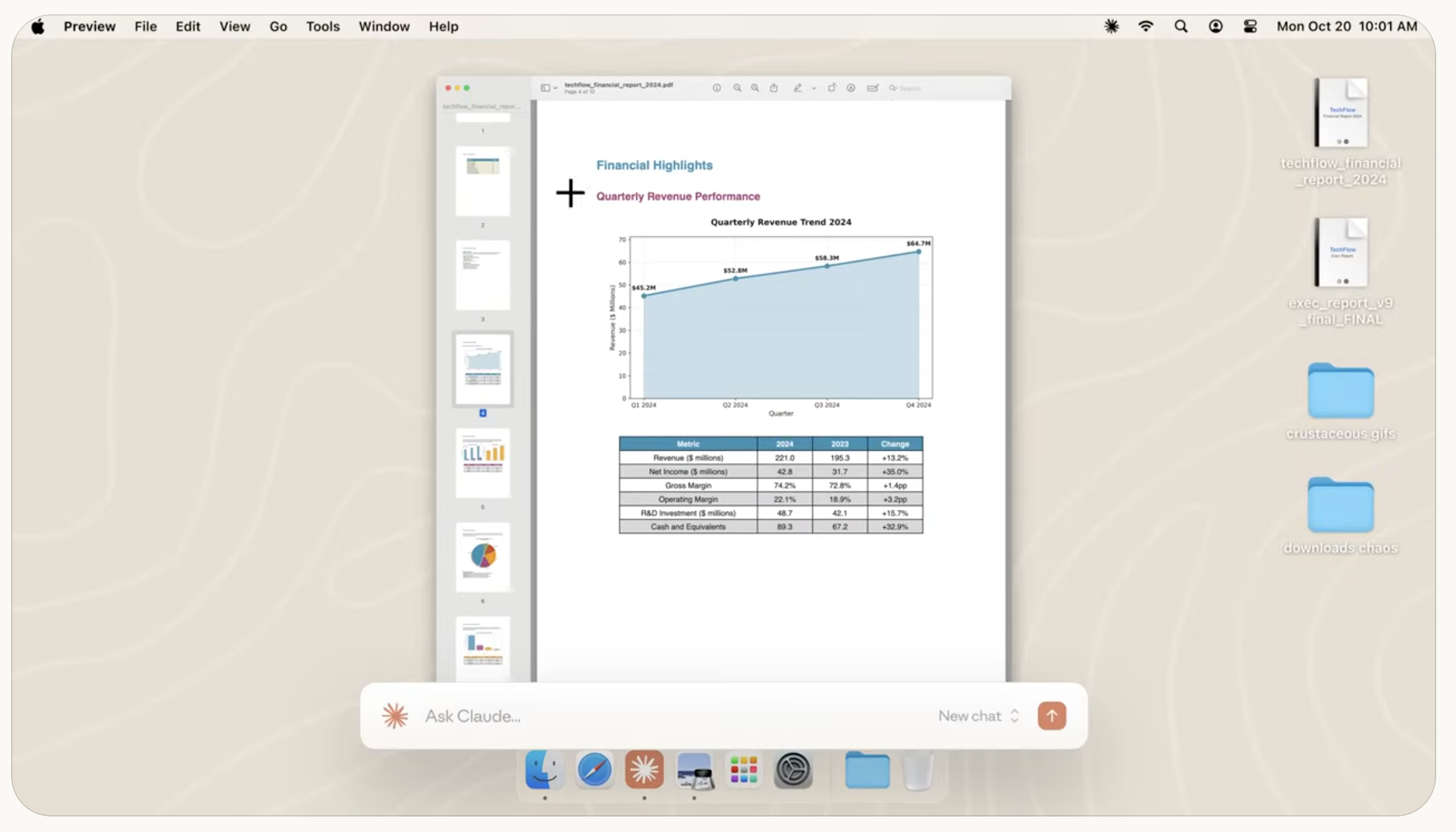
Image credit: Claude
Claude Desktop delivers instant access via quick-entry shortcuts and desktop extensions that connect Claude with local tools, file systems, browsers and native applications. The app can generate and modify spreadsheets, documents, slide decks and PDFs directly within a sandboxed environment. This means you can drag files, snap screenshots, or share windows for contextual analysis without app-switching.
However, Claude Desktop does still struggle with common UI patterns like pop-ups, revealing some limitations in reliability for production workflows.
View Claude’s pricing structure here.
Claude ‘Computer Use’
Anthropic’s Claude 3.5 Sonnet has introduced “computer use”. In controlled setups, computer use can look at your Mac’s screen, move the cursor, click buttons, type text, and follow multi-step instructions the same way a human assistant would. You might ask it to: “Open Excel, grab last month’s numbers, update the slide deck, and compose a draft email”. Claude then plans and executes the interaction, step by step.
Right now, computer use is still in beta phase, and Anthropic is explicit that it can be clumsy or require supervision. That said, it’s still the clearest glimpse of a general-purpose on-computer agent that can operate normal Mac apps, not just web forms. And like everything in the world of AI, it’s likely to advance quickly.
View Claude’s pricing structure here.
Personal AI Memory and Context Layer That Works Like Your Chief of Staff
Raycast AI
We’ve already covered Raycast as a Spotlight-on-steroids launcher for Mac. But now, it features AI chat, quick AI and AI commands right into the same launcher. You can trigger system-level actions, generate or rewrite content, summarize something you’re looking at, and extend it with custom commands and extensions — all from a single hotkey. Raycast has been pushing this as “AI that works with your OS” not just in a browser tab.
View Raycast’s pricing structure here.
Rewind AI
Rewind runs locally on Mac, continuously capturing what’s on your screen and what you’ve said or heard in meetings. It compresses and stores that data privately on your own machine so you can later ask, “What did we promise Mark about pricing last Thursday?” and instantly get a summary or suggested email reply. It pitches itself as “a personalized AI powered by everything you’ve seen, said, or heard”.
View Rewind’s pricing structure here.
Cloud-based Helpers and AI Coordination
You’ve probably also come across web-first automation platforms like Zapier, Make.com and n8n, and may have heard technical discussions around things like MCP (Model Context Protocol). These tools deserve a brief mention here at level 5 because they enable automation that is dynamic, context-aware and distributed across systems. While Zapier and Make let you build no-code workflows that connect hundreds of services, n8n goes further by offering open-source, self-hosted flexibility for power users and developers.
MCP is a newer concept emerging alongside the rise of AI agents. It allows different models, apps and agents to share context about user goals and activity, enabling them to work together more intelligently. While not a tool you’ll install directly, it underpins the future of app‑to‑app AI collaboration. As macOS integrates deeper AI functionality, you may start to see systems, both local and cloud-based, that coordinate via MCP or similar standards to deliver more seamless, agent‑driven workflows.
These solutions live slightly outside the traditional Mac automation stack, but if you’re building AI-assisted workflows or cross-platform systems, they’re worth knowing. They’re useful as infrastructure-level enhancements that let intelligent agents (whether on your Mac or in the cloud) better understand what you’re trying to achieve.
A Summary & Where Timing Fits In
This has been an extensive review of Mac automation apps across five incremental categories.
- Level 1 comprises quick, easy-to-install tools whose benefits you will be able to observe almost instantly. Their learning curve is slight, and you don’t need to have any scripting knowledge or be able to build workflows.
- Level 2’s apps are all about driving your Mac from one command centre. They’re still accessible and intuitive apps, but their benefits are more substantial.
- Level 3’s apps are designed to solve the challenges of specific pain points comprehensively.
- The apps in level 4 involve using one button to achieve a number of tasks. Some coding and scripting knowledge is useful.
- And by the time you’re working with level 5’s apps, you’re supervising rather than executing. You’ve got tools at your disposal that can operate across your Mac to your precise instructions.
Across every level and every app, Timing is your most powerful ally and counterpoint.
Install it first and run a time audit to identify where you’re unexpectedly burning hours. Does your Stats page reveal that you’re spending unnecessary time in Mail or Slack? Could you be working more efficiently on some of your admin or communications tasks? Spot your main problems and run through our list to find a solution that solves them for you. These time-consuming tasks are likely to benefit from automation.
Once you’ve installed your chosen apps across levels 1 to 5, put them to use. Familiarize yourself with their full capabilities so that you can reap the rewards they offer. Remember to tag and label them in Timing so that you can see how often they run and how much time you’re spending in other, related apps.
This process will help you get to grips with your ROI for each app. And it’s likely to help shift automation from a nice-to-have to a critical time-saving and productivity tool, justifying the financial and time investment.
It all starts with knowing exactly where your time goes, now and once your automation journey is underway. Download Timing’s free 30-day trial today and change the way you work forever.
Frequently Asked Questions: Mac Automation
Do I Have to Learn to Code to Automate my Mac?
Short answer: no. Many apps at levels 1 and 2 are point-and-click based, easy to install and require no coding at all. By the time you get to levels 4 and 5, some coding knowledge will be required. But these are advanced apps for power users who are likely to have coding experience.
Is It Safe to Let an AI Agent Control my Mac or Click Around Apps for Me?
Today’s on-computer agents can literally move the cursor, fill forms, and take multi-step actions inside apps and websites. This functionality is powerful, but risky if unsupervised. It’s best not to let your AI agent run without keeping an eye on it. You should also familiarize yourself with the data your chosen agent is capturing.
Where Should I Start if I Feel Overwhelmed?
Run Timing for a week. Find one repetitive annoyance that eats real time, and then install a tool that solves that challenge. Compare your time savings week-on-week to see what kind of difference your chosen tool is making.
How Do I Prove to My Boss or Team that Automation is Worth the Time I Might Spend Setting It Up?
The best way to prove the value of automation is to demonstrate its time savings by using an automatic time tracking tool like Timing. Look at your Stats and you’ll see a drop in hands-on time in the apps those automations replaced.
Is AI Going to Replace Me if It Can Already Draft Posts, Update Sites and Fill Forms?
AI is getting very good at the mechanical middle steps, including summarizing, drafting, navigating UIs and filling in fields. But humans are still on the hook for judgment, tone and sign-off. AI is less your replacement and more your junior assistant.