
-
Warum lasse ich mich so leicht ablenken? 8 Tipps für mehr Fokus
 Bild: Nubelson Fernandes
Kurze Antwort: Sie lassen sich leicht ablenken, weil interne Faktoren (Stress, Müdigkeit, Hunger, psychische Erkrankungen) oder externe Faktoren (Smartphone-Benachrichtigungen, Unterbrechungen am Arbeitsplatz, Hintergrundgeräusche) Ihren Fokus stören. Studien zeigen: Wir verbringen 47% unserer Zeit gedanklich abgelenkt und wechseln im Schnitt alle 3 Minuten die Aufgabe. Die Lösung: Identifizieren Sie Ihre persönlichen Ablenkungsquellen und setzen Sie gezielte Strategien ein – vom Flugmodus über gebündeltes E-Mail-Prüfen und Website-Blocker bis zur automatischen Zeiterfassung.
Sie öffnen Ihren Laptop, setzen Ihre Prioritäten und starten in den Arbeitstag. Alles läuft rund, und Sie haben das Gefühl, dass ein produktiver Tag vor Ihnen liegt. Dann meldet sich Ihr Smartphone mit einer Nachricht. Vier E‑Mails treffen in kurzer Folge ein. Und Sie werfen „nur kurz“ einen Blick auf Ihren Social‑Media‑Feed. Ehe Sie sich versehen, ist der Tag vorbei. Und mit nur wenigen abgehakten Punkten auf Ihrer To‑do‑Liste fragen Sie sich: „Warum lasse ich mich so leicht ablenken?“
Sie sind nicht allein, wenn Sie sich ab und zu ablenken lassen. Laut einer Harvard‑Studie verbringen Menschen im Schnitt 47% ihrer Zeit damit, über etwas anderes nachzudenken. Und im Büro wird eine typische Bürokraft alle drei Minuten unterbrochen oder wechselt die Aufgabe. Da es nach einer Ablenkung über 23 Minuten dauern kann, wieder in den Fokus zu kommen, führt das zu zerrissenen Arbeitstagen.
Die Folgen sind weitreichend: Ablenkungen erschweren es, fokussiert zu bleiben, in Deep Work zu kommen und produktiv zu sein. Wenn Sie nichts gegen Ihre Ablenkungen unternehmen, leidet am Ende Ihr Erfolg.
Sehen wir uns an, warum Sie sich leicht ablenken lassen – und welche Tipps helfen, Ablenkungen zu begrenzen.
-
Mac-Trackpad-Gesten: Schneller und flüssiger arbeiten
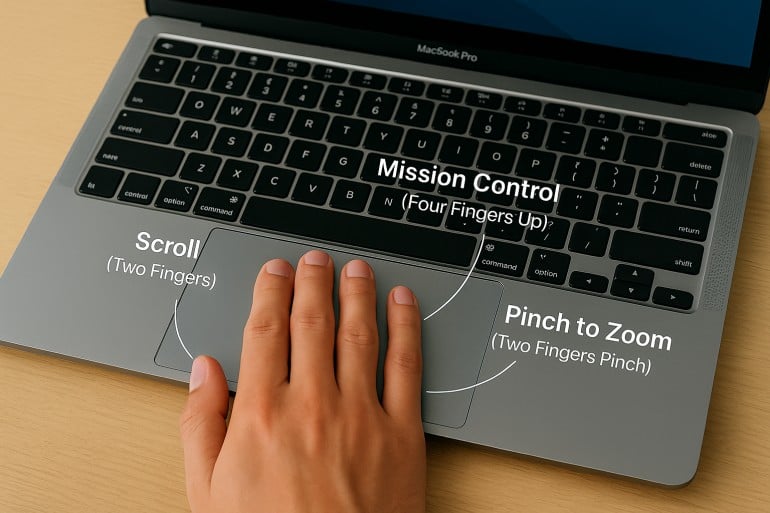 Bild erstellt von ChatGPT
Kurze Antwort: Mit Mac‑Trackpad‑Gesten navigieren, multitasken und steuern Sie Ihren Mac durch einfaches Wischen, Tippen und Zusammenziehen. Wichtige Gesten: Zwei‑Finger‑Scrollen und Rechtsklick, Pinch‑to‑Zoom, Vier‑Finger‑Wisch nach oben für Mission Control und Vier‑Finger‑Wisch nach links/rechts zum Wechseln zwischen Spaces. Alle Gesten lassen sich unter Systemeinstellungen > Trackpad anpassen.
Nutzen Sie Mac‑Trackpad‑Gesten bereits optimal? Neben der Navigation gibt es über ein Dutzend integrierte und benutzerdefinierte Multi‑Touch‑Gesten, die Ihren Workflow und Ihr Surferlebnis intuitiver, effizienter und persönlicher machen.
Ein gezieltes Tippen oder Wischen kann Aufgaben sofort ausführen und Ihnen die Navigation durch Menüs, das Minimieren von Apps und mehrstufige Befehle ersparen – und damit Zeit sparen.
In diesem Leitfaden finden Sie eine umfassende Einführung in Trackpad‑Gesten für den Mac – inklusive eines Abschnitts zu Magic‑Mouse‑Gesten. Von den Grundlagen bis zu fortgeschrittenen Tipps: Erfahren Sie, wie Sie Befehle an Ihren Workflow anpassen.
Read More… -
Zeitaudit: So finden Sie heraus, wo Ihre Zeit bleibt
 Bild: Studio Republic
Wo bleiben nur die Stunden? Warum haben Sie das Gefühl, den ganzen Tag konzentriert gearbeitet zu haben – und doch nur einen einzigen Punkt auf Ihrer To-do-Liste abgehakt? Hat diese Aufgabe wirklich nur ein paar Stunden gedauert, wie geplant? Oder waren es vielleicht mehr? Genau zu wissen, wie Sie Ihre Zeit an einem beliebigen Tag verbringen, ist gar nicht so einfach. Zum Glück hilft ein Zeitaudit.
Ein Zeitaudit bedeutet, die Stunden und Minuten Ihres Arbeitstags zu protokollieren. Es macht sichtbar, wofür Sie Ihre Zeit aufwenden, und liefert wertvolle Einblicke, mit denen Sie Fokus und Produktivität steigern, Burnout vorbeugen und Ihr Geschäft besser führen.
In diesem Artikel beleuchten wir die wichtigsten Aspekte von Zeitaudits – ihre Vorteile und wie Sie eines durchführen.
-
Die 11 besten Zeiterfassungs-Apps für Mac: Eine umfassende Kaufberatung
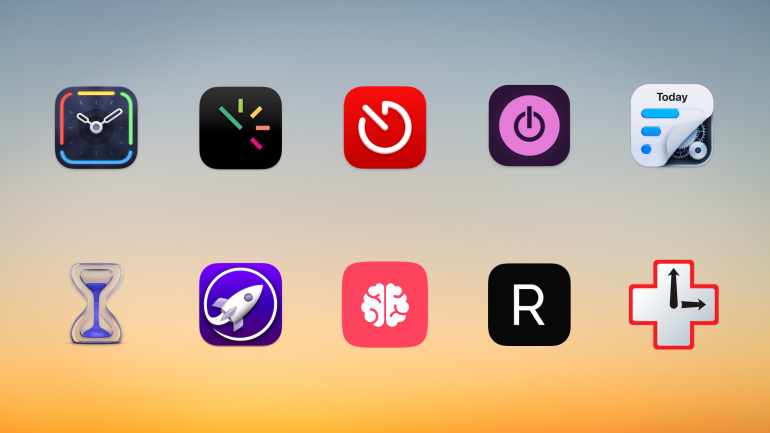
Hintergrundbild: César Couto; Icons: die jeweiligen App-EntwicklerWissen Sie wirklich, wie Sie Ihre Zeit verbringen? Wenn Sie zurückblicken auf ein gerade abgeschlossenes Projekt, haben Sie dafür wirklich die drei Stunden gebraucht, die Sie glauben, oder waren es vielleicht doch nur zwei Stunden – und die letzte Stunde haben Sie mit der Beantwortung von E-Mails verbracht? Der einzige Weg, das sicher herauszufinden, ist eine dedizierte Zeiterfassungs-App für Mac. Wir haben die elf besten Zeiterfassungs-Apps auf dem Markt verglichen, um Ihnen die Auswahl zu erleichtern.
Die Wahl der richtigen App hängt davon ab, was Sie benötigen – jede App ist geringfügig anders. Während einige Ihre Aktivitäten automatisch erfassen und sorgfältig festhalten, welche Webseiten und Dokumente Sie verwenden, lassen andere Sie Ihre Zeit manuell protokollieren. Einige eignen sich besonders gut für Freelancer und kleine Unternehmen, während andere eher für größere Unternehmen entwickelt wurden.
TL;DR: Die besten Zeiterfassungs-Apps für Mac in 2026
Timing ist die beste Zeiterfassungs-App für Mac — sie erfasst automatisch jede App, jedes Dokument und jede Website, die Sie nutzen, ohne manuelle Timer. Dieser Ratgeber behandelt:
- 11 Apps im Vergleich: Automatische vs. manuelle Zeiterfassung, mit Preisen von kostenlos bis 23,99 $/Monat
- Top-Empfehlung für Automatik: Timing — KI-Zusammenfassungen, Anruf-Erkennung, Bildschirmzeit-Import, Inaktivitäts-Erkennung
- Beste Gratis-Option: Toggl + Timery — großzügiges kostenloses Angebot mit exzellentem nativen Mac-Client
- Worauf Sie achten sollten: Automatische Erfassung, Mac-natives Design, Team-Funktionen und KI-Fähigkeiten
Lesen Sie den Rest dieses Ratgebers für einen Überblick über den gesamten Markt der Mac-Zeiterfassungs-Apps im Jahr 2026!
-
Work From Anywhere: Top Remote Work Tools for Mac Users in 2026

Image: Tima MiroshnichenkoDoes your office regularly shift between your kitchen table, your local coworking space and your favorite coffee shop? If so, it’s likely that your external working environment matters less to you than the technology at your fingertips. In teaching yourself to work from anywhere, in other words, you’ve realised the importance of creating a private digital space that feels familiar and intuitive. You’ve learnt that all you really need to do your work is the right remote work tools.
But what are the best remote work apps you should have in your arsenal? How do you find the exact tools you need to work productively, autonomously, and asynchronously with your colleagues and clients? How do you ensure you have all the support you need? We’re here to help.
We’ve drawn up a practical guide to Mac-friendly software that specifically caters to freelancers and small teams who regularly (or always) work remotely. All of our suggested remote work tools are macOS optimized, so they integrate seamlessly across the Apple ecosystem. And they’re designed to help you be more intentional in how you work — no matter where you are.
Let’s get started.
Read More… -
Mac Trackpad Gestures: Swipe Your Way to a Smoother Work Experience
Image created by ChatGPTTL;DR: Mac Trackpad Gestures & Magic Mouse Gestures
Mac trackpad gestures let you navigate, multitask, and control your Mac with simple swipes, taps, and pinches. Key gestures include two-finger scrolling and right-clicking, pinch-to-zoom, four-finger swipe up for Mission Control, and four-finger swipe left/right to switch between Spaces. The Magic Mouse supports many of the same gestures on its touch-sensitive surface, including scrolling, swiping between pages, and accessing Mission Control. All gestures can be customized in System Settings > Trackpad (or System Settings > Mouse for Magic Mouse).
Are you using Mac trackpad gestures to the best of your ability? Besides navigation, there are more than a dozen built-in and custom multi-touch gestures that can make your workflow and browsing experience more intuitive, efficient, and personal.
A well-placed tap or swipe can instantly perform a task, saving you time from navigating menus, minimizing apps, and executing multi-step commands.
In this guide, you’ll find a comprehensive walkthrough of trackpad gestures for Mac, plus a complete list of Magic Mouse gestures. From basics to advanced tips, learn how to customize commands to fit your workflow.
Read More… -
Multitasking vs Multitasking Skills: Why Understanding the Difference is the Key to Greater Productivity
 Image: Generated with Dall-E
There’s barely a job ad, resume or workplace intro pack that doesn’t stress the importance of multitasking. The ability to switch seamlessly between different tasks or projects, we’re constantly told, is an admirable quality — something we should all strive towards. But what is multitasking exactly, and is it deserving of such high praise? Should we be developing our multitasking skills instead?
Hang on a second. Multitasking vs multitasking skills? What’s the difference? Surely this is just a matter of semantics?
Not quite. While they’re related concepts, we’d argue that there are some important distinctions between the two. And improving your multitasking skills can help you get the most out of your attempts to multitask.
-
ADHD Time Management: The Benefits of Time Tracking with ADHD
Chris Cameron is an expert in productivity and workflow automation who was recently diagnosed with ADHD. In this article, Chris shares how Timing has empowered him to manage his time and attention more effectively. You can discover more insights on ADHD and productivity on his blog and website, learnwith.cc. In addition, Chris is offering a special 25% discount to Timing users on enrollments for his upcoming course, Mastering Workflow Automation with ADHD.
If you have ADHD like I do, managing time effectively is crucial for maintaining focus. But this is easier said than done. One minute you’re focused on a task, and the next, you’re down a rabbit hole with no recollection of how you got there. That’s why traditional time-tracking methods often fall short. But what if there was a tool that did the heavy lifting for you? That’s where Timing comes in. This macOS app automates the time-tracking process, making it easier to manage your day without adding another task to your list. Stick around and I’ll show you why Timing has become an indispensable part of my ADHD time management toolkit.
-
Time Blocking: The Productivity Hack used by the World’s Most Efficient People
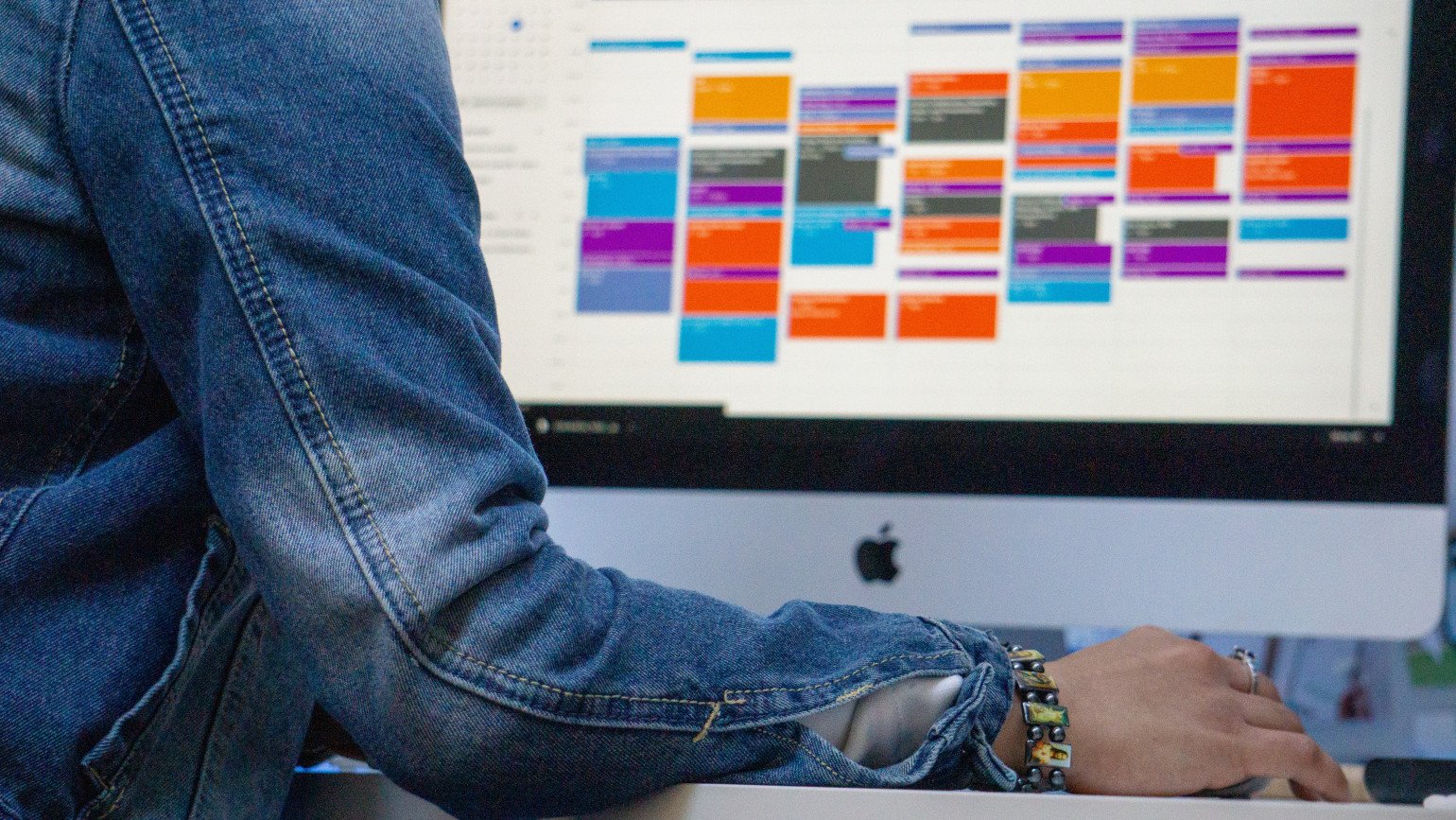 Image: Gaining Visuals
Feeling overwhelmed, unfocused and exhausted? Swamped with deadlines and unable to complete them on time? Perhaps it’s time to look at how you’re structuring your days. Jumping from one task to another may seem necessary — there’s just so much to do, after all — but this approach can be time consuming and counterproductive. If you’re looking for a solution, time blocking can help.
Time blocking is a time management practice that involves being intentional about how you spend your time. It’s about evaluating your most important tasks. Assessing how long they’ll take to complete. And blocking off time to work on them without distraction. The result? Designated time for deep work and shallow work, improved focus and productivity, and a greater sense of control.
Here, we define time blocking, look at some of its challenges (and solutions), and offer a step-by-step guide to make it part of your daily life.
Let’s get started.
-
Do a Time Audit To Find Out Where Your Time Goes
Image: Studio RepublicWhere do the hours go? Why do you feel like you’ve been working consistently all day, but you’ve only ticked one item off your to-do list? Did that task really only take you a couple of hours, as you’d planned? Or was it maybe more? Knowing exactly how you spend your time on any given day can be tricky. Fortunately, a time audit can help.
A time audit involves recording the hours and minutes of your workday. It helps you account for how you spend your time, and provides valuable insight that you can use to boost your focus and productivity, prevent burnout, and run your business better.
Here, we explore the ins and outs of time audits, including their benefits and how to do one.
