
The Best Pomodoro Apps for Mac in 2026: Focus Timers for Every Workflow

Image: Generated with ChatGPT
Looking for the best Pomodoro apps for Mac? We evaluated seven focus timers for macOS and picked the ones that go beyond a simple countdown — with distraction blocking, task management, Apple ecosystem sync, and session analytics. Whether you need a polished Apple-native timer, a strict website blocker, or a free open-source option, this guide covers it.
The Pomodoro technique has survived for nearly four decades because it solves a universal problem: you sit down to do deep work, and twenty minutes later you’re reading about the history of the Suez Canal on Wikipedia. The formula is simple — work for 25 minutes, break for 5, repeat. But when every timer app looks the same, the real value is in what happens around the countdown: blocking, tracking, syncing, and reporting.
We also explain how pairing a Pomodoro app with automatic time tracking gives you the complete picture of your workday — not just when you focused, but what you focused on.
Table of Contents
TOC
TL;DR: Best Pomodoro Apps for Mac in 2026
Focus by Meaningful Things is the best Pomodoro app for Mac — a polished, Apple-native timer with 10+ years of refinement, built-in task management, and broad Apple platform support. This guide covers:
- 7 apps compared: From pure timers to distraction blockers to gamified focus tools
- Top pick overall: Focus — built-in task management, iCloud sync, Apple Watch + Vision Pro support
- Best for deep integrations: Session — Slack status, Apple Calendar, intention-setting workflow
- Best fully free option: TomatoBar — open-source, menu bar-first, native macOS timer
- Best polished free tier: Flow — a beautiful Apple-platform timer with a genuinely usable free plan
- What to look for: Timer flexibility, distraction blocking, Apple ecosystem support, and analytics
What to Look for in a Pomodoro App for Mac
Not all Pomodoro timers are interchangeable. Some are bare-bones countdowns, while others are full workflow tools. Here are the criteria that separate a useful app from a forgettable one.
Timer Flexibility
The standard Pomodoro cycle is 25 minutes of work followed by a 5-minute break, with a longer break after four rounds. But that structure doesn’t suit everyone. Some tasks need 50-minute deep work blocks; others benefit from 15-minute sprints. The best Pomodoro apps for Mac let you customize session lengths, break durations, and cycle counts. A few even support entirely different timer structures for different parts of your day. If you find rigid 25-minute intervals too constraining, the Flowtime technique is worth exploring as an alternative, and several apps on this list support it.
Distraction Blocking
A timer on its own relies on your willpower. Some Pomodoro apps include built-in website and app blocking that activates during focus sessions and lifts automatically during breaks. This removes the temptation entirely: you physically cannot open Twitter or Reddit until your session ends. If blocking is your priority, we’ve also written a full guide to blocking websites on Mac.
Apple Ecosystem Integration
If you’re on a Mac, you probably also have an iPhone, Apple Watch, or iPad. The best focus timers sync sessions across devices, offer Apple Watch complications, support Live Activities on iPhone, integrate with Apple Shortcuts for automation, and work with macOS Focus modes. A few even support Apple Vision Pro. This kind of integration is part of what makes native Mac apps worth seeking out over cross-platform alternatives.
Task Management
Some Pomodoro apps go beyond timing and include task lists. You can assign estimated Pomodoro counts to tasks and track actual versus expected completion. That way, the timer doubles as a planning tool. Others skip the built-in task list and integrate directly with dedicated managers like OmniFocus or Things. Either approach works, depending on how many tools you want in your stack. For broader time management tips, see our dedicated guide.
Analytics and Progress Tracking
How do you know if the Pomodoro technique is working for you? The best apps track your sessions over time: how many you complete per day and week, which tasks consume the most sessions, and whether your focus is improving. Without this data, you’re just guessing.
Mac-Native Design
As with any Mac software, prioritize apps that are built natively for macOS rather than Electron wrappers or web apps in a browser window. Native apps integrate with macOS features (menu bar, notifications, Spotlight, Shortcuts), run lighter on system resources, and respect your Mac’s design language. You can feel the difference immediately.
How We Evaluated These Pomodoro Apps
As the team behind Timing, we’ve been building productivity software for Mac for over 10 years. We evaluated each Pomodoro app based on timer flexibility, Mac-native design, distraction blocking, integration depth, analytics, and pricing. We also reviewed first-party product pages, App Store listings where available, and recent public user feedback to understand each app’s strengths, trade-offs, and update momentum. Our goal was to select apps that each bring a meaningfully different approach to focused work, not just slight variations of the same countdown timer.
Quick Comparison: All Pomodoro Apps for Mac at a Glance
| App | Type | Best For | Price | Rating |
|---|---|---|---|---|
| Focus | Pomodoro + task management | Polished Apple-ecosystem timer with built-in task management | $39.99/year | 4.4/5 (App Store) |
| Session | Pomodoro + mindfulness + blocking | Intention-setting, automation, and integration-heavy workflow | Free / $4.99/mo / $39.99/yr | 4.8/5 (App Store) |
| Focused Work | Custom timer builder + blocking | Power users who want flexible timer sequences | $29.99/yr, $4.99/mo, or $59.99 lifetime | 4.7/5 (App Store) |
| HeyFocus | Distraction blocker + Pomodoro | Strict, hard-to-bypass blocking on Mac | $49 or $129 lifetime | N/A (sold direct) |
| Flow | Apple-platform timer + blocking | Beautiful free tier, lighter-weight premium extras | Free / from $1.49/mo (annual) | 4.8/5 (App Store) |
| Forest | Gamified focus (browser extension on Mac) | Streaks, rewards, and real-world environmental impact | Free / from $5.99/mo or $35.99/yr (iOS); extension free | 3.8/5 (Chrome Web Store) |
| TomatoBar | Open-source menu bar timer | Developers and minimalists who want free and native | Free | N/A |
Note: Prices and ratings were verified at the time of writing. App Store ratings vary by region and change over time. Verify current pricing before purchasing.
Market Overview: What Makes Each App Unique
If you don’t have time for a full read, here’s what differentiates each pick:
- Focus: One of the most polished Apple-first Pomodoro apps available, with built-in task management, activity statistics, and 10+ years of refinement.
- Session: Strong automation and mindfulness features. Set intentions, reflect after sessions, integrate with Slack, Calendar, and Shortcuts.
- Focused Work: Build custom timer sequences with flexible structures, including Flowmodoro-style sessions, plus built-in distraction blocking.
- HeyFocus: Among the hardest-to-bypass distraction blockers on Mac, with a scripting engine and multiple profiles.
- Flow: A beautifully designed Apple-platform timer with a generous free tier, plus app/web blocking and calendar sync in Pro.
- Forest: Plant virtual trees during focus sessions (they die if you leave) and earn coins to plant real ones. Mac access is browser-extension-only.
- TomatoBar: Open-source, native macOS menu bar app, zero tracking. A developer’s Pomodoro timer.
We’ve prioritized tools that work well on Mac, with a preference for native Mac experiences where possible. We’ve also excluded products that appear lightly maintained, redundant, or too weakly differentiated from stronger picks already on the list.
The 7 Best Pomodoro Apps for Mac in 2026
1. Focus (by Meaningful Things)
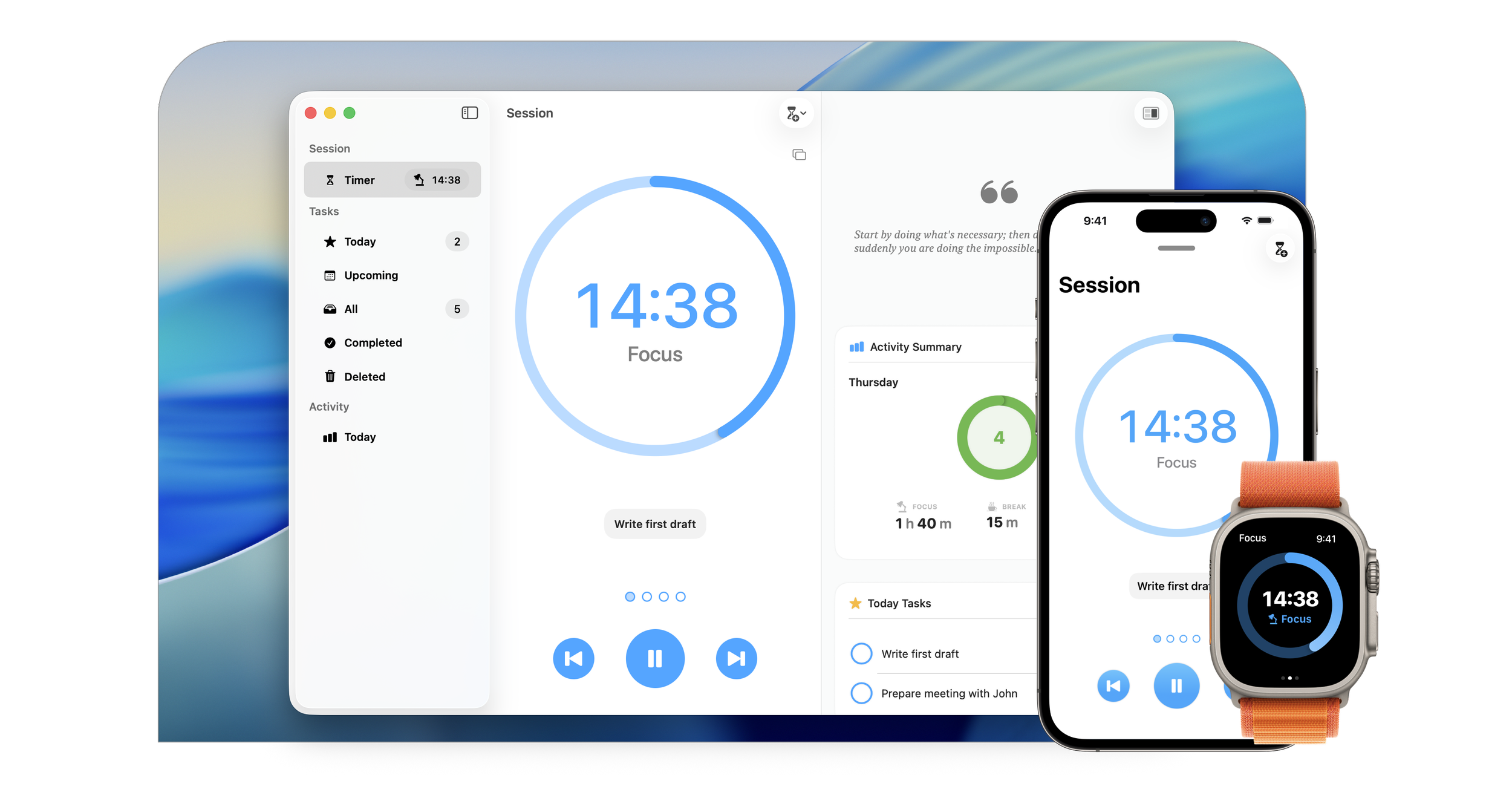
Image: Focus
Best for: Apple-ecosystem professionals who want a polished, proven Pomodoro workflow with built-in task management.
Type: Dedicated Pomodoro timer with task management
Platforms: Mac (macOS 14+), iPhone, iPad, Apple Watch, Apple Vision Pro
Focus has been around for over a decade, and it shows. It implements the classic Pomodoro cycle (25 minutes of work, 5 minutes of break, longer break after a set of rounds) and pairs the timer with built-in task management and activity statistics, so you can attach sessions to specific tasks and review your work over time.
Focus also goes deeper into Apple’s ecosystem than most competitors. Sessions sync across Mac, iPhone, iPad, Apple Watch, and Apple Vision Pro via iCloud, and Handoff lets you pick up your current work on another device. The developer tends to adopt new Apple platform capabilities early, including Shortcuts, interactive widgets, StandBy, Live Activities, and Apple Vision Pro support.
The main trade-off is that Focus doesn’t include built-in website or app blocking. If you need distraction blocking alongside your timer, Meaningful Things makes Filter, a separate Mac app for that purpose.
Pros
- One of the most polished Apple-first Pomodoro apps we reviewed, available on Mac, iPhone, iPad, Apple Watch, and Vision Pro
- Built-in task management with activity statistics for tracking your work over time
- Developer is quick to adopt new Apple platform features: Shortcuts, interactive widgets, StandBy, Live Activities, Vision Pro
- Fast iCloud sync and Handoff across all Apple platforms
Cons
- No built-in website/app blocking; you need the separate Filter companion app
- Limited sound and theme customization compared to some competitors
- User sentiment differs somewhat between the Mac and iOS App Store listings
Pricing: Free to download with a 7-day free trial of the full subscription. After the trial: $39.99/year. The subscription covers all Apple platforms. Family Sharing supported.
App Store rating: 4.4 out of 5 (App Store)
What users say
“A tool that can genuinely make people more productive.” — MacStories (as quoted on the App Store listing)
2. Session
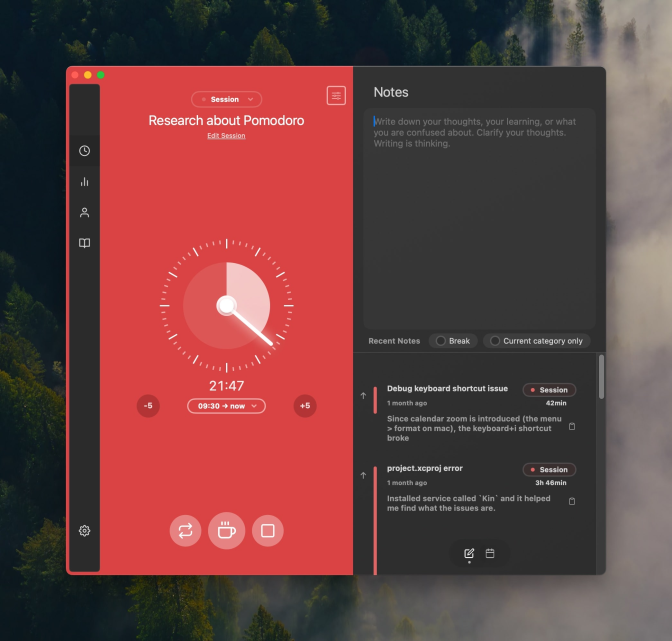
Image: Session
Best for: Mindfulness-oriented professionals who want strong Apple integrations and automation.
Type: Pomodoro timer with mindfulness, analytics, and app/website blocking
Platforms: Mac, iPhone, iPad. Apple Watch notifications supported.
Session takes a decidedly different approach from the “just a timer” crowd. Every session begins with a breathing prompt and an intention field where you name what you’re working on. That intention then shows up everywhere: your menu bar, your iPhone’s Dynamic Island, your Apple Watch, even your Slack status if you’ve connected the integration. It’s a constant reminder of what you committed to doing.
The automation ecosystem goes further than most competitors in this category. Connect Session to Slack, and starting a focus session automatically updates your Slack status and can mute Slack while you focus. Connect it to Apple Calendar, and past sessions appear as events. The built-in app and website blocker covers Safari, Chrome, Brave, and Edge, and it can also block work apps during breaks to prevent you from skipping rest.
Session’s “overflow” mode is worth calling out. When your 25-minute timer ends, instead of an abrupt stop, the background subtly shifts color and the timer keeps counting. You’re in flow, and Session won’t force you out of it. You decide when to take your break. Different background sounds for each phase (session, overflow, break, break-overflow) help you recognize where you are in the cycle without looking at the screen.
Pros
- Deep automation ecosystem (Slack, Apple Calendar, Shortcuts, AppleScript)
- Overflow mode respects flow state instead of forcing hard stops
- Built-in app and website blocking for both focus and break phases
- Mindfulness workflow (breathing, intention, reflection) adds depth beyond pure productivity
Cons
- Feature-heavy onboarding; the app can feel overwhelming at first
- Stop button is hidden under a “…” menu, which is a confusing UX choice
- End-of-session overlay can be disruptive when you’re deep in work
Pricing: Free tier with limited features. Full access: $4.99/month or $39.99/year.
App Store rating: 4.8 out of 5 (App Store)
What users say
Multiple users on the App Store report replacing separate timer, Slack, and task management tools with Session alone, citing the integrations as the reason they stayed.
3. Focused Work
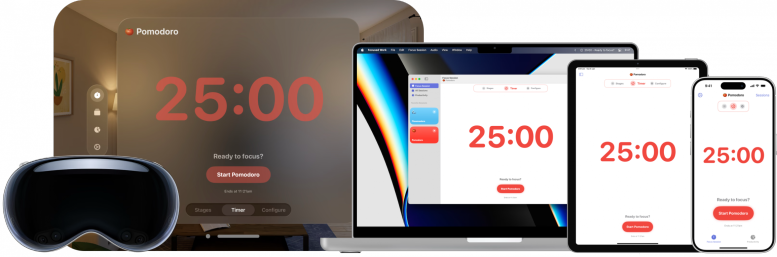
Image: Focused Work
Best for: Power users who want to design custom timer sequences for different parts of their day.
Type: Custom timer sequence builder with blocking
Platforms: Mac, iPhone, iPad, Apple Vision Pro
Focused Work’s main selling point is flexibility. Instead of committing to a rigid 25/5 cycle, you build custom timer structures by chaining together blocks: a 50-minute deep work session, a 10-minute break, a 30-minute email block, a 5-minute break. Your morning routine can look completely different from your afternoon routine, and you can switch between saved sequences with a click. The app also supports Flowmodoro-style sessions for people who prefer an open-ended approach.
Beyond the timer builder, Focused Work includes a Scratch Pad for jotting notes during sessions, journaling prompts after sessions, and built-in distraction blocking that activates automatically while the timer runs. The developer explicitly positions the app as helpful for users who find rigid timers hard to stick with, including people with ADHD who benefit from more visual, flexible focus structures.
Pros
- Custom timer sequences let you design any work rhythm you want
- Built-in Scratch Pad, journaling prompts, and distraction blocking
- ADHD-friendly: explicitly designed for users who find rigid timers hard to stick with
Cons
- Smaller user base and fewer reviews than Focus or Session
- Less depth in third-party integrations compared to Session
Pricing: Free to download. Focused Work Pro unlocks additional features for $4.99/month, $29.99/year, or $59.99 lifetime.
App Store rating: 4.7 out of 5
4. HeyFocus
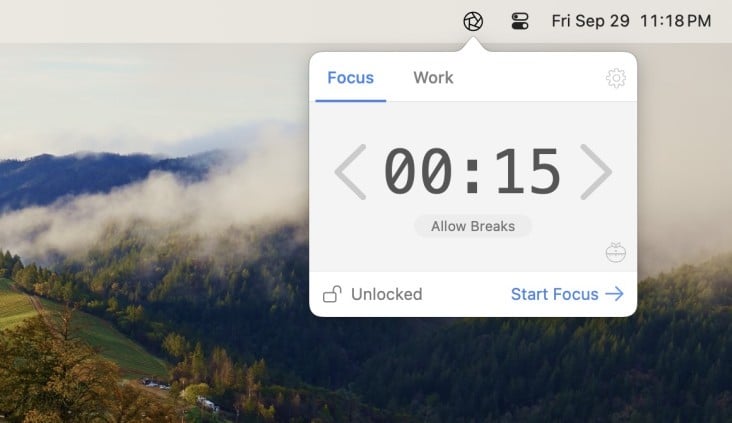
Image: HeyFocus
Note: This article includes two apps named “Focus.” Focus by Meaningful Things (#1) is a dedicated Pomodoro timer. HeyFocus (#4) is primarily a distraction blocker that includes Pomodoro support. They are different apps from different developers.
Best for: Users who need hard-to-bypass distraction blocking during focus sessions.
Type: Distraction blocker with Pomodoro timer
Platforms: Mac only
If your problem isn’t starting focused work but staying in it, HeyFocus is the heavy-duty option. While most apps politely suggest you avoid distractions, HeyFocus enforces it with locked sessions and profile-level restrictions that make it significantly harder to bypass blocking once a session is active. You can block distracting apps, specific domains, or the entire internet. For Mac users who struggle with self-control when it comes to digital distractions, this level of enforcement makes a real difference.
The scripting engine is what makes HeyFocus more than just a blocker. You can write custom scripts that trigger other Mac apps when sessions start or end, creating automated productivity workflows. Multiple blocking profiles let you switch quickly between different contexts: a “writing” profile that blocks social media but allows research sites, a “deep focus” profile that blocks everything except your code editor. For more blocking options, see our full guide to blocking websites on Mac.
Pros
- Among the hardest-to-bypass distraction blockers available on Mac
- Scripting engine for custom automation and integrations
- Multiple blocking profiles for different work contexts
Cons
- Mac-only with no iOS or iPad support
- Primarily a blocker; the Pomodoro timer is secondary to the blocking functionality
- Scripting requires some technical knowledge to set up
- No cross-device sync
Pricing: Focus 2 for $49 one-time; Lifetime for $129 one-time. Free trial available.
5. Flow
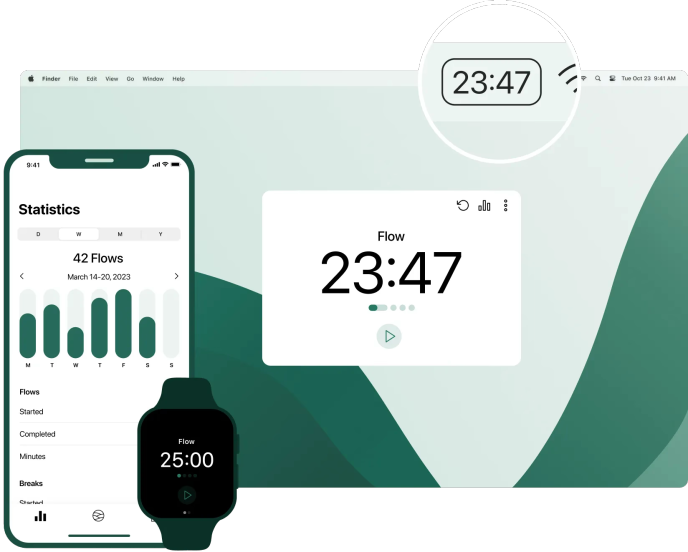
Image: Flow
Best for: Users who want a beautifully designed Apple-platform timer with a strong free tier.
Type: Apple-platform Pomodoro timer with optional blocking
Platforms: Mac, iPhone, iPad, Apple Watch
Flow proves you don’t have to sacrifice polish for affordability. The free tier is surprisingly generous: no ads, no sign-up wall, no “upgrade to unlock basic features” gates. The design is clean and native across Mac, iPhone, iPad, and Apple Watch. Where some free Pomodoro apps feel like afterthoughts, Flow feels intentional.
Commitment mode is a nice addition: once you start a session, the stop button disappears until the timer runs out. It’s lighter enforcement than HeyFocus’s approach, but enough to stop habitual timer-cancellers. Flow Pro adds app and web blocking, calendar sync, data export, Live Activities on iPhone, and Dynamic Island support. The optional metronome feature, a subtle rhythmic tick during sessions, is something we haven’t seen in any other Pomodoro app. Some users find it helps maintain focus; others turn it off immediately. Worth trying.
Pros
- Beautiful, native Apple-platform design
- Commitment mode prevents premature session cancellation
- Pro adds app/web blocking, calendar sync, export, Live Activities, Dynamic Island
- Unique metronome feature for rhythmic focus
Cons
- Less task-management depth than Focus
- Lighter automation ecosystem than Session
Pricing: Free basics forever (no ads, no sign-up). Flow Pro from $1.49/month on annual billing, with regional pricing varying by App Store.
App Store rating: 4.8 out of 5
6. Forest
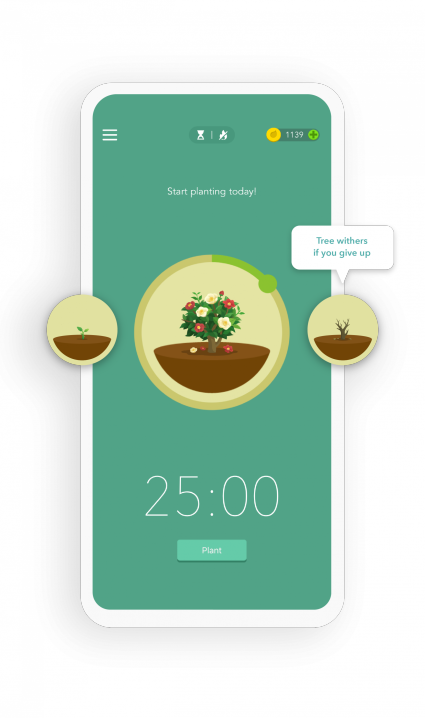
Image: Forest
Best for: Users who respond to gamification, social accountability, and real-world environmental impact.
Type: Gamified focus timer
Platforms: iPhone, iPad, Android, browser extension (Chrome/Firefox). No native Mac app.
Important for Mac users: Forest does not have a native Mac app. On Mac, you use it through a Chrome or Firefox browser extension that blocks websites during your focus session. The experience is significantly more limited than the mobile app. If a native macOS Pomodoro timer is important to you, the other apps on this list are better suited.
With that caveat out of the way, Forest takes a completely different motivational approach. Start a focus session and a virtual tree begins to grow. Leave the app or the browser extension before the timer ends, and the tree dies. Complete the session, and it joins your virtual forest. Over time, you build a lush digital garden that represents your accumulated focus. The twist is that you can spend virtual coins earned from sessions to plant actual trees through a partnership with Trees for the Future. It’s an effective motivational loop that works well for students and anyone who responds better to positive reinforcement than productivity analytics.
Social accountability adds another layer: you can plant trees with friends for shared focus sessions. Forest has one of the largest user communities of any focus app, and the gamification keeps people coming back.
Pros
- Unique gamification that funds real tree planting
- Social accountability features for shared focus sessions
- Large, active community
Cons
- No native Mac app; Mac users get a browser extension only
- Browser extension experience is limited compared to native apps on this list
- No task management, analytics, or session history on Mac
- No Apple ecosystem integrations (no Shortcuts, no Apple Watch, no widgets on Mac)
Pricing: Free to download on iOS. Forest Plus subscription unlocks additional features from $5.99/month or $35.99/year. Browser extension is free.
Chrome Web Store rating: 3.8 out of 5
7. TomatoBar
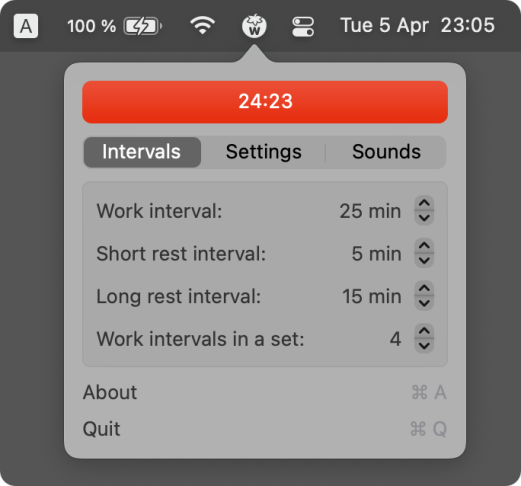
Image: TomatoBar
Best for: Developers and minimalists who want a free, native, zero-bloat timer.
Type: Open-source menu bar timer
Platforms: Mac only (native macOS menu bar app)
TomatoBar is the hacker’s Pomodoro timer. It’s a native macOS menu bar app that does exactly one thing well: count down your Pomodoro sessions. No accounts. Zero feature bloat. No telemetry.
Where TomatoBar gets interesting for technical users is in its automation hooks. Sessions are logged in JSON format, which means you can pipe that data into custom scripts for your own productivity analysis. A URL scheme lets you trigger sessions from Apple Shortcuts or other automation tools. And because it’s open-source under the MIT license, you can read the source code, verify exactly what it does, customize it for your workflow, or contribute improvements. The project is actively maintained, with releases as recent as early 2026.
Pros
- Open-source (MIT license)
- Native Swift app, not an Electron wrapper
- JSON logging enables custom productivity analysis
- URL scheme for Shortcuts automation
- Zero tracking, zero telemetry, zero bloat
Cons
- Extremely minimal: no task management, no analytics UI, no blocking
- No iOS or Apple Watch companion
- Requires technical comfort to get the most out of JSON logging
- No graphical customization
Pricing: Free (open-source).
Track Your Focus Sessions Automatically with Timing
A Pomodoro timer tells you when to focus. But do you know what you actually focused on? Once your 25-minute session starts, you might intend to work on a client proposal, but end up spending 10 minutes in Slack, 8 minutes on a research tangent, and only 7 minutes in the document itself. A Pomodoro app won’t catch that. Timing will.
See What You Actually Worked On During Each Session
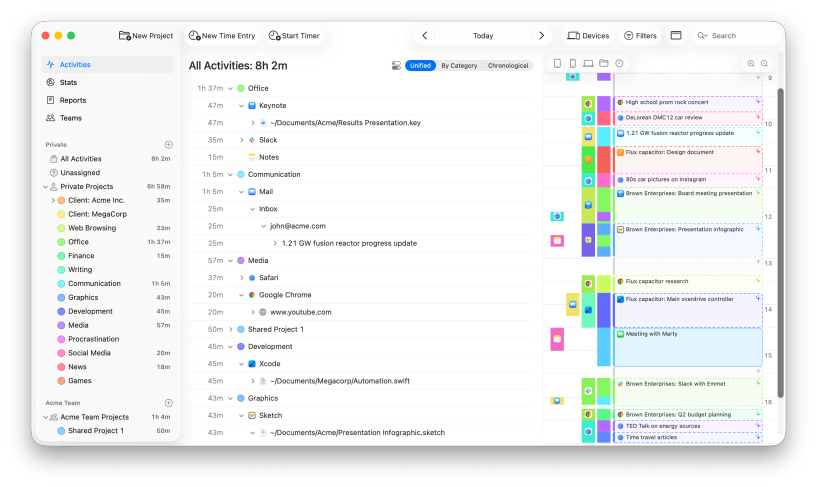
Timing automatically records every app, document, and website you use in the background. After a Pomodoro session, you can see exactly how that 25 minutes broke down: was it really focused work, or did you drift? Timing even has a built-in timer whose default duration is 25 minutes — a Pomodoro session — and it sends a notification when the time is up, so you can use it as a lightweight Pomodoro prompt alongside the automatic tracking. Its idle detection also notices when you step away from your Mac and prompts you to categorise the idle time when you return, so logging breaks takes a single click.
Turn Pomodoro Sessions Into Billable Hours
For freelancers and consultants who use the Pomodoro technique, there’s a gap between “I did 8 Pomodoro sessions today” and “I need to invoice Client X for 3.5 hours.” Timing fills that gap. Its project-based tracking lets you assign session time to specific clients, and its billing status workflow (Not Billable, Billable, Billed, Paid) tracks your invoicing pipeline from start to finish. If you want to bill time accurately, combining a Pomodoro timer with automatic tracking is one of the most reliable ways to do it.
Discover Your Most Productive Hours
Timing reveals patterns that a Pomodoro app alone can’t. Are your sessions more productive in the morning or afternoon? Do you drift more on certain days of the week? Which projects consume the most focus time? The Stats tab answers all of these, with breakdowns by hour, day, and project. For a session-by-session look at what you actually did, the Timeline view and AI Summaries replay the apps, documents, and websites that filled each focus window. If your Pomodoro app syncs sessions to Apple Calendar (Session does this), Timing’s calendar integration can pick those up and assign them to projects automatically. Use these insights to schedule your most important Pomodoro sessions during your peak hours. For a deeper dive, try running a time audit alongside your Pomodoro practice for a week.
Ready to see the full picture of your focus time? Download Timing’s free 30-day trial and pair it with your favorite Pomodoro app. The data tends to be eye-opening.
Summary: Choosing the Best Pomodoro App for Mac
The right Pomodoro app depends on how you work. If you want a polished, proven timer that works across every Apple device, Focus by Meaningful Things is the strongest option. If you want Slack, Calendar, and Shortcuts integrations, Session has the deepest automation. For power users who need custom timer structures, Focused Work is the most flexible. For strict distraction blocking, HeyFocus is the hardest to circumvent. And if you’re on a budget, Flow’s free tier and TomatoBar prove that effective focus tools don’t have to cost anything.
Whichever app you choose, consider pairing it with Timing to automatically track what you work on during your focus sessions. Together, a Pomodoro timer and an automatic time tracker cover all the bases: when you focused, what you focused on, and whether that focus translated into billable work. Download Timing’s free 30-day trial and use it alongside your favorite Pomodoro app. For more ways to optimize your Mac workflow, check out our guide to the best productivity apps for Mac.
Frequently Asked Questions: Best Pomodoro Apps for Mac
What is the best Pomodoro app for Mac?
Focus by Meaningful Things is the best overall Pomodoro app for Mac, with over 10 years of development, built-in task management, and support for Mac, iPhone, iPad, Apple Watch, and Apple Vision Pro. For users who want deep integrations and automation, Session offers Slack status sync, Apple Calendar integration, and Apple Shortcuts.
Is there a free Pomodoro timer for Mac?
Yes. TomatoBar is a fully free and open-source native Mac timer. Flow offers a polished free tier with no ads and no sign-up wall. Forest’s browser extension is also free, though it is not a native Mac app.
Does macOS have a built-in Pomodoro timer?
macOS does not include a dedicated Pomodoro timer. Apple’s Clock app can serve as a basic countdown, and you can create a rudimentary Pomodoro automation using Apple Shortcuts combined with macOS Focus mode. But for Pomodoro-specific features like session cycles, break enforcement, blocking, analytics, and task association, you’ll need a dedicated app from this list.
How long should a Pomodoro session be?
The classic Pomodoro session is 25 minutes of focused work followed by a 5-minute break, with a longer 15-20 minute break after four sessions. That said, many people find different durations work better depending on the task. Apps like Focused Work and Session let you customize session lengths. If you find 25 minutes too rigid, the Flowtime technique is an alternative worth trying.
Can I use a Pomodoro timer with time tracking software?
Yes, and it’s a combination worth trying. A Pomodoro timer structures your work into focused intervals, while a time tracker like Timing automatically records what you work on during each session. Together, they answer both “when did I focus?” and “what did I focus on?” This is especially useful for freelancers and consultants who need to track time for billing.
Can you use macOS Focus Mode as a Pomodoro timer?
macOS has a built-in Focus mode (System Settings > Focus) that can silence notifications and hide distracting apps, and you can build a basic DIY Pomodoro automation with Apple Shortcuts: enable a Focus mode, wait 25 minutes, disable it, and show a notification to take a break. But this approach lacks session counting, analytics, task association, customizable cycles, break enforcement, and progress tracking over time. macOS Focus mode works better as a complement to a dedicated Pomodoro app than as a replacement. Several apps on this list, including Session, can automatically toggle macOS Focus mode when you start a session.
What is the Pomodoro Technique?
The Pomodoro Technique is a time management method developed by Francesco Cirillo in the late 1980s. You work in focused intervals (traditionally 25 minutes, called “pomodoros”), separated by short breaks (5 minutes). After four pomodoros, you take a longer break of 15-20 minutes. The technique helps maintain concentration and prevent burnout by balancing focused work with regular rest. For more time management strategies, see our guide to better time management.