
The Best Password Manager for Mac in 2027: 9 Options for Apple Users
TL;DR: The Best Password Manager for Mac in 2027
For many users, the best password manager for Mac is the one already on it: Apple Passwords. It’s built into macOS, fills logins in Safari, and syncs your passwords and passkeys across your Apple devices. If you want more, 1Password is the best all-rounder, and comes with a polished Safari extension and room for documents and secure notes. Bitwarden is the best open-source option, Proton Pass suits privacy-minded users, and Enpass keeps your encrypted vault in your own cloud account.
The idea of password management often comes with a side portion of guilt. Many of us know our passwords could be in better shape. A few passwords probably haven’t been changed in years (decades?) and a handful likely get reused a little too frequently. Fortunately, password managers allow you to autogenerate and autofill random passwords, keeping your passwords unique and your data secure wherever you work. Which is the best password manager for Mac? Well, since macOS Sequoia, Apple has offered its own free, built-in passwords app, and there are a variety of third-party alternatives to choose from, too.
Here, we explore Apple Passwords and eight third-party managers, diving into what they offer and whether the latter are worth the investment. If you’d like the quick version, skip ahead to our comparison table for a useful overview.
Table of Contents
TOC
Do You Need a Password Manager if You Have Apple Passwords?
If every device you own is made by Apple, you probably don’t need a separate password manager. Apple Passwords, which comes preinstalled on every Apple device, does an excellent job. It creates strong passwords, fills them in for you, and syncs across your Mac, iPhone and iPad. It also supports passkeys, warns you when a password has turned up in a data breach, and lets you share your logins with family.
A third-party manager only starts to make sense once your life stretches either beyond Apple or beyond passwords. It can be useful, for example, if you share logins with people who use other platforms, or if you’d also like to keep certain documents, card details and notes secure.
In the guide below, we’ll look at the capabilities of both Apple Passwords and a variety of third-party managers so you can choose the solution that’s right for you.

Image: Antoni Shkraba
How a Safari Password Manager Works on a Mac
On a Mac, most third-party password managers fill in your logins in Safari through a Safari extension, usually paired with a desktop app. The app stores and organizes your passwords in an encrypted vault, which you unlock with one master password (or Touch ID), while the extension lives inside Safari, recognizes a login page, and offers to fill it in for you.
This means there are two steps involved in getting your password manager, and especially the autofill functionality, to work properly. You have to install the app and you have to enable its extension in Safari’s settings. Developers are still investing here. Proton Pass, for example, released a standalone Safari extension in June 2026.
Where the apps differ is in how much care goes into their extensions. A well-built extension works easily in Safari, offering the right login at the right moment and staying out of your way the rest of the time. A poor one might offer to save or autofill the wrong information, or prompt you at an inappropriate time.
Of the Mac password managers reviewed in this guide, Apple Passwords works in Safari with nothing to install because it’s built into macOS. Seven of the eight third-party managers offer a Safari extension: 1Password, Bitwarden, Proton Pass, Dashlane, NordPass, Secrets and Enpass. And three of those (1Password, Secrets and Enpass) can also fill logins through macOS’s own AutoFill feature. KeePassXC is the exception, offering extensions for Chrome, Firefox and Edge only.
What to Look for in a Mac Password Manager
To find the best password manager for Mac, we evaluated a wide range of apps and checked their prices and macOS requirements on the developer’s website and the App Store in October 2026. We based our selection on the following points, which are worth keeping in mind as you search:
- Mac and Apple ecosystem support: Look for Mac native apps that work offline, live in their own window, and behave intuitively, including offering handy keyboard shortcuts and Touch ID.
- iPhone and iPad sync: Almost nobody uses a Mac exclusively. Your chosen app needs to sync logins easily across other Apple devices.
- Safari compatibility: Safari is Mac’s default browser, so if you use it, your manager should work there. Most use a Safari extension, but some can plug into macOS’s own AutoFill.
- Passkey support: Passkeys replace passwords with a login tied to your device, and more sites are adopting them. A manager you plan to keep for years should store and fill them.
- An easy way out: Check that you can export your data in a format other apps can read. Being able to leave is the best protection against lock-in, and it’s especially important as passkeys take over from passwords.
- Independent security audits: Better vendors pay outside firms to test their software, and they publish the results.
- macOS version requirements: Released in September 2026, macOS 27 Golden Gate runs only on Apple silicon, so Intel Macs can’t upgrade to it. Some managers require a fairly recent version of macOS.
- Transparent pricing: Pricing should be clear, with no unwelcome surprises.
- Track record: Choose an app with the history and clout you need to trust it with your passwords.
Some of these apps also offer enterprise plans, but we focused on what they offer individuals, families and small teams.
The Best Password Managers for Mac in 2027: Comparison Table
Looking for a quick summary of everything before we dive into our detailed reviews? This comparison table is here to help you:
| App | Best | Native Mac app | Open source | Price* | Rating (out of 5) |
|---|---|---|---|---|---|
| Apple Passwords | Built-in option for Mac | Yes, built into macOS | No | Free and pre-installed | 4.7 (App Store: iPhone) |
| 1Password | Overall password manager for Mac | No, built with Electron | No | Personal plans from $3.99pm and business plans from $2.49pm | 4.7 (Capterra) |
| Bitwarden | Value password manager for Mac | No, built with Electron | Yes | Personal plans from $1.65pm and business plans from $4pm | 4.7 (Capterra) |
| Proton Pass | Password manager for privacy | No, built with Electron | Yes | Free individual plan and paid options from $2.99pm, and business plans from $1.99pm | 4.9 (Capterra) |
| Dashlane | Monitoring and alerts | Yes, built with Apple’s own tools | Partly | Personal plans from $5.42pm and business plans from $4pm | 4.5 (G2) |
| NordPass | Mainstream alternative | No, built with Electron | No | Free personal plan and paid options from $1.99pm, and business plans from $1.99pm | 4.5 (Capterra) |
| Secrets | Independent Mac-native option | Yes, Apple devices only | No | In-app purchases starting from $2.99pm | 4.4 (Mac App Store) |
| Enpass | Keeping your vault in your cloud | No, built with Qt | No | Free personal plan and paid options from $1.99pm, plus business plans | 4.6 (G2) |
| KeePassXC | Free offline option | No, built with Qt | Yes | Free and open source | 4.7 (Capterra) |
*Pricing correct as of October 2026. Please also note that prices can vary by region and may change unexpectedly. Always check each app’s pricing page for the most accurate figures.
The Best Password Managers for Mac in 2027
The reviews cover Apple Passwords, which comes preinstalled on every Mac running macOS Sequoia or later, and eight third-party alternatives.
1. Apple Passwords: The Best Built-in Option for Mac
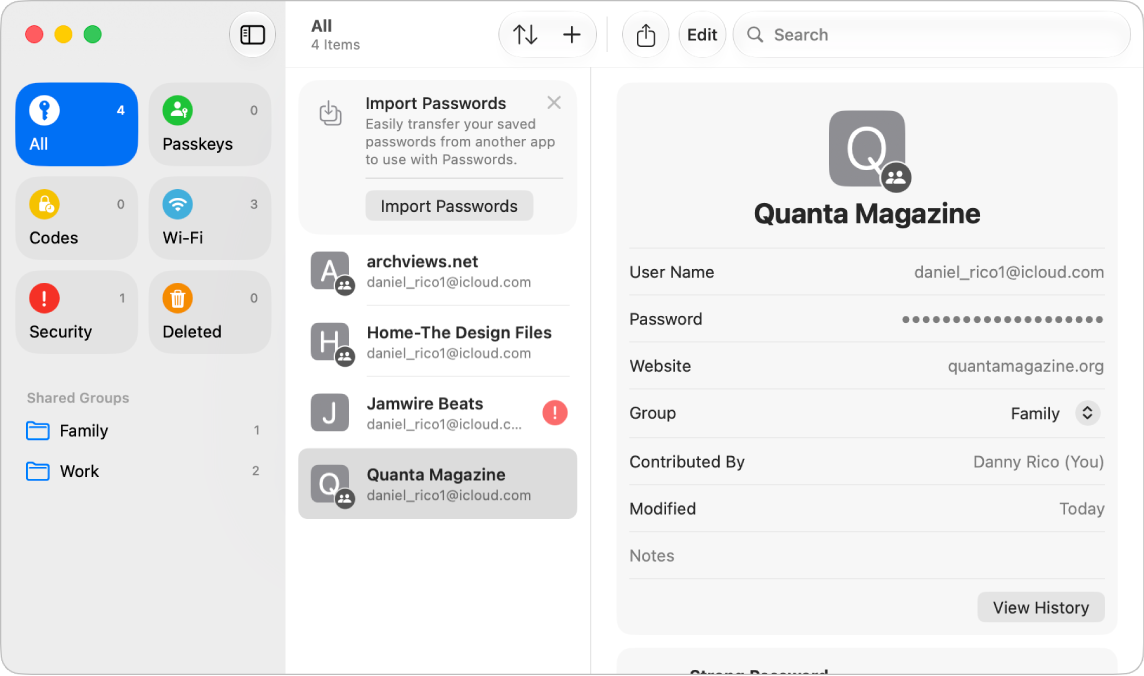
Image: Apple Passwords
Best for: Mac users who want password management with nothing to install or set up.
Apple Passwords is the only manager on this list that’s already on your Mac. There’s nothing to download and no extension to enable. Apple Passwords comes part of macOS and fills your logins in Safari through the system’s own AutoFill functionality. It keeps passwords, passkeys, verification codes and Wi-Fi passwords in one place, and syncs them across your Apple devices through iCloud Keychain, protected by end-to-end encryption. This means that only your own devices can read your passwords. Its security feature lists passwords that are weak, reused or have appeared in a known data leak, and shared groups let you share logins with family and trusted contacts. In June 2026, Apple also announced an automatic password-fixing feature, which hadn’t arrived on Mac at the time of writing.
If your needs are simple, Apple Passwords may be all you ever need. But it is exclusively a password manager. There’s nowhere to store more complicated confidential information, like scans of your passport. Read on if you’re looking for a solution with more robust capabilities.
Pricing: Apple Passwords is free and comes built-in to every Apple device.
2. 1Password: The Best Overall Password Manager for Mac
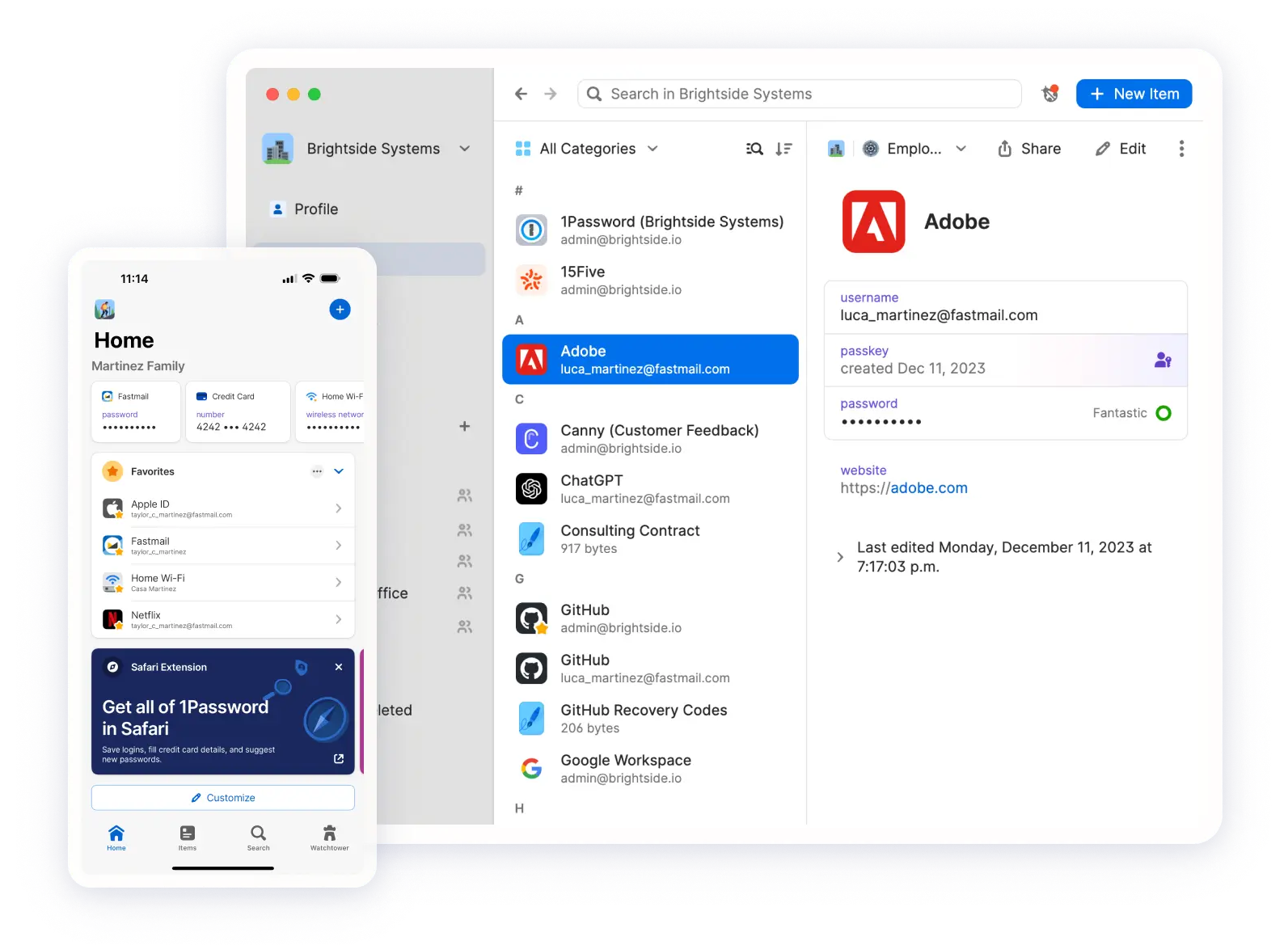
Image: 1Password
Best for: Users who want a polished all-rounder that also stores documents and notes, and anyone who travels often.
1Password is a long-standing favorite among Mac users, and it recently got an important upgrade. Since August 2026, it can work as a macOS AutoFill provider, so its login and passkey suggestions appear in Safari’s own menu and in other Mac apps, with no extension involved. The Safari extension still handles credit cards and addresses, and it can run on its own without the desktop app. 1Password stores secure notes, cards, identity details and documents. Watchtower alerts you to weak, duplicate and breached passwords, and Travel Mode removes sensitive vaults from your devices while you’re on the road.
The shortcoming is that the Mac app is built on Electron, a cross-platform framework, so it feels slightly less like a true native Mac app.
Pricing: 1Password has two personal plans. The Individual plan costs $3.99 per month, billed annually, and the Family plan costs $5.99 per month for up to five people, also billed annually. Its two business plans include a Team Starter Pack for small teams, which costs $2.49 per user per month for a minimum of 10 users, and a Business plan for $8.99 per user per month, both billed annually.
3. Bitwarden: The Best Value Password Manager for Mac
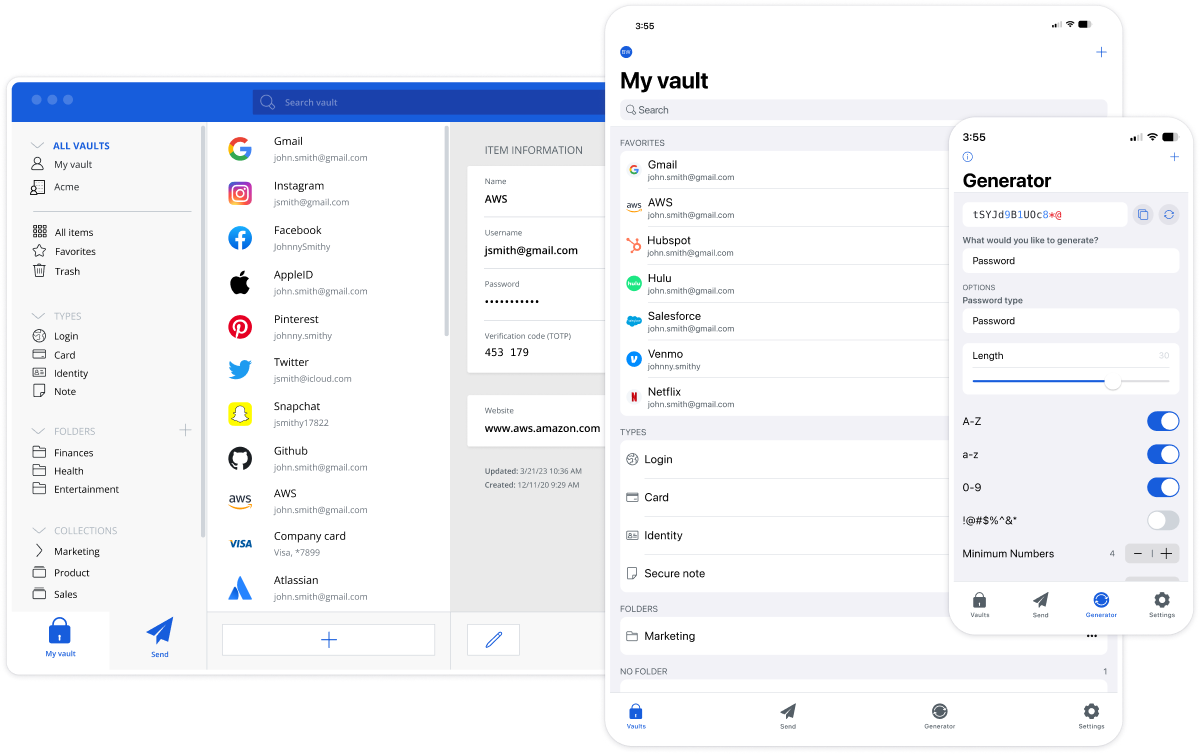
Image: Bitwarden
Best for: Users who value transparency and control, and are happy to trade a little polish for it.
Bitwarden is the open-source choice. Its entire codebase is published on GitHub for anyone to inspect, and outside security firms audit it regularly, so you can check its security claims for yourself. If you like full control, you can host your vault on your own server, and the self-hosted setup works with the same desktop app and browser extensions. On a Mac, the Safari extension comes bundled with the desktop app from the Mac App Store, so one download covers both. If you link the two, you can unlock the extension with Touch ID. A recent addition, fill assist, improves autofill on websites that are known to cause trouble.
Like 1Password, Bitwarden is also built on Electron, and its design is a bit more functional than refined as a result. Users often find that it doesn’t feel all that polished, but if security is more important to you, it should suit your needs well.
Pricing: Bitwarden has both personal and business plans. Its personal plans include a Premium plan for $1.65 per month, billed annually at $19.80, and a Families plan for $3.99 per month, billed annually at $47.88. Its business plans include a Teams plan for $4 per user per month, and an Enterprise plan for $6 per user per month, both billed annually.
4. Proton Pass: The Best Password Manager for Privacy
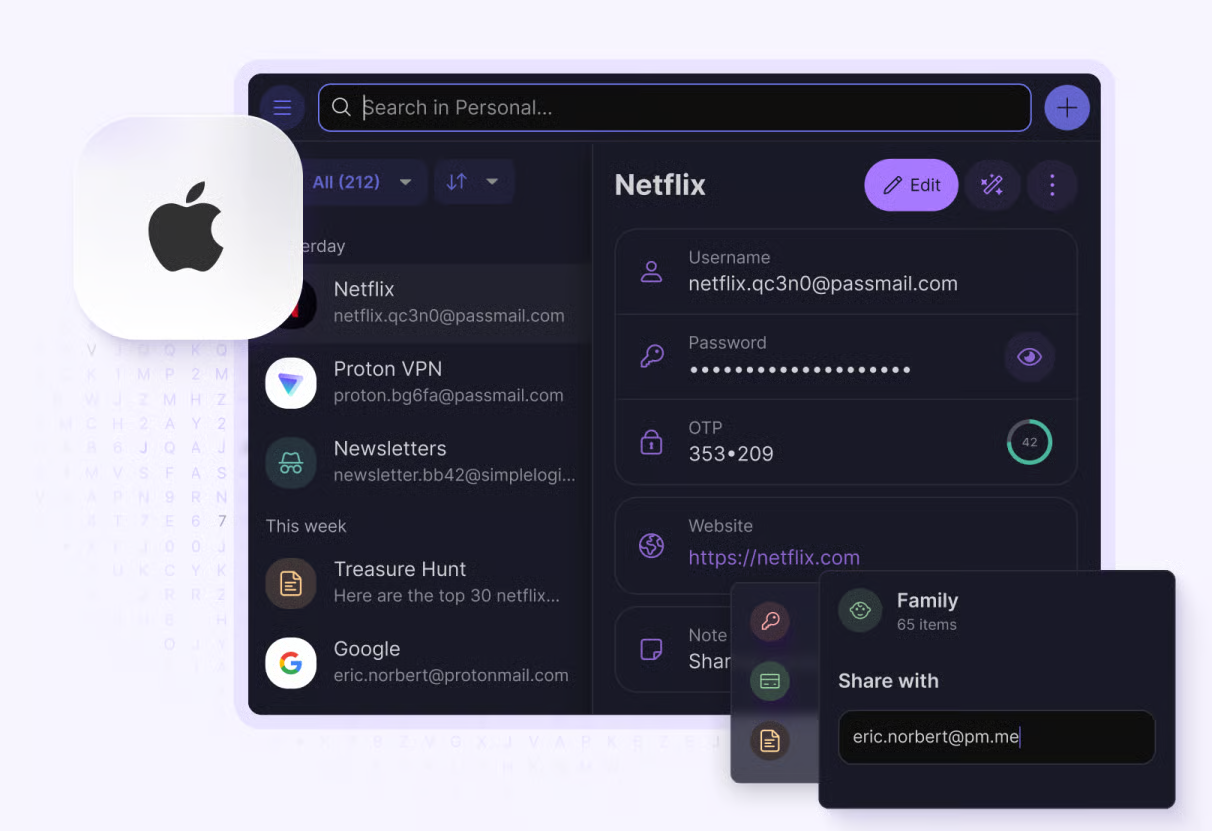
Image: Proton Pass
Best for: Privacy-first users, especially those already part of the Proton ecosystem.
Proton Pass comes from the team behind Proton AG, a Swiss technology company founded by a team of scientists who met while working at the CERN research facility. Privacy is its defining feature. It’s open source, end-to-end encrypted and protected by Swiss privacy laws. Users also love its hide-my-email aliases. When a site asks for your email address, Proton Pass can hand over a stand-in that forwards to your inbox, and you can switch it off if any spam starts. A built-in authenticator generates two-factor codes, and Pass Monitor flags weak or reused passwords and warns you about data leaks.
Mac users get a full desktop app and a standalone Safari extension, but be aware that there’s a little bit of setup involved. The app comes from Proton’s website and the Safari extension from the App Store, so there are two downloads to manage.
Pricing: Proton Pass has individual and business plans. Its individual plans come in four tiers. Proton Free, which is entirely free; Pass Plus, which costs $2.99 per month, billed annually; Pass Family, which costs $4.99 per month, billed annually; and Proton Unlimited, which costs $9.99 per month, billed annually. Its business plans also come in four tiers. Pass Essentials costs $1.99 per user per month, Pass Professional costs $4.49 per user per month, VPN and Pass Professional costs $10.99 per user per month, and Workspace Standard costs $12.99 per user per month, all billed annually.
5. Dashlane: The Best Password Manager for Monitoring and Alerts
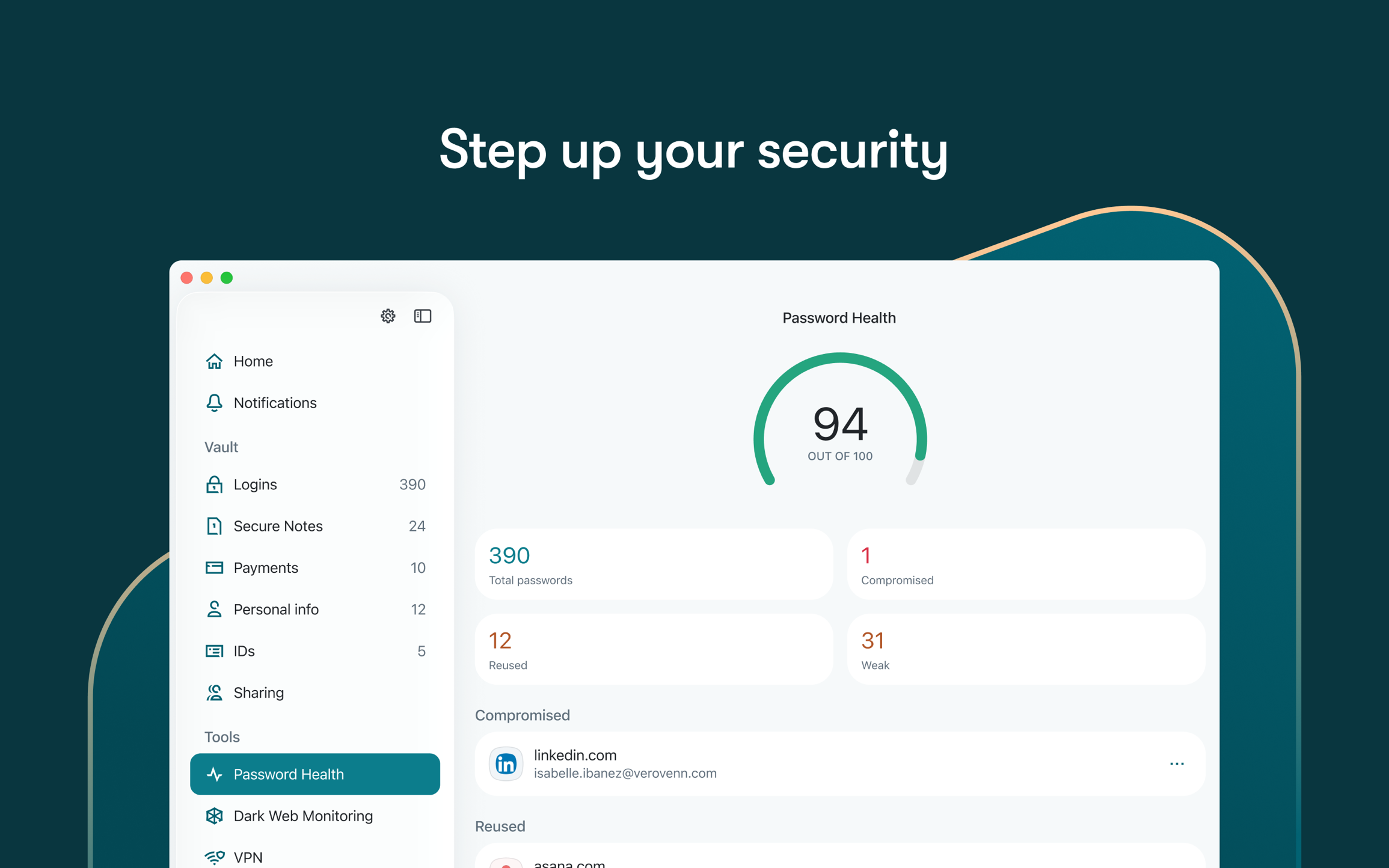
Image: Dashlane
Best for: Users who want security extras such as breach monitoring and a VPN bundled into one app.
Dashlane treats password management as one part of a wider security kit. Alongside the usual autofill and password generator, it scans the dark web for your details and alerts you if they surface in a leak. It gives your vault a password health score with steps to fix weak or reused logins, and warns you when you’re about to enter a password on a suspicious site. And it also includes a VPN for public Wi-Fi. Dashlane retired its original desktop software some years ago. Today’s Mac app comes from the App Store with the Safari extension installed alongside it.
Be aware, however, that the Mac app requires macOS 15 Sequoia or later, so Macs that can’t run Sequoia are left out.
Pricing: Dashlane has personal and business plans. Its personal plans have two tiers: Premium, which costs $5.42 per month, and Friends & Family, which costs $8.13 per month, both billed annually. There are three tiers in its business plans. Credential Protection costs $4 per user per month and Password Management costs $8 per user per month, both billed annually. A custom-priced Enterprise plan is also available.
6. NordPass: The Best Mainstream Alternative
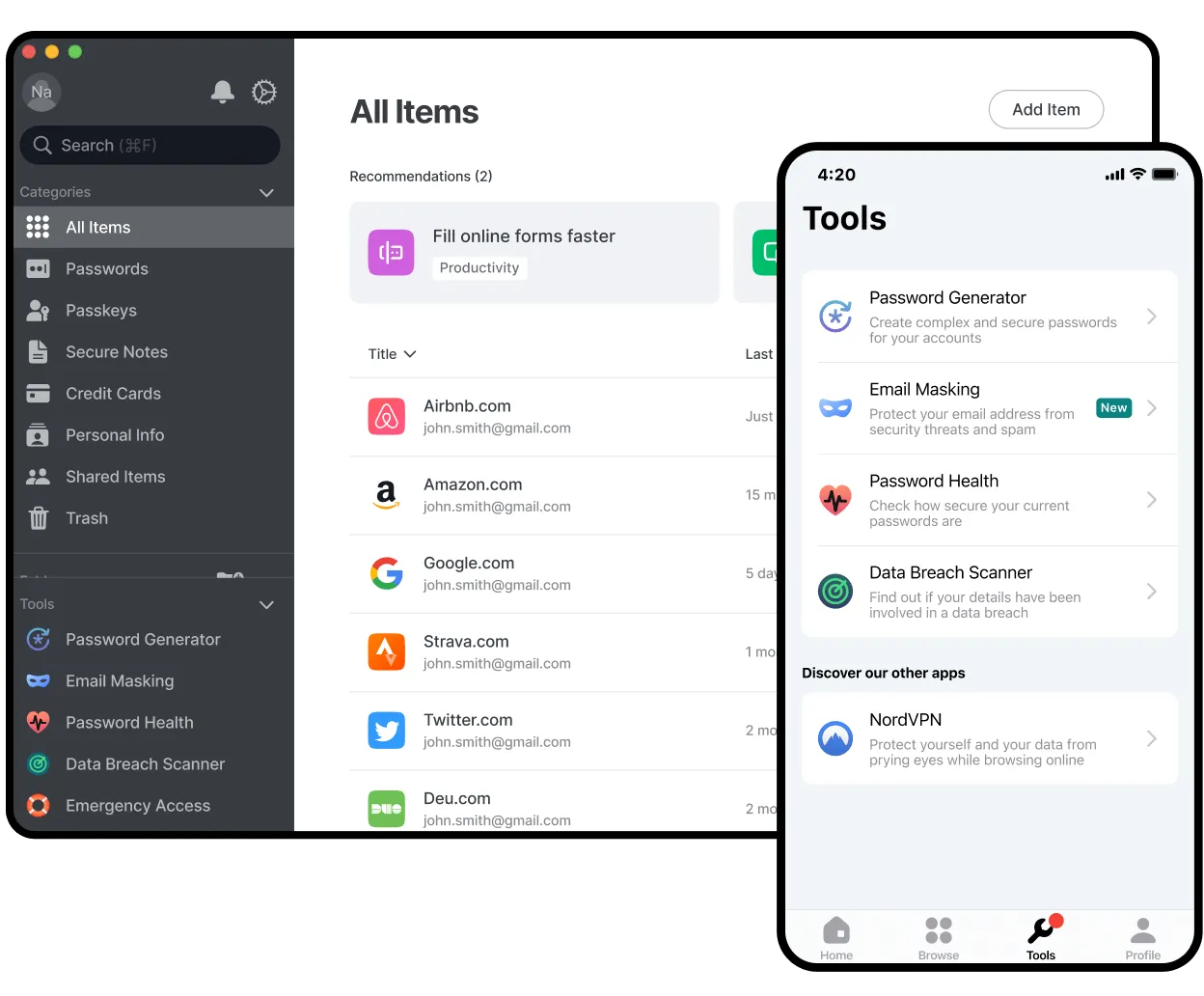
Image: NordPass
Best for: Those who already use NordVPN, or who want a simple manager that also watches for leaked card details.
NordPass comes from Nord Security, the company behind NordVPN, and it aims to keep things simple. Its vault is protected by XChaCha20 encryption, a modern algorithm that NordPass has made its signature, and its apps have been independently audited by German cybersecurity firm Cure53. The Data Breach Scanner checks whether your email addresses or payment card details have leaked, and email masking gives you disposable addresses for sign-ups. The vault holds passwords, passkeys, cards and documents such as your passport.
On a Mac, there’s a full desktop app, plus a Safari extension from the Mac App Store that works on its own if you’d prefer to skip the app. Be aware that the two work independently, so you sign in to the app and the extension separately.
Pricing: NordPass has both personal and business plans. The personal plans include a Free plan, which is free; a Premium plan, which costs $1.99 per month, and a Family plan, which costs $3.69 per month, both billed annually. NordPass’s business plans come in three tiers. The Teams plan costs $1.99 per user per month, the Business plan costs $3.99 per user per month, and the Enterprise plan costs $5.99 per user per month, all billed annually.
7. Secrets: The Best Independent Mac-native Option
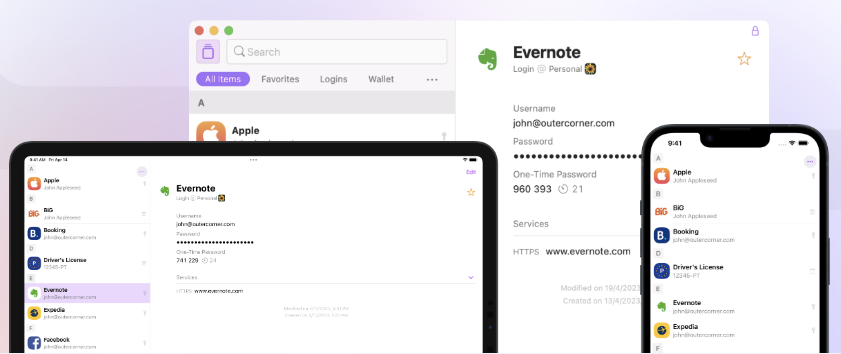
Image: Secrets
Best for: Users who live entirely in Apple’s ecosystem and want a native-feeling app that keeps their data in their own iCloud.
Secrets is built only for Apple devices, and it feels at home on a Mac. It leans on tools you already have. Syncing runs through your own iCloud account, so there’s no extra account to create, and your data never touches the developer’s servers. Logins, passkeys and verification codes fill through macOS’s built-in Password AutoFill, and there’s a Safari extension as well. You can unlock with Touch ID or your Apple Watch, store cards, bank details and files alongside your passwords, and share vaults with family.
Secrets’ primary shortcoming is pace. It comes from a small independent developer, and updates arrive every few months, so new features take longer to appear than they do among larger rivals.
Pricing: Secrets offers a number of in-app purchases, including monthly and yearly costs of $2.99 and $29.99 respectively. Editing permissions are also available for $59.99, and editing and sharing permissions for $79.99. You can upgrade your offering for $49.99.
8. Enpass: The Best for Keeping Your Vault in Your Cloud
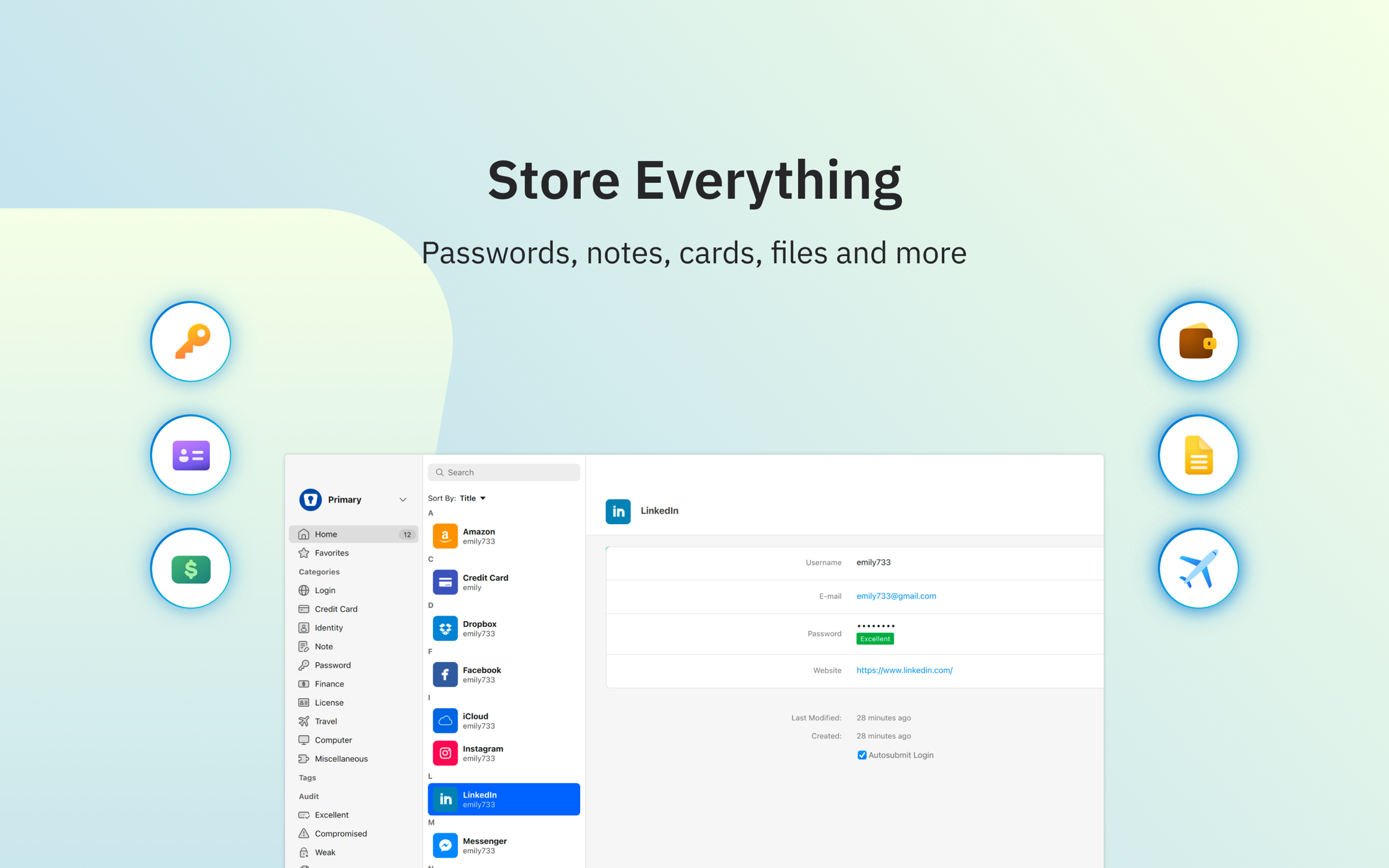
Image: Enpass
Best for: Mac users who want their vault kept in storage they control without managing files manually.
Enpass never stores your vault on its own servers. Your encrypted vault lives in a cloud account you already own, like iCloud, Google Drive, OneDrive, Dropbox, Box or Nextcloud, or it stays offline and syncs over Wi-Fi. Enpass calls this zero possession. In plain terms, there’s no company-held copy of your vault, so there’s no vendor database of vaults for anyone to steal. A September 2026 update also lets Enpass act as your Mac’s default autofill service, filling passwords, passkeys and authentication codes in Safari and other apps. It runs on macOS 12 or later, which keeps some older Macs in play.
All this means, however, that you’re responsible for choosing and connecting the storage yourself, as well as keeping your cloud account secure.
Pricing: Enpass offers both personal and business plans. Its personal plans come in three tiers: a free plan for up to 25 items, a Premium plan for $1.99 per month (billed annually at $23.99) and a Family plan for $3.99 per month (billed annually at $47.99), both US prices. Business and Enterprise plans are also available. Pricing varies by country, so you may see different amounts on Enpass’s pricing page.
9. KeePassXC: Best Free Offline Option
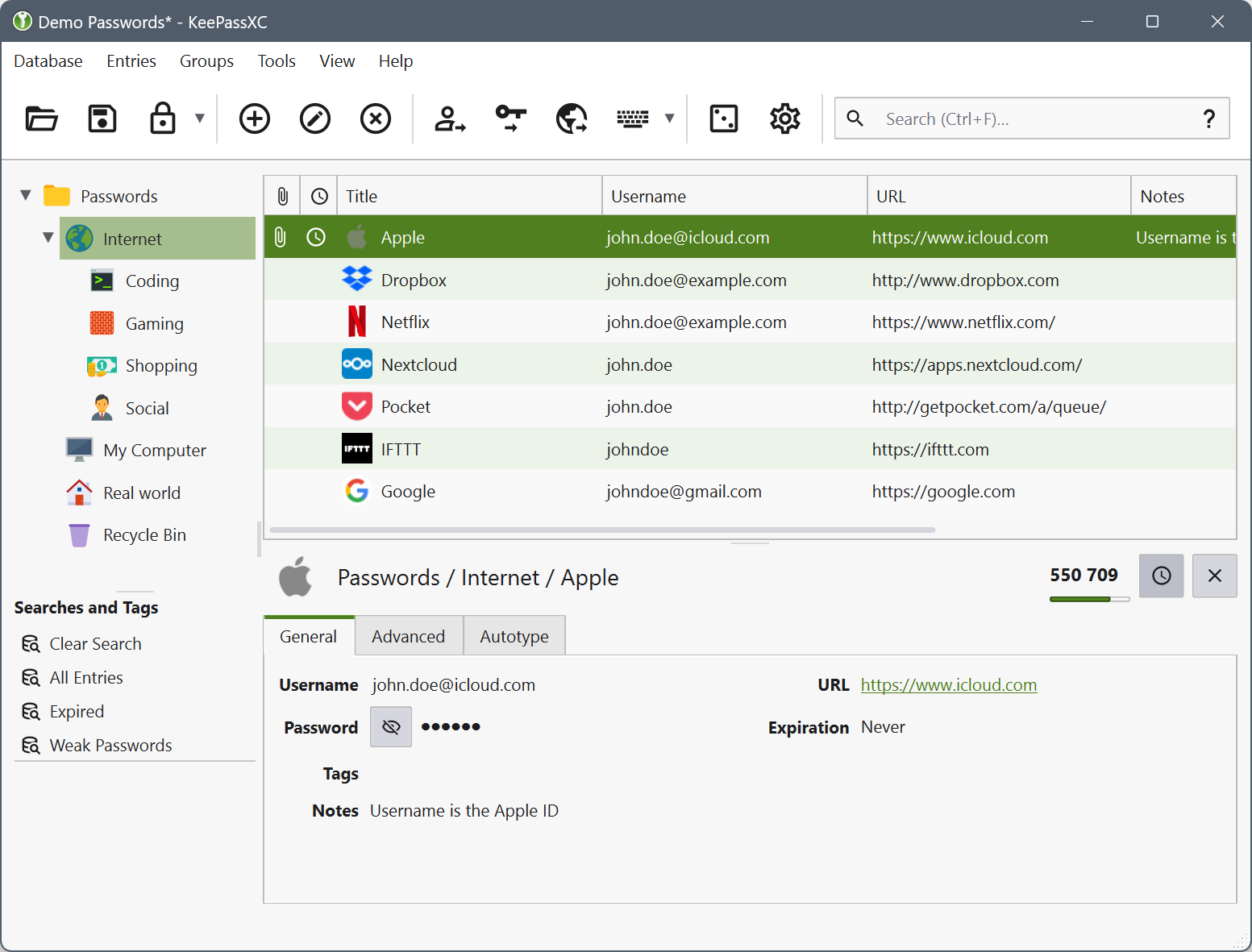
Image: KeePassXC
Best for: Technically confident Mac users who want full control of their vault and browse in Chrome or Firefox.
KeePassXC keeps everything local. Your passwords live in an encrypted file on your Mac, and nothing is uploaded unless you arrange it. That means there’s no server holding your vault to be breached. It also means nobody can help if you lose the file, so backups are your job. It’s open source, runs on macOS 12 or later with separate builds for Apple Silicon and Intel Macs, and supports passkeys through its browser extension. For an iPhone, you’ll need a separate compatible app, such as Strongbox or KeePassium, plus a shared folder like iCloud Drive to carry the file between devices.
Be aware that KeePassXC's browser extension covers Chrome, Firefox and Edge only. Safari users are left without one.
Pricing: KeePassXC is open-source software released under the GPLv3 licence, with no paid tier or subscription.
A Note on KeePass
KeePass is a database format: a standard way of storing your passwords in a single encrypted file. Several apps can open that same file. KeePassXC is the free option on a Mac, and KeePassium and Strongbox both work on iPhone and Mac. Because the format is open, picking one of these apps doesn’t lock you in. You can move to another later and keep using the same file.
Best Free Password Managers for Mac
If you’d rather not pay for a password manager, there are a few free password managers for Mac available to you. Each one also comes with a slight compromise though, whether that’s a narrower set of features or greater responsibility for your own data. Here’s where to look and what to expect.
- Best free option for Apple-only households: Apple Passwords
If every device you own is made by Apple, start with what’s already on your Mac. The main limit to be aware of is that Apple Passwords is built for logins, and doesn’t offer any support for document management. - Best free option for syncing across devices: Bitwarden
Bitwarden’s free plan includes unlimited passwords on unlimited devices, passkey support, and desktop, mobile and browser apps. You can also share your information with one other person. - Best free option with nothing in the cloud: KeePassXC
KeePassXC keeps your passwords in a single encrypted file on your Mac. Nothing leaves your computer unless you move it yourself, so no company server holds your vault. Be aware that there’s no iPhone app or Safari extension, however.

Image: Antoni Shkraba
Passkeys and What Changed in 2026
A passkey lets you sign in with your fingerprint, face or device passcode, with no password to type or remember. For anyone choosing a password manager, this means that your passkeys and the rest of your vault can now move between apps. Until recently, switching meant exporting everything to an unencrypted file that sat on your Mac until you remembered to delete it. Passkeys often couldn’t be exported at all.
The FIDO Alliance, the industry group behind passkeys, set out to fix that, with Apple, Google, Microsoft, 1Password, Bitwarden and Dashlane among those taking part. Its Credential Exchange Format gives every app a shared way to package passwords, passkeys, verification codes and notes. A companion protocol for the transfer itself is still in draft. Apple built transfers on this work into macOS 26 and iOS 26 towards the end of 2025. You choose what to move, pick the receiving app, confirm it’s you, and the data passes straight from one app to the other.
Throughout 2026, apps have been catching up. On iPhone and iPad, Apple Passwords, 1Password, Bitwarden and Dashlane all support these transfers, so your phone is currently the easiest place to switch. Mac support is a little patchier. So far, Apple Passwords and Dashlane support it and Secrets lists it in its release notes.
For users, this means that whichever manager you choose from this guide, leaving it later is far easier than it used to be. If you do switch, Ricky Mondello, who worked on this effort, suggests keeping your old app around as a backup for a while.
Staying Secure Beyond Your Passwords
A password manager is one of the simplest ways to protect your accounts. The UK’s National Cyber Security Centre and the US Cybersecurity and Infrastructure Security Agency both recommend using one. No app can promise perfect security, so pair yours with two-step verification on your most important accounts, keep your Mac up to date, and use passkeys wherever a site offers them. Both organisations’ guides are short, practical, and worth a read.
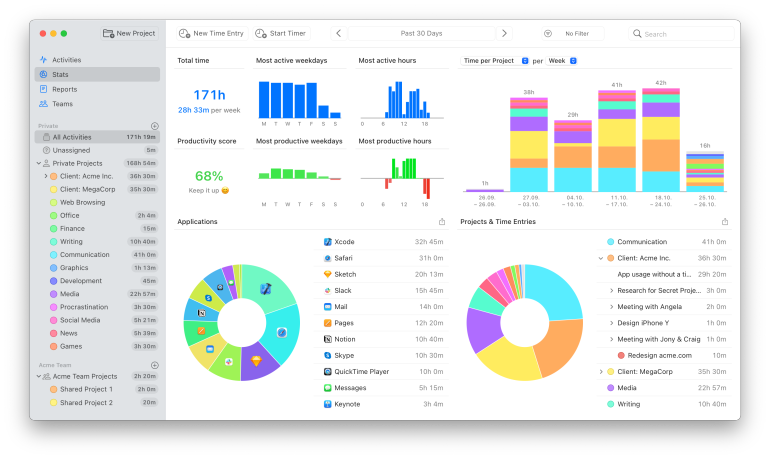
Caring about your passwords often goes hand in hand with caring about who else can see your data. Timing follows the same approach, keeping track of how you spend your time on your Mac, and storing the activity data locally. Its privacy-conscious approach allows you to track your time safely, with information only leaving your Mac if you choose to turn on sync.
Timing has a free 30-day trial — download it today.
Looking for further advice? Be sure to take a look at our article on how to Protect Your Privacy Online: A Complete Guide to Apps and Best Practices.
Choosing the Best Password Manager for Your Mac
For a lot of Mac users, Apple Passwords is enough. It’s already on your Mac, it fills logins in Safari, and it keeps your passwords and passkeys in sync across all your Apple devices. The other apps are there to help if you need something specific.
If you only use Apple devices, start with Apple Passwords. To keep cards, bank details and files alongside your logins in an app built only for Apple devices, take a look at Secrets. If you want the best all-rounder, choose 1Password. And if you want the most for the least, Bitwarden is worth considering. Enpass is great if you want your vault stored somewhere only you control, or explore KeePassXC, which keeps it in a single file on your Mac.
Whichever you choose, passkeys and the new transfer standards mean you can move to a different manager later with far less fuss.
And if you’d like to see where your time goes as clearly as you can now see your passwords, make sure you download Timing’s free 30-day trial.
Frequently Asked Questions: Best Password Managers for Mac
Is Apple Passwords Good Enough?
For many Mac users, Apple Passwords is enough. It’s built into macOS, fills logins in Safari, and syncs your passwords and passkeys across your Apple devices. A third-party manager is worth considering if you want to store documents such as passport scans, add custom fields to logins, or have your email addresses and card details watched for leaks, too.
Are Password Managers Safe?
Yes, password managers are safe and security agencies recommend them. The UK’s National Cyber Security Centre and the US Cybersecurity and Infrastructure Security Agency both advise using one to create and store strong, unique passwords. No software is perfect, and reusing passwords carries more risk, because one leak can open several accounts. For extra protection, the NCSC suggests turning on two-step verification for your password manager itself.
What is the Best Free Password Manager for Mac?
For most Mac users, the best free password manager for Mac is Apple Passwords, which is already built into macOS. Bitwarden’s free plan covers unlimited passwords and passkeys across unlimited devices, though its security reports and built-in authenticator need a paid plan. KeePassXC keeps everything in a single file on your Mac. It has no iPhone app or Safari extension, so syncing and backups are up to you.
Do Password Managers Work with Safari?
Yes, most third-party password managers fill logins in Safari through a Safari extension, which you switch on in Safari’s settings after installing the app. Some, including 1Password, Secrets and Enpass, can also fill logins through macOS’s own AutoFill. Apple Passwords needs no setup at all because it’s built into the system. Among the apps we reviewed, KeePassXC is the exception, with no Safari extension.
What is a Passkey, and Do I Still Need a Password Manager?
A passkey lets you sign in with your fingerprint, face or device passcode, so there’s no password to type, remember or have stolen. More sites support passkeys every year, and the NCSC recommends using them wherever they’re offered. Plenty of accounts still rely on passwords, so a manager that stores both passkeys and passwords remains the practical choice for now.
Can You Move Passwords Between Password Managers?
Yes, you can move passwords between password managers, and it’s much easier than it used to be. A FIDO Alliance format, built into macOS 26 and iOS 26, lets apps transfer passwords, passkeys and verification codes directly to each other, with no unprotected file in between. On iPhone and iPad, Apple Passwords, 1Password, Bitwarden and Dashlane support it. On Mac, Apple Passwords and Dashlane support it and other apps are catching up.