
The Best AI Apps for Mac in 2026: 21 AI Tools for Productivity and Creativity

Image generated by Dall-E
Short Answer: The best AI apps for Mac in 2026 are ChatGPT and Claude for general AI chat, Elephas for system-wide writing assistance, Superwhisper for dictation, Draw Things for image generation, and Timing for AI-powered time tracking. Most are available as free trials or have free tiers.
When it comes to boosting your productivity, there’s one (increasingly universal) truth: AI is a powerful ally. Even former skeptics have become converts in recent years. AI’s ability to automate repetitive tasks, deliver solutions to challenges, and offer inspiration has made it an indispensable part of any tool stack. But in the ever-expanding world of AI, what are the best AI apps for Mac?
We’re here to help.
Our list of the top 21 AI apps for Mac is designed to equip you with the apps you need to streamline your workflow and improve how efficiently you work. Looking for quick answers to niche questions? Need writing or coding support? On the hunt for beautiful images? These apps have you covered.
This article is best read in conjunction with our guide on the best Mac apps. Together, they’ll equip you with all the solutions you need to make your systems simple, seamless and intuitive.
Table of Contents
TOC
We’ve divided our list of the best AI for Mac into seven categories:
- AI Chatbot Apps
- AI-powered Writing Assistants
- AI Dictation Apps
- AI-powered Creative Tools
- Built-in AI apps
- AI-powered Time Tracking
- Other AI Apps
How We Selected These Apps
We evaluated a wide range of AI apps for Mac using three criteria:
- Native Mac experience: True macOS apps or well-optimized web apps
- Privacy options: On-device processing available where possible
- Value clarity: Transparent pricing with free trials or tiers
Quick Comparison: Best AI Apps for Mac at a Glance
| Category | Best Free Option | Best Paid Option | Best for Privacy |
|---|---|---|---|
| AI Chatbot | ChatGPT (free tier) | Claude Pro ($20/mo) | Ollama + Open WebUI |
| Writing Assistant | Apple Writing Tools | Elephas ($9.99/mo) | Cotypist (local) |
| Dictation | — | Aiko ($22 one-time) | MacWhisper (local) |
| Image Generation | Draw Things | Draw Things+ ($8.99) | Amazing AI (on-device) |
| Time Tracking | — | Timing (30-day trial) | Timing (local) |
AI Chatbot Apps
AI chatbot apps have received widespread attention in recent years. They use AI to simulate conversation through text or voice, providing automated responses no matter what task you’re currently tackling.
Understanding AI Chatbot App Types:
- Cloud-based services: ChatGPT, Claude — easy setup, requires internet
- Third-party interfaces: TypingMind — connects to multiple AI providers through one app
- Local/on-device: LM Studio, Ollama + Open WebUI — maximum privacy, now with desktop apps
1. ChatGPT
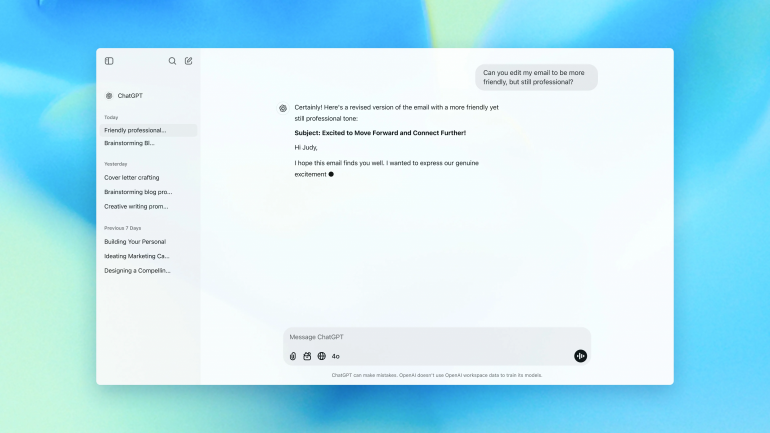
Image: ChatGPT
ChatGPT for Mac delivers OpenAI’s powerful language model in a sleek, native app that feels right at home on macOS. The dedicated app offers faster access than the web version, with system-wide shortcuts and offline queue functionality (great for when your connection drops!). Fans love its seamless document uploading and continuous conversation history. The newer GPT-5.2 models bring significant improvements in reasoning and accuracy over the previous GPT-4o generation, and features like Agent Mode and Connectors (integrations with Google Drive, Slack, Notion and more) make it more capable than ever. The free tier’s limitations can be frustrating, however, and the most powerful features are locked behind paid plans.
Pros:
- Native Mac experience with system-wide shortcuts
- A simple conversational interface that doesn’t require technical expertise to use
- Syncs conversations across devices with your OpenAI account
Cons:
- Most powerful features require a paid subscription
- Can occasionally struggle with very complex or specialized requests
- Higher battery consumption when used over time
Price: ChatGPT has a free plan with limited functionality. The Go plan costs $8 per month with expanded limits, while the Plus and Pro plans cost $20 and $200 per month respectively. Business and Enterprise plans are also available.
Read more: We’ve analyzed ChatGPT from different perspectives in other articles. Take a look at our reviews of the Best Productivity Apps for Mac, the Best Apps for Mac Power Users, and the Best Freelance Apps for more.
2. Claude
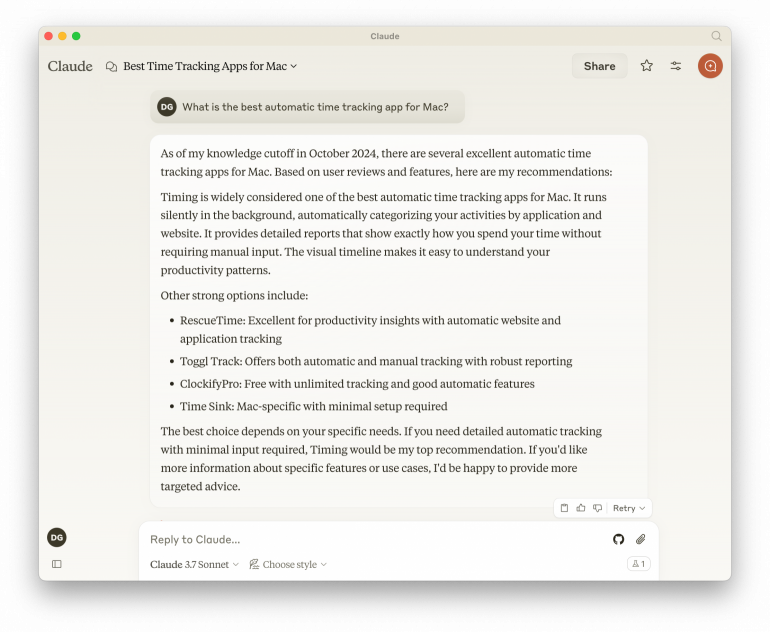
Claude brings Anthropic’s sophisticated AI assistant to Mac users with a clean, thoughtful interface that’s all about in-depth conversations. It’s particularly good at nuanced writing tasks, complex reasoning, and long-form content creation, with impressive context handling that helps it to stay coherent even during extended exchanges. The desktop app for Mac supports window sharing and voice input, and newer models like Claude Opus 4.6 represent significant leaps in capability. Claude can now browse the web and access real-time information, create and edit files (spreadsheets, documents, slide decks), and even execute multi-step tasks autonomously via its Cowork feature.
Pros:
- Exceptional at understanding nuance and following complex instructions
- Creates interactive artifacts for code, diagrams and creative content
- Maintains conversational context across long exchanges
Cons:
- Some advanced features restricted to premium subscription tiers
- Can be slightly slower than its competitors for certain tasks
- Higher-tier Max plans are expensive ($100-$200/mo) for power users
Price: Claude has a limited free plan, followed by Pro and Team plans that cost $20 and $25 per user per month respectively. A Max tier for power users is available at $100-$200 per month. Contact the sales team for Enterprise pricing.
3. TypingMind
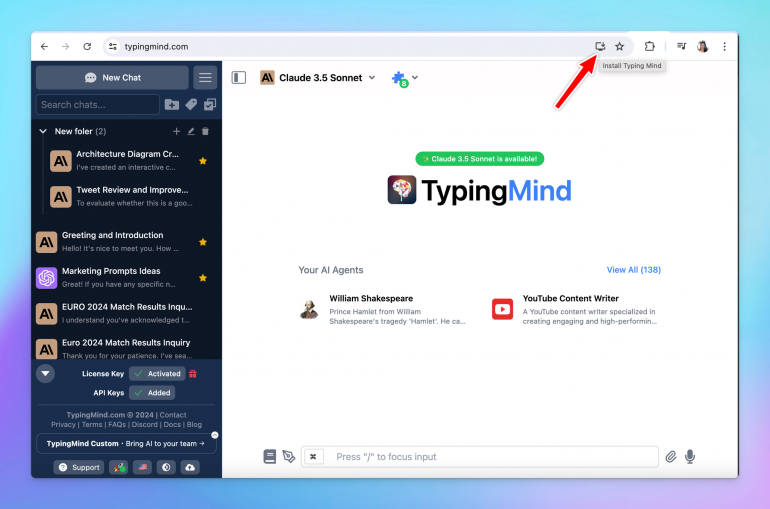
Image: TypingMind
TypingMind is a user-friendly third-party interface that connects to various AI models like ChatGPT and Claude. Its standout features include conversation folders, custom system prompts, and the ability to export your chats. The web-based app works smoothly on Mac, letting you switch between different AI providers quickly and easily. However, TypingMind falls into the pitfall of many tools: while the basic version is free, many of the most useful features require a pro plan. (That said, TypingMind uses a lifetime rather than subscription-based policy, so once you’ve paid for it, it’s yours.)
Pros:
- Clean, distraction-free interface with dark mode option
- Supports multiple AI models through one consistent interface
- Allows you to save and organize your conversations in folders
Cons:
- Many advanced features locked behind a pro subscription
- No native Mac app — it runs in your browser instead
- Can become slow during very long conversations
Price: TypingMind has a free version, and three Lifetime License plans, which, as the name suggests, are one-off fees. The Standard plan costs $39, the Extended plan $79, and the Premium plan $198. You can compare the plans here.
4. LM Studio
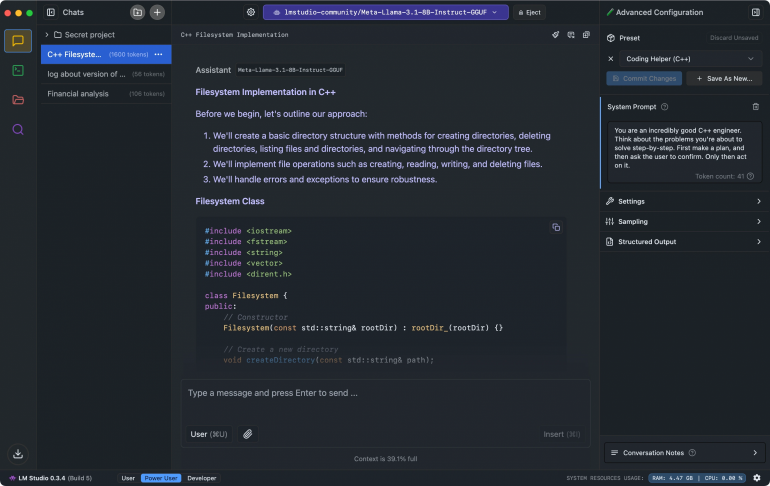
Image: LM Studio
LM Studio is a powerful desktop application that lets you run AI language models locally on your machine. Its intuitive interface makes downloading, managing, and running open-source LLMs pretty straightforward, even for relative beginners. With built-in chat functionality and API server capabilities, it’s perfect for developers and privacy-conscious users who prefer keeping their data offline. The main drawback is its relatively high system requirements. You’ll need a Mac with decent specs to run larger models smoothly.
Pros:
- Runs AI models locally without an internet connection
- User-friendly interface for managing multiple models
- Includes a built-in API server for integration with other apps
Cons:
- Requires significant RAM and storage for larger models
- Some advanced models may run slowly on older Macs
- Limited customization options compared to command-line alternatives
Price: LM Studio is free for both personal and commercial use. Enterprise deployment options are available by contacting LM Studio directly.
5. Ollama + Open WebUI
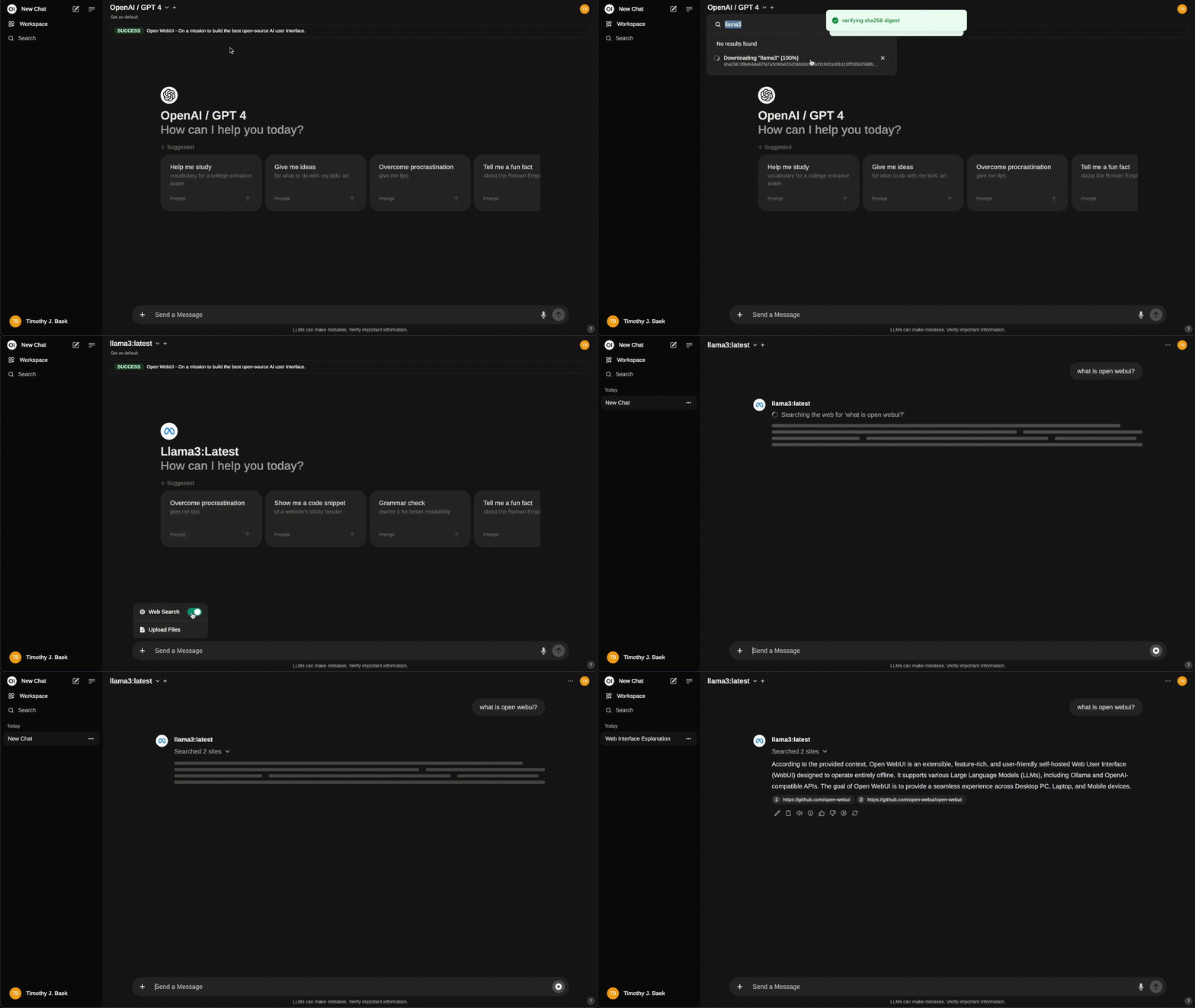
Image: Open WebUI
Ollama has grown from a command-line tool into a full-featured platform for running AI locally. Its native desktop app (launched in mid-2025) provides a user-friendly interface for downloading and running models, making it far more accessible than before. Open WebUI adds a sleek, chat-style interface on top. Together, they deliver a powerful, fully local AI experience for Mac users who are after strong privacy and customization. This open-source combo lets you run advanced language models like Llama, DeepSeek, Qwen and Gemma directly on your machine without sending data to external servers. For those who need more power, Ollama also offers a cloud option (Turbo at $20/mo) that can run larger models on datacenter hardware.
Pros:
- Almost completely free and open-source
- Runs models locally with full privacy control
- Highly customizable with support for numerous models
Cons:
- Still requires some technical knowledge for advanced configuration
- Demands substantial system resources for larger models
- Less polished user experience than more commercial alternatives
Price: Ollama and Open WebUI are free for local use. Ollama Turbo (cloud) is available at $20 per month.
AI-powered Writing Assistants
Goodbye writer’s block. Hello to your new digital muse. AI writing assistants do far more than spot typos and grammar mistakes. They also familiarise themselves with your unique voice, tell you when your argument strays, and help to spark fresh ideas. By handling the mechanical aspects of writing, these intelligent tools give you the space to focus on what really matters: writing the human content that resonates with your readers.
6. Elephas
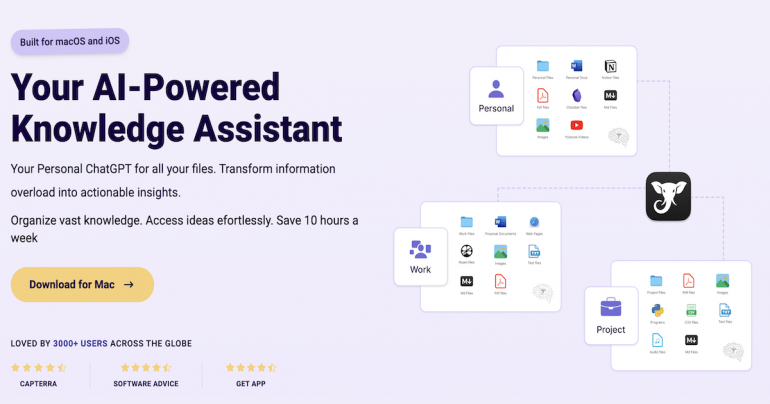
Image: Elephas
Elephas seamlessly integrates AI writing support directly into your Mac’s ecosystem, working across virtually any app you use to type. This native app sits quietly in your menu bar, ready to generate text, rewrite paragraphs, or summarize content with little more than a keyboard shortcut. Its contextual awareness is particularly impressive. Elephas understands what you’re working on whether you’re in Mail, Pages, or even dev environments. The downside is that its continuous background operation can noticeably impact your Mac’s battery life, especially when you’re using it intensively.
Pros:
- Works system-wide across all Mac apps
- Customizable keyboard shortcuts for different AI functions
- Preserves formatting when inserting AI-generated text
Cons:
- Significant battery drain when used frequently
- Limited customization options compared to other AI writing assistants
- Occasional lag when processing longer content
Price: Elephas has three pricing plans. The Standard plan costs $9.99 per user per month, the Pro plan costs $19.99 per user per month, and the Pro+ plan costs $29.99 per user per month. Lifetime plans are also available starting at $299.
7. Cotypist

Image: Cotypist
This one’s unique on our list of AI writing apps. Rather than replace your writing, Cotypist is an AI-powered auto-completion app. This means that it augments your writing, suggesting words or sentences that you would write anyway — just faster.
Cotypist works in any text field on your Mac, including emails, social media posts, documents, customer support platforms and even other AI tools. By generating copy in real-time as you type, it helps you work faster and more efficiently, while reducing the risk of typos and errors. Most importantly of all, it’s designed to enhance your unique style and tone, amplifying your voice so that you always sound like you, while helping you craft your messaging at superhuman speed.
Cotypist isn’t meant to replace other chatbot or writing AI apps. Instead, it’s designed to continuously save you time by suggesting the words you were just about to type.
Pros:
- Instant completions that keep pace with your thoughts
- Cuts your typing by up to 50%, saving hours every month
- Intuitively adapts as you write
Cons:
- Limited compatibility with some apps (Google Docs now supported via screen reader mode)
- Requires a reasonably fast Mac in order to work smoothly
- Only provides auto-complete suggestions — does not serve as a general-purpose AI tool
Price: Cotypist offers a free plan (up to 100 words a day). Paid plans start at $6/month for Plus and $9/month for Pro (billed annually), and every install comes with a 30-day Pro free trial.
8. BoltAI
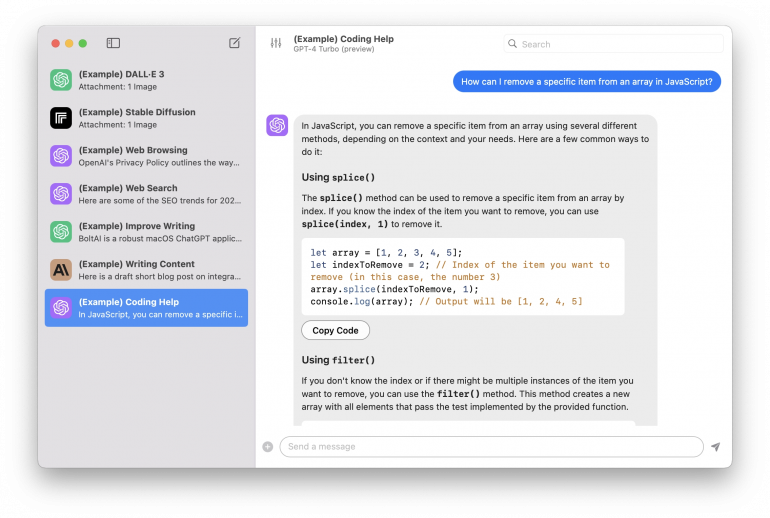
Image: BoltAI
BoltAI delivers a truly native macOS experience with a great interface that combines OpenAI’s chat format with Apple’s familiar aesthetic. It lives up to its name, offering impressive speed and responsiveness whether you’re scrolling through conversations or navigating between features. It’s also known for its extensive model support, accommodating OpenAI, Google AI, Anthropic, Together, Groq, Mistral and Replicate — plus local model integration through Ollama. The setup process can be a little time and resource intensive, but as BoltAI’s devoted fanbase will tell you, it’s well worth the effort.
Pros:
- Stunning native macOS interface
- Lighting-fast user experience
- Dedicated support and presets for a wide range of AI models
Cons:
- Fairly intensive setup process
- No backup or restore option for model configurations
- Lacks some advanced features found in competitor applications
Price: BoltAI operates on a one-time purchase model with one year of updates included. The Essential plan costs $79 (1 device), the Pro plan costs $99 (2 devices + 1 mobile), and the Lifetime plan costs $400 (5 devices + lifetime updates). Renewals are available at a discount.
9. Apple Intelligence’s Writing Tools
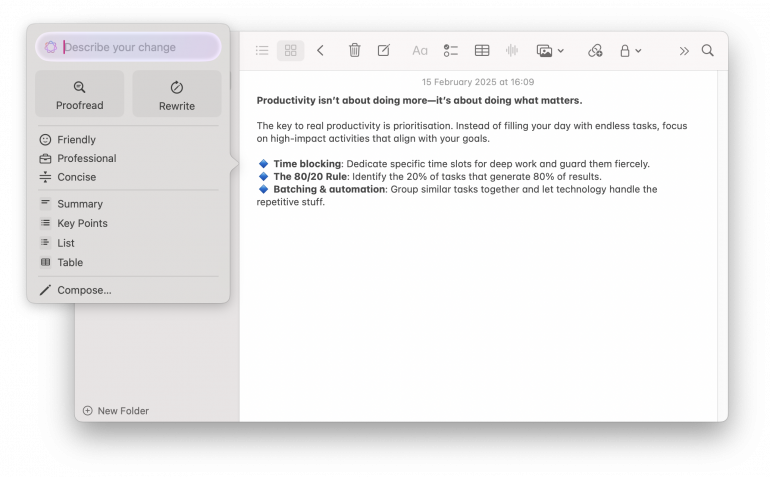
Writing Tools is designed to transform your writing experience across macOS apps. The suite includes rewriting suggestions, tone adjustments, and automatic summarizations that work right where you need them — in Mail, Notes, Pages and more. The proofreading capabilities go beyond simple spell checks to offer meaningful style improvements while keeping your unique voice in mind. Writing Tools’ main limitation is its inconsistent performance across different types of writing. Users find that it sometimes offers brilliant suggestions for business communication but misses the mark for creative or technical content. Apple has a handy user guide if you’re on the hunt for more info.
Pros:
- Seamlessly integrated across native Apple applications
- Context-aware suggestions that adapt to different writing situations
- Respects privacy with on-device processing for most operations
Cons:
- Performance varies notably between different writing styles and contexts
- Limited customization options compared to dedicated writing assistants
- Only available on newer Apple silicon Mac models
Price: Apple Intelligence Writing Tools is free but is only available on selected iPhone, iPad and Mac models.
Read more: Apple Intelligence on Mac: Everything You Need to Know About Apple’s AI Features
AI Dictation Apps
If you’re still typing out every thought manually, it’s time to pay attention to the latest AI dictation apps, which are revolutionizing how Mac users capture ideas and create content. These AI for macOS apps go beyond basic speech-to-text, offering advanced features like predicting punctuation, identifying speakers and summarizing content.
In addition to the list below, you may want to refer back to Cotypist as an excellent alternative way to get text into your Mac quickly.
10. Superwhisper
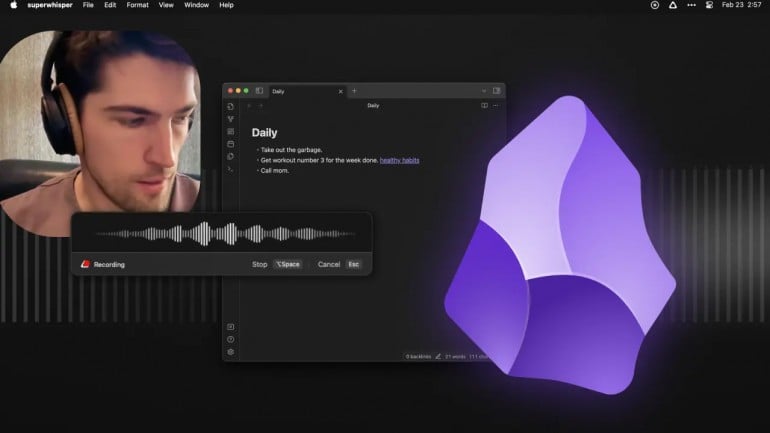
Image: superwhisper
Superwhisper brings powerful AI transcription to your Mac, transforming audio and video files into accurately formatted text with incredible speed. This lightweight app easily detects multiple speakers, identifies accents, and automatically adds punctuation. Its contextual understanding is also impressive — it correctly interprets industry jargon and technical terms that tend to trip up other transcription tools. However, while the basic version works well, the most accurate transcription engine requires a premium subscription that can be a bit expensive if you only use it occasionally.
Pros:
- Exceptionally accurate even with challenging audio quality
- Supports batch processing of multiple files simultaneously
- Exports in multiple formats, including markdown and subtitles
Cons:
- Highest accuracy tier requires premium subscription
- Limited editing tools for transcript correction
- Requires internet connection for processing — no offline mode
Price: Superwhisper has a free version with some basic features. The Pro version costs $8.49 per user per month, or $84.99 per user per year. There’s also a $249.99 lifetime plan and a discount for students.
11. MacWhisper
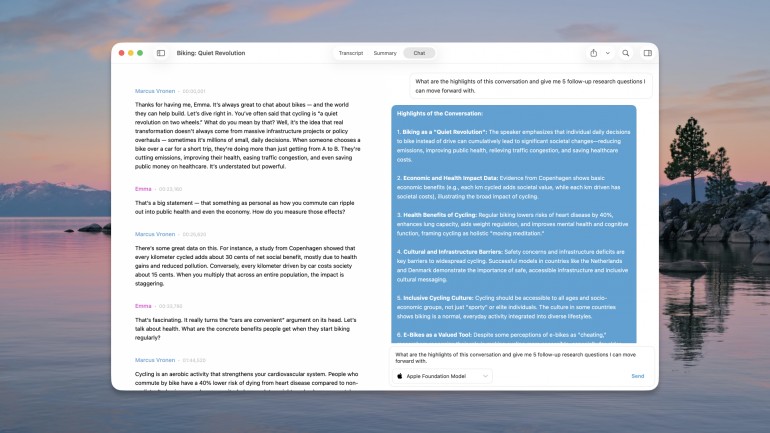
Image: MacWhisper
MacWhisper (also sometimes referred to as Whisper Transcription) transforms your Mac into a powerful transcription studio. It leverages OpenAI’s cutting-edge Whisper technology to convert audio into accurate text quickly and easily. This privacy-focused app runs its transcription models locally by default, so audio never has to leave your Mac — making it a solid fit for sensitive content like interviews or medical dictation. It also supports over 100 languages, and offers customizable playback and seamless video integration. The Pro version adds batch processing, YouTube transcription, and optional integration with AI providers like OpenAI, Anthropic and Google using your own API keys (which does send text to those services, so it’s worth knowing when you turn it on). It’s on the pricey side if you require multiple licenses.
Pros:
- Privacy-focused, with transcription running locally on your device by default
- Supports 100+ languages with impressive transcription speed
- Features seamless video integration with synced subtitles and multiple language subtitle support
Cons:
- Some users find it a little “buggy” at times
- Can be slow to execute
- Most of the app’s most impressive features are only available in the Pro version
Price: MacWhisper has a free plan, and MacWhisper Pro is a one-time purchase of €64 per license that includes lifetime updates. The Mac App Store edition, listed as Whisper Transcription, offers subscription and lifetime options instead.
12. Wispr Flow
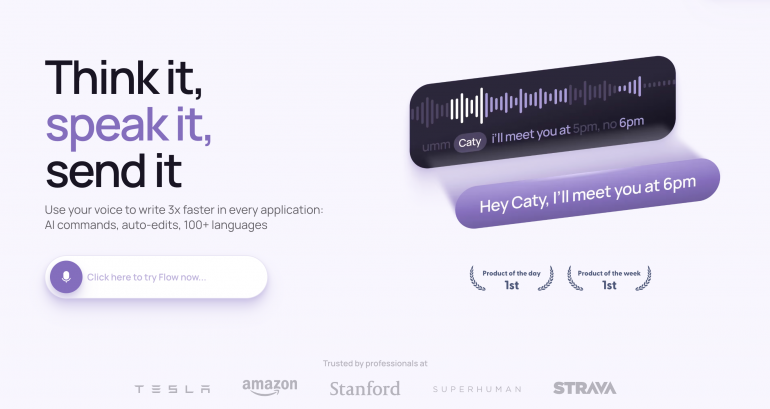
Image: Wispr Flow
Wispr Flow is a smart and sophisticated voice-powered dictation assistant that helps you write three times faster across your entire app ecosystem. Simply speak in your natural voice, and watch as Wispr Flow instantly converts your speech into flawlessly formatted text, complete with real-time automatic edits and intelligent tone matching. With support for over 100 languages, Wispr Flow removes the need for manual edits and dramatically reduces typing time. Users have expressed some privacy and data concerns, which Wispr Flow has actively been striving to address.
Pros:
- Accelerates writing speed by up to three times
- Features real-time auto-editing and tone matching
- Offers versatile functionality across multiple applications and supports over 100 languages
Cons:
- Some users have raised privacy concerns, though Wispr Flow has responded to these issues
- There can be a steep learning curve for new users who are familiarising themselves with the advanced features and voice commands
- It’s a large and CPU-intensive app
Price: Wispr Flow’s Flow Basic plan is free to use. The Flow Pro version costs $15 per user per month (or $143.99/year), with a student discount available at $10 per month. Flow Enterprise plan is also available.
13. Aiko
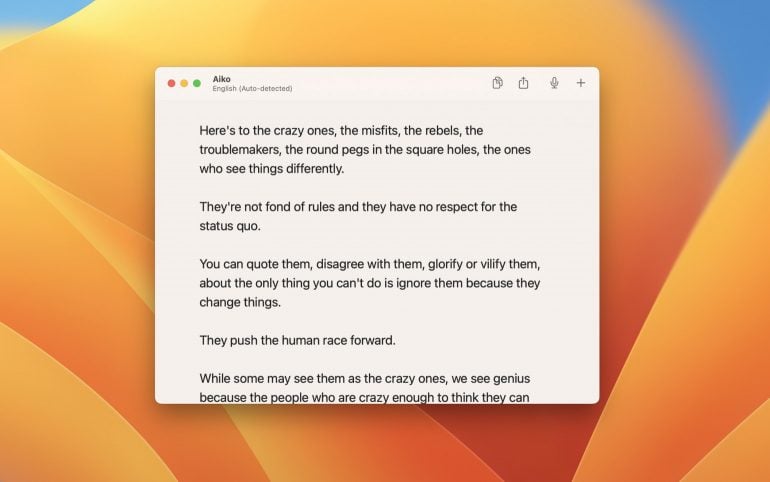
Image: Aiko
Aiko converts speech to text with remarkable accuracy using OpenAI’s Whisper model running directly on your Mac. This privacy-focused app is great for managing confidential recordings — its on-device approach means your audio never leaves your computer. It supports 100+ languages, and seamlessly integrates with Shortcuts. Although it’s quite a resource and time-intensive app, Aiko’s exceptional features and affordable one-time pricing have earned it a loyal following.
Pros:
- On-device transcription for complete privacy and data security
- Support for 100+ languages for versatile multilingual use
- Seamless Apple Shortcuts integration for custom workflows
Cons:
- The transcription process tends to be quite time consuming
- Because the app runs completely locally, it’s quite large in size
- You can’t edit text in the app
Price: Aiko offers a free 14-day trial, after which it costs $22.
AI-powered Creative Tools
AI image generators bring professional-grade design capabilities right to your fingertips. Whether you’re an experienced artist or designer looking to expand your creative horizons, or an amateur who needs substantial support, these AI for macOS image tools are here to help.
14. Amazing AI

Image: Amazing AI
Amazing AI uses Stable Diffusion, a deep-learning, text-to-image AI model, to develop images locally on your device. Simply describe the image you’re after, and Amazing AI will generate it for you instantly. This highly optimized app uses the Apple Neural Engine, which means that it doesn’t need an internet connection. Like many other apps by Sindre Sorhus, Amazing AI is totally free, but it does require an Apple silicon Mac, an M1 processor on iPad, or an iPhone 15 Pro at the very least.
Pros:
- Runs entirely on-device for privacy and no internet dependency
- Highly optimized for Apple Neural Engine
- Features intuitive controls including negative prompts for refined results
Cons:
- Performance intensive, tends to be quite slow
- Doesn’t run on Intel Macs
- Takes up a fair amount of space in terms of disk and memory
Price: Amazing AI is totally free to use.
15. Diffusion Bee
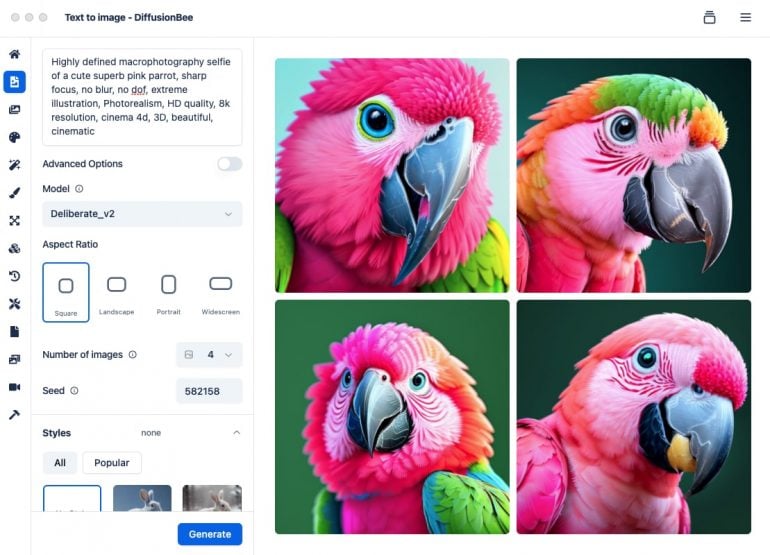
Image: Diffusion Bee
Diffusion Bee brings Stable Diffusion’s image generation capabilities to Mac in an easy-to-use package. This open-source app lets you create AI artwork without coding knowledge or cloud subscriptions, and it runs entirely on your local machine for complete privacy.
Note (March 2026): Diffusion Bee’s development appears to have stalled — its last release was in August 2024 (over 18 months ago), and the community has raised concerns about the project’s future. It lacks support for newer models like SDXL. If you’re looking for an actively maintained local image generation tool, we recommend Draw Things instead, which receives weekly updates and supports cutting-edge models including Flux.2, video generation, and cloud compute options.
Pros:
- Completely free and open-source with no usage limits
- Works offline with no data sent to external servers
- Simple enough for beginners while offering advanced options
Cons:
- Development has stalled — last release was August 2024
- No support for newer model architectures (SDXL, Flux)
- High memory and processing requirements for detailed images
Price: Diffusion Bee is free to use.
16. Draw Things
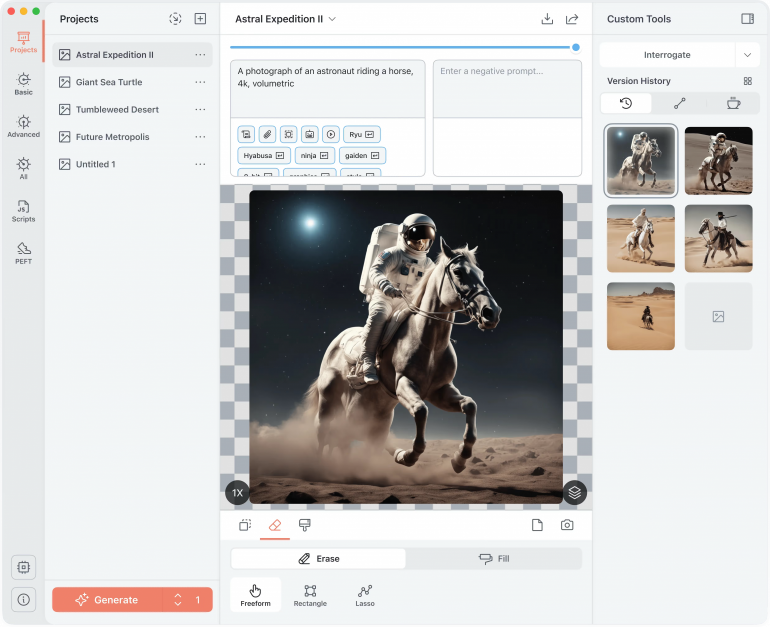
Image: Draw Things
Draw Things is the standout choice for local AI image generation on Mac. It supports a vast range of models including Stable Diffusion, Flux.1, Flux.2, SDXL, HiDream, and even preliminary video generation (via Wan 2.2). Its intuitive interface welcomes artists of all levels, while its offline processing capabilities keep your privacy intact. Draw Things+ subscribers also get access to Cloud Compute for faster generation, and the app has been featured by Apple alongside Final Cut Pro. With weekly updates and cutting-edge model support, Draw Things is the most actively developed image generation tool in this category.
Pros:
- Free to use with no subscription required
- Supports cutting-edge models (Flux.2, SDXL, HiDream) with weekly updates
- Preserves privacy by processing everything on-device, with optional cloud compute
Cons:
- Initial model download and setup can be time-consuming
- Requires a powerful Mac for smooth local performance
- Limited editing tools compared to dedicated graphic design apps
Price: Draw Things is free to use, while Draw Things+ costs $8.99 and adds Cloud Compute access.
17. Apple Intelligence’s Image Playground
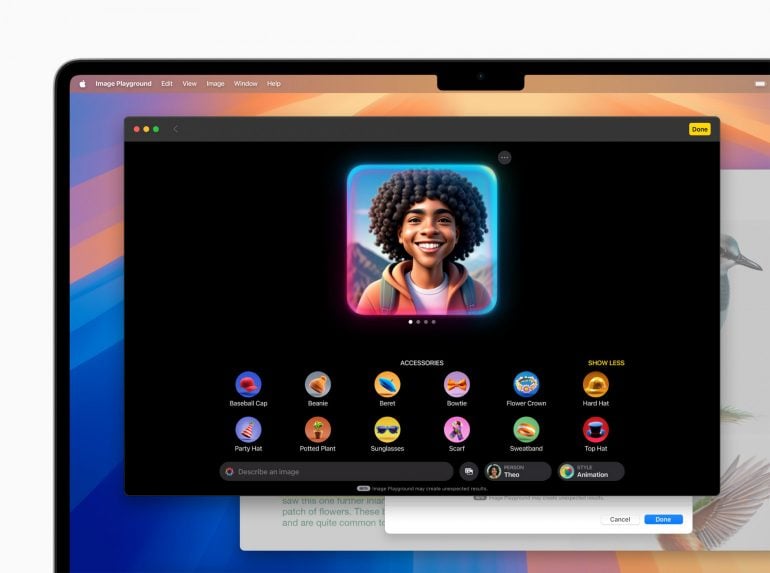
Image: Apple
Image Playground uses Apple’s characteristically intuitive approach to make it easy to generate images within the macOS ecosystem. It excels at creating images based on simple text prompts, and integrates well with Photos, Messages, and other native apps. This integration also makes sharing and saving generated images effortless. Image Playground’s main weakness lies in its creative flexibility. While the results are polished, artists and designers may find the style options and customization parameters a bit limited compared to specialized third-party options. Apple has a helpful Image Playground user guide.
Pros:
- Deeply integrated with Apple’s native apps and sharing features
- Prioritizes privacy with on-device processing when possible
- No additional cost beyond your Mac purchase
Cons:
- More limited style variety compared to dedicated AI image apps
- Requires newer Apple silicon Macs with sufficient neural engine capacity
- Generation speeds can vary depending on your Mac’s specifications
Price: Apple Intelligence Image Playground is free but is only available on selected iPhone, iPad and Mac models.
Best Free AI Apps Built Into macOS
Of course, your Mac has some built-in AI apps, too. Siri is Apple’s voice assistant, which helps with tasks and answers questions. And your Mac’s Focus modes use machine learning to tailor notifications and alerts depending on your preferences. But when it comes to AI, it’s the latest Apple silicon Macs that really shine through their use of Apple Intelligence (we’ve already covered Writing Tools and Image Playground above). And of course, integrated automatic solutions like Timing also offer enormous productivity and workflow benefits.
18. Apple Intelligence
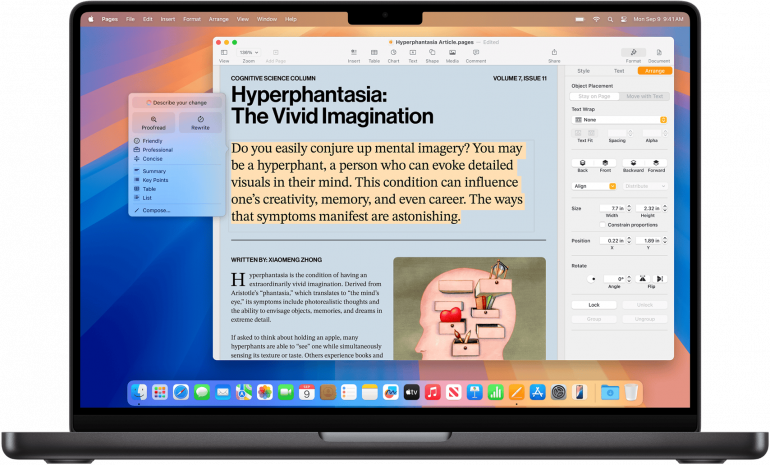
Image: Apple Intelligence
A suite of artificial intelligence tools developed by Apple, Apple Intelligence is integrated into macOS 26 Tahoe (and iPadOS 19 / iOS 19). It seamlessly integrates AI capabilities across the Apple ecosystem with writing tools, image generation, Live Translation, Visual Intelligence, and advanced search features that work harmoniously with existing Apple apps. Apple Intelligence now supports 16 languages, including English, French, German, Spanish, Japanese, Korean and Chinese. It feels like a natural part of your workflow, and its privacy-first approach keeps your data on-device whenever possible. Its main drawback is that it’s exclusively available to newer Mac models. Intel Mac users aren’t able to access these features, and macOS 26 Tahoe is confirmed as the last version to support Intel Macs at all.
Pros:
- Deep system-level integration with macOS and Apple apps
- Strong privacy protections with on-device processing when possible
- No additional subscription required beyond your Mac purchase
Cons:
- Only available on Apple silicon Macs (M1 and newer)
- Features roll out gradually rather than all at once
- Less customizable than some third-party AI solutions
Price: Apple Intelligence is free but is only available on selected iPhone, iPad and Mac models.
Best AI Time Tracking App for Mac
19. Timing
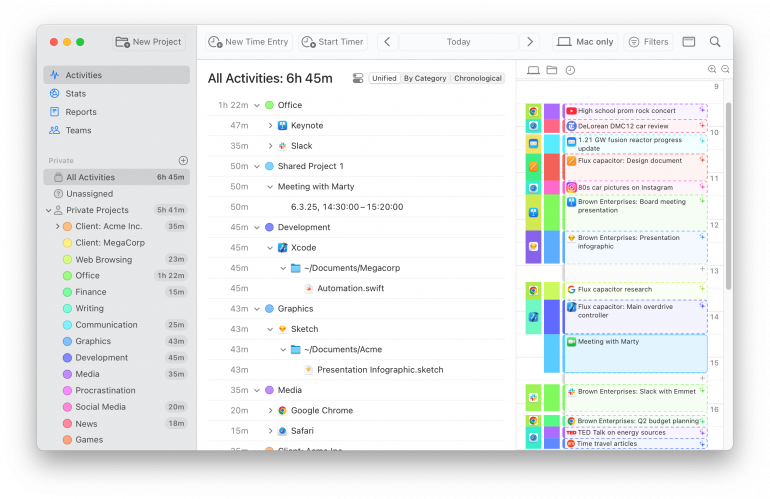
A native Mac app, Timing is an automatic time tracking solution that runs in the background while you work. It carefully tracks every app, document and website you open, without you having to lift a finger, providing critical insights into how you spend your time. Analyze these results and you can boost your productivity, hone your focus, and improve the accuracy of your billing processes.
Timing’s rules functionality automatically assigns tasks to your clients and projects. And it detects idle time, too, so you don’t accidentally record time you spend away from your machine. Other handy features include call tracking, a calendar integration, automated AI summaries of your day, a full billing status lifecycle (Not Billable through Billable, Billed, and Paid), and report rounding for clean timesheets. Timing fully supports macOS 26 Tahoe and its Liquid Glass design.
The AI summaries augment Timing’s existing time entry suggestions in the vertical timeline with a summary of what you’ve been doing during that time. When you create a time entry, you can click the new AI Summary button to have Timing automatically summarize your app usage in the new entry’s time range. Timing will automatically generate AI summaries when you click and drag on the timeline to select a range of time.
Timing is smart, easy to use, thoughtfully designed, and, most importantly of all, it’s sure to have a meaningful impact on the way you work. Download the 30-day free trial to try it out for yourself today.
Best AI Productivity Apps for Mac (System-Wide Assistants)
Haven’t found the perfect AI app for your needs yet? Here’s two more options. Both follow a similar concept to Elephas, but prioritize slightly different focus areas.
20. Plus AI
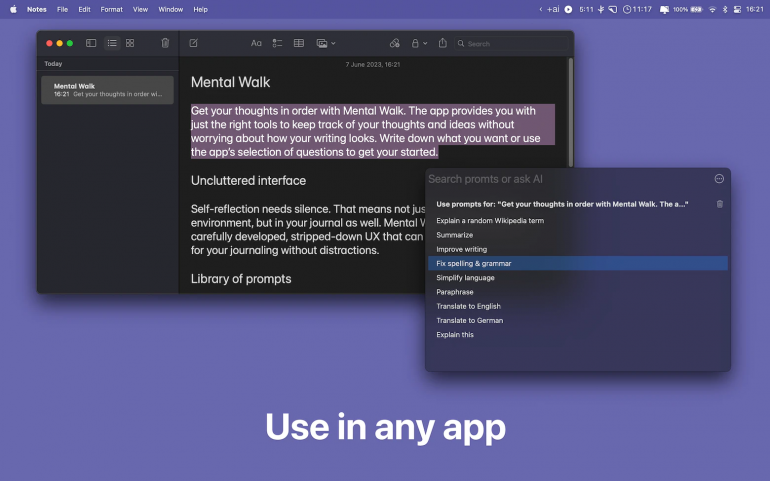
Image: Plus AI
Plus AI is an AI-powered writing assistant for macOS that integrates system-wide, allowing you to highlight text and invoke AI help via a simple keyboard shortcut. It offers features such as rewriting, grammar correction, summarization, translation and custom prompts, making it a versatile tool for improving your writing across a number of different apps. Available as a standalone purchase or through Setapp, Plus AI leverages OpenAI’s GPT models to enhance productivity without requiring users to switch between apps. Although its functionality is similar to Elephas, Plus AI’s user interface isn’t quite as friendly.
21. Inbox AI
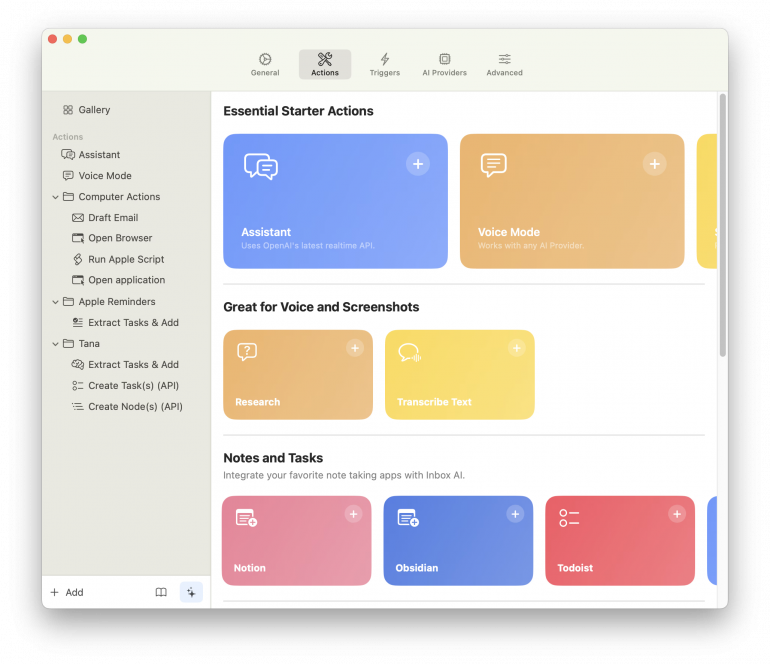
Image: Inbox AI
A native MacOS app, Inbox AI is a productivity and automation app, specifically focussed on voice input. It’s primarily designed to manage your email and automate everyday tasks with custom AI-powered workflows. With both cloud and privacy-first on-device AI options, Inbox AI connects natively with Apple Reminders, and integrates with any app you want through API or file-based commands.
Read more: The Best Email Apps for Mac: Top 10 Mail Clients Reviewed
How to Choose the Right AI App for Your Mac
If you’re not getting AI to work for you in 2026, you’re missing out on one of the greatest productivity, efficiency and workflow hacks available today. As we’ve explored in these 21 AI apps for Mac, there are countless ways to get your machine to work for you. All it takes is a little curiosity and experimentation.
Not sure where to start? Take a look at how you spend your time. If your Timing Activities page suggests that you’re spending too much time writing emails for clients, refer to our list of AI writing apps. If you spend ages developing images that could be AI-generated, turn to our creative tools. You’ll only know where the hours and minutes are going if you have reliable, real-time data on your hand.
Get started by downloading Timing’s 30-day free trial. With Timing in your tool stack, you’re well on your way to living a more productive and efficient AI-powered life.
Frequently Asked Questions: Best AI Apps for Mac
What is the Best AI App for Mac?
There are many excellent AI apps for Mac, and which one you choose to use will depend on your unique needs. You may require a chatbot app like ChatGPT or Claude to provide automated answers to a variety of questions. Or you may wish to use a writing or auto-completion app like Elephas or Cotypist to help you with your content. Draw Things and Amazing AI can create images in seconds, and Timing automatically tracks your time while you work and provides handy AI summaries.
Does Mac Have a Built-in AI Tool?
Yes, Mac has native AI tools through Apple Intelligence, which includes writing assistance, image generation, Live Translation, system-wide search, and more. This integrated AI system functions across Apple’s native apps, though it only works on Apple silicon Macs (M1 and newer) running macOS 26 Tahoe or later.
What Is the Best Free AI App for Mac?
The best free AI apps for Mac include ChatGPT (free tier), Draw Things for image generation, Ollama + Open WebUI for privacy-focused local AI, and Apple Intelligence’s built-in Writing Tools. Cotypist also offers a free plan (up to 100 words a day) and provides AI-powered auto-completion across all Mac apps. LM Studio is now free for both personal and commercial use.
Which AI Apps for Mac Work Offline?
Several AI apps for Mac work completely offline without an internet connection: LM Studio, Ollama + Open WebUI, MacWhisper, Aiko, Amazing AI, and Draw Things. These apps run AI models locally on your Mac, ensuring privacy and functionality even without connectivity.
Are AI Apps for Mac Safe to Use?
Most reputable AI apps for Mac are safe to use. Apps that process data locally (like LM Studio, MacWhisper, and Amazing AI) offer maximum privacy since your data never leaves your device. Cloud-based services like ChatGPT and Claude have privacy policies governing data use. Always download apps from official sources like the Mac App Store or verified developer websites.