
The Best Timeboxing Apps for Mac in 2026: Plan, Block, and Focus Your Day
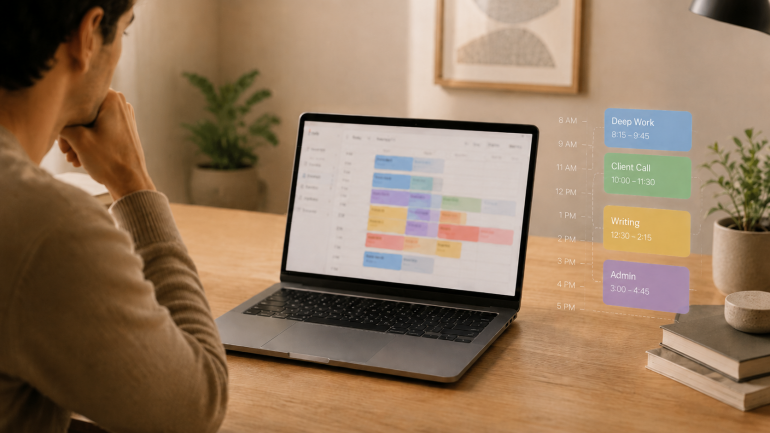
Image: Generated with ChatGPT
The best timeboxing apps for Mac fix the part of productivity that planning alone never solves. Most productivity advice tells you to “plan your day.” Planning is the easy part — a list of intentions takes ten minutes. The hard part is doing the work in the slot you set aside for it, and that is where these apps earn their keep.
Timeboxing means assigning one specific task to a specific slot on your calendar with a fixed end time. It is different from the Pomodoro technique (a repeating 25/5 cycle for whatever is in front of you) and broader than time blocking (which groups similar tasks into longer activity blocks). For the wider category map, our guide to block scheduling covers all four approaches side by side.
Timeboxing builds the plan. Automatic time tracking provides the proof — the part most planners skip. We will cover eight timeboxing apps for Mac, then show how pairing one with Timing closes the loop between what you intended to do and what you actually did.
Table of Contents
TOC
TL;DR: Best Timeboxing Apps for Mac in 2026
Fantastical is the best Mac-native timeboxing app — it pairs a polished native calendar with tasks, natural-language entry, and an Apple Intelligence-assisted parser. This guide covers:
- 8 apps compared: from native Mac calendars to AI auto-schedulers, ranked Mac-native apps first
- Top pick (Mac-native): Fantastical — native, with an Apple Intelligence-assisted parser
- Best fully free + native: Notion Calendar — drag-and-drop time blocking
- Best free planner with optional Pro: Routine — tasks, calendar, and notes in one app
- Best dedicated timeboxing planner: Akiflow — universal task inbox plus command bar
- Best guided daily ritual: Sunsama — structured plan-and-shutdown workflow
- Best AI auto-scheduler: Motion — rebuilds your day as priorities shift
- What to look for: two-way calendar sync, native Mac feel, keyboard-first capture, integrations with your task manager
What to Look for in a Timeboxing App for Mac
Not all timeboxing apps work the same way. Some are calendar-first with tasks bolted on, others are tasks-first with a calendar grid, and a few hand the schedule over to AI. Here are the criteria that separate a daily-driver from a one-week trial.
Two-way Calendar Sync
Without iCloud, Google, or Outlook sync, a timeboxing app is just another to-do list. Apple Calendar coverage is therefore the dealbreaker for Mac users tied to iCloud. Check before you subscribe, since several apps on this list cover Google and Outlook only.
Task List and Calendar in One Canvas
Ideally, you should be able to drag a task onto a time slot without copying and pasting. The apps that do this well combine a side panel of unscheduled tasks with a calendar grid, so you build the day in one view.
AI Auto-scheduling vs. Manual Control
The category splits cleanly: auto-schedulers (Motion, Reclaim), manual planners with AI assist (Sunsama, Akiflow, Routine), and purely manual tools (Fantastical, Notion Calendar). Pick the side that matches how much trust you want to extend to an algorithm. If you struggle with distractions inside any approach, our guide to limiting distractions is a useful companion.
Mac-native Feel
Native Mac apps tend to boot faster, use less memory, respect macOS conventions, and play nicely with Shortcuts, the menu bar, and Spotlight. However, some category leaders ship Electron or web-only experiences. We note which is which in each review.
Apple Ecosystem Integration
For Mac users, this means iCloud Reminders sync, Apple Watch widgets, Shortcuts actions, Focus mode triggers, and Fantastical’s Apple Intelligence-assisted parser. Apps that lean into Apple Calendar and Reminders feel like part of the system. By contrast, apps that ignore both feel like guests.
Keyboard-first Capture and Natural Language
Power users live on global hotkeys. For example, apps like Fantastical, Akiflow, and Notion Calendar make capture a single keystroke away, and natural-language parsing (“Block 2–3pm Friday to write the Q3 deck”) turns plain English into a structured event.
Timeboxing vs Time Blocking vs Pomodoro: How to Tell Them Apart
The labels get used interchangeably in marketing copy, but the underlying methods are different.
Timeboxing assigns one task to one calendar slot with a fixed end time. When the timer ends, the task ends or moves, even if it is not finished. Marc Zao-Sanders ranked timeboxing the most useful of 100 productivity techniques in Harvard Business Review and reported his own productivity “at least doubled” after adopting it.
Time blocking (popularized by Cal Newport in Deep Work) groups similar tasks into broader blocks of time. A “writing block” might cover several tasks; a 9:00–10:30 slot to draft a specific proposal is a timebox. Our time blocking guide covers the daily plan version in depth.
The Pomodoro Technique repeats 25-minute focus sessions for whatever is in front of you. Pomodoro is a style of timebox at a fixed cadence, and many people run Pomodoros inside a longer timeboxed slot. For dedicated tools, see our roundup of the best Pomodoro apps for Mac.
Block scheduling is the broadest of the four: whole-day or half-day blocks dedicated to activity types. The block schedule overview walks through when each method fits.
In practice, most Mac users mix and match. A typical week might use time blocks for shallow work (a two-hour “email and admin” block), timeboxing for deep work (a precise 9:00–11:00 “Q3 report draft” slot), and Pomodoro inside the deep block to stay focused.
How We Evaluated These Timeboxing Apps
As the team behind Timing, we have been building Mac productivity software for over a decade. We evaluated each app on calendar coverage, Mac-native quality, integrations, AI capabilities, keyboard-first capture, and pricing. We also reviewed first-party product pages, App Store and Mac App Store listings where available, and public press and user feedback to capture each app’s real strengths and trade-offs. Ultimately, our goal was to surface apps that each take a meaningfully different approach, not eight versions of the same calendar.
Quick Comparison: All Timeboxing Apps for Mac at a Glance
| App | Type | Best For | Price | Rating |
|---|---|---|---|---|
| Fantastical | Native Mac calendar with tasks | Apple-ecosystem users who want one app for events and tasks | $4.75/month billed annually (Individual) | 4.2/5 (App Store) |
| Notion Calendar | Native Mac calendar (free) | Drag-and-drop timeboxing from a free, native app | Free | 4.8/5 (App Store) |
| Routine | Daily planner (tasks, calendar, notes) | Mac users who want a planner that is free to start | Free / $10/month billed annually (Pro) | 3.6/5 (App Store) |
| Akiflow | Dedicated timeboxing plus universal inbox | Power users who timebox tasks from many tools | $19/month billed annually | 4.2/5 (App Store) |
| Sunsama | Guided daily planning app | Anyone who wants a structured plan and shutdown ritual | $17/month billed annually | 4.4/5 (App Store) |
| TickTick | Tasks plus Pomodoro plus calendar | Tasks-first users who want timeboxing built in | $35.99/year | 4.9/5 (App Store) |
| Motion | AI auto-scheduler | Users willing to let AI rebuild the day | From $19/seat/month | 4.1/5 (App Store) |
| Reclaim.ai | AI calendar defender (web) | Google or Outlook users who want auto-blocked focus time | Free / $10/seat/month billed annually | 4.8/5 (G2) |
Prices and ratings verified at time of writing. App Store ratings vary by platform and region; several apps below have no standalone Mac App Store listing, so ratings are from the iPhone or unified App Store, or from G2. Verify current pricing before purchasing.
Market Overview: What Makes Each App Unique
If you do not have time for a full read, here is what differentiates each pick:
- Fantastical: The Mac-native calendar power users reach for. Natural-language parsing and an Apple Intelligence-assisted parser make timeboxing feel like a keyboard sport.
- Notion Calendar: Native Mac, drag-and-drop. A strong “Mac citizen” with built-in Calendly-style scheduling links.
- Routine: Tasks, calendar, and notes in one Mac app, with AI meeting notes on the Pro plan.
- Akiflow: Calendar plus universal task inbox plus command bar. Pulls tasks from Slack, Gmail, Notion, Jira, Todoist, Asana, ClickUp, and more, then drops them onto your day.
- Sunsama: A guided daily-planning ritual. Plan in the morning, shut down at the end of the day. It builds more structure into your day than any other app here.
- TickTick: Tasks-first with a built-in Pomodoro timer and calendar grid. A good fit if your timeboxes start in a to-do list.
- Motion: AI auto-scheduling for users who would rather hand the schedule to an algorithm than build it manually.
- Reclaim.ai: Web-based AI that defends focus time on your Google or Outlook calendar. Acquired by Dropbox in 2024.
We have prioritized Mac-native experiences where possible, ranking the native calendar apps first — but several strong picks are cross-platform or web-based, included because they offer a clearly differentiated timeboxing workflow. We excluded apps that were too weakly differentiated, lightly maintained, or a poor fit for Mac users.
The 8 Best Timeboxing Apps for Mac in 2026
1. Fantastical
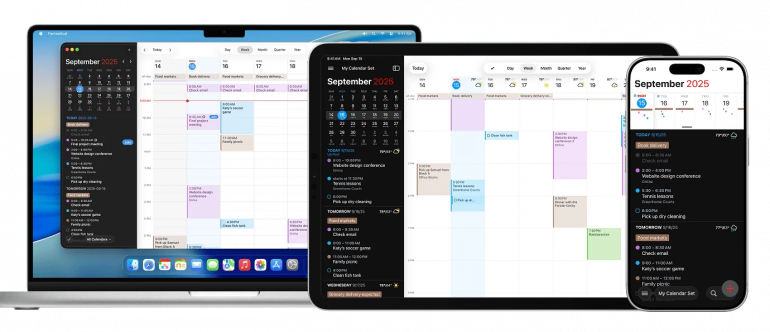
Image: Fantastical
Best for: Apple-ecosystem users who want one native app for events, tasks, and natural-language entry.
Type: Native Mac calendar with tasks
Platforms: Mac, iPhone, iPad, Apple Watch, Apple Vision Pro, Windows (since v4.0, October 2024)
Fantastical is not pitched as a dedicated timeboxing app, but it is the calendar power users on Mac reach for, and it handles timeboxing better than most apps that wear the label. Natural-language entry (type “Block 2–3pm Friday to write the Q3 deck”) creates a structured event in a single keystroke. Tasks live alongside calendar events, and overdue tasks carry over automatically.
The Fantastical parser (Apple Intelligence was added to it in v4.1, September 2025) handles longer, more complex inputs. Worth knowing that Apple Calendar and Reminders learned to do the same from a plain description in macOS 27, so this is no longer the differentiator it was. The Liquid Glass design across Mac, iPhone, iPad, Watch, and Vision Pro makes Fantastical one of the most polished Mac-native calendars available. For a wider look, our roundup of the best calendar apps for Mac covers the alternatives.
The trade-off is dedicated-timeboxing features. There is no built-in Pomodoro, no AI auto-scheduling, and no drag-task-from-inbox-onto-calendar gesture. Fantastical expects you to come with your own discipline. If you already live in a calendar, that is a feature. If you want the planner to nudge you, look at Sunsama or Akiflow.
Pros
- One of the most polished Mac-native calendar apps available
- Natural-language entry; Apple Design Award winner
- Apple Intelligence-assisted parser (Apple silicon Macs)
- Liquid Glass design across Mac, iPhone, iPad, Watch, and Vision Pro
- Tasks live alongside events with automatic carry-over
Cons
- Not a dedicated timeboxing app; no AI scheduling or universal task inbox
- Drag-task-to-calendar workflow is not as smooth as dedicated planners
Pricing: Free with limited features. Premium (Individual) $4.75/month billed annually, or $6.99/month month-to-month; Family (up to 5) $7.50/month billed annually, or $10.49/month month-to-month.
App Store rating: 4.2 out of 5 (App Store)
What users say
“It’s the very best calendar app on Apple devices of any kind, period.” — canyonblue737, App Store review
2. Notion Calendar
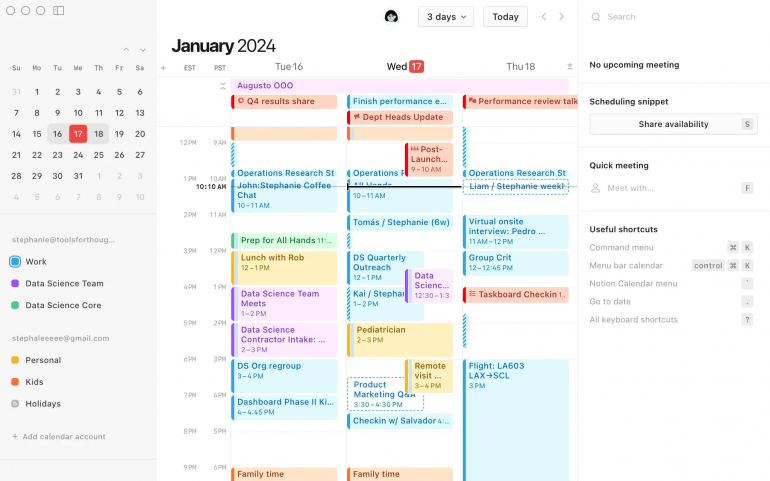
Image: Notion Calendar
Best for: Drag-and-drop timeboxing from a free, genuinely Mac-native app.
Type: Native Mac calendar (free, no paid tier)
Platforms: Mac, Windows, iOS, Android, web. Native macOS desktop app distributed via notion.com.
Notion Calendar started life as Cron, the Calendly co-founder’s keyboard-first calendar app, acquired by Notion in 2022 and rebranded in January 2024. It remains free with no paid tier and is the most “Mac-native” app on this list besides Fantastical. The drag-and-drop time-blocking workflow is among the cleanest in the category, the menu bar mini-view surfaces the next meeting with a one-click join, and Calendly-style scheduling links are built in. If you already use Notion, you can drag database items onto the calendar for project-level timeboxing.
The limitations are honest: no Microsoft Outlook support yet (Google and iCloud only), no AI auto-scheduling (manual drag-and-drop only), and the iPad app is light on views. For free, native, and keyboard-first, it is the best entry point on this list.
Pros
- Native macOS desktop app
- Drag-and-drop time blocking with multi-calendar overlay
- Built-in Calendly-style scheduling links
- Menu bar mini view with one-click meeting join
- Drag Notion database items onto the calendar for project-level blocking
Cons
- No Microsoft Outlook calendar support yet
- No AI auto-scheduling (manual only)
- iPad app is limited compared to iPhone and Mac
Pricing: Free. No paid tier for the calendar app itself.
App Store rating: 4.8 out of 5 (App Store)
What users say
“This app works great, I use it every day for work, on my iPhone and on my computer through the browser.” — Think Aquamarine, App Store review
3. Routine
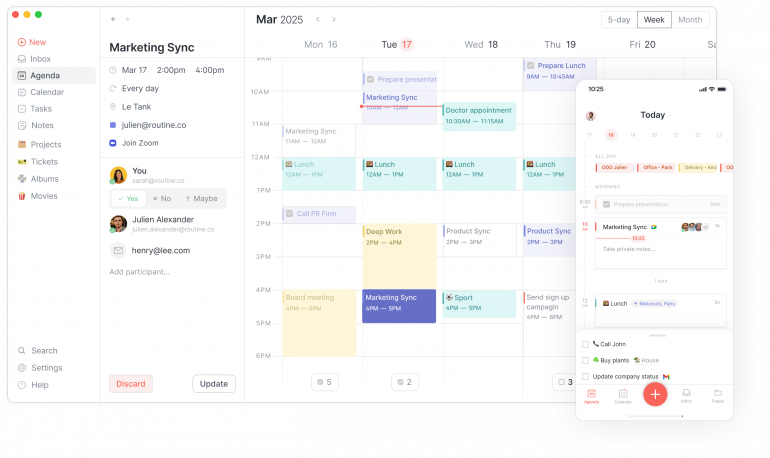
Image: Routine
Best for: Mac users who want a planner with a generous free tier.
Type: Daily planner combining tasks, calendar, and notes
Platforms: Mac, Windows, Linux, iOS, Android, web. Distributed via a unified App Store listing for Mac, iPad, iPhone, and Vision Pro.
Routine combines tasks, calendar, and notes into one app, then layers on AI meeting notes (auto start and stop on calls, action-item extraction) and a desktop menu-bar widget. The entry plan covers tasks, calendars, notes, contacts, unlimited integrations, and offline mode. In addition, the Professional plan at $10/month billed annually adds AI meeting notes, the menu bar widget, and time tracking.
Routine is in an active pivot toward AI and team workflows, with team workspaces and a refreshed editor added recently, which means features move quickly. The downside is that the unified App Store listing sits at 3.6 stars with reviewers citing mobile stability issues.
Pros
- Tasks, calendar, and notes in one Mac app
- Unlimited integrations and offline mode
- AI meeting notes auto-start during calendar events (Pro)
- Active development with team features added in 2026
Cons
- Mobile app reviews cite stability issues (3.6/5 unified rating)
- Frequent UI changes during the team and AI pivot
Pricing: Free forever for core features. Professional $10/month billed annually. Business $15/seat/month billed annually. Enterprise custom.
App Store rating: 3.6 out of 5 (unified iOS, Mac, and Vision Pro listing)
What users say
“Routine finally brings together everything I need and want in a life/work organization app, and it’s super sleek with great widgets too.” — LDMyers, App Store review
4. Akiflow
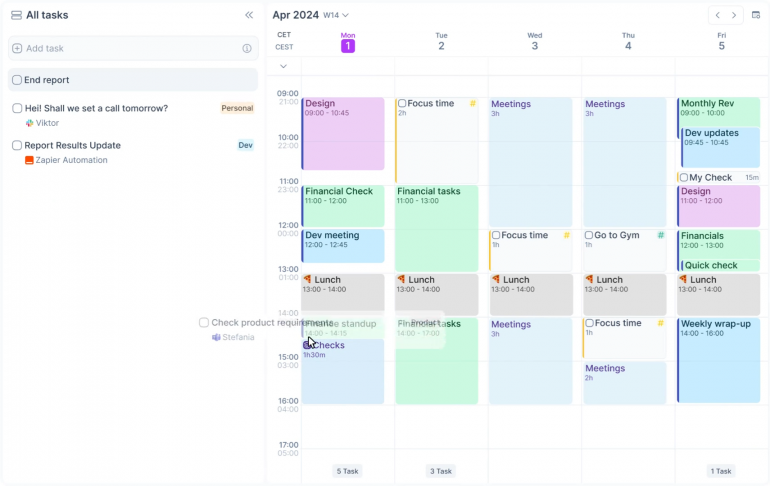
Image: Akiflow
Best for: Power users who timebox tasks pulled from many different work tools.
Type: Dedicated timeboxing planner with universal task inbox
Platforms: Mac, Windows, browser, iOS, Android. Mac app distributed directly via akiflow.com/download, not the Mac App Store.
Akiflow’s pitch is consolidation. It pulls tasks from 30+ tools (Slack, Gmail, Notion, Jira, Todoist, Asana, ClickUp, Trello, Zapier) into a unified inbox, then lets you timebox them onto your calendar with a command bar. “Aki” is the built-in AI assistant, with voice commands, meeting transcription, and auto-task creation from email. The app is fast, the design is intentionally premium, and the keyboard-first workflow rewards power users.
The standout feature is the command bar, which behaves like a Mac power user’s Spotlight for tasks. Quick-capture from anywhere, jump to any view, schedule a task in one chord. Conflict detection prevents you from double-booking a deep work block, and offline mode means a flaky cafe Wi-Fi does not kill your morning planning.
The trade-offs are price and ecosystem fit. Akiflow sits at the premium end of individual planning tools, and there is no clear native iCloud or Apple Calendar integration; the app is strongest for Google and Outlook calendar users.
Pros
- Universal task inbox from 30+ tools
- Command bar makes capture and scheduling a single keystroke
- Active development with Aki AI and meeting transcription
- Conflict detection prevents double-booked deep work blocks
Cons
- No native iCloud or Apple Calendar integration
- Steeper onboarding than the calendar-first apps
Pricing: Pro Yearly $19/month billed annually; $34/month month-to-month. Student and researcher discount on request.
App Store rating: 4.2 out of 5 (iPhone App Store; no standalone Mac App Store listing)
What users say
“The best task app for those who are busy and love using their keyboard.” — Brandon Boswell, Product Hunt review
5. Sunsama
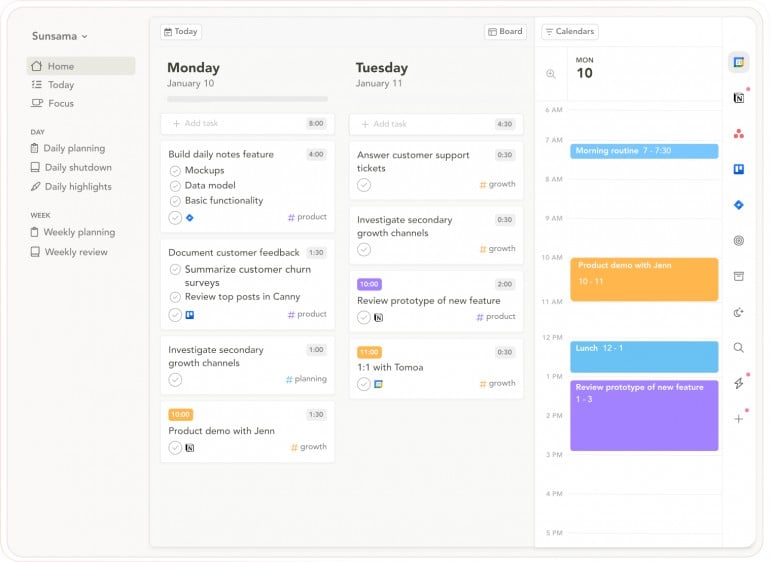
Image: Sunsama
Best for: Anyone who wants a structured daily plan plus shutdown ritual.
Type: Guided daily-planning app
Platforms: Mac, Windows, Linux desktop (cross-platform wrapper); web; iOS companion.
Sunsama is the most structured app on this list. It walks you through a guided morning planning ritual: pick today’s tasks from your integrations (Asana, ClickUp, Todoist, Notion, Trello, Jira, Linear, Gmail, Outlook), set an estimated duration for each, then drop them onto a Google, Outlook, or Apple calendar in the same view. At the end of the day, a shutdown ritual prompts you to mark what shipped, reschedule what did not, and reflect. The rhythm is what people stick around for.
AI features (assistant, MCP server, Zapier) are now bundled into the Pro plan rather than gated separately. The trade-offs are platform-level: the iOS companion is read-only, and the desktop wrapper is not Swift-native. If you want an app that feels like macOS first, Sunsama is not it. If you want the ritual, it remains the strongest in the category.
Pros
- Guided morning planning and end-of-day shutdown ritual
- Deep task and calendar integrations across the major work tools
- Bundled AI assistant, MCP, and Zapier on Pro
- Apple Calendar two-way sync supported
Cons
- Desktop app is cross-platform, not a native Mac app
- Mobile app is a companion app, not a full replacement for desktop planning
- No offline mode
- Less suited to users who want long-range project planning rather than daily/weekly planning
Pricing: $17/month billed annually; $22/month month-to-month.
App Store rating: 4.5 out of 5 (iPhone App Store; no standalone Mac App Store listing)
What users say
“I love this app. It’s the ONLY digital planner I have ever used CONSISTENTLY.” — Nobranier, App Store review
6. TickTick
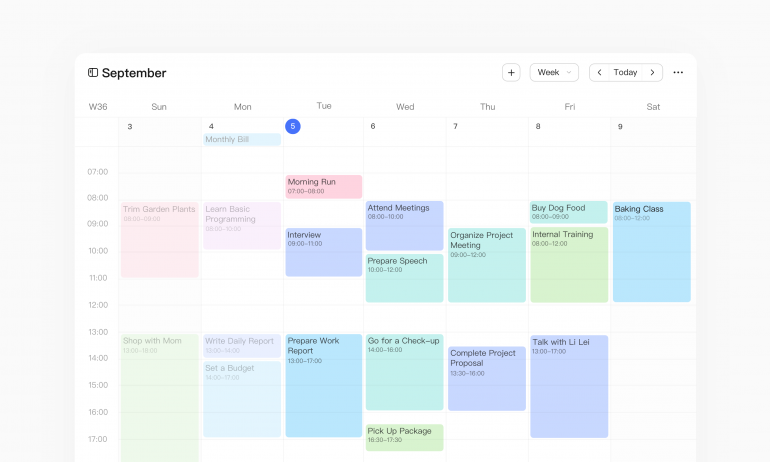
Image: TickTick
Best for: Tasks-first users who want timeboxing and Pomodoro built into the same app.
Type: Cross-platform tasks app with calendar grid and Pomodoro
Platforms: Mac, Windows, Linux, iOS, Android, web, browser extensions
TickTick is one of the few apps on this list that bundles tasks, a calendar grid, and a built-in Pomodoro timer in one tool. The drag-and-drop calendar view lets you timebox tasks across day, week, multi-day, multi-week, and agenda layouts. Pomodoro sessions can be attached to tasks for time-budget tracking. Quick-capture shortcuts (Cmd+Shift+A, Cmd+Shift+O) make adding a task instant from anywhere on macOS.
The full timeboxing experience (calendar view, drag-to-schedule across the day, third-party calendar subscriptions, longer task durations with start and end dates) requires the Premium plan. The Mac app is distributed via the Mac App Store. For tasks-first users who want one app for everything, TickTick is among the more complete options here.
Pros
- Tasks, calendar grid, and Pomodoro in one app
- Quick-capture global shortcuts on Mac
- Estimated Pomodoro durations for time-budget workflows
Cons
- Full calendar and timeboxing features are not in the free version
- Calendar integration is one-way for many providers on the free tier
- UI is denser than the calendar-first apps on this list
Pricing: Free tier covers core tasks, Pomodoro, and basic calendar. Premium $35.99/year.
App Store rating: 4.9 out of 5 (App Store, 44K ratings; the separate Mac App Store listing has too few ratings to display a score)
What users say
“The reminders are easy to receive and creating a task is so easy.” — MichaelaDR, App Store review
7. Motion
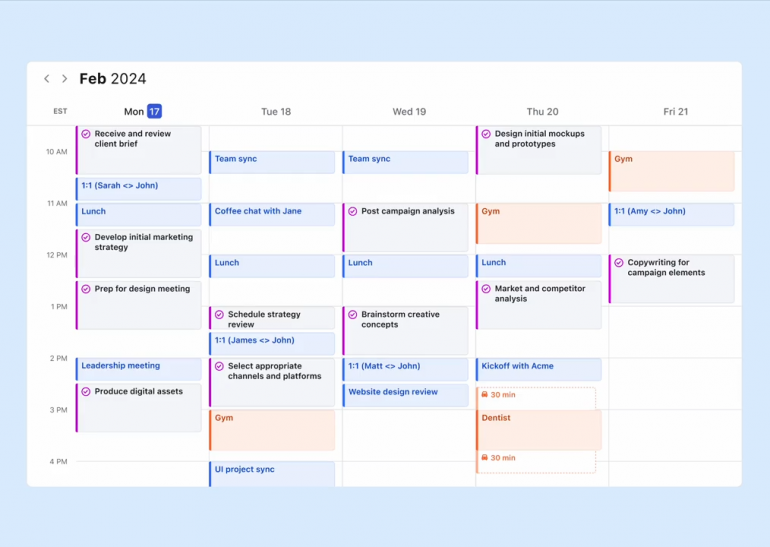
Image: Motion
Best for: Users who would rather let AI rebuild the day than build it by hand.
Type: AI auto-scheduler
Platforms: Mac, Windows, web, iOS. Mac app distributed via usemotion.com; cross-platform desktop wrapper.
Motion is the most aggressive AI auto-scheduler on this list. You add tasks with deadlines and priorities; Motion arranges them into your calendar automatically and rebuilds the schedule any time something changes: a meeting moves, a task slips, a priority shifts. For people who feel paralyzed by an empty calendar, that automation is the selling point. The Mac app supports Apple Silicon natively in its installer, but is a cross-platform wrapper rather than a Swift app.
The trade-offs are price and pace of pricing changes. Motion has separate Individual and Team pricing; team plans start at $19/seat/month for Pro AI when billed annually, with monthly billing higher. iOS in-app purchases may differ. Motion has changed its pricing model multiple times in 2025, which some long-term subscribers have flagged. Onboarding is heavier than the manual planners. The AI needs your tasks, deadlines, and priorities to work, and getting those in is the upfront cost.
Pros
- AI schedules and re-plans tasks automatically as priorities, deadlines, or meetings change
Combines tasks, projects, calendar, meetings, docs, notes, and AI chat in one workspace
Useful for users who want the app to build the schedule for them rather than manually timebox every task
Cons
- Cross-platform desktop app, not a native Swift Mac app
- Requires upfront setup of tasks, deadlines, durations, and priorities before the AI scheduler becomes useful
Pricing: Team per-seat pricing starts at $19/seat/month for Pro AI and $29/seat/month for Business AI when billed annually. Monthly billing is higher; individual pricing is listed separately. iOS in-app pricing may differ.
App Store rating: 4.1 out of 5 (iPhone App Store)
What users say
“This app is so user friendly and I love how it keeps in sync with my Google calendar.” — BBop1234, App Store review
8. Reclaim.ai
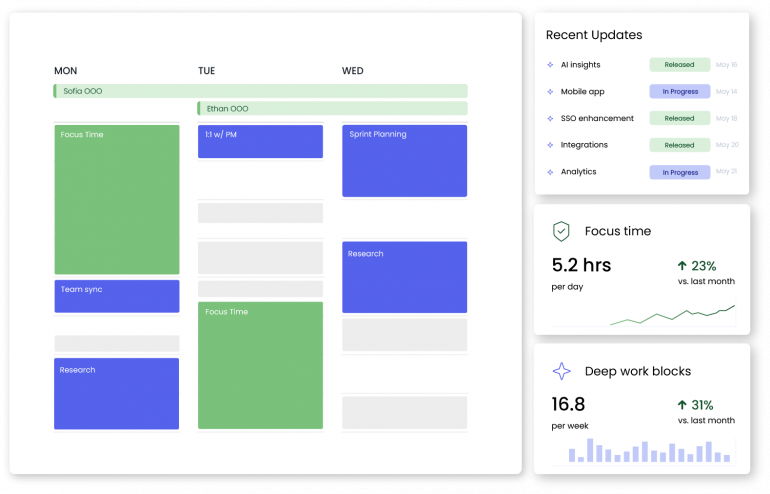
Image: Reclaim.ai
Best for: Google or Outlook users who want AI to defend their focus time automatically.
Type: Web-based AI calendar defender
Platforms: Web app. No native Mac app, no iOS or Android app.
Important for Mac users: Reclaim is a web app that works on Mac, not a Mac-native experience. You can add it to your desktop as a PWA via Safari or Chrome, or run it in a browser tab. The iOS apps named “Reclaim” on the App Store are unrelated products from different developers. If a native macOS experience matters to you, the apps higher on this list are a better fit.
Reclaim is the most hands-off scheduler on this list. You define recurring Habits (a “deep work” block, an “exercise” block, “lunch”) and one-off Tasks; Reclaim finds the best slots on your Google or Outlook calendar and books them, defending the time against meeting requests. Smart Meetings find a time that works across attendees; Buffer Time prevents back-to-back call burnout. The Slack integration auto-mutes notifications during focus blocks. Dropbox acquired Reclaim.ai in 2024 in a deal reported at about $40.2M.
For users tied to Google or Outlook who want set-and-forget scheduling, Reclaim is the most automated option here. For iCloud-first users, it is not the right fit.
Pros
- AI defends Habits and Tasks against meeting requests on Google and Outlook
- Buffer Time, Smart Meetings, and Slack integration are deep
- Automatically reschedules unfinished Habits and Tasks to open slots
Cons
- No native Mac app
- No native iOS or Android app
- Google or Outlook only; no native iCloud or Apple Calendar integration
Pricing: Lite free version. Starter $10/seat/month billed annually; Business $15/seat/month billed annually; Enterprise $22/seat/month billed annually.
Rating: 4.8 out of 5 on G2 (no Mac App Store listing)
What users say
“Strong system for protecting focus time in overloaded calendars.” — Samanta J., Head of Talent Acquisition (Capterra review)
Free Native Timeboxing Baseline: Apple Calendar + Reminders on macOS 27
Every Mac already has the bones of a timeboxing stack: Apple Calendar for time blocks, Reminders for tasks, Focus modes for distraction control, and Shortcuts for automation. Apple Calendar’s natural-language entry handles “Soccer Game Saturday 11am–1pm.” Meanwhile, Reminders surfaces inside Calendar via the unified iCloud database.
macOS 26 added Apple Intelligence to both apps, and macOS 27 went further: both Calendar and Reminders now build an entry from a plain-English description. Calendar suggests events parsed from Mail and Messages, Reminders auto-categorizes tasks and pulls reminders from selected text, and the Reduce Interruptions Focus filters notifications during focus blocks. Combined with Shortcuts automations, you can wire up a basic timeboxing workflow without installing anything else.
What this baseline does not do: drag-task-from-Reminders-onto-a-Calendar-time-slot, estimated durations on tasks, time-budget statistics, or Pomodoro. If those matter, you will graduate to one of the eight apps above. But for users who do not want another subscription, Apple Calendar plus Reminders on macOS 27 is a real starting point. Many Mac users begin here and never need more.
How Timing Turns Timeboxing Into a Feedback Loop
Timeboxing tells you what you intended to do at 10:00 AM. It does not tell you what you actually did. That is where Timing closes the loop.
See Whether Your Timeboxes Match Reality
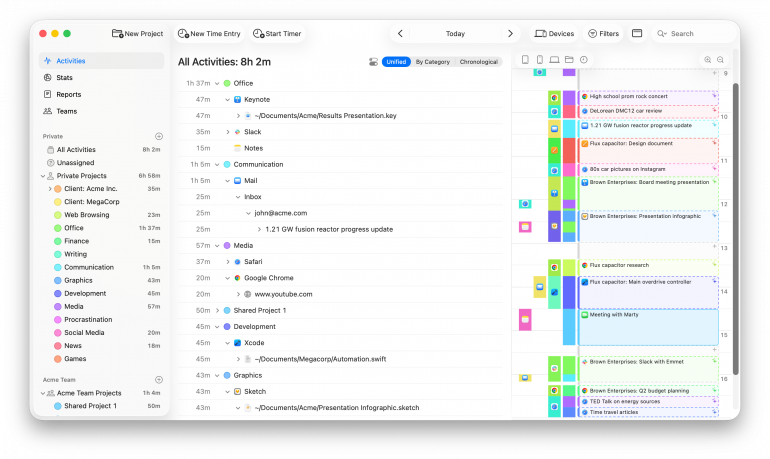
Timing automatically records every app, document, and website you use in the background. After a 90-minute “Q3 report draft” timebox, you can replay exactly how that block broke down: was it real focus, or did you drift into Slack and Safari? The Timeline view answers that minute by minute, and AI Summaries turn each window into a one-sentence description of what happened.
Find the Hours Where Timeboxing Actually Works
Timing reveals patterns a planner alone cannot surface: which hours produce your most focused work, which days drift fastest, which projects swallow your time. The Stats tab shows breakdowns by hour, day, and project, which is useful for scheduling your most important timeboxes during your peak hours instead of fighting your energy. For a deeper diagnosis, try a time audit alongside your timeboxing for a week.
Turn Timeboxed Sessions Into Billable Hours
For freelancers and consultants, timeboxing is only half the billing story. Timing’s project-based tracking lets you assign each timebox’s actual time to specific clients, and the billing status workflow (Not Billable, Billable, Billed, Paid) tracks invoicing from start to finish. If you want to bill time accurately, pairing a timeboxing app with automatic tracking is one of the most reliable ways to do it.
Ready to see whether your timeboxes match reality? Download Timing’s free 30-day trial and pair it with your favorite timeboxing app.
Summary: Choosing the Best Timeboxing App for Mac
There is no single “best”; the right pick depends on your workflow. For Apple-ecosystem users who want one polished native app for events and tasks, Fantastical pairs a native calendar with an Apple Intelligence-assisted parser. Notion Calendar is the strongest native, drag-and-drop option at no cost. Routine packs tasks, calendar, and notes into a single unified planner. Akiflow is the strongest dedicated timeboxing planner for power users with tasks scattered across many tools. Meanwhile, Sunsama leads on guided daily ritual. For tasks-first users, TickTick combines timeboxing and Pomodoro. Motion and Reclaim hand the schedule over to AI when you would rather not build it by hand.
Whichever you choose, pair it with Timing to see whether your timeboxes match reality. Download Timing’s free 30-day trial and use it alongside your favorite timeboxing app. For more ways to optimize your Mac workflow, see our guides to the best productivity apps for Mac and the best Pomodoro apps for Mac.
Frequently Asked Questions: Best Timeboxing Apps for Mac
What is the best timeboxing app for Mac?
Fantastical is one of the best timeboxing apps for Mac in 2026 for Apple-ecosystem users, thanks to its native design, natural-language entry, and an Apple Intelligence-assisted parser. If you need a dedicated timeboxing planner with a universal task inbox, Akiflow is the strongest. Sunsama leads on guided daily ritual, while Notion Calendar is the best entry point for a fully free, native Mac option.
Is there a free timeboxing app for Mac?
Yes. Notion Calendar is fully free with a native Mac app. Routine offers a generous free tier covering tasks, calendar, notes, and unlimited integrations. Reclaim’s Lite plan is free for a single user with one Habit and one Scheduling Link. Apple Calendar plus Reminders is the built-in baseline that comes with every Mac.
What is the difference between timeboxing and time blocking?
Timeboxing assigns one specific task to one specific calendar slot with a fixed end time. Time blocking groups similar tasks into broader blocks of time. A “writing block” is time blocking; a 9:00–10:30 slot to draft a specific proposal is timeboxing. For a deeper comparison, see our time blocking guide and block schedule overview.
Is timeboxing better than the Pomodoro Technique?
They solve different problems. Pomodoro repeats fixed 25-minute focus intervals for whatever is in front of you. Timeboxing pre-allocates specific tasks to specific calendar slots, often of varying length. Pomodoro is a style of timebox at a fixed cadence. Many people use both: timeboxing to plan the day, Pomodoro to stay focused inside a block. For Pomodoro tools specifically, see our best Pomodoro apps for Mac guide.
Does macOS have a built-in timeboxing app?
macOS does not include a dedicated timeboxing app, but it includes the building blocks: Apple Calendar for time blocks, Reminders for tasks, Focus modes for distraction control, and Shortcuts for automation. On macOS 26 Apple Intelligence added event suggestions from Mail and Messages, auto-categorized reminders and Reduce Interruptions Focus; macOS 27 added plain-English event and reminder creation on top. For drag-task-from-list-onto-calendar workflows, you will want one of the apps above.
Can I use a timeboxing app with time tracking software?
Yes, and it is recommended. A timeboxing app tells you what you intended to do. A time tracker like Timing tells you what you actually did. Together they answer both halves of the question, which is especially useful for freelancers and consultants who need to track time for billing.