
The 9 Best Distraction Blockers for Mac in 2026

TL;DR: Best Distraction Blocker for Mac in 2026
The best distraction blocker for Mac depends on how strict you need it to be. Freedom is the best all-rounder with cross-device blocking and Locked Mode. Cold Turkey is unbeatable for strict enforcement. SelfControl is the best free option. For a gentler approach, one sec uses behavioral science to break scrolling habits. And macOS Screen Time works for basic needs without installing anything new.
If you struggle with focus on your Mac, you’re not alone. Between Slack pings, social media tabs, and the endless pull of YouTube and Reddit, staying on task can feel impossible — especially when you work from home or set your own schedule.
A distraction blocker for Mac can help. Unlike simple website blockers that only prevent you from visiting certain URLs, the best distraction blockers take a more holistic approach. They block distracting apps and websites, manage notifications, enforce timed focus sessions, and even use behavioral science to break the automatic reach-for-your-phone habit.
We’ve reviewed the best distraction blockers for Mac in 2026 — from hardcore lockdown tools you genuinely cannot bypass, to gentle friction-based apps that nudge you back to work. Whether you’re a freelancer protecting billable hours, a student battling social media, or a remote worker who needs structure, there’s an option here for you.
Looking specifically for website blockers? Check out our companion guide: How to Block Websites on Mac, which covers step-by-step setup instructions and more technical blocking methods.
Table of Contents
TOC
How to Choose the Best Distraction Blocker for Mac
Not every distraction blocker works the same way. Before diving into our reviews, here are the key criteria to consider:
- Blocking scope: Do you need to block just websites, or apps and notifications too? Pure website blockers won’t help if your distraction is Slack, Discord, or the Messages app.
- Enforcement strength: Be honest about your self-discipline. Some blockers let you bypass them with a click, while others are genuinely impossible to disable once started — even by restarting your Mac.
- Cross-device coverage: If you reach for your phone whenever your Mac is locked down, you need a blocker that syncs across devices. Otherwise, you’re just moving the distraction.
- Scheduling and automation: The best blockers run on autopilot — recurring sessions during work hours, integration with macOS Focus modes, or Pomodoro-style work/break cycles.
- Approach: Hard blocking vs. friction. Some apps completely prevent access. Others add intentional delays (like breathing exercises) that break the autopilot habit without fully restricting access.
- Privacy: Some tools store everything locally. Others sync data to the cloud. Check whether your chosen tool’s privacy approach matches your comfort level.
- Price: Options range from completely free to $8+/month. One-time purchases offer the best long-term value if you plan to use a blocker indefinitely.
Pro tip: pair your distraction blocker with Timing to measure exactly how much focused time you’re gaining. By running a time audit before and after, you’ll have hard data on what’s working.
Quick Picks: Best Distraction Blockers for Mac in 2026
Short on time? Here’s a quick overview of which blocker suits each use case.
- Best overall distraction blocker: Freedom
- Strictest blocker (hardest to bypass): Cold Turkey
- Best free option: SelfControl
- Best native Mac blocker: Focus (HeyFocus)
- Best for building better habits: one sec
- Best budget subscription: 1Focus
- Best for gamified focus with social accountability: Opal
- Best Pomodoro + blocking combo: Session
- Best built-in option: Screen Time
| App | Best for | Blocks | Strictness | Cross-device | Price |
|---|---|---|---|---|---|
| Freedom | Best overall cross-device blocker | Websites + apps | High | Yes (Mac, iOS, Windows, Android) | Free plan / $3.33/mo annual |
| Cold Turkey | Strictest enforcement | Websites + apps | Very high | No (Mac/Windows only) | Free / $39 one-time |
| Focus | Best native Mac app | Websites + apps | Medium–High | No (Mac only) | $49 one-time |
| SelfControl | Best free option | Websites only | Very high | No (Mac only) | Free (open-source) |
| one sec | Best for building better habits | Websites + apps | Low–Medium | Yes (Mac, iOS, Android) | Free / $19.99/yr |
| 1Focus | Best budget subscription | Websites + apps | Medium | No (Mac only) | Free / $1.99/mo |
| Opal | Best for gamified focus | Websites + apps | Medium–High | Yes (Mac + iOS) | Free / $8.29/mo annual |
| Session | Best Pomodoro + blocking combo | Websites + apps | Medium | Yes (Mac + iOS) | Free / $3.33/mo annual |
| Screen Time | Best built-in option | Websites + apps | Low | Yes (Apple ecosystem) | Free (built into macOS) |
The 9 Best Distraction Blockers for Mac in 2026
1. Freedom — Best Overall Distraction Blocker
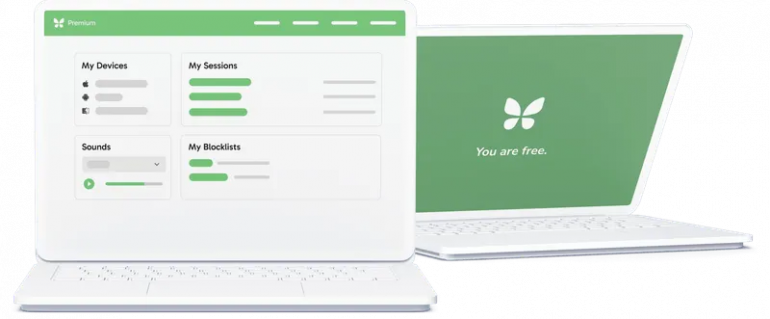
Image: Freedom
Best for: Users who need cross-device distraction blocking that covers Mac, iPhone, iPad, and more.
Blocks: Websites and apps
Freedom is the most popular distraction blocker for good reason. It blocks distracting websites and apps across all your devices simultaneously — Mac, iPhone, iPad, Windows, Android, and Chromebook. Start a session on your Mac and it instantly applies across everything, eliminating the temptation to just pick up your phone instead.
Freedom’s Locked Mode is the standout feature for serious focus. Once activated, you cannot end a session early — no workarounds, no exceptions. Combined with recurring schedules that automate blocking during your work hours, it’s a powerful system for building lasting focus habits. The recently added free plan makes it easy to try before committing, and the ambient focus sounds are a nice bonus for concentration.
Pros:
- Cross-device sync blocks distractions across Mac, iPhone, iPad, and more simultaneously
- Locked Mode provides genuinely unbypassable enforcement during sessions
- Recurring schedules automate blocking during work hours without daily setup
Cons:
- Locked Mode can feel too restrictive if you need occasional flexibility
- Interface customization is limited compared to more niche competitors
Pricing: Freedom has a free plan with basic blocking. Premium costs $3.33 per month billed annually. The Forever plan costs $99.50 one-time.
2. Cold Turkey Blocker — Strictest Distraction Blocker
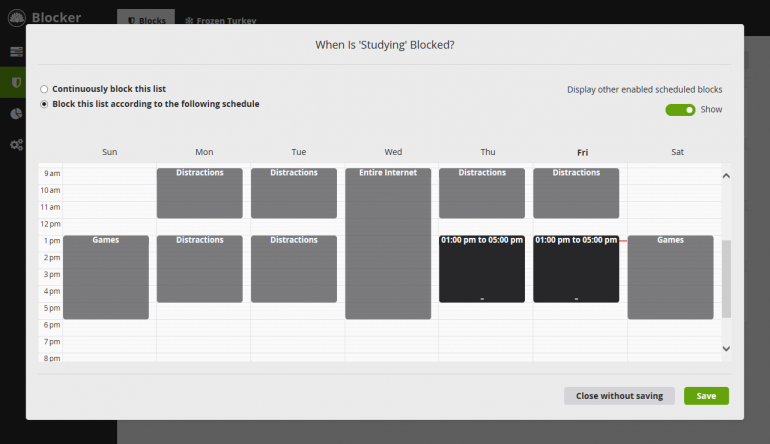
Image: Cold Turkey Blocker
Best for: Anyone who knows they’ll try to cheat their own system.
Blocks: Websites and apps
Cold Turkey Blocker has earned its reputation as the strictest distraction blocker available. Once you start a block, there is genuinely no way to stop it — not by restarting your Mac, not by deleting the app, not by any workaround. Its “Frozen Turkey” mode can even lock your entire computer, leaving only your allowed apps accessible.
This level of enforcement is what makes Cold Turkey ideal for deadline-driven work. You can block individual websites, entire apps, or everything except a small allowlist. The one-time purchase price of $39 (lifetime, all personal computers) is excellent value compared to subscription-based alternatives. The trade-off is that there’s no mobile version — if your phone is a distraction vector, you’ll need a separate solution for that.
Pros:
- Genuinely unbreakable blocking — cannot be bypassed by restarting, uninstalling, or any workaround
- One-time purchase with lifetime updates across all your personal computers
- Privacy-first design stores all data locally on your device
Cons:
- No mobile support means your phone remains an unblocked distraction source
- The aggressive enforcement may be too rigid for users who need occasional flexibility
Pricing: Cold Turkey Blocker has a free plan (websites only). The Pro plan costs $39 one-time with a 30-day refund guarantee.
3. Focus (HeyFocus) — Best Native Mac Distraction Blocker
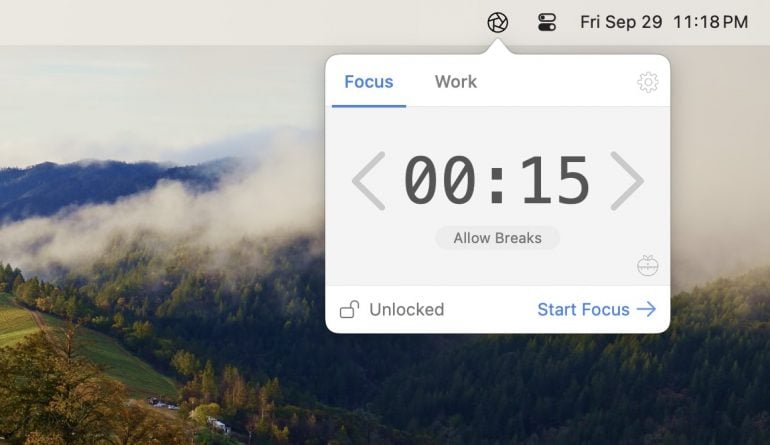
Image: Focus
Best for: Mac users who want customizable focus routines with scripting and automation.
Blocks: Websites and apps
Focus is built exclusively for macOS and it shows. The app feels native, runs quietly in the background, and integrates deeply with macOS features. What sets Focus apart from other distraction blockers is its scripting system — you can create custom workflows that trigger actions when a focus session starts or ends, like launching specific apps, running shell scripts, or toggling system settings.
The built-in Pomodoro timer works seamlessly with blocking, automatically managing work and break intervals. Multiple focus profiles let you create tailored blocklists for different types of work — one for writing, another for coding, another for admin tasks. At $49 one-time, it’s solid value for a full-featured blocker.
Pros:
- Powerful scripting enables custom automation workflows when sessions start or end
- Multiple focus profiles allow quick context switching with tailored blocklists
- One-time purchase at $49 — no recurring subscription fees
Cons:
- Scripting features require some technical knowledge to set up
- Mac-only with no cross-device sync or mobile companion app
Pricing: Focus offers a 7-day free trial. The app costs $49 one-time with a 30-day money-back guarantee.
4. SelfControl — Best Free Distraction Blocker
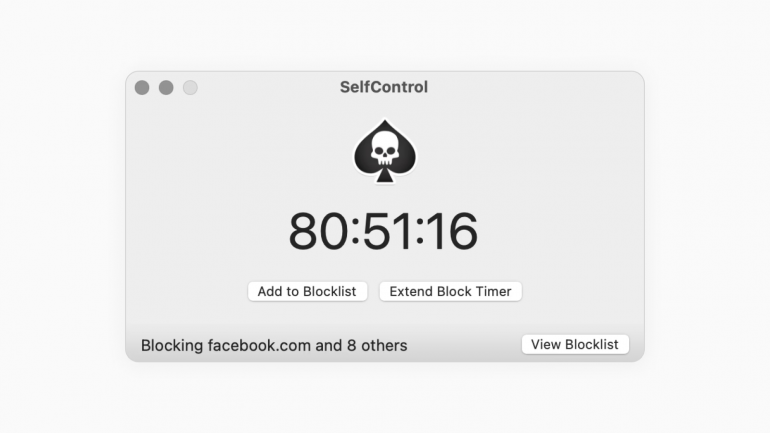
Image: SelfControl
Best for: Anyone who wants simple, unbreakable website blocking.
Blocks: Websites only
SelfControl is the nuclear option for website blocking — and it’s completely free. Add websites to your blocklist, set a timer, and hit Start. Once a block begins, there is absolutely no way to undo it. Not by restarting your Mac, not by deleting the app, not by anything. The timer runs down and that’s the only way the block ends.
This uncompromising approach makes SelfControl perfect if you know you’ll try to cheat a softer blocker. It’s open-source, maintained by volunteers, and has been a trusted tool for years. The trade-off is simplicity — SelfControl only blocks websites (not apps), has no scheduling features, and offers no cross-device sync. But if all you need is a reliable, free way to keep yourself off distracting websites during deep work sessions, it’s hard to beat.
Pros:
- Completely free and open-source with no hidden costs or premium tiers
- Absolutely unbreakable blocking — cannot be circumvented by any means once started
- Dead simple interface with zero learning curve
Cons:
- Websites only — cannot block desktop apps, notifications, or other distractions
- No scheduling, no recurring blocks, and no cross-device sync
Pricing: SelfControl is completely free.
5. one sec — Best for Building Better Habits
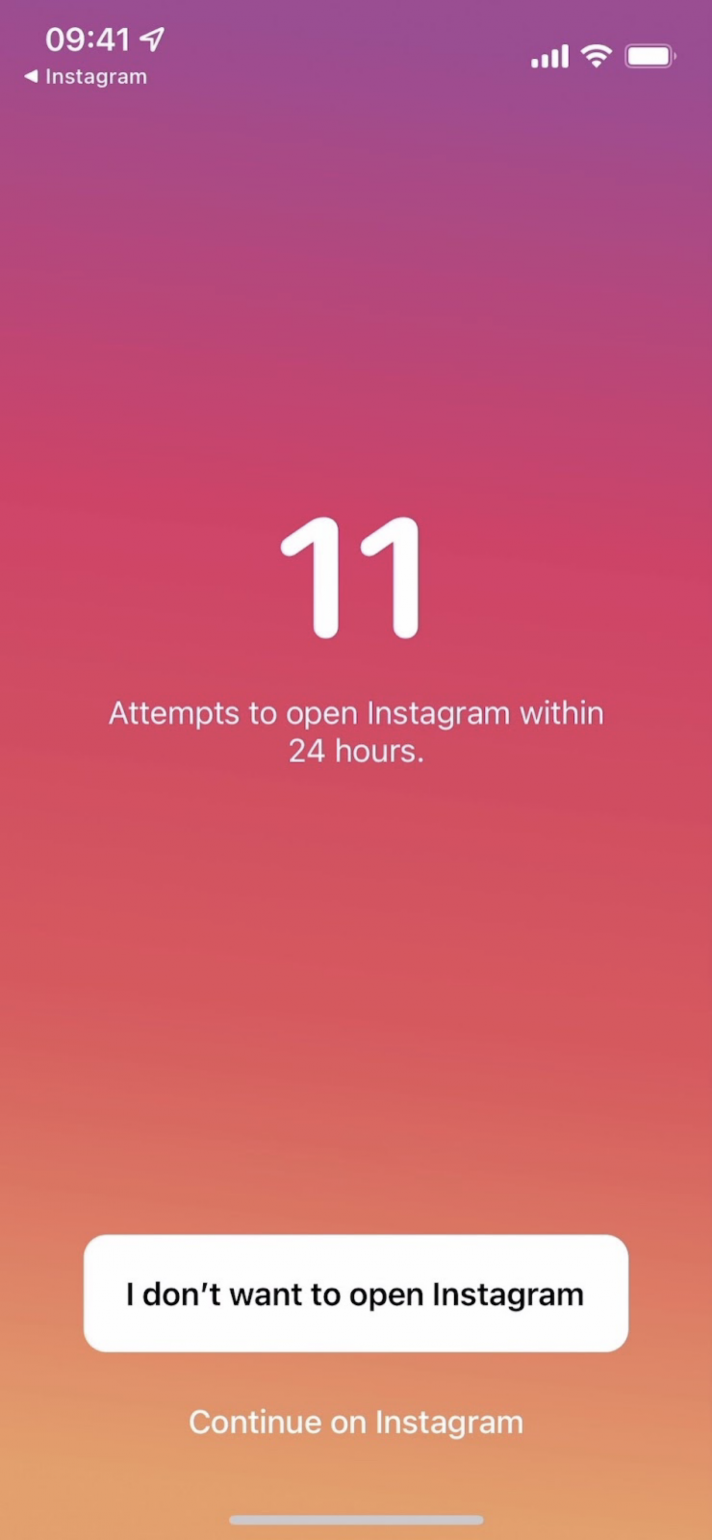
Image: one sec
Best for: Breaking unconscious scrolling habits through behavioral science, not brute-force blocking.
Blocks: Websites and apps (via friction-based interventions)
one sec takes a fundamentally different approach to distraction blocking. Instead of hard-blocking websites and apps, it interrupts you with a breathing exercise, shows your reflection in the camera, or asks you to confirm your intention before opening distracting apps. The idea is to break the automatic muscle memory of reaching for Instagram, Reddit, or YouTube without thinking.
Backed by peer-reviewed research from the Max Planck Institute, one sec has been shown to reduce app usage by over 50%. It works across Mac, iPhone, iPad, Android, and even Chrome — making it one of the most versatile options here. You can also set complete blocks and time limits when friction alone isn’t enough. The Apple Design Award nomination speaks to the quality of the experience. If you find hard blockers too restrictive but need something to interrupt your autopilot habits, one sec hits the sweet spot.
Pros:
- Research-backed interventions reduce app usage by 50%+ without hard blocking
- Multiple intervention types (breathing exercises, mirror reflection, AI conversation) keep the approach fresh
- Cross-platform support across Mac, iOS, Android, and browser extensions
Cons:
- Interventions may become routine over time, reducing effectiveness
- Not strict enough for users who need absolute enforcement
Pricing: one sec has a free plan (1 app). Pro costs $19.99/year or $99.99 one-time.
6. 1Focus — Best Budget Distraction Blocker
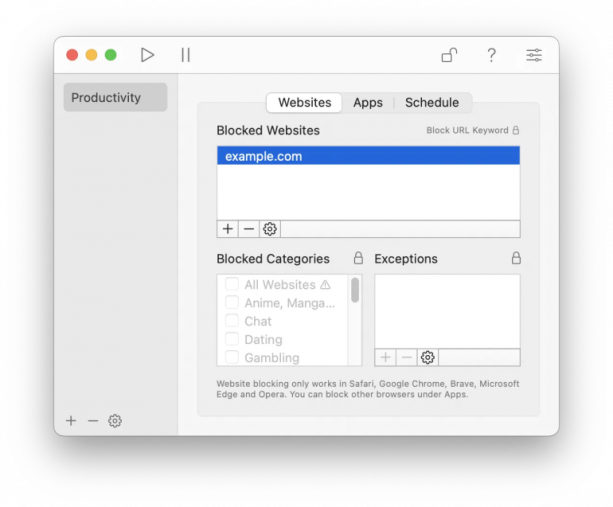
Image: 1Focus
Best for: Mac users who want effective blocking at the lowest possible price.
Blocks: Websites and apps
1Focus is a Mac-exclusive distraction blocker distributed through the Mac App Store — which means it meets Apple’s strict privacy and security requirements. At just $1.99/month (or $9.99/year), it’s the most affordable subscription blocker on this list while still offering a comprehensive feature set.
The standout features are category-based blocking (block entire categories like “Social Media” or “News” with one click) and an allow-only mode that blocks everything except the sites you need for work. 1Focus works across Safari, Chrome, Arc, and many other browsers without requiring separate extensions. All data stays local on your Mac — nothing is sent to the cloud. If you want reliable blocking without the price tag of other distraction blockers, 1Focus is a great choice.
Pros:
- Most affordable subscription at $1.99/month — fraction of the cost of premium alternatives
- Category-based and allow-only blocking modes provide flexible control
- Mac App Store distribution ensures Apple-verified privacy and security
Cons:
- Mac-only with no cross-device or mobile sync
- Fewer advanced features (no scripting, no Pomodoro timer) compared to Focus or Freedom
Pricing: 1Focus has a free tier for basic blocking. Pro costs $1.99/month or $9.99/year with a 14-day free trial.
7. Opal — Best for Gamified Focus
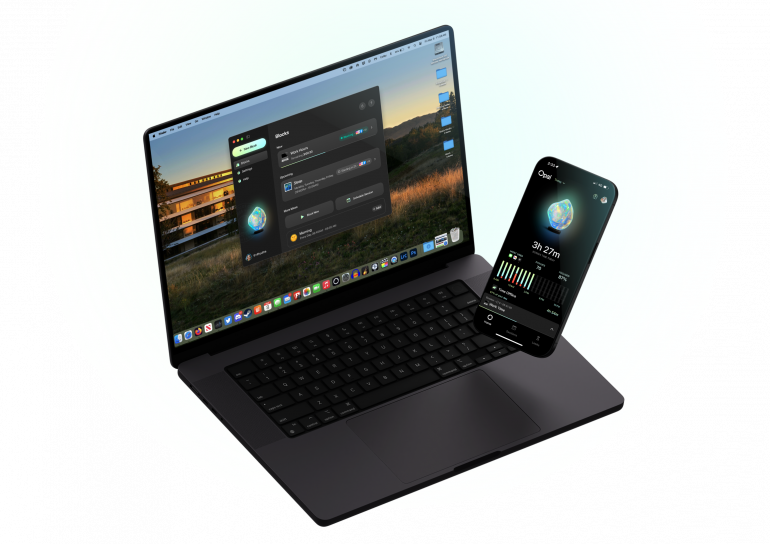
Image: Opal
Best for: Users who want gamified focus with social accountability and detailed analytics.
Blocks: Websites and apps
Opal goes beyond simple blocking to offer a complete focus management experience. Its Deep Focus mode provides genuinely unbreakable blocking — even uninstalling the app won’t bypass it during a session. But Opal’s real differentiator is the gamification layer: Focus Scores, streaks, collectible gems, and community leaderboards that turn distraction blocking into a social experience shared by over 4 million users.
Three adjustable difficulty levels let you scale enforcement from gentle nudges to total lockdown. The detailed analytics track everything from phone pickups to productive vs. unproductive time, giving you real insight into your habits. Opal works on both Mac and iOS, though the iPhone experience is more feature-rich. The subscription pricing ($8.29/month annual) puts it at the premium end, but the depth of features justifies it for users who want more than just blocking.
Pros:
- Deep Focus mode provides unbreakable blocking that survives even app deletion
- Gamification with Focus Scores, streaks, and leaderboards creates real motivation
- Detailed analytics offer insight into focus patterns beyond simple blocking
Cons:
- Premium pricing at $8.29/month may be hard to justify if you only need basic blocking
- Gamification features may feel distracting or unnecessary for minimalist users
Pricing: Opal has a free plan. Pro costs $8.29/month billed annually ($99.99/year).
8. Session — Best Pomodoro + Blocking Combo
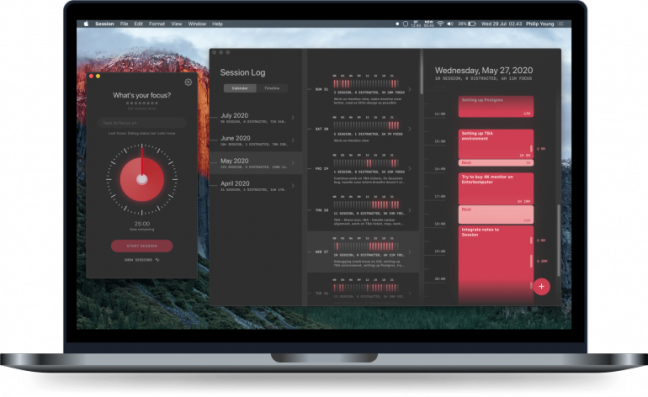
Image: Session
Best for: Users who want structured Pomodoro focus sessions with automatic app and website blocking.
Blocks: Websites and apps
Session combines the Pomodoro technique with distraction blocking in a single, beautifully designed Apple-native app. Start a focus session and it automatically blocks your chosen distracting apps and websites for the duration. When the timer ends, blocking lifts for your break. It’s a structured approach that gives your work natural rhythm.
What makes Session stand out is the Slack status integration — it automatically updates your Slack status to “Focusing” during sessions and restores it after. This is invaluable for remote workers who want to signal availability without manually toggling. The app also tracks your focus history with reflection prompts, encouraging mindful work habits over time. Session works across Mac, iPhone, and iPad with cross-device sync.
Pros:
- Seamless Pomodoro + blocking integration structures your workday with natural rhythms
- Automatic Slack status updates signal availability to teammates without manual effort
- Cross-device sync across Mac, iPhone, and iPad keeps focus consistent
Cons:
- Blocking is secondary to the timer — less configurable than dedicated blockers
- Most useful for Pomodoro-style workers; less suited to long unstructured focus sessions
Pricing: Session has a free plan with unlimited sessions. Pro costs $3.33/month billed annually ($39.99/year). Student discount: 30% off for one year.
9. Screen Time — Best Built-in Option
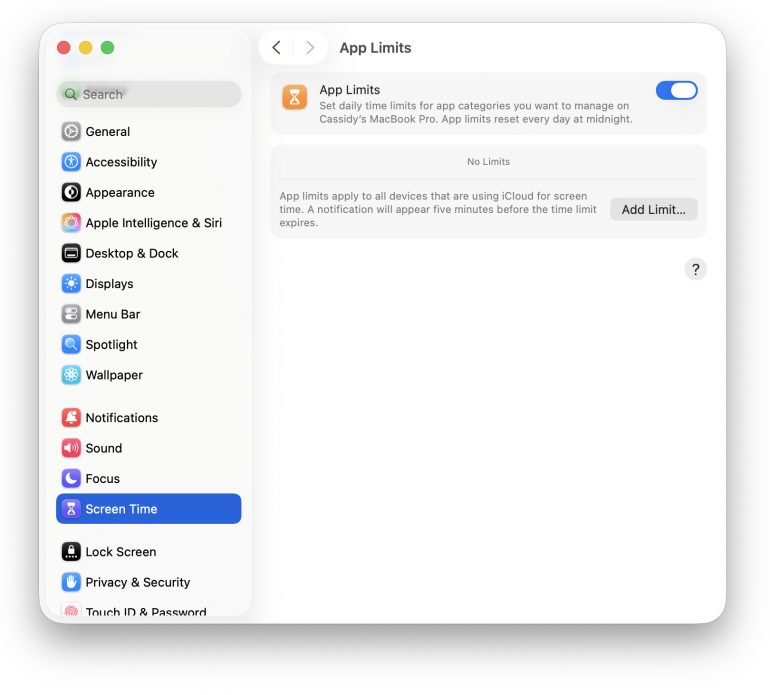
Image: Screen Time
Best for: Users who want basic distraction limiting without installing additional software.
Blocks: Websites and apps
macOS Screen Time is already on your Mac — no download required. You can set daily time limits on distracting apps, schedule Downtime periods when only essential apps are accessible, and block specific websites through Content & Privacy settings. Integration with Apple Focus modes means blocking rules can activate automatically when you switch to Work mode.
Screen Time is a reasonable starting point, but it has significant limitations as a distraction blocker. It’s easy to bypass (just click “Ignore Limit” unless someone else manages the passcode), works inconsistently across non-Safari browsers, and lacks the scheduling sophistication and locked-mode enforcement of dedicated tools. It works best when combined with another blocker or when someone else (a partner, friend, or accountability buddy) manages the Screen Time passcode.
Pros:
- Free and pre-installed on every Mac — zero setup cost or additional software needed
- Integrates with Apple Focus modes to automate blocking by context (Work, Personal, etc.)
- Syncs across Apple devices when signed in with the same Apple ID
Cons:
- Easy to bypass with a single click unless someone else controls the passcode
- Website blocking works inconsistently in non-Safari browsers
Pricing: Screen Time is free, built into macOS Catalina and later.
Honorable Mentions
These tools didn’t make our main list but are worth knowing about depending on your needs:
- Focus Firewall ($2.99/month or $29.99 lifetime) — A minimalist, Mac-native system-level web blocker that works across 15+ browsers without extensions. Great if you only need website blocking with a clean, simple interface. Comes preloaded with 150+ common distracting sites. Read more about Focus Firewall in our website blocking guide.
- FocusMe ($6.99/month or $119.99 lifetime) — A feature-rich cross-platform blocker (Mac, Windows, Linux, Android) with forced focus mode, reboot protection, and AI coaching. A solid choice for power users who need maximum configurability.
- HazeOver ($4.99 one-time) — Not a blocker, but a visual focus tool that dims all background windows. Pairs well with a traditional distraction blocker. Read our full review of HazeOver.
Which Distraction Blocker for Mac Should You Choose?
The right distraction blocker depends on your working style, how strict you need it to be, and whether your phone is part of the problem.
Best Distraction Blocker for Mac for Freelancers
Freelancers need accountability without micromanagement. You set your own hours but can’t afford to lose billable time to scrolling.
- Freedom is the top pick — cross-device blocking means you can’t escape to your phone, and Locked Mode prevents you from ending sessions early.
- Cold Turkey is best if you know you’ll try to cheat. Once started, there’s genuinely no way out.
- Pair either with Timing to track exactly how much focused time you’re gaining and ensure you’re billing accurately.
Best Distraction Blocker for Mac for Students
Students face unique distractions — social media, group chats, and the temptation to “quickly check” Instagram during study sessions.
- SelfControl is ideal for exam periods — it’s free, unbreakable, and dead simple.
- one sec works well for building long-term habits without the harshness of full blocking.
- Session and 1Focus both offer student discounts, making them affordable options for structured study sessions.
Best Distraction Blocker for Mac for Remote Workers
Remote workers need to stay productive without an office environment providing natural structure.
- Session stands out for its Slack integration — it signals to teammates that you’re in deep work without you having to say anything.
- Freedom handles the cross-device problem well, especially if you work across Mac and phone.
- Opal provides detailed analytics that help you understand your focus patterns and improve over time.
How to Measure Your Focus Gains with Timing
Installing a distraction blocker is step one. But how do you know it’s actually working? That’s where Timing comes in.
Timing runs silently in the background, tracking every app, website, and document you use throughout the day. It gives you a complete, honest picture of where your time goes — the kind of data that makes you say “I spent how long on Reddit today?”
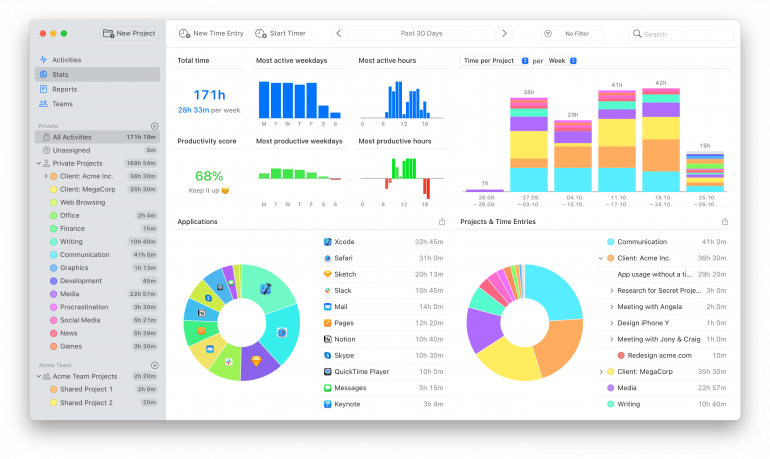
Here’s how to use Timing alongside your distraction blocker for maximum impact:
- Identify your real distractions: Before choosing a blocker, run Timing for a week to see where your time actually goes. You might discover that your biggest time sinks aren’t the ones you expected. Timing can also import Screen Time data from your iPhone and iPad for a complete cross-device picture.
- Measure your progress: Compare your Timing data from before and after implementing your blocker. How much more focused time are you getting? Are you less easily distracted? Hard numbers are more motivating than feelings.
- Optimize your schedule: Timing’s Stats tab shows your most productive hours and days. Use this to schedule your blocker during your peak focus windows — protecting your best work hours.
- Review and adjust: Conduct a time audit every month or so. If your data shows new distraction patterns emerging, update your blocklist accordingly.
Start with Timing’s free 30-day trial to see exactly where your time goes.
Summary: Best Distraction Blocker for Mac in 2026
The best distraction blocker for Mac is the one you’ll actually stick with. If you need cross-device blocking that covers your phone too, Freedom is the clear winner. For maximum strictness, Cold Turkey and SelfControl are unbeatable. If you want a gentler, habit-based approach, one sec uses behavioral science to break automatic scrolling. And Screen Time is always there as a free starting point.
No matter which blocker you choose, pair it with Timing to measure the real impact on your productivity. Download Timing’s free 30-day trial and start tracking today.
Frequently Asked Questions: Best Distraction Blocker for Mac
What Is the Best Distraction Blocker for Mac?
Freedom is the best overall distraction blocker for Mac thanks to its cross-device sync, Locked Mode, and flexible scheduling. For completely free and unbreakable blocking, SelfControl is excellent. Cold Turkey is the strictest paid option, and one sec is best if you prefer a behavioral approach over hard blocking.
Can I Block Apps and Websites at the Same Time on Mac?
Yes. Freedom, Cold Turkey (Pro), Focus, Opal, Session, and 1Focus can all block both websites and apps simultaneously. SelfControl and Focus Firewall are website-only. Screen Time can set limits on both, but its enforcement is easy to bypass.
What’s the Difference Between a Website Blocker and a Distraction Blocker?
A website blocker only blocks access to specific URLs in your browser. A distraction blocker takes a broader approach — blocking websites, desktop apps, and sometimes notifications. Some distraction blockers also add friction (like breathing exercises) rather than hard-blocking, and many sync across your Mac and phone to prevent device-switching.
Are Distraction Blockers Worth Paying For?
For most users, yes. Free options like SelfControl and Screen Time cover the basics, but paid blockers offer scheduling, cross-device sync, Locked Mode enforcement, and app blocking that free tools can’t match. If you’re a freelancer or professional who bills by the hour, even a $3/month blocker can pay for itself many times over in recovered billable time.
Will a Distraction Blocker Slow Down My Mac?
No. Modern distraction blockers like Freedom, Cold Turkey, Focus, and 1Focus are lightweight and have negligible impact on system performance. Most operate at the system level or use minimal background processes.