
Best Mac Menu Bar Apps in 2026: Tiny Utilities That Save You Hours
 Image generated by ChatGPT
TL;DR: Best Mac Menu Bar Apps in 2026The best Mac menu bar apps help you do more with fewer clicks. What that means is up to you. Hiding cluttered icons, keeping key system stats visible, or joining meetings faster. Since menu bar space is limited (especially on notched MacBooks), every icon should earn its place with real information or quick actions. In this guide, we focus on tools that deliver meaningful value from the menu bar, not apps that simply take up space. We’ll also show how automatic time tracking, like Timing, fits into a power-user setup for tracking your work without constant manual timers. |
If you’re hunting for the best menu bar apps for Mac, you’re probably trying to reduce friction in your workflow. You’re likely looking to minimize distractions, complete certain tasks quicker or get at-a-glance visibility. The menu bar can serve as a contained command center, but only if you keep it lean and filled with handy, regularly used tools. Here, we explore Mac menu bar apps that are designed to improve your menu bar experience, whatever your needs.
Table of Contents
TOC
What to Consider Before Installing Menu Bar Apps
The menu bar holds some of your Mac’s most valuable real estate. It’s visible no matter what you’re working on, although you’re limited to a small amount of physical space. (If you’re on a more recent notched MacBook, space is even more constrained.) What you choose to populate your menu bar with should therefore add real value. Consider the following criteria as you weigh up your options:
What does the app promise you? Most menu bar apps offer one of three things: less clutter, faster actions or more control. The best ones deliver on all three. Think carefully about what you need most and whether you’re likely to use your chosen app every day.
Does it offer real value? Menu bar space is finite and every icon needs to justify its presence. A good rule of thumb is to only keep apps that deliver something directly from the menu bar itself. If you have to open a full window to get any value from it, it might not belong there at all.
Is it keyboard-first or click-first? How you prefer to work should also influence the apps you choose. Power users typically lean toward apps with robust keyboard shortcut support and search. Tools like Bartender, Superwhisper and MeetingBar can be activated and dismissed without touching your trackpad.
Trust and permissions. Menu bar apps often require access to some of the most powerful permissions on your system: accessibility, screen recording, network monitoring, and microphones and cameras. These are legitimate requirements for many useful apps, but they’re not permissions to grant lightly. The apps we’ve chosen here are from established, trusted developers, and we’ve noted where permissions are especially broad.
The Best Menu Bar Utilities for Mac at a Glance
Want to get started straight away? Here’s a quick snapshot of some apps that stand out from the rest:
- Best menu bar manager Mac: Bartender 5
- Best system monitor Mac: iStat Menus
- Best privacy indicator: Micro Snitch
- Best menu bar calendar app: Calendar 366 II
- Best meeting join helper: MeetingBar
- Best AI/dictation helper: Superwhisper
- Best time tracking: Timing
| Pick | App | Best for | Why it wins (menu bar value) |
|---|---|---|---|
| Best menu bar manager Mac (power users) | Bartender 5 | Heavy menu bar clutter & notch pain | Rules/Search/Triggers for hiding and organizing icons |
| Best menu bar manager Mac (alternative) | Thaw | Strong menu bar management without Bartender | Direct menu bar control (hide/reorder/search) |
| Best simple icon hider | Hidden Bar | Minimal hide/show with almost no setup | One-click toggle to collapse extra icons |
| Best system monitor | iStat Menus | CPU/battery/network visibility at a glance | Rich menu bar modules for live system stats |
| Best privacy indicator | Micro Snitch | Knowing when mic/cam is active | Clear menu bar indicator for camera/mic activity |
| Best firewall / network control | Little Snitch | Seeing & controlling outgoing connections | Menu bar status & fast access to network monitoring/control |
| Best menu bar calendar app | Calendar 366 II | Menu-bar-first schedule view | Built around the menu bar as the primary calendar UI |
| Best meeting join helper | MeetingBar | One-click meeting joins | Join links and upcoming meetings directly from the menu bar |
| Best AI/dictation helper | Superwhisper | Fast dictation you can toggle instantly | Menu bar control/status fits “always available” dictation |
| Best overall time tracking (menu bar) | Timing | Automatic time tracking & quick control from the menu bar | Tracks apps/web/docs automatically and provides menu-bar control for quick timers/edits |
The Best Menu Bar Apps for Mac
In developing our reviews, we focused on apps that deserve their place in the menu bar. Those that deliver real value by offering instant access to useful information, quick controls or one-click actions. Apps that simply live in the menu bar without improving your workflow weren’t included.
Let’s dive in.
Best Menu Bar Managers to Hide and Organize Icons
These apps help you clean up your Mac menu bar by hiding, rearranging or grouping icons so that it feels less cluttered.
Bartender 6
Best for: Power users drowning in menu bar icons.
Menu bar value: Shows you what matters based on your preferences.
Power-user tip: Set “Show When Changing” triggers so icons only appear when actively updating.
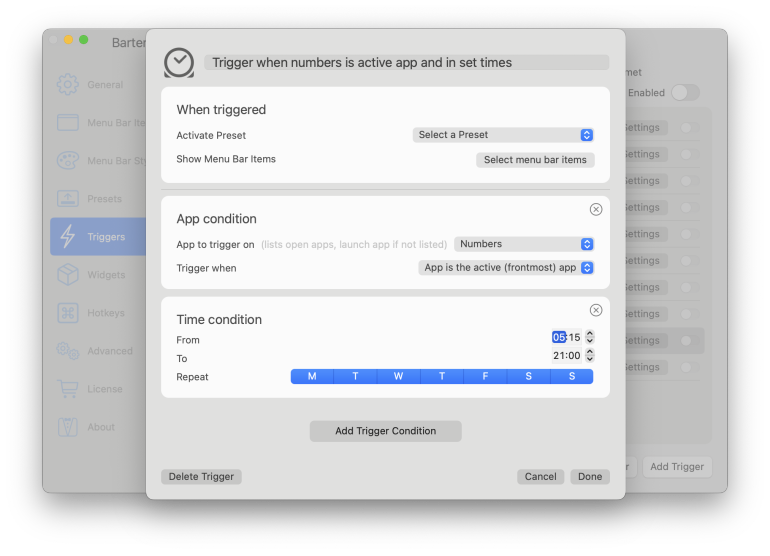
Bartender 6 is the gold standard for menu bar management. Its redesigned trigger system goes further than ever. Icons can now appear based on battery level, Wi-Fi network, location, time of day or keyboard shortcuts, and can be grouped into presets that switch automatically based on Focus mode. The search functionality lets you interact with any hidden item without revealing it, and hotkey access means your mouse rarely needs to venture up top. However, it’s worth noting that the launch of version 6 experienced some significant stability issues on macOS Tahoe. The issues took several updates to resolve and shook confidence in a previously rock-solid app.
Pros:
- Trigger system is unmatched, ensuring your icons appear exactly when you need them
- Search any hidden item instantly without breaking your layout
- Dividers, grouping and custom spacing make it feel truly yours
Cons:
- Feature overload makes initial setup a real time investment
- Major OS updates can throw a wrench in your carefully tuned layout
Pricing: Bartender costs $20 one-off. You can also choose to be a Mega Supporter, which costs $60 and ensures you receive all future upgrades for free.
Read more: The 15 Best Productivity Apps for Mac
Timing
Best for: Freelancers, small teams and anyone who wants instant access to easy time tracking without needing to start a timer.
Menu bar value: A live snapshot of your working day: start timers, resume recent timers, edit your latest entry, and manage tracking behavior without opening the full app.
Power-user tip: Use the rules system to auto-assign recurring activities to projects by option-dragging them directly from the timeline. Over time, this eliminates the need to manually categorize your entries.
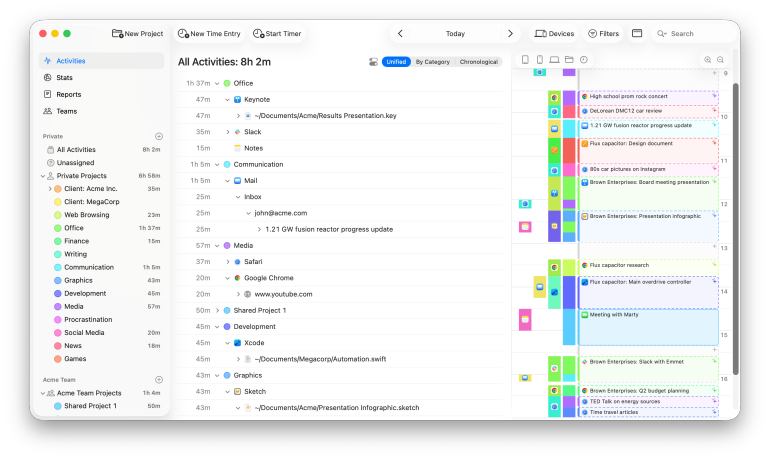
A native Mac app, Timing is an automatic time tracking solution that runs in the background while you work. It sits in the menu bar and carefully tracks every app, document and website you open, without you having to lift a finger.
Timing’s rules functionality automatically assigns tasks to your clients and projects. However, from the menu bar, you can also choose to start or stop a manual timer if you wish. This may be useful if you’re working with time blocks that are dedicated to specific projects.
From the Timing menu bar icon, you can also:
- Show your Timing tracking results in full by launching the Timing app
- Edit your latest time entry
- Use the Quick Start Timer to start a timer for one of your recently run projects
- Pause Timing until tomorrow
- Pause app tracking for a chosen period of time
- Choose whether you want to launch Timing automatically at Login
- Ask for activity after being idle so you don’t accidentally record time you spend away from your Mac
- Quit Timing
With Timing in your menu bar, you have instant access to all the tools you need to take control of your time. Use it to your advantage and you can boost your productivity, hone your focus, and improve the accuracy of your billing processes. Timing is smart, easy to use, and, most importantly of all, it’s sure to have a meaningful impact on the way you work.
Pros:
- Fully automatic tracking captures every app, document, file path and URL in the background, so billable time is never lost
- AI summaries turn a day’s raw activity into a readable, actionable overview in seconds
- Privacy-first by default — all data stays local on your machine unless you explicitly opt to sync
Cons:
- Automatic tracking is the main draw — users who want a very simple timer-only app may find Timing more feature-rich than they need
- As a premium product Timing can be a bit on the expensive side (but you get what you pay for)
Pricing: Timing has a free 30-day trial. Billed annually, its Professional plan costs $9 per user per month, its Expert plan costs $11 per user per month, and its Connect plan for teams and AI costs $16 per user per month.
Thaw
Best for: Anyone who wants Bartender-level control with a simpler, cleaner setup.
Menu bar value: Hides the clutter and adds visual polish.
Power-user tip: Enable the “Always Hidden” section for icons you almost never need, keeping even your hidden section lean.
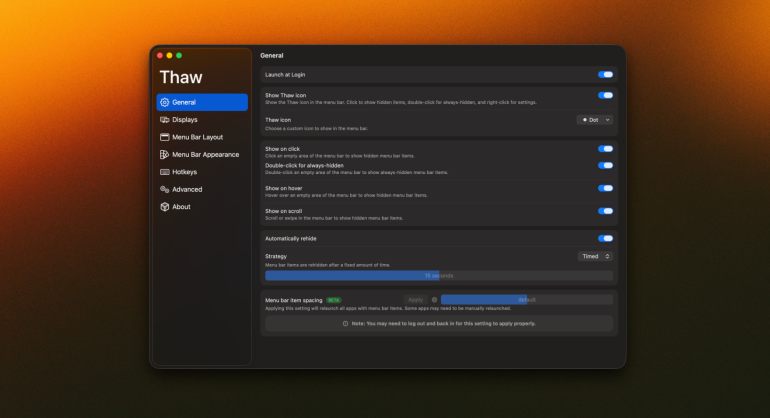
Thaw is the open-source app that stepped in when the development for Ice, another menu bar app, went quiet. Built to keep the project alive on modern macOS, it picks up where Ice left off, bringing hidden and always-hidden sections, and a separate Thaw Bar for notch-equipped machines and hotkey access. Its visual customisation options include tinting, shadows, borders and shapes that sit surprisingly well alongside macOS’s rounded aesthetic. Most importantly, it resolves the compatibility issues that had left Ice struggling on macOS Tahoe, with active development focused squarely on stability and reliability. If you’re an existing Ice user, you can import your Ice settings directly, making the transition seamless. Thaw doesn’t offer great context-aware triggers or advanced grouping, however. If you’re a power user looking for these features you might be better off looking at premium alternatives.
Pros:
- Three-tier visibility system (visible, hidden, always-hidden) gives surprisingly granular control
- Menu bar styling options — tints, shadows, custom shapes — go way beyond what rivals offer
- Fast setup with a clean drag-and-drop interface that won’t intimidate newcomers
Cons:
- No context-aware triggers, so icons can’t appear automatically based on app activity or time of day
- As a solo open-source project, major OS updates can leave it temporarily broken with no guaranteed fix timeline
Pricing: Thaw is free and open-source.
Vanilla
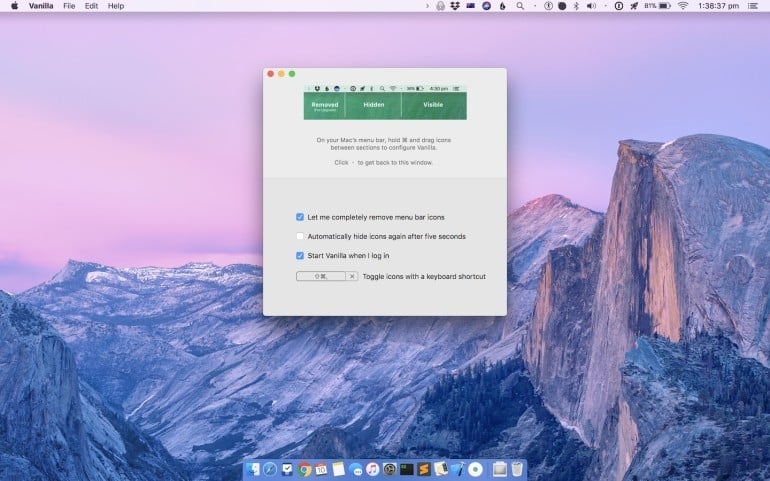
Best for: Minimalists who just want icons gone without any fuss or learning curve.
Menu bar value: The simplest path to a clean, clutter-free menu bar.
Power-user tip: Upgrade to Pro and assign a keyboard shortcut to toggle your hidden icons — it becomes second nature within a day.
Vanilla strips menu bar management down to its bare essentials. It doesn’t use a trigger system or visual styling engine, nor does it ask you to configure endless settings. Instead, it offers a clean two-section system that shows or hides icons based on your preferences. The Pro tier adds a “removed” section for icons you practically never use, plus auto-hide and keyboard shortcut support. Vanilla isn’t great if you’re looking for more than basic hiding, however. There’s no search function, no contextual behavior, and notch support is acknowledged but remains a known pain point.
Pros:
- Effortless setup; you can start hiding icons within minutes of downloading the app
- Removed section keeps your hidden section itself from getting cluttered
- Auto-hide is easy to achieve without any complex configuration
Cons:
- No search, triggers or contextual logic
- Notch-equipped machines can run into layout issues that the app hasn’t fully resolved
Pricing: Vanilla is totally free to use. Vanilla Pro costs $10 one-off.
Hidden Bar
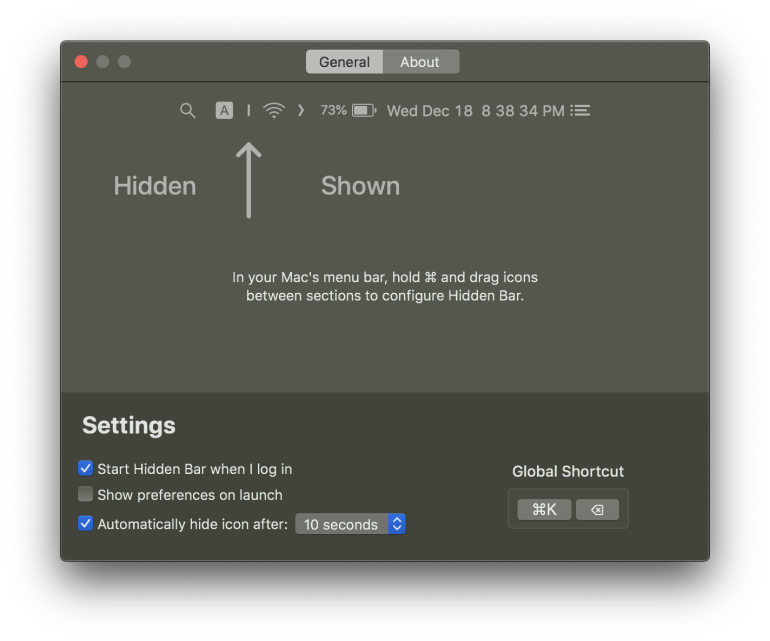
Best for: Anyone who wants the simplest possible way to hide menu bar icons.
Menu bar value: A lightweight one-click way to collapse menu bar clutter.
Power-user tip: Turn on the Always Hidden section if you have menu bar items you almost never need. It keeps your hidden icons from becoming a second layer of clutter.
Hidden Bar is a deliberately minimal menu bar cleaner. It allows you to place icons between its divider and arrow, then click to collapse or reveal them whenever you need. You can also drag icons into position by holding down Command, use useful extras like auto-hide, hide certain apps in your Always Hidden section, and choose when to expand the full menu bar if you’re working on a smaller screen. Because it’s open-source and MIT-licensed, it has a transparency advantage over some rivals, and it doesn’t collect data. The trade-off is that Hidden Bar is intentionally narrow in scope. If you want rules, search, triggers or deeper organisation, you might want to look into Bartender or Thaw instead.
Pros:
- Simple, low-friction way to hide menu bar icons with almost no setup
- Open-source and MIT-licensed, which adds trust and transparency
- Useful extras like auto-hide and Always Hidden mode
Cons:
- Far less capable than Bartender or Thaw for advanced organisation
- The setup model can be a little unintuitive at first if you’ve never used a divider-and-arrow menu bar app before
Pricing: Hidden Bar is free and open-source.
Best Menu Bar System Monitors
These apps show live system information in your menu bar, including CPU usage, memory, temperatures, battery stats and network activity.
iStat Menus
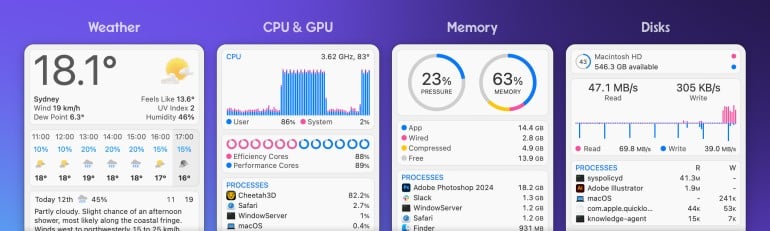
Best for: Developers, creatives and power users who want live system stats always within reach.
Menu bar value: Turns your menu bar into a real-time dashboard for everything your system is doing.
Power-user tip: Enable Combined mode to consolidate all your stats into a single menu bar item. This keeps your bar lean while ensuring every metric is still one click away.
iStat Menus’ approach is all about giving you detailed, system-wide insight into what your machine is doing. From CPU and GPU load to temperatures, fan speeds, network bandwidth, battery health and world clocks, it provides an extraordinary depth of system data directly in your menu bar. Version 7 was a ground-up rebuild, bringing Apple Silicon sensor support, per-core CPU monitoring, per-app network and disk breakdowns, and a highly configurable notification system. Its customization options run deep, and you can amend its graph styles, colour themes and display modes to your preferences. Be aware that the App Store version has historically lagged behind the direct download release, leaving some users on older builds longer than they’d like.
Pros:
- Unrivalled depth of system monitoring in terms of CPU, GPU, memory, network, temps, fans and more
- Combined mode keeps all stats accessible without cluttering the menu bar with multiple icons
- Apple Silicon support is excellent, and includes frequency monitoring and detailed sensor data
Cons:
- The App Store version consistently trails the direct release, creating a frustrating split experience
- The sheer volume of data and settings can take real time to configure meaningfully
Pricing: iStat Menus costs $11.99 for a single license, and $14.99 for a family license. iStat Menus is also available via Setapp.
Sensei
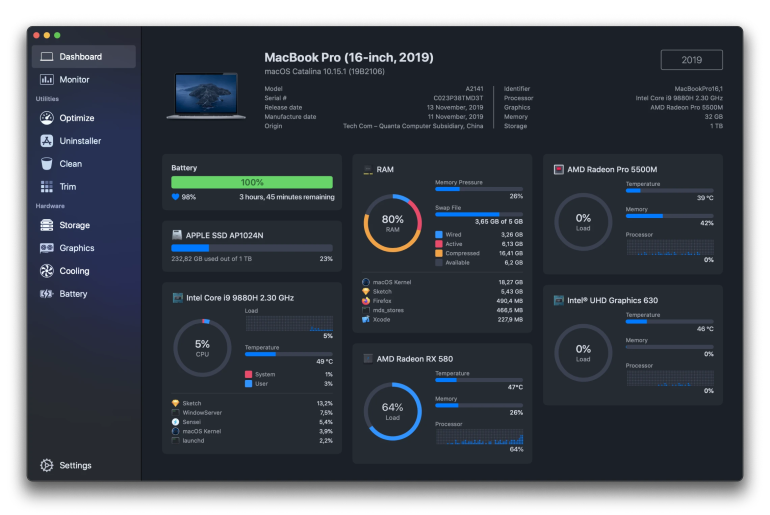
Best for: Users who want system monitoring and maintenance tools in one polished package.
Menu bar value: Real-time hardware stats always one click away without opening a separate app.
Power-user tip: Customise the menu bar widget so that it only shows the metrics you care about. CPU, GPU and battery health cover most needs without overwhelming the dropdown.
Sensei occupies a unique spot in the menu bar landscape: it’s equal parts system monitor and maintenance toolkit. From the menu bar, you get live CPU, GPU, memory and thermal stats. And then you can click through for a beautifully designed dashboard with SSD benchmarking, S.M.A.R.T. diagnostics, battery health analysis, fan speed monitoring, a full app uninstaller, junk file cleaner and login item manager. It’s designed to replace several tools at once, all wrapped into a beautiful, visually refined interface. The shortcoming is the depth it offers on the monitoring side. Compared to a dedicated tool like iStat Menus, the hardware stats feel slightly surface-level, particularly on Apple Silicon.
Pros:
- Combines system monitoring, cleaning, uninstalling and hardware diagnostics
- Stunning UI that makes hardware data feel approachable
- SSD Trim enabler and disk benchmarking are standout features rarely found in menu bar tools
Cons:
- Hardware monitoring lacks the granular depth of dedicated monitoring apps, especially on Apple Silicon
- Thunderbolt-connected storage can cause erratic behavior and unexpected performance issues
Pricing: Sensei costs $29 for a one-year subscription for up to three Macs, billed annually. A regular license is also available for $59 one-off.
Best Menu Bar Security and Privacy Tools
These apps use the menu bar to give you quick visibility or control over privacy-related activities, such as your microphone, camera, VPN or network status.
Micro Snitch
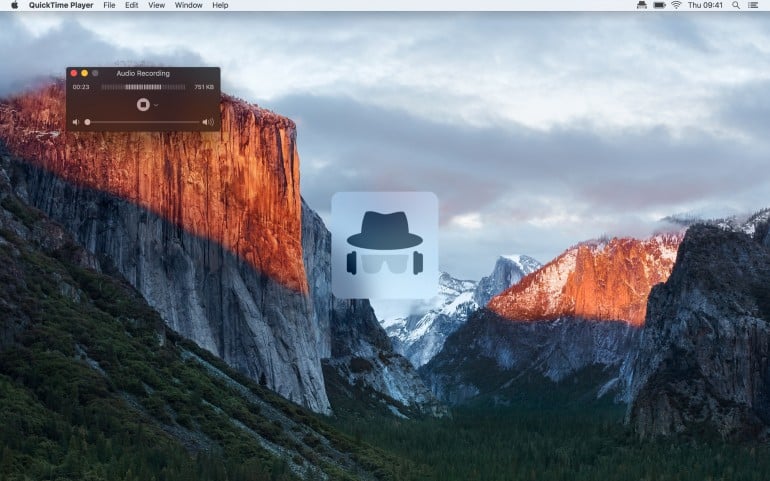
Best for: Privacy-conscious users who want to know exactly when their mic or camera is active.
Menu bar value: It sits quietly until something activates your mic or camera, then makes sure you know about it.
Power-user tip: Enable activity logging so you can review a full history of every mic and camera event. This is invaluable for auditing which apps have been listening without you noticing in real time.
Micro Snitch does one thing, and it does it well. From the menu bar, it monitors every microphone and camera access on your system in real time, instantly flagging which app is responsible. An on-screen overlay appears the moment a device activates (which is useful when the menu bar isn’t visible) and a detailed activity log captures every event for later review. It comes from Objective Development, the team behind the respected Little Snitch network monitor, and carries the same no-nonsense privacy-first ethos. It collects zero data. Remember that it only watches audio and video devices, though, so network-level snooping requires its sibling app to complete the picture.
Pros:
- Instant, clear alerts the moment any app accesses your microphone or camera
- Persistent activity log gives you a full audit trail to investigate suspicious behavior after the fact
- Runs invisibly with negligible system overhead — you won’t know it’s there until you need it
Cons:
- Narrowly focused on mic and camera only — network monitoring requires a separate app
- Historically slow to update, leaving some users exposed to compatibility issues after major OS releases
Pricing: Micro Snitch costs $3.99 for a single use license. A five-person multi-license costs $15. You can save 50% on Micro Snitch by bundling it with Little Snitch for $61 for a single license.
Little Snitch
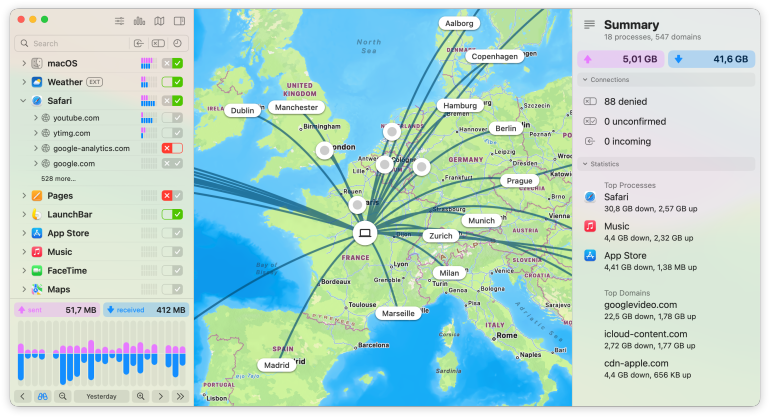
Best for: Privacy-minded users who want full visibility and control over every network connection their system makes.
Menu bar value: A live window into your network activity, showing exactly what’s connecting, where and when.
Power-user tip: Use Silent Mode during initial setup to let connections through uninterrupted, then review the log and build your ruleset deliberately rather than getting buried in allow/deny prompts.
Little Snitch has been among the best network monitoring solutions for over two decades, and the latest version is its most significant leap yet. Every outbound connection, including apps, browsers and system processes, is intercepted, identified and put to you for approval. The menu bar Control Center brings up recent activity, blocked connections and live traffic at a glance. Its latest version added DNS encryption, one-click blocklist management, cryptographic app identification resistant to renaming tricks, and sound notifications that make network activity audible. The interactive traffic map is a standout feature. Be aware that Little Snitch comes with a steep learning curve. Building a reliable ruleset takes patience and the initial flood of connection alerts can feel relentless.
Pros:
- Intercepts every outgoing connection system-wide, giving unmatched visibility into what your apps are actually doing
- DNS encryption and integrated blocklists add meaningful privacy layers well beyond basic firewall functionality
- Two decades of refinement: the rule management, grouping and filtering tools are exceptionally well thought out
Cons:
- The initial setup demands real-time investment — expect days of alerts before your ruleset feels settled
- Overly aggressive rule-building can break some of the app’s functionality, requiring careful troubleshooting to diagnose
Pricing: Little Snitch costs $59 for a single use license. A family license costs $115, a five-person multi-license costs $239 and a 10-person multi-license costs $419. You can save 50% on Micro Snitch by bundling it with Little Snitch for $61 for a single license.
LuLu
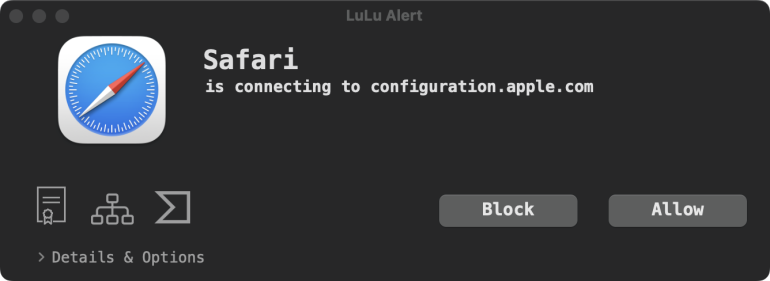
Best for: Security-conscious users who want outgoing connection control without the complexity of Little Snitch.
Menu bar value: Intercepts unknown outgoing connections in real time and puts you in control of what leaves your system.
Power-user tip: Enable “Allow Installed Programs” during setup to pre-approve your existing apps. Then let LuLu alert you only to new or unfamiliar connection attempts going forward.
LuLu is the open-source firewall from Objective-See, the non-profit security outfit behind some of the most trusted tools in the space. Where Little Snitch gives you granular, per-connection control, LuLu takes a blunter but more approachable approach. If you block an app, all its connections are blocked. The menu bar icon keeps watch, alerting you the moment something unknown tries to reach out. The source code is fully public, which is about as trustworthy as a security tool can get. Profiles and exportable rule sets make it surprisingly flexible for a no-frills app. Users don’t always love its interface, however — it’s functional, but basic, and a significant step down from some paid alternatives.
Pros:
- Fully open-source — the code is public, auditable and independently verified
- Straightforward block/allow model is far less overwhelming than granular per-connection firewalls
- Actively maintained by a respected security researcher with a strong track record
Cons:
- UI is bare, there’s no traffic visualisation, maps or the kind of data depth Little Snitch offers
- Single-user installation only, making it impractical for shared or managed machines
Pricing: LuLu is totally free to use. You can donate if you would like to support its ongoing development.
Best Menu Bar Calendars and Meeting Helpers
These apps allow you to manage your meetings with as few clicks as possible. Some are full menu-bar-first calendars, while others are designed mainly to help you see upcoming events and join meetings faster.
Calendar 366 II
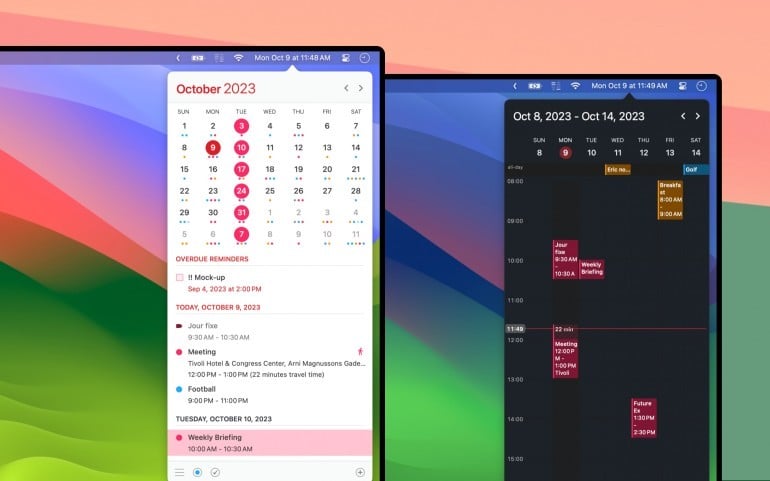
Best for: Anyone who lives by their calendar and wants instant access without opening a full app.
Menu bar value: Your entire schedule is one click away, always.
Power-user tip: Use Calendar Sets with Focus Filters to automatically switch to work or personal calendars based on your active Focus mode.
Calendar 366 II is the most fully featured calendar app built specifically for the menu bar. Eight different views, nine themes, natural language event entry, travel time support, and full compatibility with iCloud, Google, Exchange and CalDAV make it a worthy replacement for the default Calendar app. Calendar 366 II offers drag-and-drop event management, Spotlight integration, time zone support, and one-click reminder completion. And it handles multiple overlapping calendars with a clarity that native alternatives simply don’t match. The shortcoming that keeps coming up is developer responsiveness. Support can be slow, and some longstanding minor inconsistencies in the UI suggest a solo operation stretched thin.
Pros:
- Eight views and deep customisation make it adaptable to virtually any workflow
- Natural language input and drag-and-drop event management keep things fast
- Focus Filter integration is a smart addition for separating work and personal schedules
Cons:
- Developer support is notably slow
- Minor UI inconsistencies suggest the app could use a more thorough quality pass
Pricing: Calendar 366 II costs $14.99 one-off.
MeetingBar
Best for: Anyone who spends their day jumping between video calls.
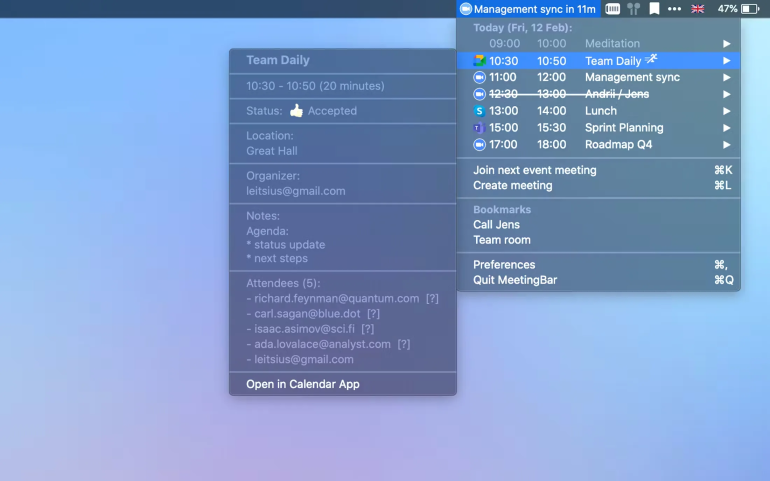
Menu bar value: Your next meeting — title, countdown and one-click join — always visible without opening anything.
Power-user tip: Set up a keyboard shortcut to join your next meeting instantly, and enable auto-join for a fully hands-off experience when the clock hits zero.
MeetingBar is designed to ensure that you don’t have to hunt for a meeting link when it’s time to join. It sits in the menu bar showing a live countdown to your next event, pulls meeting links automatically from calendar entries, and connects to over 50 services, including Zoom, Google Meet, Teams, Webex, Slack Huddles and more. One click or keystroke and you’re in. It also offers ad-hoc meeting creation, attendee details, a daily timeline view and AppleScript support on joining. It’s open-source, collects no data and runs with negligible system impact. It is dependent on Calendar.app, however, so users of third-party calendar tools need to sync through it first, which adds friction.
Pros:
- One-click or hotkey joining across over 50 meeting services, eliminating the hunt for links
- Countdown timer in the menu bar means late starts become a thing of the past
- Open-source, zero data collection and actively maintained
Cons:
- Requires Calendar.app as its data source — if you use a third-party calendar, you’ll have an extra sync step
- No per-service default app granularity out of the box without some configuration digging
Pricing: MeetingBar is completely free and open-source. You can support it on the App Store via in-app purchases.
Fantastical
Best for: Power users who want the most polished, feature-rich calendar experience available.
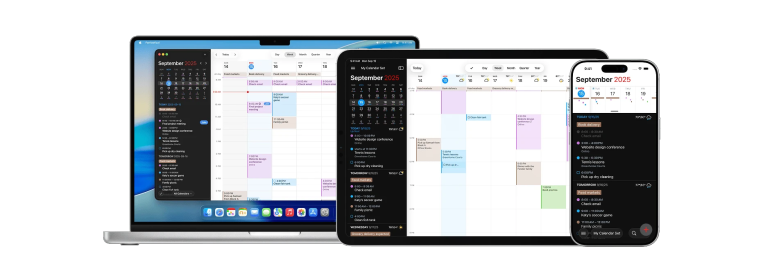
Menu bar value: A full calendar command centre: view, search, create and join meetings without ever opening the main app.
Power-user tip: Start typing the moment you open the Mini Window. The natural language parser activates instantly, so “Lunch with Sarah Friday 1pm Soho” becomes a fully formed event in seconds.
Fantastical began life as a menu bar app in 2011, and it’s remained true to its roots ever since. Its Mini Window remains one of the best-executed menu bar experiences of any app in this list. Natural language event creation, a live agenda view, meeting join buttons, Calendar Sets, scheduling proposals, travel time estimates, weather, time zone support, and deep integrations with Google, Exchange, Outlook, Todoist, Zoom and Webex all flow from a single click. It’s a complete calendar replacement. This does mean that it’s geared towards power users, however, which means its interface can feel cluttered with buttons and options if you only need basic scheduling.
Pros:
- Natural language parsing is fast, accurate and forgiving
- Mini Window is so capable that opening the full app becomes rare
- Calendar Sets with Focus Filter support make context-switching effortless
Cons:
- For users who only need basic calendar access, the depth can feel like overkill
- There are rare, but sometimes severe, synchronization issues across devices
Pricing: Fantastical is part of the Flexibits Premium subscription, which comprises Fantastical and a contacts app called Cardhop. The Premium subscription is $4.75 per month for individuals and team members, billed annually. Families of up to five people pay $7.50 per month, billed annually.
A useful note: If you’re looking for more detailed insight into calendar apps, take a look at our review of The 11 Best Calendar Apps for Mac in 2026. And remember to integrate an automatic time tracking solution like Timing with your chosen calendar solution. Timing recognizes when you start and end a meeting, ensuring every meeting you attend is properly logged in your records and can be invoiced accordingly.
Best Menu Bar AI and Dictation Helpers
These apps bring AI assistance or voice-to-text tools into the menu bar, making it faster to capture ideas, rewrite text or dictate without switching contexts.
Cotypist

Best for: Writers and heavy typists who want speed without sacrificing their own voice.
Menu bar value: System-wide inline word prediction everywhere you type.
Power-user tip: Use it consistently for a week. The more you get used to Cotypist and the more it gets to your phrasing patterns, the greater the benefits you’re likely to reap.
Cotypist takes a notably different approach to AI writing assistance. Rather than rewriting, generating or transforming your text, it predicts your next words as you type — inline, system-wide, across email, messages, browsers and document editors. Predictions appear as you go and can be accepted word-by-word or ignored. The learning system adapts in real time to your accepted and rejected suggestions, gradually shaping itself to your voice rather than replacing it. Everything runs locally on Apple Silicon with no data leaving your device. Cotypist isn’t meant to replace other writing AI apps. Instead, it’s designed to continuously save you time by suggesting the words you were just about to type.
Pros:
- Inline, adaptive predictions preserve your writing voice rather than overriding it
- Fully on-device processing means complete privacy
- Works system-wide across virtually any app with a standard text field
Cons:
- Requires a reasonably fast Mac in order to work smoothly
- Only provides auto-complete suggestions — doesn’t serve as a general-purpose AI tool
Pricing: Cotypist offers a free plan (up to 100 words a day). Paid plans start at $6/month for Plus and $9/month for Pro (billed annually), and every install comes with a 30-day Pro free trial.
Elephas
Best for: Knowledge workers who want AI assistance embedded in their workflow, not opened in a separate tab.
Menu bar value: A system-wide AI assistant that works inside any app.
Power-user tip: Build dedicated Super Brains for different projects so your AI responses are grounded in the right context rather than generic model knowledge.
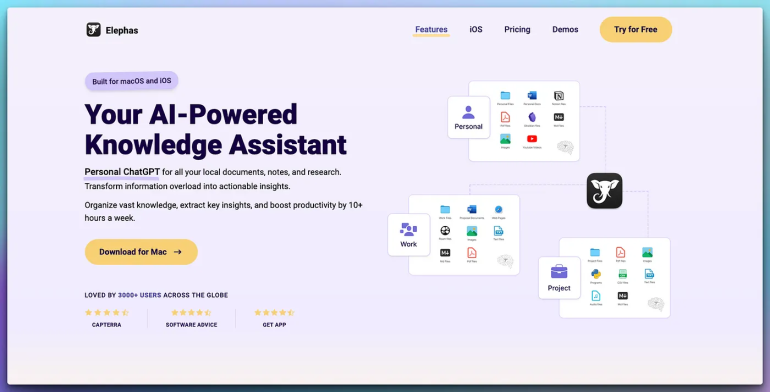
Elephas is an extraordinarily ambitious AI tool, and it earns its menu bar spot by operating differently to every other AI app. Its Super Command bar surfaces instantly in any application, letting you rewrite, summarise, translate or reply without switching context. Its standout feature is its Super Brain, a personal knowledge base built from your own PDFs, docs, notes, web pages and even YouTube transcripts, which you can chat with directly. It supports OpenAI, Claude, Gemini and fully offline local models, keeping sensitive data on-device. It’s a real second-brain tool, rather than a chatbot wrapper. Elephas’s major shortcoming is consistency. Integrations occasionally misbehave, the UI needs polish, and the learning curve is steeper than it should be for an app this capable.
Pros:
- Super Brain turns your documents into a queryable, cited knowledge base
- System-wide Super Command works inside any app, reducing copy-paste AI workflows
- Full offline mode with local AI models is a strong fit for privacy-sensitive work
Cons:
- Steep learning curve and occasional buggy integrations undercut an otherwise impressive feature set
- UI feels a little unfinished in places
Pricing: Elephas has three pricing plans. The Standard plan costs $8.33 per user per month, the Pro plan costs $16.66 per user per month, and the Pro+ plan costs $24.99 per user per month, billed annually. Lifetime plans are also available starting at $299.
Superwhisper
Best for: Anyone who thinks faster than they type and wants voice-to-text that actually keeps up.
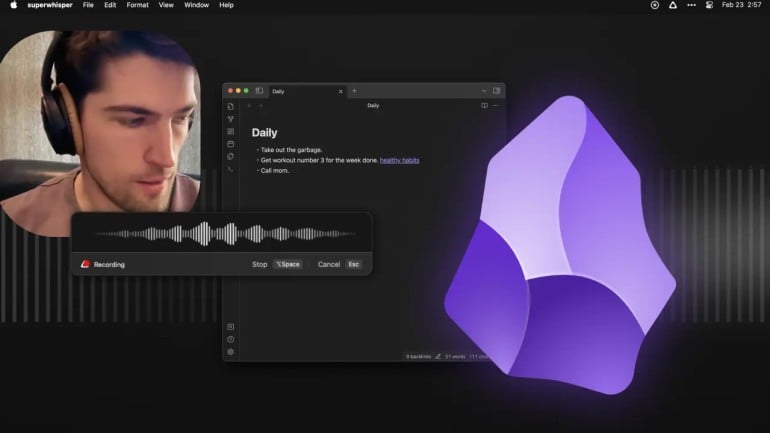
Menu bar value: Tap a hotkey, speak and polished text appears in any app.
Power-user tip: Build custom Modes for different contexts. For example, an email mode that keeps your tone professional, or a notes mode that preserves raw structure. This ensures the AI post-processing output is right every time.
Superwhisper is the dictation app that finally replaces typing with reliable voice-to-text. Powered by OpenAI’s Whisper and local on-device processing, it transcribes with remarkable accuracy across over 100 languages, strips filler words automatically, and uses AI post-processing to produce clean, formatted output. Its Modes functionality is what makes it really exceptional. These configurable profiles pair a model, language, prompt and output format together, so a single hotkey ensures you get the context right instantly. It runs fully offline, stores everything locally, and works inside any app with a text field. The developer is super responsive and updates are frequent. Be warned that getting Modes dialled in takes time, and newcomers can feel a little lost before they find their footing.
Pros:
- Transcription accuracy is best-in-class, with AI cleanup that eliminates the need for manual editing
- Modes make it infinitely configurable
- Fully offline processing means complete privacy with no voice data leaving your device
Cons:
- Configuration depth means the learning curve is real
- Larger local AI models process slower, which can break the flow during fast-paced work
Pricing: Superwhisper has a free version with some basic features. The Pro version costs $84.99 per user per year, billed annually. There’s also a $249.99 lifetime plan and a discount for students.
If you’d like to learn more about these sorts of apps, be sure to read our guide on The Best AI Apps for Mac in 2026: 21 AI Tools for Productivity and Creativity. We’ve also put together a useful resource on Dictation on Mac: How to Use Talk-to-Text & the Best Dictation Apps.
Also refer to your Timing stats to measure your productivity gains from typing less.
Best Menu Bar Power Toggles and Quick Actions
These apps let you trigger useful actions, such as changing audio devices, controlling settings, launching shortcuts or speeding up common workflows.
Dropzone 5
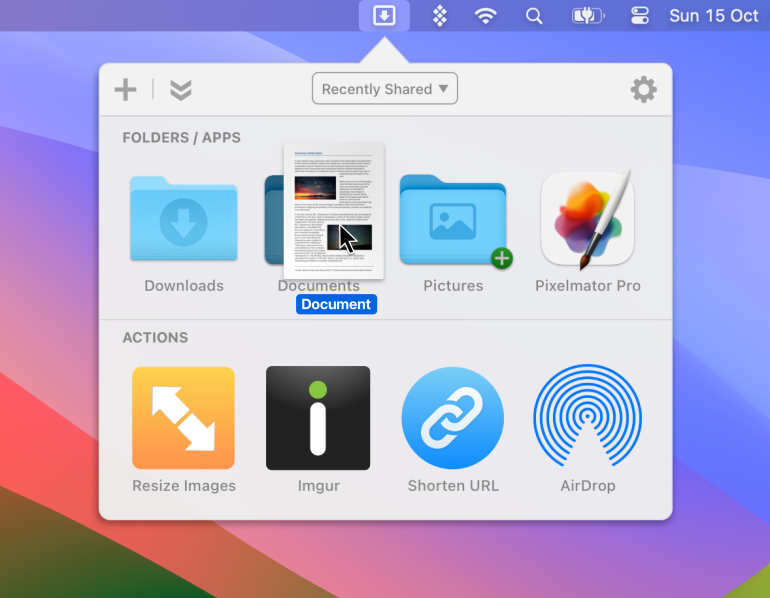
Best for: Power users who move, upload, and process files repeatedly and want it done in one gesture.
Menu bar value: A customisable action grid that turns any drag-and-drop into a completed task.
Power-user tip: Use Drop Bar as a temporary file shelf when juggling multiple files across tasks. Stash them mid-workflow and retrieve them later without cluttering your desktop.
Dropzone 5 sits in the menu bar waiting for you to drag something onto it. When you do, it springs open a grid of destinations and actions: folders, apps, cloud services, scripts and more. This makes it easy to move or copy files, resize an image, or upload files to an FTP or S3 destination while you carry on working. The latest update included a full redesign and introduced multiple grids, so you can build separate setups for different workflows and switch between them instantly. Drop bars are now per-grid too, and a new command line tool lets you trigger actions and add files to drop bars directly from the terminal. For developers and power users, a full Ruby and Python scripting API means the action library is effectively unlimited. But it’s worth noting that, while the Drop Bar works well as a file shelf, it lacks Quick Look preview and a one-click clear-all, which some users find frustrating.
Pros:
- Grid of drag-and-drop actions replaces dozens of repetitive Finder and browser steps
- Drop Bar is a useful file shelf that removes the need for a separate app
- Ruby and Python scripting API makes it infinitely extensible for developers
Cons:
- Building custom actions requires writing Ruby or Python, which puts meaningful personalisation out of reach for most users
- The action library, while growing, remains relatively modest compared to the app’s potential
Pricing: Dropzone 5 is free to use. Dropzone 5 Pro Lifetime costs $35 one-off.
Supercharge
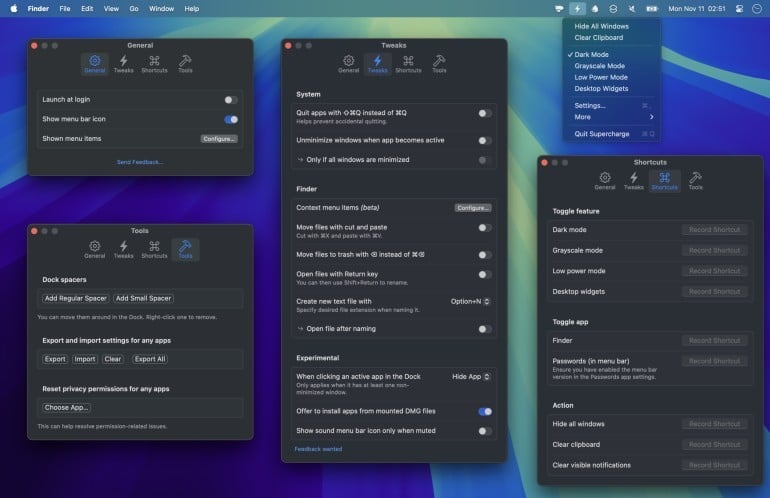
Best for: Anyone who’s ever muttered “why can’t it just do that?” at their Mac.
Menu bar value: Dozens of missing macOS features are one toggle away with no separate apps needed.
Power-user tip: Trim the menu down to only your most-used tweaks in settings. The feature list is long enough to be overwhelming, but this can be rectified with a focused setup.
Supercharge is the work of Sindre Sorhus, a prolific and respected indie developer. The app bundles an extraordinary range of quality-of-life fixes that Apple has inexplicably never addressed: cut and paste files in Finder with Cmd+X, unminimise windows automatically when switching apps, auto-install DMGs in one click, clear all notifications with a shortcut, right-click AirDrop from any file, see image dimensions in context menus, toggle dark mode or grayscale with a hotkey, auto-quit idle apps, and much more. Each feature is small on its own, but together they make the OS feel noticeably more capable. Unfortunately, with so many features packed in, new users can struggle to identify which ones will transform their workflow versus which they’ll never touch.
Pros:
- Addresses a remarkable number of macOS frustrations in a single, lightweight app
- Every tweak feels native — nothing looks or behaves like a third-party hack
- Actively developed by a trusted developer with a strong track record
Cons:
- The sheer volume of features makes it hard to know where to start without research
- Not available on the App Store, requiring direct download and manual trust permissions
Pricing: Supercharge is available as a one-time purchase for your own nominated amount. It is also available via Setapp.
A Final App to Consider
Pika
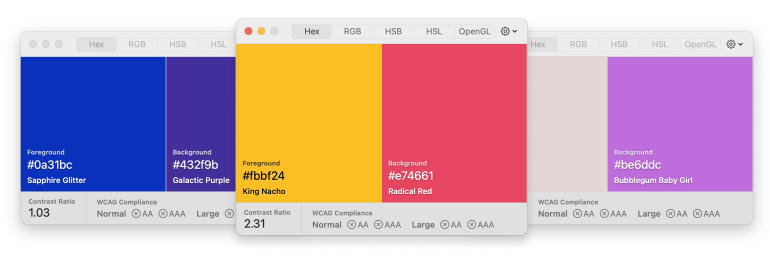
Pika is summoned by a global hotkey that enables a magnifier to lock onto the pixel you need. The colour is then copied to your clipboard in whichever format you work in: hex, RGB, HSL or HSB. What sets it apart from the crowded field of colour pickers is the built-in WCAG contrast checker, which brings up accessibility compliance information alongside the colour value, removing the need to bounce between tools. It’s open-source and completely free, but built with the kind of considered detail you’d expect from a paid app. Its main shortcoming is its scope. Pika is a picker, nothing more, so palette management and colour history will require a separate tool.
Which Menu Bar App for Mac Should You Choose for Your Workflow?
As we wrap up, we’ve put together a handy table to help you choose the right tool if you’re trying to solve a particular challenge.
| If your problem is… | Best pick(s) | Why it helps fast | Setup tip |
|---|---|---|---|
| My menu bar is cluttered / My icons keep disappearing behind the notch | Bartender 5 or Thaw | Full control of icons: hide, reorder, search, rules/presets | Create a “Focus” preset with only essentials visible |
| I just want a simple hide/show toggle with no learning curve | Hidden Bar or Vanilla | One-click simplicity, minimal configuration | Place the toggle next to Wi-Fi/Battery to reduce mouse travel |
| I want quick access to hidden icons without hunting | Bartender 5 or Thaw | Search/Hotkeys surface menu bar items instantly | Set a global hotkey for “search/reveal menu bar items” |
| I need CPU/RAM/battery/network stats at a glance | iStat Menus | Deep system monitoring directly in the menu bar | Only enable 2–3 modules so you don’t recreate clutter |
| I want monitoring plus maintenance tools too | Sensei | Combines monitoring with system tools in one place | Start with monitoring; be cautious with any cleanup features |
| I want instant “is my mic/cam active?” visibility | Micro Snitch | Clear menu bar signal for camera/mic activity | Keep it always visible (don’t hide it in your manager) |
| I need control over which apps can access the internet | Little Snitch | Fast visibility & control of network connections | Start in alert mode, then create rules for your core apps |
| I want a solid outbound firewall with menu bar controls | LuLu | Simple allow/block prompts & quick status access | Create rules for trusted apps early to reduce prompt fatigue |
| I want a menu-bar-first calendar (click → see what’s next) | Calendar 366 II | Built around the menu bar as the primary calendar UI | Limit to work calendars to keep it readable |
| I’m late to meetings because join links are buried | MeetingBar | One-click join from the menu bar | Connect only the calendars you use for meetings |
| I want a premium calendar with strong menu bar views | Fantastical | Configurable menu bar icon & mini window | Configure the menu bar view to show only “Today/Next” |
| I want system-wide AI help without switching apps | Elephas | Quick access & shortcuts reduce context switching | Set one global shortcut for your most common action |
| I want dictation I can toggle/control quickly | Superwhisper | Menu bar control/status fits dictation workflows | Set a hotkey for start/stop and a default mode |
| I want a drag-to-actions workflow from the menu bar | Dropzone 5 | Drop targets/actions reduce window switching | Create a daily action set (move, compress, upload, etc.) |
| I want quick, menu-bar-driven actions & shortcuts | Supercharge | Compact command-style utility from the menu bar | Pin only your top 3–5 actions to avoid bloat |
| I want to track time without manual timers most of the day | Timing | Automatic tracking & menu bar control when you need it | Keep Timing’s menu item visible; use it for quick start/stop when needed |
| I want to track time around meetings and client work reliably | Timing + MeetingBar | Join fast & accurately label/attribute the time block | Join via MeetingBar; use Timing to name/categorize time afterward |
Summary: The Best Mac Menu Bar Utilities
It’s all-too easy to fill your menu bar by accident rather than by design. However, pay this little strip of prime real estate the attention it deserves, and you’ll likely experience less friction, fewer context switches, and a more intuitive and efficient workflow.
As you go about experimenting with the tools in this list, remember that every icon should earn its place. Start with the problem you actually have and find the app that solves it. Resist the urge to install everything at once. The best menu bar setups are built gradually over time, and feel like an extension of how you think and work.
One app that deserves its spot is Timing. With a comprehensive time management solution right at your fingertips, you can take control of how and when you do your most productive work. Download Timing’s free 30-day trial to get started.
Frequently Asked Questions: Best Menu Bar Apps for Mac
What are the Best Menu Bar Apps for Mac in 2026?
The best menu bar apps depend on your needs, but standout picks include Bartender 5 for managing a crowded menu bar, iStat Menus for system monitoring, Micro Snitch for privacy-conscious network visibility, Calendar 366 II for a true menu-bar-first calendar, MeetingBar for fast meeting joins, and Superwhisper for dictation and AI-assisted text input.
What’s the Best Menu Bar App for Notch MacBooks?
Thaw is the strongest choice for notched machines, with a dedicated Thaw Bar that relocates hidden icons below the notch rather than letting them disappear behind it.
Are Menu Bar Apps Safe to Grant Accessibility Permissions?
Reputable apps from established developers are generally safe, but accessibility permissions grant significant system access. Stick to well-known apps with transparent privacy policies, and revoke permissions for anything you no longer use.