
AI Integration via MCP
Timing supports the Model Context Protocol (MCP), so you can connect AI agents to your Timing data and work with it in natural language: reviewing your tracked activities, managing projects, and more, right from your conversation.
Timing offers two MCP servers, and this page covers both:
- The Mac app server is built into the Timing Mac app and runs on your own Mac. It is best for agents that run on your Mac, like Claude Code and OpenAI Codex. It works directly with the data on your Mac, including auto-categorization rules, and it can keep notes on how you work.
- The web server is hosted at
web.timingapp.com. It lets hosted services connect to Timing: agents that run in the cloud or on another machine rather than on your Mac, like ChatGPT, Claude on the web, n8n, or OpenClaw.
Table of Contents
What You Can Do
With MCP, your AI agent can work with your Timing data on your behalf. The Mac app server offers the larger set:
- Review your activities. Get a hierarchical overview of what you worked on, grouped by project and application, or a timeline of a single day. Great for daily summaries and weekly reviews.
- Search your activities. Get an overview of your activities filtered by a regular expression over titles and paths, or file matching activities into a project. This answers "what did I do on Timing today?" even if you have no project named Timing. Totals can be filtered by app, domain, or a word in the title, and rankings group your time by project, app, or domain.
- File activities into projects. Assign activities to projects after the fact: by default only the ones that still have no project, or, if you ask, activities already sitting in another project. A dry run shows how many activities would move and how much time they add up to before anything is written.
- Manage projects. List, inspect, create, edit, and archive projects, including team projects. Listings also show when a project was created and last changed, when it last saw activity, and whether an agent created it.
- Set up auto-categorization rules. Before adding or removing a rule, see what it matches, how much of that the project's other rules already cover, and what changes on balance, so a redundant rule and one with real effect are easy to tell apart. Future activities are then filed to the right project automatically.
- View and manage time entries. List, inspect, create, edit, and delete time entries, and start or stop a timer.
- Keep notes on how you work. Your agent can save your projects, conventions, and preferences in a context file, so it remembers them across sessions.
The web server covers projects, time entries, and timers, plus the same hierarchical activity overview. It can also delete projects and update many time entries in one call, which the Mac app server does not offer. See Available Tools for the full list.
Here are some example prompts you can try:
- "Summarize what I worked on today"
- "What did I spend the most time on last week?"
- "What did I do in Xcode yesterday?" (Mac app only)
- "Which of last week's activities are still unassigned? File the Figma ones under Design" (Mac app only)
- "Check what a rule for github.com would match, then add it to Client Work" (Mac app only)
- "Create a project called 'Website Redesign' under 'Client Work'"
- "Log 45 minutes on 'Website Redesign' starting at 10am"
- "Start a timer for 'Client call' under 'Acme Corp'"
- "Stop my current timer"
Current Limitations
We are still developing Timing's MCP support, and the two servers support different feature sets.
The Mac app server does not yet support:
- Deleting projects. Projects can be archived, but not deleted. Delete them in the Timing app.
- Bulk edits. Time entries are edited one at a time.
- Reports and filters. Generating or exporting reports is not available, and neither is Timing's filter feature.
The web server does not yet support:
- Rules. Creating or managing project rules is only available on the Mac app server.
- Reports. Generating or exporting reports is not yet available.
- Team management. Managing teams is not yet supported.
Supported AI Agents
Timing's MCP servers work with the following AI agents:
- Claude (web and desktop)
- Claude Code
- ChatGPT (web and desktop)
- OpenAI Codex
Prerequisites
For the Mac app server (Claude Code, OpenAI Codex, the Claude desktop app):
- The Timing Mac app, with a Timing Connect plan. Subscribers on another plan can start a free 14-day trial of the Connect edition from the MCP settings in the Mac app, or ask us for one. The Mac app server is currently a beta feature.
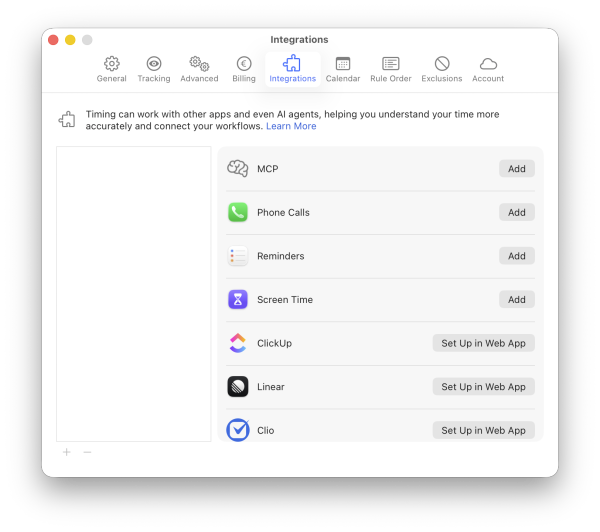
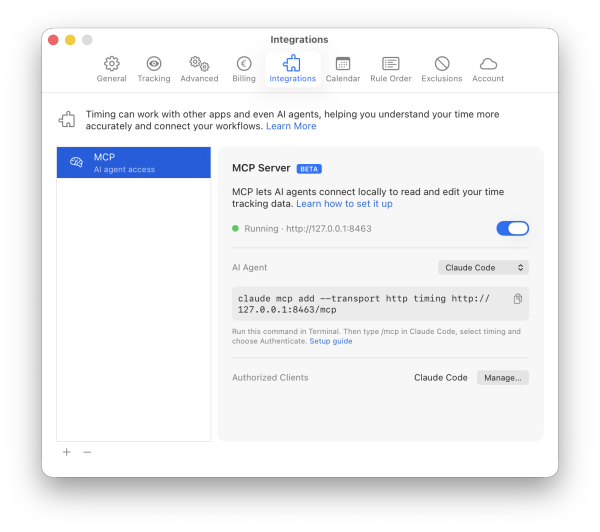
- The MCP server added in Timing: open Settings > Integrations, click MCP in the list of integrations you can add (or its Add button). The server starts right away. You can later open Timing's MCP Server settings to turn it off and on with the Enabled switch, or to choose your AI agent under AI Agent and get its setup steps. The server address is normally
http://127.0.0.1:8463/mcp.
For the web server (ChatGPT, Claude on the web, or any agent that does not run on your Mac):
- A Timing Sync account.
- A Timing Connect subscription.
Either way, you also need an AI agent that supports MCP (see above).
Setup
ChatGPT and Claude on the web connect to the web server. Claude Code, OpenAI Codex and the Claude desktop app can connect to either server, so their sections below have both a Mac app and a web variant.
timing and the web server as timing-web. If you previously added the web server as timing on the command line, rename it: remove it (claude mcp remove timing or codex mcp remove timing) and add it back as timing-web using the web steps below.Claude
The Claude desktop app can connect to the Mac app server (recommended) or the web server. Claude on the web can only use the web server. Pick one:
Claude's custom connectors run through Anthropic's cloud, so they cannot reach the Mac app server on your Mac. The Claude desktop app reaches it through its configuration file instead, with a small bridge tool. This needs Node.js. First make sure the MCP server is added and enabled in Timing (see Prerequisites).
- Open Timing's MCP Server settings and choose Claude Desktop under AI Agent.
- Click Add to Claude Desktop. Timing adds itself to the Claude desktop app's configuration file.
- Quit and reopen the Claude desktop app.
- On first use, your browser opens and Timing shows a separate dialog asking you to allow access. Click Allow.
To add the entry by hand instead, for example if Timing cannot read the configuration file:
- In the Claude desktop app, open Settings > Developer and click Edit Config. This shows the file
claude_desktop_config.jsonin Finder. Open it in a text editor such as TextEdit. - Add the following to that file. If the file already has an
mcpServerssection, add thetimingentry to it:{ "mcpServers": { "timing": { "command": "npx", "args": ["-y", "mcp-remote", "http://127.0.0.1:8463/mcp"] } } } - Save the file, then quit and reopen the Claude desktop app.
Copy Configuration in Timing's MCP Server settings copies the same entry.
http://127.0.0.1:8463/mcp in Claude's Add custom connector dialog. Claude then shows "URL must start with https://", because custom connectors cannot reach your Mac. Use Add to Claude Desktop or the configuration file above instead.- Click Customize on the toolbar, then Connectors.
- In the Connectors column, click + in the top right, then Add custom connector.
- Fill in the form:
- Name:
Timing - Remote MCP Server URL:
https://web.timingapp.com/mcp - Leave the Advanced settings (OAuth Client ID and Secret) empty. They are not needed, because Timing handles client registration automatically.
- Name:
- Click Add.
- In the Connectors column, click Timing.
- Click Connect.
- You will be redirected to the Timing web app. Log in if necessary, then click Authorize. In the Claude desktop app, you will also be prompted to allow the app to open.
- Once authorized, click Timing again in the Connectors column.
- Set Tool permissions to your preference.
Using the Timing MCP Connector in Claude
- Click the + button in the lower left of the "How can I help you today" box.
- Go to Connectors and ensure Timing is enabled.
- Set Tool access to your preference.
Claude Code
Claude Code can connect to the Mac app server (recommended) or the web server. Pick one:
First make sure the MCP server is added and enabled in Timing (see Prerequisites). In Timing's MCP Server settings, choose Claude Code under AI Agent to see a ready-made setup command with a copy button.
- Run
claude mcp add --transport http timing http://127.0.0.1:8463/mcpin your terminal, or paste the command copied from Timing. If Timing shows a different address, use that one. - Run
claude, then type/mcpand press Enter. - Use the arrow keys to navigate to
timingand press Enter. - Use the arrow keys to navigate to
authenticateand press Enter. - Your web browser opens, and Timing shows a separate dialog asking you to allow access (it comes from the Timing tracker app in your menu bar, so it appears even when the main Timing window is closed). Click Allow. There is no website login for the Mac app server.
- Once authorized, close the browser tab as prompted and switch back to your terminal.
If you already use the Timing connector in Claude web or the Claude desktop app, it may also appear in Claude Code automatically. You can check by running claude and typing /mcp to see if timing-web is listed.
- Run
claude mcp add --transport http timing-web https://web.timingapp.com/mcpin your terminal. - Run
claude, then type/mcpand press Enter. - Use the arrow keys to navigate to
timing-weband press Enter. - Use the arrow keys to navigate to
authenticateand press Enter. - Your web browser will open. Log in if necessary, then click Authorize.
- Once authorized, close the browser window as prompted and switch back to your terminal.
The Timing tools will then be available automatically in your Claude Code sessions.
Scope
By default, MCP servers in Claude Code are added to the local scope (current project only). Use the --scope flag to change this. See the MCP installation scopes documentation for more information.
Removal
To remove a server, run claude mcp remove timing (Mac app) or claude mcp remove timing-web (web).
ChatGPT
Setup (Web)
- Go to chatgpt.com.
- Click your name in the lower left, then click Settings.
- Go to Apps, then Advanced settings.
- Enable Developer mode. A Create app button will appear at the top.
- Click Create app and fill in the form:
- Name:
Timing - MCP Server URL:
https://web.timingapp.com/mcp - Authentication: OAuth (this should already be selected)
- Check the box for "I understand and want to continue"
- Name:
- Click Create.
- You will be redirected to the Timing web app. Log in if necessary, then click Authorize.
Setup (Desktop)
It is not currently possible to add MCP apps to ChatGPT desktop directly. Add the Timing MCP app via ChatGPT web, and it will automatically be available in the desktop app.
To confirm the app is available, open ChatGPT desktop and navigate to Settings > Apps. The Timing MCP app should be listed.
Using the Timing MCP App in ChatGPT
- Click the + button in the lower left of the "Ask anything" box.
- Go to More.
- Click Timing to enable it.
OpenAI Codex
Codex can connect to the Mac app server (recommended) or the web server. Pick one:
First make sure the MCP server is added and enabled in Timing (see Prerequisites). In Timing's MCP Server settings, choose Codex under AI Agent to see a ready-made setup command with a copy button.
- Run
codex mcp add timing --url http://127.0.0.1:8463/mcpin your terminal. If Timing shows a different address, use that one. - Your web browser opens, and Timing shows a separate dialog asking you to allow access (it comes from the Timing tracker app in your menu bar, so it appears even when the main Timing window is closed). Click Allow. There is no website login for the Mac app server.
- Once authorized, close the browser tab as prompted and switch back to your terminal.
- Run
codex mcp add timing-web --url https://web.timingapp.com/mcpin your terminal. - Your web browser will open. Log in if necessary, then click Authorize.
- Once authorized, close the browser window as prompted and switch back to your terminal.
codex mcp login timing (Mac app server) or codex mcp login timing-web (web server) to authorize it manually.The Timing tools will then be available automatically in your Codex sessions.
Per-Project Configuration
Codex does not currently support adding an MCP server to a specific project via the CLI, but you can do so by manually editing the config files:
- Set up and authenticate the server as described above.
- Open
~/.codex/config.tomlin a text editor. Find the[mcp_servers.timing]section (or[mcp_servers.timing-web]for the web server), copy it, and remove it from the file. - In your project's root folder, open (or create)
.codex/config.toml. - Paste the copied section into this file and save.
The server will now only be available in that project.
Removal
To remove a server, run codex mcp remove timing (Mac app) or codex mcp remove timing-web (web).
Your First Session
With the Mac app server, there is nothing else to install. Timing ships the instructions your agent needs and serves them together with your data. Every session starts with a call to the start_here tool, which the server requires before any other tool except the two status tools, and again after your day boundary rolls over. It gives your agent your time zone, your day boundary, your teams, and your notes, so its answers use the correct dates and conventions. Your agent does this on its own.
On first use, your agent offers a short setup of about three minutes: a few questions about your work, your projects, and your conventions. The answers go into a context file called AGENTS.md that Timing keeps for the agent, and every later session reads it. We recommend the setup. Without it, answers rest on the raw data and on the agent's own guesses about your conventions. You can still skip it, and run it later at any time by asking.
If you keep such notes in your own files, for example in a repository, tell your agent. It then stores only a pointer in Timing and reads your notes with its own file tools instead.
Available Tools
Mac app server
The Mac app server's tools work directly with the data on your Mac. They cover your auto-tracked activities (summaries, timelines, search, and assigning them to projects), projects, auto-categorization rules, manual time entries and timers, and the context files your agent keeps its notes in (like AGENTS.md). There is no need to memorize them: when your agent connects, it starts by calling the start_here tool, which orients it and lists everything that is available, including Timing's own read-only instruction files.
Web server
The web server exposes the tools below. They accept the same parameters and return the same responses as their equivalent Web API endpoints.
| Tool | Description |
|---|---|
get_activity_hierarchy |
Returns a hierarchical view of your tracked activities, grouped by project and application. Supports filtering by date range, project, and more. |
list_projects |
Lists all projects accessible to you, along with their associated teams. |
show_project |
Shows details of a specific project, including its parents and children. |
create_project |
Creates a new project with the specified attributes. |
update_project |
Updates an existing project. |
delete_project |
Deletes a project and all of its children. |
list_time_entries |
Returns time entries matching the given filters, along with the projects and teams they reference. |
show_time_entry |
Shows details of a specific time entry. |
show_latest_time_entry |
Shows the most recent time entry. |
show_running_timer |
Shows the currently running timer, if any. |
create_time_entry |
Creates a new time entry. |
update_time_entry |
Updates an existing time entry. |
delete_time_entry |
Deletes a time entry. |
batch_update_time_entries |
Updates multiple time entries in a single call. |
start_timer |
Starts a new timer. |
stop_timer |
Stops the currently running timer. |
Privacy & Security
When you connect an AI agent to Timing via MCP, the AI can access your time-tracking data within the scope of your conversation. Here's what to keep in mind:
- OAuth authorization. You must explicitly authorize each AI agent before it can access your data, and you can revoke that access at any time. For the web server, use the API Keys section of the Timing web app. For the Mac app server, open Timing's MCP Server settings and click Manage next to Authorized Clients. Removing the MCP integration from Timing turns the server off, but keeps the authorized clients. Use Revoke to withdraw a client's access.
- Local connections only. The Mac app server accepts connections from your own Mac only, and you must approve each client in Timing before it gets access.
- Read and write access. Tools that modify data are marked as such. Depending on your AI agent's settings, you may be asked to approve these actions before they run. The Mac app server also tells your agent to confirm its first changes of a session with you, and to show you a dry run before bulk changes such as assigning activities or adding and removing rules. The dry run states how many activities are affected and for how long, and the confirmation says whether the result still matched it. After that, it relies on your AI agent's own approval prompt. If you set your agent to allow all tools automatically, there is no prompt.
- Data processing. The AI provider (OpenAI, Anthropic, etc.) processes your data according to its own privacy policy. Timing does not share your data with any additional third parties beyond the AI provider you choose to connect.
Optional: let read-only tools run without approval prompts
The server marks every tool that only reads data as read-only, so you can let your agent call those without a prompt while the tools that change data still ask. In Claude Code, add the read-only tools to the allow list in ~/.claude/settings.json (all projects) or in .claude/settings.json inside a project. This is the list for the Mac app server:
{
  "permissions": {
    "allow": [
      "mcp__timing__start_here",
      "mcp__timing__settings_overview",
      "mcp__timing__health_check",
      "mcp__timing__files_list",
      "mcp__timing__file_read",
      "mcp__timing__activity_hierarchy",
      "mcp__timing__activity_timeline",
      "mcp__timing__activity_slice",
      "mcp__timing__activity_stats_total_time",
      "mcp__timing__activity_stats_top_n",
      "mcp__timing__projects_list",
      "mcp__timing__project_get",
      "mcp__timing__time_entries_list",
      "mcp__timing__time_entry_stats_total_time",
      "mcp__timing__time_entry_stats_top_n"
    ]
  }
}
For the web server, use the timing-web name and its read-only tools instead:
{
  "permissions": {
    "allow": [
      "mcp__timing-web__get_activity_hierarchy",
      "mcp__timing-web__list_projects",
      "mcp__timing-web__show_project",
      "mcp__timing-web__list_time_entries",
      "mcp__timing-web__show_time_entry",
      "mcp__timing-web__show_latest_time_entry",
      "mcp__timing-web__show_running_timer"
    ]
  }
}
Claude on the web and in the desktop app has the same choice per tool under Tool permissions in the connector's settings. OpenAI Codex has no per-tool setting for MCP servers. Its approval policy applies to all tools.
Troubleshooting
Claude says "URL must start with https://"
Claude shows this when you enter the Mac app server address, http://127.0.0.1:8463/mcp, in its Add custom connector dialog. Custom connectors connect from Anthropic's cloud and cannot reach your Mac. Click Add to Claude Desktop in Timing's MCP Server settings instead, or use the web server address in the connector. See the Claude setup.
Authorization fails or loops
When connecting to the web server, make sure you are logged in to the Timing web app with an active Timing Connect subscription before clicking Authorize.
If the authorization keeps looping, try clearing your browser cookies for web.timingapp.com and try again.
Cannot reach the Mac app server
If Claude Code or Codex cannot connect to http://127.0.0.1:8463/mcp, open Timing's MCP Server settings and read the status line:
- Off: Turn on the Enabled switch.
- Enabled but helper offline: The Timing tracker app, which runs in your menu bar and hosts the server, is not running. Click Start next to the status.
- Could not start: Address already in use: Another program uses port 8463. Quit that program, or contact us for a different port.
- Running: The server works. Choose Other under AI Agent to see the server address, compare it with the address in your client's configuration, and re-add the server if they differ.
You can also open http://127.0.0.1:8463/health in your browser. If it answers, the server is running and the problem is in the client configuration.
Changes are refused with a license notice
If tool results say that your Timing license has expired, the Mac app server is read-only and limited to the data your license covers. Renew Timing Connect to write again and to see newer data.
Codex does not re-authenticate after you revoke access
After you revoke a client, OpenAI Codex may keep showing the old tools and report an "Auth required" error instead of starting a new login. Re-authenticate manually by running codex mcp login timing for the Mac app server, or codex mcp login timing-web for the web server. Claude Code prompts you to re-authenticate on its own.
Tools are not showing up
Some AI agents require you to explicitly enable the Timing integration for each conversation. Check the setup instructions for your specific AI agent above.
Need help?
If you run into any issues, please contact us and we'll be happy to help.