
Exclusions
Timing's Exclusions feature lets you prevent specific app activities from being tracked on your Mac. It's in Settings > Exclusions.
Simply specify rules for the activities you do not want to be tracked, and Timing will ignore them in the future. Activities it recorded earlier stay as they are.
The rule format is the same as for project and filter rules, so the same documentation applies for the exclusion list.
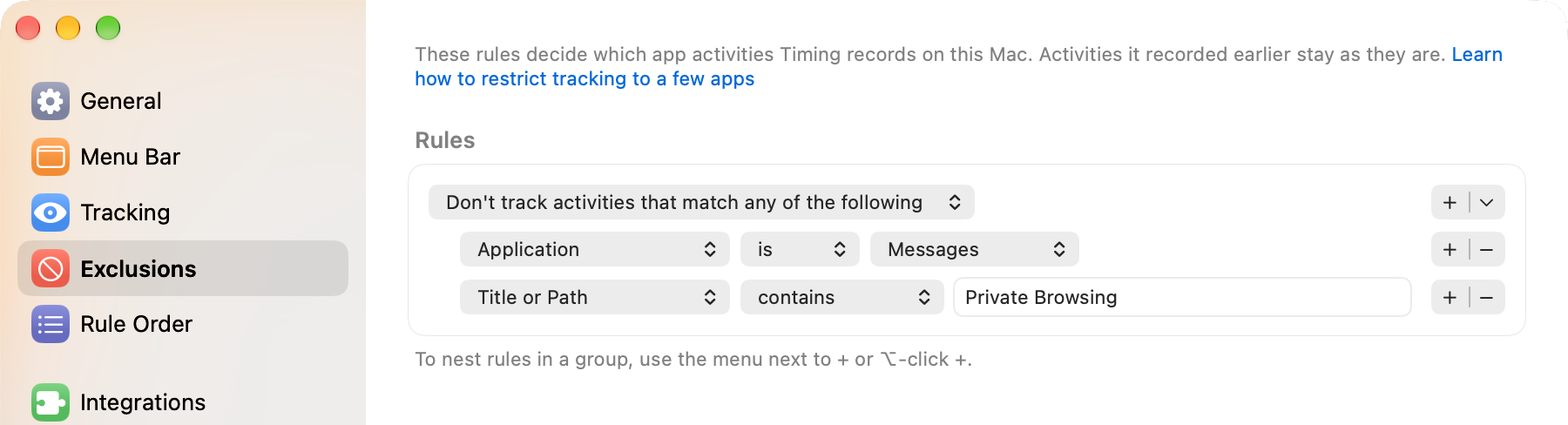
The menu at the top of the rules decides what they do:
- Don't track activities that match any of the following excludes everything that matches at least one rule.
- Don't track activities that match all of the following excludes only what matches every rule.
- Track only activities that match any of the following turns the list around: Timing tracks only what matches, and nothing else.
To nest rules in a group, use the menu next to + or ⌥-click +.
Table of Contents
Excluding incognito web browsing activity
If you are browsing in a private or incognito window of Safari, Google Chrome, Brave, Vivaldi, Comet, Firefox or Zen, Timing will discard that window's title and URL and replace them with just a title of "Private".
So if you'd like to prevent time spent in incognito windows from being tracked at all, simply add a rule like "Title is equal to 'Private'" to the exclusion list.
Please note that Timing can occasionally miss a private window, for example when the browser uses a language Timing doesn't know yet, or after a browser update changes how these windows are labeled.
If you'd rather have Timing track your incognito browser windows like any other window, please click this link. To revert the setting, click this link instead.
An improperly configured exclusion list can cause Timing to not track any activities whatsoever!
Examples
Excluding activities with a specific keyword

Excluding specific apps

This example excludes Mail and Safari from being tracked.
Tracking only specific apps

This example tracks only Mail and Safari, using "Track only activities that match any of the following". Everything else is excluded.
Preventing tracking on a particular device
You can use the "Device is" rule to prevent tracking on a particular device. This is useful if you have a work and a private Mac, for example.

Disabling automatic tracking altogether
This is useful if you only want to manually track your activities using our Time Entries feature.
