
-
Die besten E‑Mail‑Apps für den Mac: Top‑10‑Clients im Test
Bild: Erstellt mit Dall-EEine Mac-E-Mail-App (oder E-Mail-Client) ist eine Software, mit der Sie E-Mails aus einem oder mehreren Konten lesen, schreiben und verwalten können. Anders als Webmail-Dienste wie Gmail.com läuft eine dedizierte E-Mail-App nativ auf Ihrem Mac – mit schnellerer Performance, Offline-Zugriff und tieferer Integration in macOS-Funktionen wie Spotlight, Kontakte und Kalender.
Erfüllt Ihre aktuelle E-Mail-App Ihre Anforderungen? Steigert sie Ihre Produktivität, optimiert sie Ihre Kommunikation und macht Ihren Arbeitsablauf schneller und effizienter? Oder behindert sie diese Prozesse und frustriert Ihren Fortschritt? Die richtige E-Mail-App in Ihrem Tool-Stack ist entscheidend für den Geschäftserfolg. Doch bei all den verfügbaren Optionen – welche sind die besten E-Mail-Apps für den Mac in 2026?
Hier stellen wir die Top 10 E-Mail-Clients für den Mac vor, erläutern ihre Besonderheiten und listen ihre Vor- und Nachteile auf. Ob Ihre Anforderungen relativ überschaubar sind oder Sie umfassende Ansprüche an Ihr E-Mail-Tool stellen – unsere Liste hat für jeden etwas dabei.
-
The 15 Best Mac Productivity Apps in 2026
Image: Generated with Dall-EAs a Mac user, you’re likely tech-savvy, quality-conscious, and expect high performance from your tools. With increasing demands for efficiency, remote work, and task management, finding the best productivity apps for Mac is essential to optimizing your workflow and making the most of macOS’s seamless integration.
Mac apps aren’t just about functionality—they are designed to feel native, leveraging Apple’s robust system capabilities to deliver unmatched stability, performance, and a refined user experience. Alongside these powerful apps, mastering Mac keyboard shortcuts can further boost your efficiency, helping you execute tasks swiftly and navigate your Mac with ease.
The growing ecosystem of Mac productivity apps makes it easier than ever to build a personalized tech stack that supercharges your workflow. Innovative tools like Timing’s automatic call tracking and Screen Time tracking across devices, or BetterTouchTool’s Mac window management, allow you to customize your setup, making your workday smoother and more intuitive.
To help you navigate the best options, here’s our curated list of the best productivity apps for Mac in 2026 that will elevate your efficiency and help you work smarter.
-
Best Habit Tracker Apps for iPhone and Mac (2026)
Image by: ChatGPTShifting the trajectory of our lives from stagnation to success often depends on one, seemingly simple, thing: pursuing the small daily habits that help us achieve our goals. This work can feel monotonous at times, even a little tedious, and as a result, difficult to remember and prioritize. But the impact of dismantling our negative habits and nurturing those that are positive can be enormous. Fortunately, we don’t have to do it alone. In 2026, there are a number of excellent habit tracker apps for iPhone and Mac we can use to help us along the way.
The right habit tracking app provides structure, motivation and accountability, ensuring you build consistency over time. Whether you’re trying to establish a morning routine, maintain client relationships or simply remember to step away from your desk, a strong habit tracker Mac app makes it easier to show up for yourself every day.
We’ve reviewed the leading habit trackers to help you find one that best suits your needs. Our list includes apps that can be used across both your Mac and iPhone, as well as a handful that are exclusively for one or the other.
Let’s dive in.
-
The Best Mac AI Meeting Note Takers in 2026

Image generated by Nano Banana ProTaking your own notes during a meeting has been a thing of the past for some time. But so is having to sift through a full transcript of every word that was said. In 2026, AI meeting note takers help freelancers, hybrid teams and remote workers accurately capture calls and meetings, distilling only the most important information into useful, actionable insights. With the right solution in your tool stack, you can stay fully present in your meetings as they happen, and ensure you know exactly what is expected of you once they’re done.
Here, we review some of the best AI meeting assistants for Mac on the market. We’ve divided our list into three categories on Mac-native, cross-platform and built-in solutions. And within each category, we explore both the key advantages and disadvantages of each solution. A comprehensive table has also been included so that you can compare them easily.
Let’s get started.
-
Why Do It Yourself When Your Mac Can? Mac Automation from Basics to AI
Image generated by Nano Banana ProRoutine and repetitive tasks are inevitable — we all have to complete them, often several times a day. Copying the same phrase into emails. Hunting for our most-used folders and documents. Sifting through desktop clutter. Rearranging windows. These activities sap our time, slow our productivity, and draw our attention away from the tasks that really matter. Fortunately, many of them can be automated through a host of Mac automation tools.
Mac automation solutions have a bit of a reputation for being overly complex and technical, better suited for coders and power users than everyday knowledge workers. But times have changed. Today, these tools range from easy-to-install apps that offer daily wins to powerful AI agents that can operate your Mac for you. It’s a ladder that anyone can climb.
To show you how this works, we’ve divided our list of the best Mac automation tools into five levels that increase in complexity and impact. The apps in every level take a little more time to set up, but reward you with greater functionality:
- Level 1: Quick wins with low effort and instant payoff
- Level 2: Power launchers and built-in automation
- Level 3: Dedicated “do this one job for me” tools
- Level 4: Custom macros, system scripting and full workflow orchestration
- Level 5: AI or “have my computer just do it for me”
You don’t need to progress through the different levels if they don’t suit your purposes. Simply select the apps that meet your needs and stop at the level that feels appropriate to your skill set. Of course, if either changes, you can always dive back in and layer in more automation as your needs grow.
Start with Timing
Before you install anything, start with an automatic time tracking solution like Timing. Run it for a week before you install your chosen tools and keep it running after you install them, too. When you conduct a time audit, Timing will be able to show you how much time you’re saving as a result of using them, and whether the setup effort was worth it.
And with that, let’s break down each level and the tools within them.
-
2026 New Year Resolutions Ideas: Build on 2025’s Learnings

Image generated by Dall-E
As 2025 winds down, many of us are looking for new year resolutions ideas that actually stick. The goal isn’t to overhaul your life overnight, but to choose realistic, trackable behaviors that improve focus, energy, and well‑being. If you’ve been searching for New Year’s resolutions ideas that support better work and life balance, you’re in the right place.
Looking back, many of us struggled with overstuffed goals, inconsistent routines, and vague accountability. In 2026, we’ll fix that with simpler productivity resolutions, stronger feedback loops, and smarter time management resolutions that respect your capacity.
At Timing, we’ve been exploring ways to work smarter, reduce stress, and increase happiness in our day‑to‑day lives. Building on the lessons of 2025, we’ve compiled 21 practical new year resolutions ideas for realistic resolutions for 2026 that you can measure, adjust, and sustain—especially useful for freelancers, consultants, and small teams with ambitious work goals for 2026.
-
17 Mac-Systemeinstellungen für einen personalisierten Mac
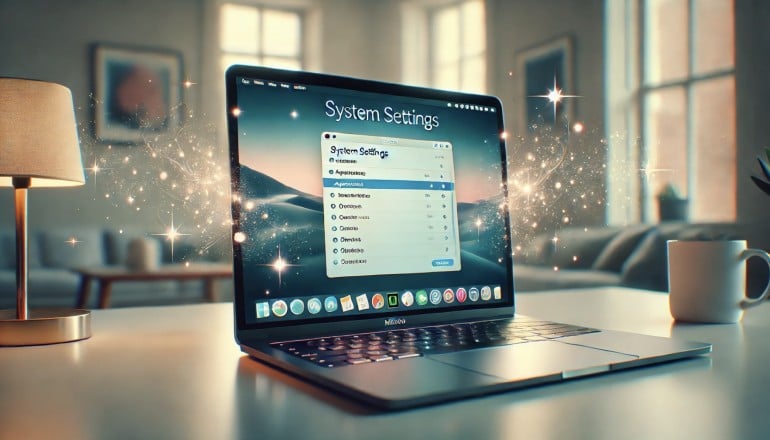
Bild erstellt mit Dall‑E
Ihr Mac ist mehr als nur ein Computer – er ist Ihr digitales Zuhause. Arbeitsplatz, Kreativstudio und Produktivitätszentrale in einem. Das Erlebnis ab Werk ist beeindruckend, doch durch das Anpassen der Mac-Systemeinstellungen verwandeln Sie ihn in ein präzise abgestimmtes Werkzeug, das Ihre Bedürfnisse vorausahnt und so arbeitet, wie Sie es tun.
Die Systemeinstellungen sind das Kontrollzentrum Ihres Macs. Hier konfigurieren Sie praktisch jeden Aspekt Ihres Rechners, sodass er sich vertraut und intuitiv anfühlt.
Je nach persönlichen Vorlieben – und je nach Art Ihrer Arbeit – unterscheiden sich Ihre Bedürfnisse. Vielleicht hassen Sie Unterbrechungen durch Mitteilungen, Töne und Pings. Oder Ihnen gefällt die Voreinstellung des Trackpads nicht – scrollt es in die „falsche“ Richtung? Wenn Sie regelmäßig Fotos bearbeiten, achten Sie besonders auf die Displayhelligkeit. All das lässt sich in den Systemeinstellungen an Ihre Wünsche anpassen.
Hier stellen wir 17 Einstellungen vor, mit denen Sie Ihren Mac personalisieren. Nehmen Sie sich die Zeit für diese Änderungen – Sie werden effizienter und produktiver arbeiten.
-
Warum lasse ich mich so leicht ablenken? 8 Tipps für mehr Fokus
 Bild: Nubelson Fernandes
Kurze Antwort: Sie lassen sich leicht ablenken, weil interne Faktoren (Stress, Müdigkeit, Hunger, psychische Erkrankungen) oder externe Faktoren (Smartphone-Benachrichtigungen, Unterbrechungen am Arbeitsplatz, Hintergrundgeräusche) Ihren Fokus stören. Studien zeigen: Wir verbringen 47% unserer Zeit gedanklich abgelenkt und wechseln im Schnitt alle 3 Minuten die Aufgabe. Die Lösung: Identifizieren Sie Ihre persönlichen Ablenkungsquellen und setzen Sie gezielte Strategien ein – vom Flugmodus über gebündeltes E-Mail-Prüfen und Website-Blocker bis zur automatischen Zeiterfassung.
Sie öffnen Ihren Laptop, setzen Ihre Prioritäten und starten in den Arbeitstag. Alles läuft rund, und Sie haben das Gefühl, dass ein produktiver Tag vor Ihnen liegt. Dann meldet sich Ihr Smartphone mit einer Nachricht. Vier E‑Mails treffen in kurzer Folge ein. Und Sie werfen „nur kurz“ einen Blick auf Ihren Social‑Media‑Feed. Ehe Sie sich versehen, ist der Tag vorbei. Und mit nur wenigen abgehakten Punkten auf Ihrer To‑do‑Liste fragen Sie sich: „Warum lasse ich mich so leicht ablenken?“
Sie sind nicht allein, wenn Sie sich ab und zu ablenken lassen. Laut einer Harvard‑Studie verbringen Menschen im Schnitt 47% ihrer Zeit damit, über etwas anderes nachzudenken. Und im Büro wird eine typische Bürokraft alle drei Minuten unterbrochen oder wechselt die Aufgabe. Da es nach einer Ablenkung über 23 Minuten dauern kann, wieder in den Fokus zu kommen, führt das zu zerrissenen Arbeitstagen.
Die Folgen sind weitreichend: Ablenkungen erschweren es, fokussiert zu bleiben, in Deep Work zu kommen und produktiv zu sein. Wenn Sie nichts gegen Ihre Ablenkungen unternehmen, leidet am Ende Ihr Erfolg.
Sehen wir uns an, warum Sie sich leicht ablenken lassen – und welche Tipps helfen, Ablenkungen zu begrenzen.
-
2025 Year in Review: Lessons Learned for a Better 2026

Image generated by ChatGPT
As we close out 2025, it’s time to reflect on the lessons this year brought us – in productivity, work trends, and how Timing supported our users. A year in review reflects how you spent your time, the achievements, challenges, milestones, and everything in between.
It’s similar to your annual performance review minus the heightened dose of anxiety. Instead, it gives you the space to celebrate your success, learn from challenges, and check in with yourself.
After all, you’re not the same person with the same aspirations your whole life. Your goals change as you grow personally and professionally, which is why it’s important to determine if you’re still on the right path.
This guide will walk you through completing a meaningful year in review and equip you with insights and tools for a more productive and fulfilling year ahead. Read More…
-
Mac-Trackpad-Gesten: Schneller und flüssiger arbeiten
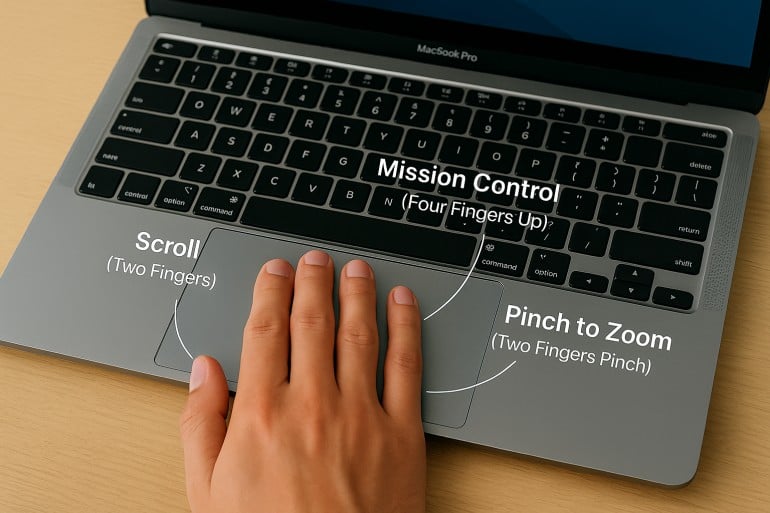 Bild erstellt von ChatGPT
Kurze Antwort: Mit Mac‑Trackpad‑Gesten navigieren, multitasken und steuern Sie Ihren Mac durch einfaches Wischen, Tippen und Zusammenziehen. Wichtige Gesten: Zwei‑Finger‑Scrollen und Rechtsklick, Pinch‑to‑Zoom, Vier‑Finger‑Wisch nach oben für Mission Control und Vier‑Finger‑Wisch nach links/rechts zum Wechseln zwischen Spaces. Alle Gesten lassen sich unter Systemeinstellungen > Trackpad anpassen.
Nutzen Sie Mac‑Trackpad‑Gesten bereits optimal? Neben der Navigation gibt es über ein Dutzend integrierte und benutzerdefinierte Multi‑Touch‑Gesten, die Ihren Workflow und Ihr Surferlebnis intuitiver, effizienter und persönlicher machen.
Ein gezieltes Tippen oder Wischen kann Aufgaben sofort ausführen und Ihnen die Navigation durch Menüs, das Minimieren von Apps und mehrstufige Befehle ersparen – und damit Zeit sparen.
In diesem Leitfaden finden Sie eine umfassende Einführung in Trackpad‑Gesten für den Mac – inklusive eines Abschnitts zu Magic‑Mouse‑Gesten. Von den Grundlagen bis zu fortgeschrittenen Tipps: Erfahren Sie, wie Sie Befehle an Ihren Workflow anpassen.
Read More…
