
The Best Mac AI Meeting Note Takers in 2026

Image generated by Nano Banana Pro
Taking your own notes during a meeting has been a thing of the past for some time. But so is having to sift through a full transcript of every word that was said. In 2026, AI meeting note takers help freelancers, hybrid teams and remote workers accurately capture calls and meetings, distilling only the most important information into useful, actionable insights. With the right solution in your tool stack, you can stay fully present in your meetings as they happen, and ensure you know exactly what is expected of you once they’re done.
Here, we review some of the best AI meeting assistants for Mac on the market. We’ve divided our list into three categories on Mac-native, cross-platform and built-in solutions. And within each category, we explore both the key advantages and disadvantages of each solution. A comprehensive table has also been included so that you can compare them easily.
Let’s get started.
Table of Contents
TOC
What is an AI Meeting Note Taker?
First things first, let’s define this particular piece of software. An AI meeting note taker is a tool that uses AI to automatically record, transcribe, summarize and analyze your meetings in real time. It listens to your conversations, converts speech to text, and captures key discussion points, action items and decisions. Unlike a note-taking app, which helps you make your own notes, an AI note taker takes notes on your behalf.
Different AI note takers integrate into your workflow in different ways. Some join your meeting as a bot, some operate locally on your device, and some are already incorporated into popular conferencing platforms like Zoom, Google Meet and Microsoft Teams.
Whatever its approach, the greatest value of your chosen AI meeting assistant should be the time it saves. Instead of sifting through your own notes afterwards, worried that you might have missed something important, or reading through a full transcript looking for the deliverable you agreed to, your note taker should offer a reliable summary of what was discussed and decided. With this information in hand, you can move on from your meeting and get back into the work that really matters.
Looking for more information on useful AI apps? The Best AI Apps for Mac: 21 AI Tools for Productivity and Creativity
What to Consider When Choosing an AI Meeting Assistant for Mac

Image credit: Karola G
Like everything in the ever-expanding world of AI, there’s no shortage of AI meeting note takers available to you. And sifting through your options can feel overwhelming and exhausting. As you go about your search, remember to keep the following criteria in mind. They’re designed to serve as a useful filter:
- macOS compatibility: Look for tools built with Apple users in mind. The best options are native macOS apps that integrate well across Apple’s ecosystem, focus on privacy and offer reliable performance. Native apps typically run more smoothly and consume fewer resources than web-based alternatives.
- AI summary quality: Your chosen tool has to be reliable. If you can’t trust the information it delivers, it’s only going to frustrate your note-taking process. Look for tools that can organize topics carefully, distinguish between important decisions and casual chit-chat, and accurately identify action items. The best way to evaluate this is by trying the free trials of the tools you’re most interested in.
- Privacy: Privacy is a tricky issue in the world of AI note takers. Even tools that claim to adopt a “privacy-first” approach often still send your audio to the cloud for transcription and AI processing. If you work with sensitive information or in a regulated industry, dig deeper into your tool’s data handling practices, storage policies and compliance certifications.
- Meeting platform support: Not all note takers work with every platform. Check that your chosen tool supports the video conferencing and communication apps you use most. If you work as a part of a multiplatform team, you might need a solution that offers broad compatibility.
- Live vs. post-meeting transcription: Some tools provide real-time transcriptions during the meeting itself, while others process everything after the call ends. Live transcription is great if you need to follow along or reference something that was just mentioned. But post-meeting processing sometimes yields more accurate results since the AI has more time to run its analysis. Decide which approach is more important to you.
- Integrations: Consider how the note taker you’re considering fits into your broader workflow. Does it sync with your project management tools like Notion or Asana? Can it push action items directly to Slack channels? Does it integrate with your CRM to automatically log client calls? The better it integrates, the less you’ll be caught up in time-consuming copy and pasting.
- Costs and limits: AI meeting assistants range from free plans with basic features to premium monthly subscriptions. Pay attention to limitations like transcription minutes, number of meetings and AI summary quotas. And be sure to calculate the cost against how many meetings you typically attend. A tool with generous limits might offer better value even if it’s a bit more of an investment.
Finally, don’t forget that your chosen solution should save you time, first and foremost. And the only way to know exactly how much you’re saving is by using an automatic time tracking solution like Timing. Conduct a time audit by running Timing for a week before you install your chosen app. Then, compare these results with results you see after a week of using it. You should notice a marked difference in the follow-up tasks you have to do after your meetings. We’ll dive into Timing in a bit more detail towards the end of this piece.
Best AI Meeting Note Takers for Mac (2026)
Right, let’s take a look at the best Mac AI meeting assistants. We’ve divided our list into three categories:
- Category A: These Mac-native apps are for devoted Apple users
- Category B: These cross-platform solutions are great all-round apps
- Category C: These AI note-takers come built into well-known platforms
Category A: Mac-native
While some of these apps are truly Mac native, others are web apps wrapped in a Mac-friendly shell. But since their Mac user experience is so impressive, they’ve earned their place on our list.
Granola
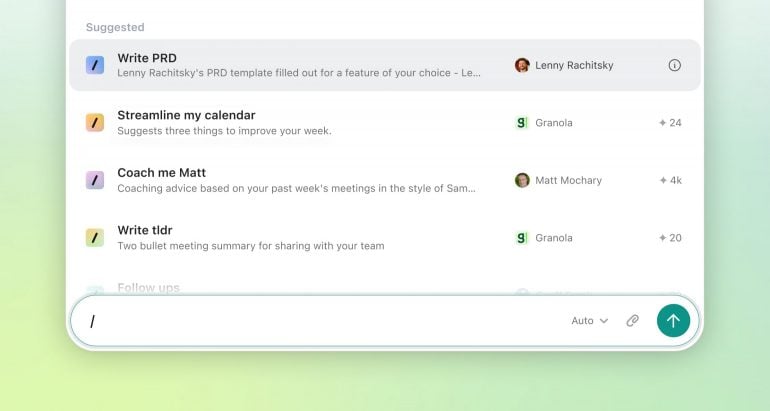
Image credit: Granola
If fast, fuss-free note-taking is what you’re after, Granola is an excellent place to start. It operates directly from your Mac’s menu bar, providing AI-powered meeting summaries and useful high-level overviews. Its accurate, real-time transcriptions are easy to supplement with your own notes. And you can use its built-in AI chat to ask questions about meetings or generate follow-up emails. Granola doesn’t join as a meeting bot, which helps your calls feel seamless and unobtrusive. It also has a minimal and Mac-friendly UI. While Granola offers a free plan with limited meeting history, this tier doesn’t integrate with platforms like Attio, Notion and Zapier. For greater functionality, you’ll need to opt for a paid plan.
Price: Free plan; paid plans from $14/user/mo. View Granola’s pricing structure here.
Jamie
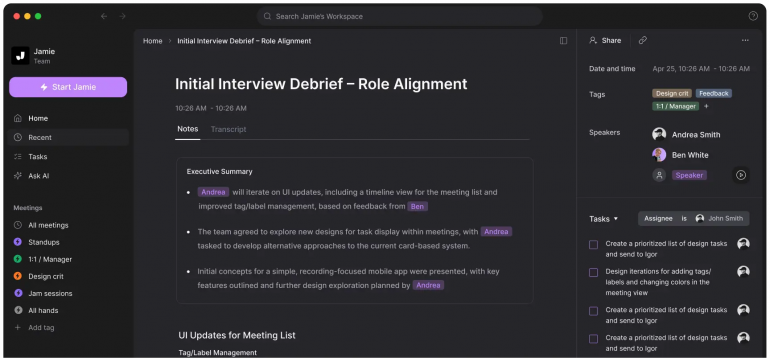
Image credit: Jamie
Jamie doesn’t deploy a bot into your calls and captures meeting audio locally. This means that it’s both seamless and unobtrusive. It also offers a privacy-focused option if you’re looking for discreet note-taking. While its transcriptions and AI summaries are processed in the cloud, its servers are fully GDPR compliant (Jame is based in Europe). Once everything is complete and your transcript is ready, all audio files are permanently deleted. Jamie generates structured summaries with identified action items and decisions, making it easy to follow up once your call is over. However, be aware that you’ll have to wait five to 10 minutes for Jamie to process these summaries after your meeting concludes.
Price: Free plan; paid plans from €25/mo. View Jamie’s pricing structure here.
Alter
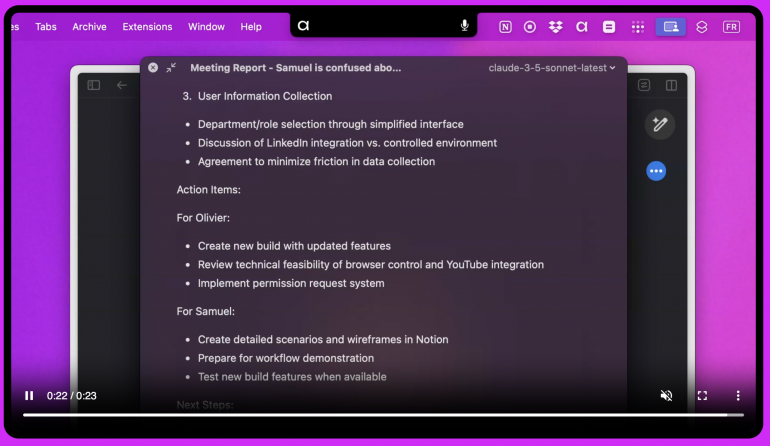
Image credit: Alter
Alter offers an excellent privacy-first solution. It’s capable of processing all recordings and transcripts locally (transcripts are strictly 100% on-device by default), while also providing optional cloud enhancements. Alter is quick and easy to set up, automatically detects meetings, and can trigger workflow automations before and after your calls. It’s an exceptional Mac-native solution, but it is also only available for Mac. If you sometimes use other platforms, or if your colleagues do, you might want to explore an alternative. In addition, Alter is positioned as a general-purpose AI assistant for your Mac, it also has a large feature set that goes beyond taking meeting notes.
Price: Free plan; paid plans from $240/year. View Alter’s pricing structure here.
MacWhisper
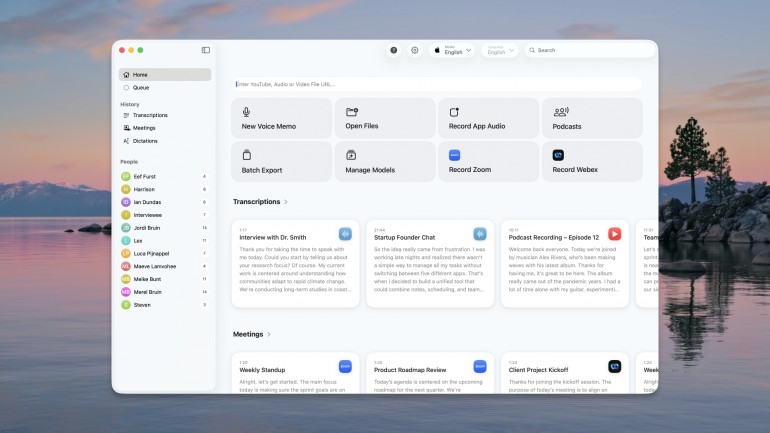
Image: MacWhisper
Like Alter, MacWhisper also processes transcriptions on your device using OpenAI’s Whisper technology. For local Whisper models, this ensures sensitive audio never leaves your machine. MacWhisper Pro, however, allows you to use external Whisper APIs, which do send audio to the cloud. MacWhisper delivers highly accurate transcriptions across over 100 languages with no ongoing subscription costs. It can also spot when a call starts in Zoom, Teams, Webex, Slack, Discord and around a dozen other apps, then record it straight from your Mac’s audio without a bot ever joining. Two caveats are worth knowing: the detection prompts you with a notification rather than recording hands-free (and that prompt disappears after about 10 seconds), and the feature is still in beta, so MacWhisper’s own documentation suggests recording critical meetings manually. It’s also missing from the Mac App Store edition, so you’ll need the direct download. MacWhisper does now label speakers automatically in Pro, though for meeting recordings specifically it currently treats everyone as a single speaker, so you’ll still be separating participants by hand.
Price: Free plan; Pro is a one-time purchase from €64. View MacWhisper’s pricing structure here.
Category B: Cross-Platform Leaders
This category features some of the best all-round AI meeting note takers. They’re exceptionally useful, popular and work well on Mac.
Fathom
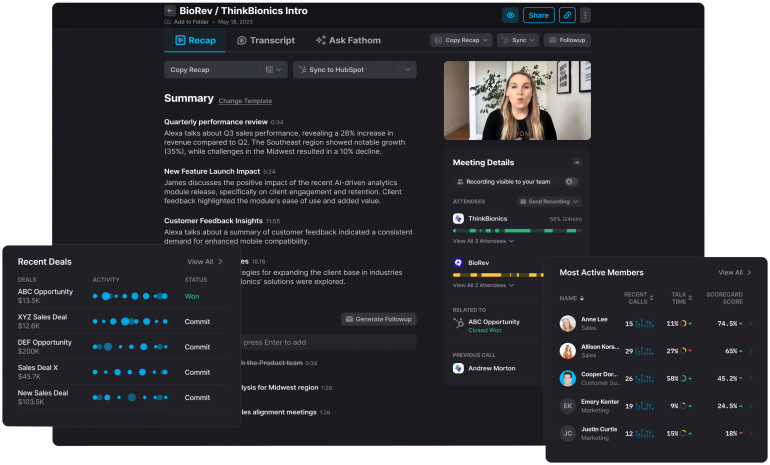
Image credit: Fathom
Fathom ranks as one of the most installed AI note takers on the market and integrates especially well with Zoom. It’s loved for the highly accurate summaries it delivers just 30 seconds after you wrap up your meetings and also for its generous free plans. Without subscribing, you’ll have access to unlimited recordings and transcriptions, and storage without time restrictions. Fathom also integrates well with major CRM systems, streamlining post-call workflows for sales professionals and customer success teams. Fathom does join your meetings as a visible bot participant, which can feel a little awkward and intrusive for some. But it integrates slightly better on Zoom and bot-free participation could be on its way soon.
Price: Free plan; paid plans from $14/user/mo. View Fathom’s pricing structure here.
Otter.ai
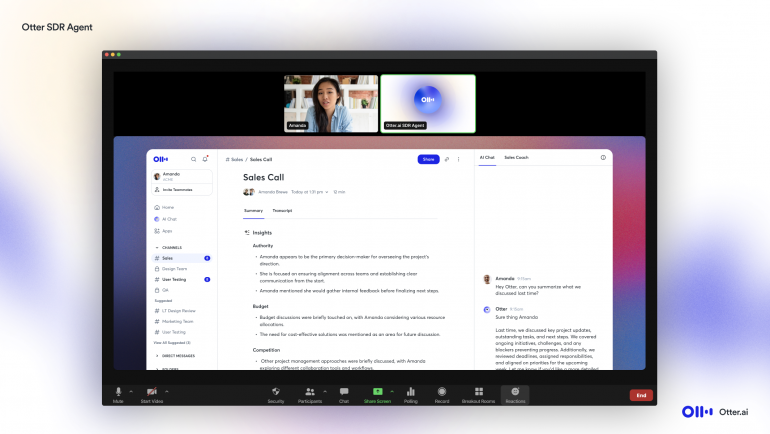
Image credit: Otter
Otter provides real-time transcription with automatic note-taking across Zoom, Google Meet and Microsoft Teams. Its transcripts are accurate and reliable, and it’s especially loved by educational institutions and teams who work together. Its excellent collaboration features include shared highlighting, commenting and searchable conversation libraries. And its AI meeting agent automatically joins scheduled meetings to capture discussions without you having to intervene manually. Be aware, however, that the free tier restricts you to 300 monthly minutes with a 30-minute cap per conversation. If you’re likely to need more time — both per meeting and per month — it’s worth investing in a paid tier.
Price: Free plan; paid plans from $8.33/user/mo. View Otter’s pricing structure here.
Fireflies.ai
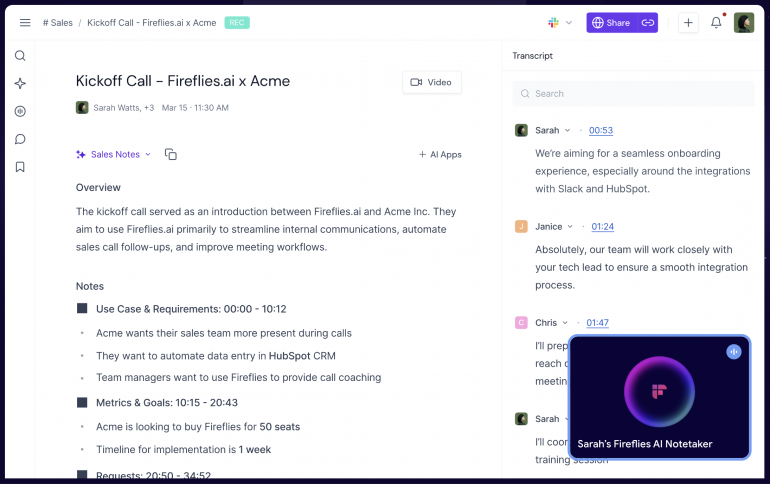
Image credit: Fireflies
Fireflies is probably best known for its extensive integration ecosystem. It integrates seamlessly with over 90 software solutions, including Salesforce, HubSpot, Slack, Notion and Asana. Fireflies automates CRM workflows by logging meeting transcripts, generating tasks from action items, and syncing insights directly to sales records without you having to manually enter data. As you might imagine, it’s especially loved by sales and revenue teams looking for sales efficiency and deal tracking. Fireflies does join meetings as a visible bot, however, and even requires the host to admit it from the waiting room, which some find a little disruptive.
Price: Free plan; paid plans from $10/user/mo. View Fireflies’ pricing structure here.
tl;dv
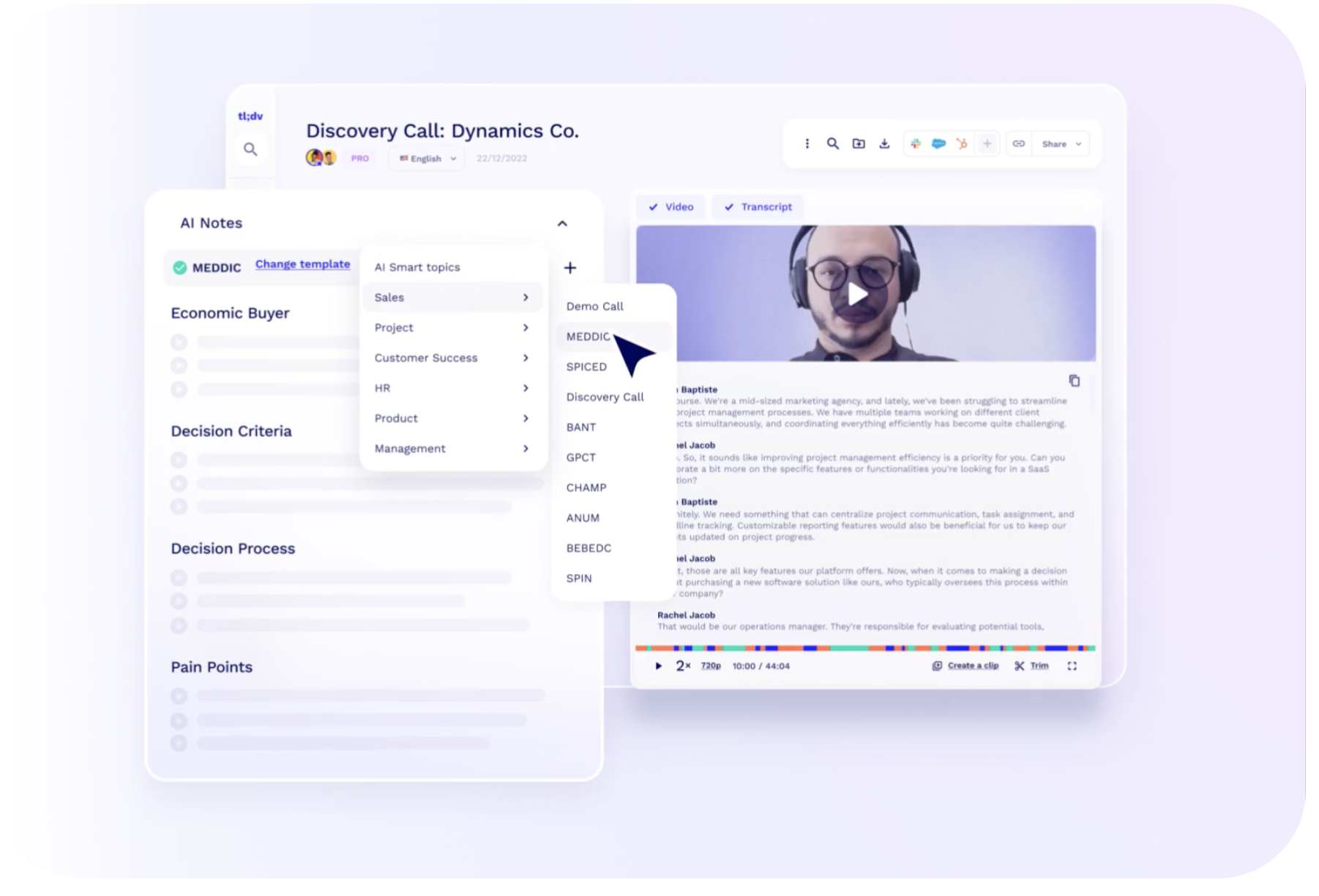
Image credit: Tl;dv
Another excellent AI meeting assistant, tl;dv excels at timestamped highlights that lets you jump straight to the key moments that happened during your meeting. The notes automatically link to specific timestamps, allowing you and your colleagues to catch up on meetings in minutes rather than watching hour-long recordings or sifting through lengthy transcripts. It’s likely this characteristic that makes it so well loved by asynchronous teams and remote workers. tl;dv also integrates with over 5,000 tools (yes, you read that right), including major CRMs, and offers unlimited recordings on its free tier. Like several other apps, tl;dv joins meetings as a visible bot.
Price: Free plan; paid plans from $18/user/mo. View tl;dv’s pricing structure here.
Supernormal
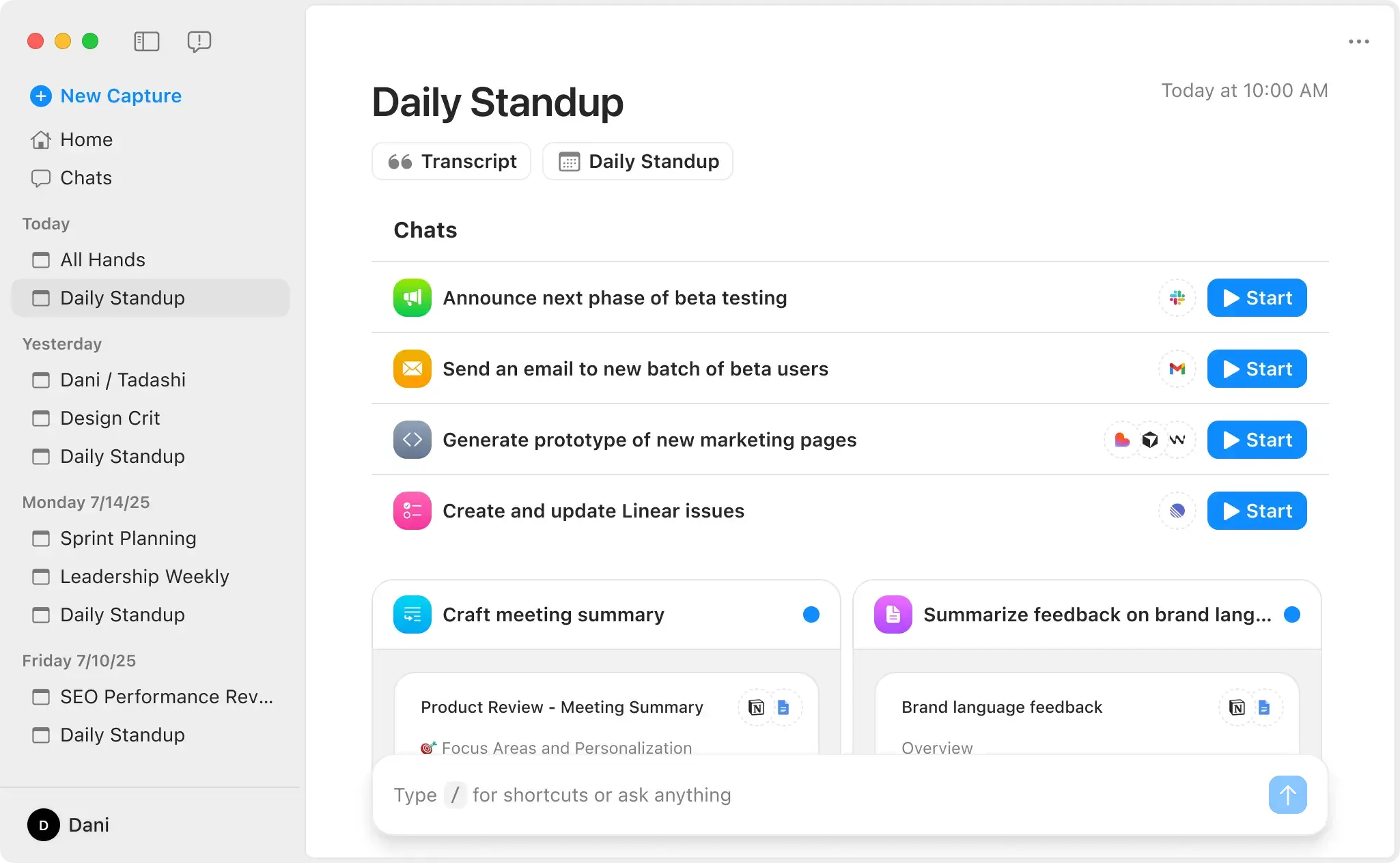
Image credit: Supernormal
Supernormal delivers auto-formatted summaries through customizable templates that match your meeting style. It works particularly well when combined with Google Workspace, and connects seamlessly with Google Calendar, Meet, Docs and Sheets. It offers a clean and intuitive interface that is a pleasure to work with, and excels at speaker identification and action item tracking. However, Google Meet functionality requires installing a Chrome extension rather than working natively, which adds an extra setup step and limits users to Chrome. Zoom and Teams meetings use a bot participant instead.
Price: Free plan; paid plans from $10/user/mo. View Supernormal’s pricing structure here.
Other Apps to Consider
- ReadAI: ReadAI is excellent at real-time transcription with a powerful Search Copilot that unifies insights across meetings, emails, chats and CRMs. However, it’s faced severe criticism for invasive auto-joining behavior that’s notoriously difficult to control.
- Avoma: Avoma stands out for its comprehensive sales-focused conversation intelligence with AI coaching scorecards, deal tracking and revenue forecasting. It’s on the pricey side, however, and users often find its pricing structure complicated and inflexible.
- Sembly: Sembly fans love its customizable templates for different meeting objectives. And the fact that it supports over 48 languages. It tends to serve software companies more than other industries, however, and its free plan is fairly restrictive.
- Grain: Grain turns your meetings into structured, searchable data with customizable templates and deep HubSpot and Salesforce integrations. However, it can only analyze individual meetings in isolation rather than tracking themes across multiple conversations.
- Colibri: Colibri offers real-time transcription together with dynamic prompts and guidance during calls. If you work in multiple languages, though, be aware that Colibri only supports English out of the box. Other languages are available exclusively on its Business plans.
- MeetGeek: MeetGeek automatically detects the type of meeting you’re in and applies context-aware templates with tailored insights. Some users have experienced reliability issues with the MeetGeek bot failing to join scheduled meetings.
Category C: Built-In Platform Note Takers
If you use any of the following popular videoconferencing platforms, you might already have access to the AI meeting note takers they use.
Zoom AI Companion
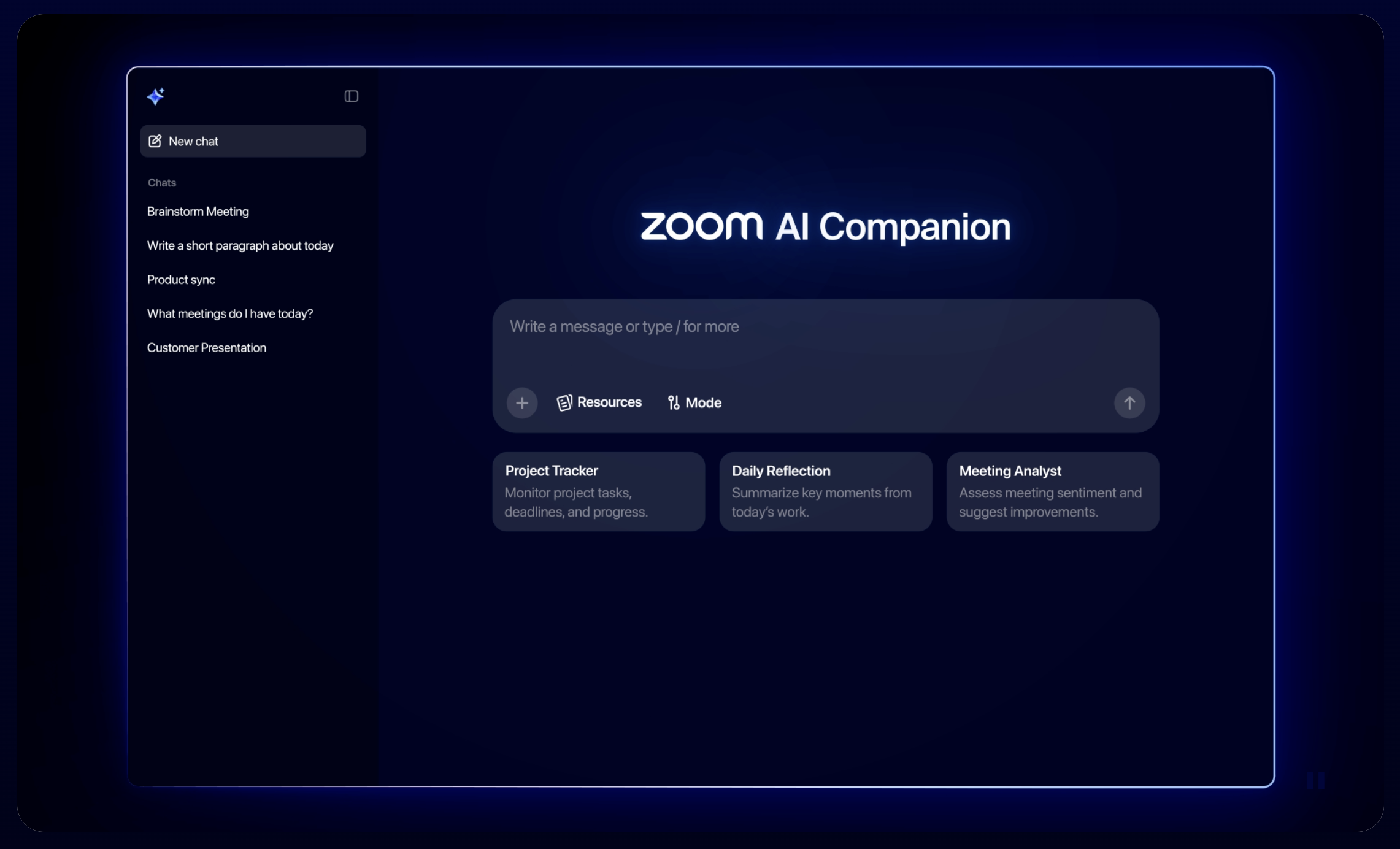
Image credit: Zoom AI Companion
Zoom AI Companion generates reliable action items and meeting summaries automatically, with smart recordings organized by chapters and highlights. It comes included at no additional cost with paid Zoom Workplace plans (Pro, Business and Enterprise), which makes it a convenient option if you’re an existing subscriber. You’re also likely to find it easy and intuitive to use since the interface is built directly into Zoom. However, since Zoom AI Companion is locked into the Zoom ecosystem, it can’t access external knowledge sources like Confluence, help desk systems or other company documentation. If you or your broader team use a variety of platforms, you might be interested in a tool that offers better cross-platform support.
Price: Included with paid Zoom Workplace plans; paid plans from $8.33/user/mo. View Zoom AI Companion’s pricing structure here.
ChatGPT for macOS
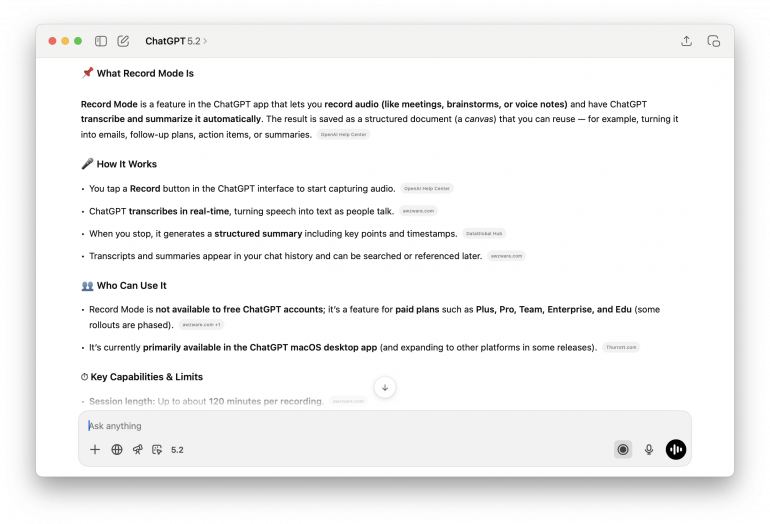
ChatGPT’s Record Mode is available in the ChatGPT app. It captures meeting audio locally without joining as a bot, generating structured summaries with action items and timestamps after you stop recording. It integrates smoothly with ChatGPT’s chat history and can reference past recordings, working across any video platform. However, it lacks robust speaker identification (you can’t tell who said what) and calendar integration, as well as external workflow connections to CRMs or task managers. Primarily a macOS desktop feature for Plus, Team, Enterprise, or Edu subscribers, it’s best suited for casual personal note-taking rather than professional meeting documentation.
Price: Free plan; paid plans from $20/mo. View ChatGPT’s pricing structure here.
Other Apps to Consider
- Google Gemini in Google Meet: Gemini includes a “Take Notes with Gemini” feature in Google Meet. This feature automatically captures meeting notes, offers transcripts and summaries, and highlights key decisions and action items. When it’s enabled, it automatically takes notes in Google Meet and attaches a summary to the calendar event. It currently only works in Google Meet, and multilingual and multi-platform support is limited.
- Microsoft Copilot in Microsoft Teams: Copilot in Teams offers meeting note-taking, summaries, action-item extraction and handy recaps. It’s built for enterprises with security and compliance concerns, and works across meetings, chats and channels. While Microsoft is a PC product, Teams does offer a native Mac app that supports Copilot features. Bear in mind that you do need to have a Teams or Microsoft 365 subscription to use this feature.
- Slack AI: In Slack Huddles you can turn on “AI Notes” so Slack AI can provide real-time transcripts of your conversations, take notes, and create summaries and action items. After the meeting or huddle ends, notes are organized into a canvas or thread and shared with your team. Like the other tools listed in this sub-section, this feature is exclusively available on Slack paid plans.
Comparison Table of the Best AI Meeting Note Takers for Mac
| Tool | Mac-native | Bot or not bot | Summaries | Live transcription | Best for | Price range/ Notes* |
|---|---|---|---|---|---|---|
| Granola | Yes – macOS app; also Windows & iOS | Yes – Records system audio; no meeting bot | Very strong AI summaries (decisions, action items) | Yes – records Mac system & mic audio in real time | Mac-centric users in back-to-back meetings who want a minimal, fast AI notepad | Free plan; paid plans from $14/user/mo. View Granola’s pricing structure here |
| Jamie | Yes – Desktop app for macOS & Windows, plus mobile | Yes – No meeting bot; local listener mode | Excellent, structured notes and action items across platforms | Yes – online and limited offline support depending on plan | Privacy-first users and teams who don’t want bots joining calls | Free plan; paid plans from €25/mo. View Jamie’s pricing structure here |
| Alter | Yes – macOS-only assistant | Yes – Records directly from Mac audio; no visible bot | Strong on-device summaries & meeting analysis | Yes – local transcription with optional cloud enhancements | High-privacy users wanting on-device workflows and automations | Free plan; paid plans from $240/year. View Alter’s pricing structure here |
| MacWhisper | Yes – macOS-only, on-device Whisper | Yes – No bot; detects and records calls in Zoom, Teams, Webex and more (beta) | Primarily transcription; summaries depend on chosen model/workflow | Yes – fast, offline transcription from meetings, mic or imported audio/video | Offline & security-conscious users who want bot-free, local speech-to-text | Free plan; Pro is a one-time purchase from €64. View MacWhisper’s pricing structure here |
| Fathom | No – Web & browser extensions | No – AI assistant/bot joins or connects to meetings | Excellent AI summaries, action items, follow-up emails | Yes – multi-language live transcription for Zoom/Teams/Meet | Heavy Zoom / sales / customer teams that want a generous free tier | Free plan; paid plans from $14/user/mo. View Fathom’s pricing structure here |
| Otter.ai | No – Web & mobile; not Mac-first | No – OtterPilot bot can auto-join meetings | Good summaries and outline-style notes, especially for classes & talks | Yes – real-time transcription across Zoom/Meet/Teams etc. | Teams, educators, and knowledge workers needing searchable transcripts | Free plan; paid plans from $8.33/user/mo. View Otter’s pricing structure here |
| Fireflies.ai | No | No – Fireflies bot joins meetings or works from recordings | Good summaries with topics, tasks, and meeting search | Yes – live transcription for Zoom/Teams/Meet/Webex, etc. | Sales & revenue teams that want CRM sync and automation | Free plan; paid plans from $10/user/mo. View Fireflies’ pricing structure here |
| tl;dv | No – Web & browser; Mac desktop support but not Mac-first | No – Bot/extension joins calls to record | Very good summaries, timestamps, and highlight-driven notes | Yes – live transcription with limits on some lower tiers | Remote-first teams wanting async, highlight-driven recaps | Free plan; paid plans from $18/user/month. View tl;dv’s pricing structure here |
| Supernormal | No | No – Joins meetings/integrates with platforms | Auto-formatted summaries, agendas, and follow-ups | Yes – records meetings and generates transcripts | Google Workspace-heavy teams wanting polished notes | Free plan; paid plans from $10/user/mo. View Supernormal’s pricing structure here |
| Zoom AI Companion | No – Part of Zoom Workplace, not Mac-specific | Yes – Built into Zoom; no external bot needed | Good meeting summaries, action items, and follow-ups | Yes – live notes and transcription during meetings | Zoom-heavy teams who already pay for Zoom | Free plan; paid plans from $8.33/user/mo. View Zoom AI Companion’s pricing structure here |
| ChatGPT for macOS (Record Mode) | Yes – Native macOS app | Yes – Records locally; no meeting bot | Excellent summaries, key points, and follow-ups from any audio (meetings, lectures, videos) | Yes – records Mac system audio and transcribes in the cloud | Multi-purpose users who want one AI for meetings & everything else | Free plan; paid plans from $20/mo. View ChatGPT’s pricing structure here |
How Timing Fits Into Your Productivity Workflow
To get the best sense of how effective your AI meeting assistant is, run it in conjunction with Timing. Timing runs in the background while you work, automatically tracking every app, webpage and document you open — including your chosen meeting platform. This means, by keeping a close eye on your Stats over time, you’ll be able to see exactly how much time you’re saving once you incorporate your AI meeting assistant into your life.
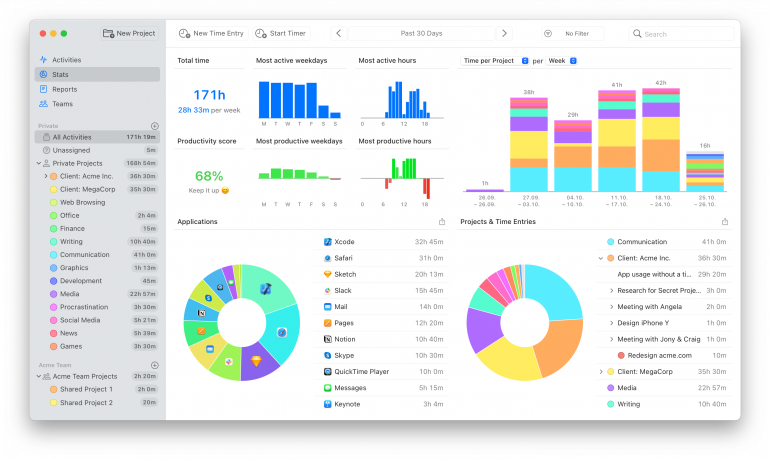
If your “Admin” and “Communications” activities start to fall, it means you’re likely claiming back time once spent on post-meeting follow-ups. If it rises, consider whether your chosen AI meeting note taker is more hindrance than help. It should be freeing up your time, not absorbing it.
Timing also helps to give a sense of whether you’re spending too much of your days in meetings in the first place. With a detailed timeline of your activities, you can quickly see patterns emerging, such as days dominated entirely by calls and meetings recurring unnecessarily. Interrogate this data. Is that weekly catch-up always necessary? Are you losing essential time you could be spending on deep, focused work instead?
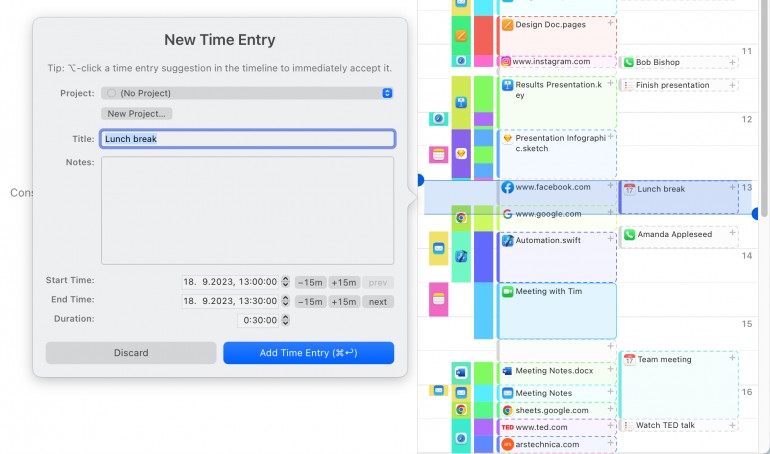
Timing’s Calendar integration makes this even clearer. All your events appear directly inside your time tracking dashboard, so you can compare planned meetings versus actual time spent, and spot the ones consistently running over. Timing can also auto-detect when you join and end a meeting, ensuring that not a minute gets missed.
If you want a clearer sense of your day, not just your meetings, Timing offers AI Summaries. These summaries help you quickly understand how you spent your time across projects, apps, websites, tasks and meetings. Use this information to identify problematic periods in your schedule and adjust accordingly.
And don’t forget to ensure that every meeting is billed accurately. Combine your AI meeting notes with Timing’s automatic logs to create precise, reliable records for invoicing or reporting with no manual timers or guesswork.
In Summary
Make sure your meetings are running as efficiently as possible by making an AI meeting note taker part of your tool stack. With the right solution under your belt, you should have immediate access to an easy-to-use summary, complete with key decisions and action items. Make sure you review our detailed list of criteria before you make your call, and that you focus on Mac-native, private-conscious platforms that fit with your workflow.
Start taking control of your time by downloading Timing’s free 30-day trial today.
Frequently Asked Questions: Best Mac AI Meeting Note Taker
What is the Best AI Meeting Note Taker for Mac?
There isn’t one single “best” AI meeting note taker for Mac — it really depends on your needs. Granola is an excellent Mac-native solution, while Fathom and Otter are strong multiplatform contenders. Experiment with free tiers to find the solution that best suits your way of working.
How Can I Take Notes Automatically During Zoom Meetings on a Mac?
Start with Zoom’s built-in solution, Zoom AI Companion. If you have a paid plan, this feature comes standard. You might also choose to use other apps that integrate well with Zoom, such as Fathom, Otter and Fireflies. If you’d rather keep everything on your own Mac, MacWhisper can detect a Zoom call and record it locally without a bot joining, though that feature is still in beta.
Are There Any AI Meeting Note Takers That don’t Use Bots?
Yes, there are several AI meeting assistants that don’t use bots. You might want to try Granola, Jamie or Alter to start. They’re strong Mac-native solutions, too. MacWhisper is another bot-free option if transcription matters more to you than polished summaries.