
Screen Time on Your iPhone, iPad and Mac: The Definitive Guide in 2026
It probably goes without saying, but we couldn’t live without them: our digital devices are arguably among the most indispensable parts of our personal and professional lives, connecting us to friends, family, colleagues, and the rest of the world for a multitude of reasons numerous times a day.
How many times a day exactly? According to a Reviews.org survey from late 2025, Americans check their phones an average of 186 times per day—and nearly 85% of us reach for our phones within 10 minutes of waking up. Whatever our habits, if we look at our Screen Time report, many of us will likely find that we’re spending over two months a year on our phones. In the US, the average is around 4 hours and 43 minutes of daily screen time—that adds up to roughly 72 days a year.
But is every one of these instances worthwhile? Are we using our time productively, to learn, work and be entertained, or are we simply whiling away the hours? When it comes to our phones, tablets and computers, where is the line between help and hindrance, and can being aware of our screen time help us to manage our phone usage better?
Let’s look at how monitoring the apps you’re using through Screen Time on iPhone can help you to be more aware of your time, and boost your productivity in the process. We’ll also ask whether there are any alternatives for you to consider. (Spoiler alert: there are!)
TL;DR: Screen Time on iPhone, iPad and Mac
Screen Time is Apple’s built-in feature for tracking device usage and setting limits across iPhones, iPads and Macs. It shows you which apps you use the most, how often you pick up your phone, and how many notifications you get. You can set Downtime schedules, App Limits, Communication Limits, and Content & Privacy Restrictions—making it especially useful for parents managing their children’s screen habits.
Key limitations: Screen Time doesn’t distinguish between productive and unproductive use of the same app (e.g., research vs. social browsing in Chrome), doesn’t track individual documents or websites on Mac, and can be inaccurate at times.
For professionals who need detailed work-time tracking, Timing is the ideal complement. Timing automatically tracks every app, document and website on your Mac, and is the only time-tracking app that can import your Screen Time data—giving you a complete cross-device picture of your work time. Try it free for 30 days.
Table of Contents
TOC
What is Screen Time on iPhone?
Screen Time is a feature on all Apple devices—iPhones, iPads and Macs—that tells you how long you use your device every day, and which apps you use the most. It also gives you the option of scheduling time away from your screen, and limiting the time you spend on apps that can be a bit distracting.
Screen Time isn’t a separate app, but rather a built-in feature that you can activate and control in Settings. To get started, simply go to “Settings > Screen Time,” and tap “Turn on Screen Time”. Hit “Continue” and then choose either your own device or your child’s device. One of the best features about Screen Time is that it can help you manage the time your family spends on their iPhones or iPads, which we’ll get to in a little bit.
Once you’re in Screen Time, you can view how many hours or minutes you’ve spent on your device, and on which apps. With this information in hand (some of which could be quite shocking), you can start to re-evaluate and, if necessary, change the way you interact with your device.
Of course, since Screen Time is essentially about looking at how and where you spend your time, it’s right up our alley. At Timing, we’re all about tracking time for increased productivity.
How Does Screen Time Work?
If you’ve activated it, Screen Time is constantly working in the background to assess what apps you’re using on your device, and for how long.
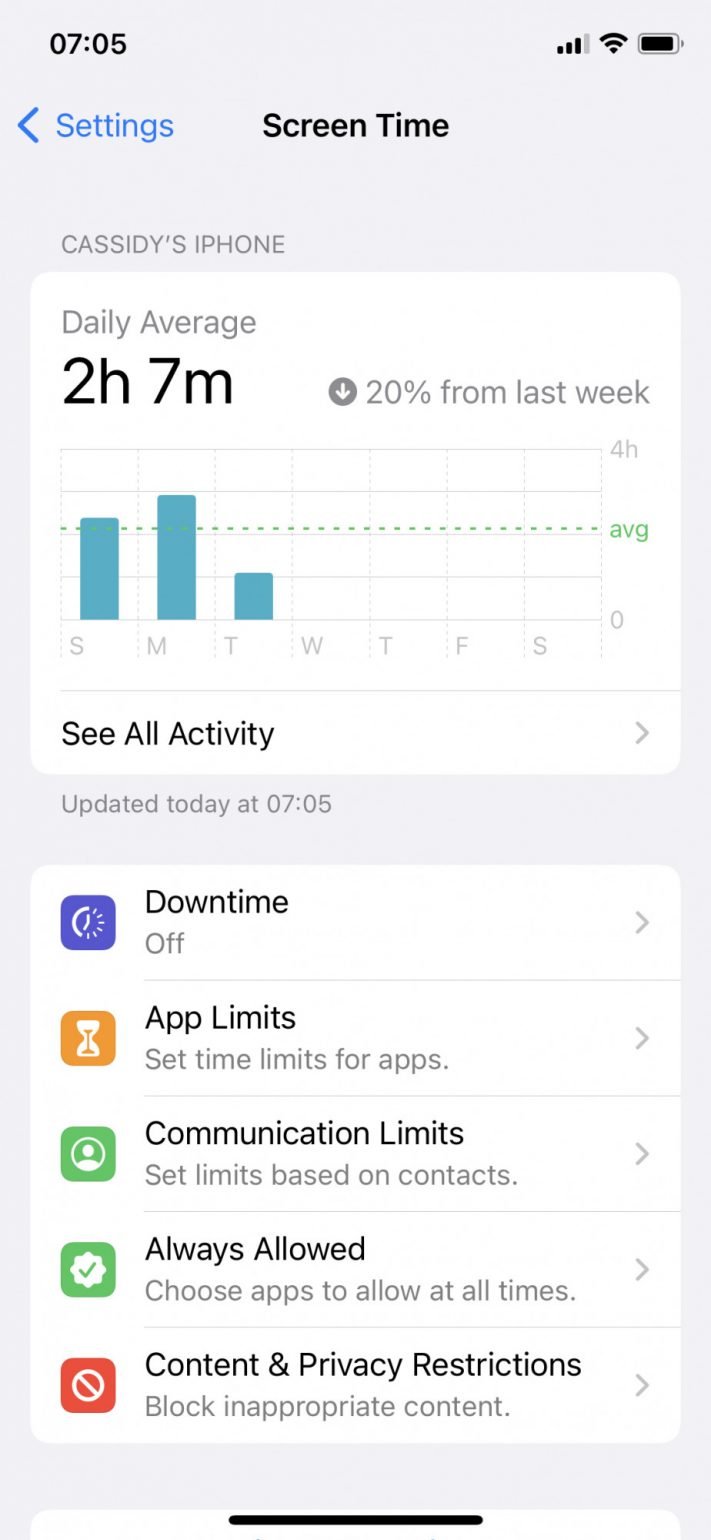
The first thing that you’ll see when you go into Screen Time is a graph that shows you how many hours and minutes you’ve spent on your device that day. Below, there are a few options that allow you to set downtime and manage limits.
Here’s what the opening page looks like:
What’s New in Screen Time (iOS 26 & macOS Tahoe)
iOS 26 and macOS Tahoe, released in September 2025, brought the biggest update to Screen Time since its 2018 launch—especially for families. Here are the highlights:
- Complete app blocking: App Limits now accept a zero-minute value, so parents can fully block specific apps instead of allowing at least one minute of access.
- PIN-protected permissions: Revoking Screen Time access now requires the Screen Time PIN rather than just Face ID or the device passcode, closing a longstanding bypass method.
- In-app browser blocking during Downtime: Even for apps that are allowed during Downtime, in-app browser windows are now suppressed—so kids can’t use an allowed app as a backdoor to the web.
- Streamlined child account setup: Setting up a child’s Apple ID and adding them to Family Sharing is much simpler, with remote management via “Managed Screen Time.”
- New App Store age ratings: Apple introduced clearer age tiers (4+, 9+, 13+, 16+, 18+), replacing the old system where 17+ apps could still reach younger users.
- Expanded teen protections: Automatic content filters and Communication Safety settings now apply to teenagers aged 13–17, not just children under 13.
- Communication Safety in FaceTime: On-device machine learning now detects nudity in FaceTime video calls and Shared Albums, blurring the content and offering resources to the child.
Two other features worth knowing about, if you haven’t encountered them yet:
- Screen Distance (iOS 17+): Uses the TrueDepth camera to warn you when you’re holding your device closer than 12 inches for too long—helpful for eye health and myopia prevention. Find it under Settings > Screen Time > Screen Distance.
- Communication Safety: An on-device feature that detects and blurs sensitive images in Messages, AirDrop, and (as of iOS 26) FaceTime. It’s enabled by default for children under 13.
Downtime, App Limits and Communication Limits
It’s not uncommon for users to get a bit of a fright when they first log into Screen Time, discovering they’ve spent hours on apps that could have been better spent on more productive activities, or simply being present with friends and family.
If that’s you, don’t worry! Just like Timing, Screen Time is meant to help you track your activity so that you can organize your time and use it to your advantage. Use it correctly and the information it provides can be empowering, rather than disheartening.
Screen Time includes key features that will help you to set personal limits: Downtime, App Limits and Communication Limits.
Downtime
Downtime allows you to schedule time away from the screen. You may want to spend time away from technology in the evenings, for example. If that’s the case, simply set a schedule, during which only apps you choose and phone calls will be available.

App Limits
App Limits allows you to set daily time limits for certain app categories, such as social, games, entertainment, travel, and shopping and food. They reset every day at midnight. You can also choose apps that you want to be available at all times, such as Messages or WhatsApp.
Communication Limits
Communication Limits enables you to limit who you speak to so that only people within your contacts list, or with a mutual contact, can connect with you during certain times of the day. You’ll always be able to make or receive emergency calls, however.
Always Allowed, Block Content and Privacy Restrictions
Always Allowed is where you can choose which contacts and which apps are, as the name suggests, always allowed. These apps are available even during downtime, or if you choose the “All Apps & Categories” app limit.
Screen Time also allows you to set content and privacy restrictions. You can choose to block content that you simply don’t want to see, and make adjustments to get greater control over private information, like contacts, photos and location services.
What Does Your Screen Time Report Look Like?
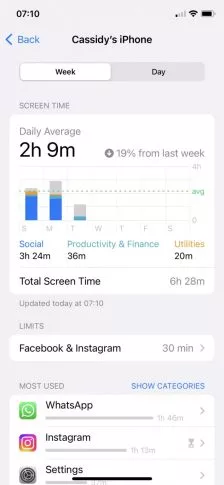
If you tap on “See All Activity”, you’ll be able to take a look at your screen time report, which shows some of the more granular details of how you use your phone.
A bar graph gives you weekly and daily totals on the categories you’ve engaged with the most—in the case below: social, productivity and finance, and utilities. It tells you which apps and categories you’ve used the most, how often you’ve picked up your phone and which app you used first, and which apps send you the most notifications.
Pickups and Notifications
For many of us, picking up our iPhones during a moment of downtime—while waiting in line, or even while sitting at a stop light—has become an involuntary reflex.
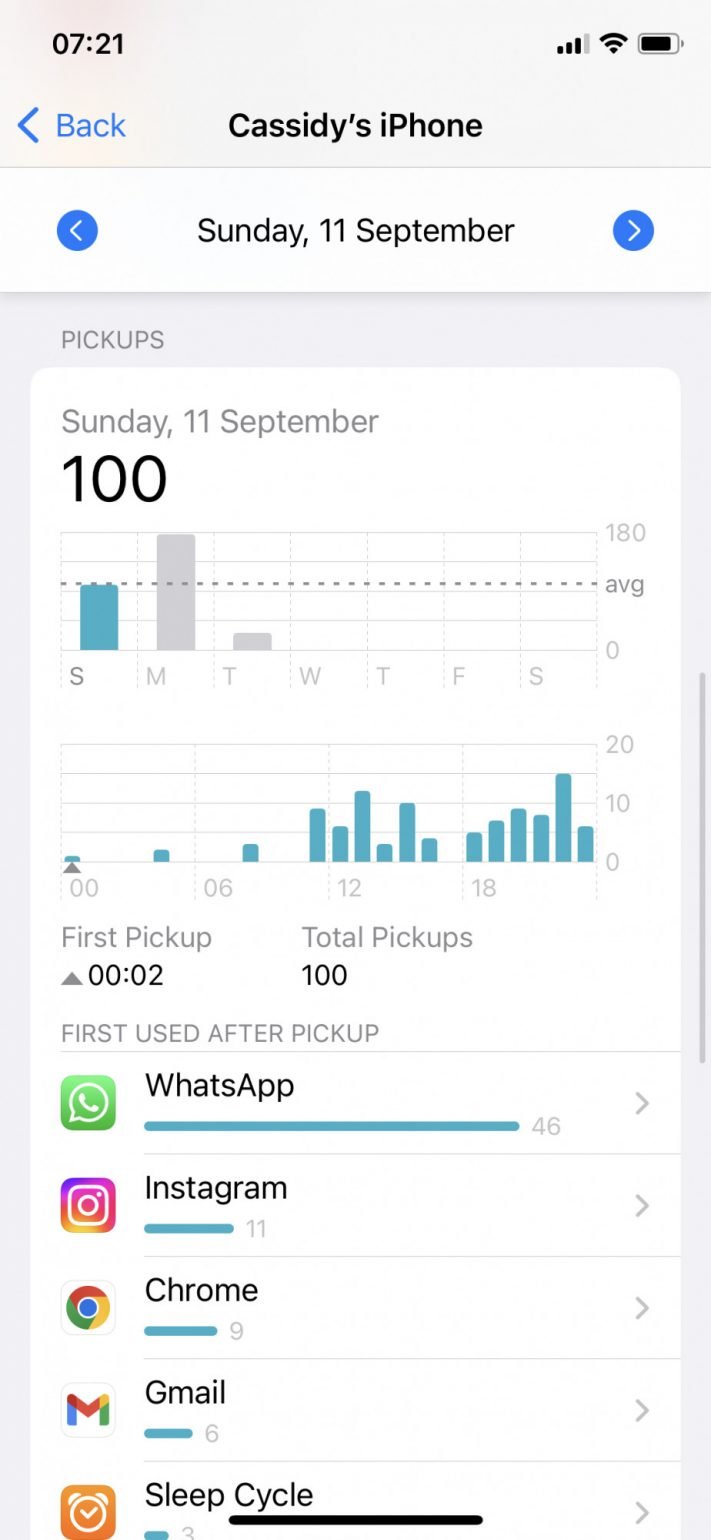
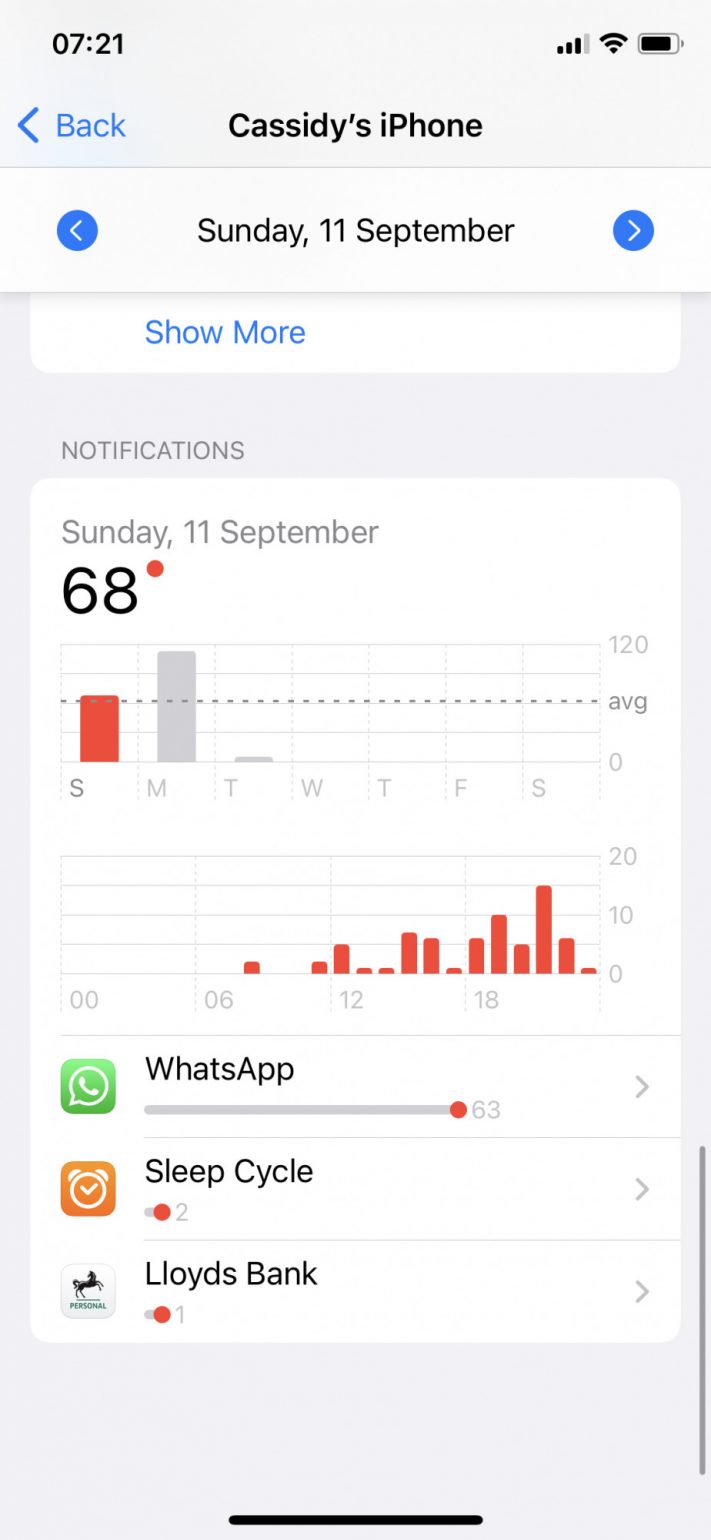
Screen Time allows you to review how many times you’ve picked up your iPhone or iPad per hour, as well as your first pickup and number of total pickups per day. You’ll also be able to see the apps that you used first after picking your phone up. This information can help you track the apps that are drawing you into your phone, and perhaps demanding more attention than they should.
Here’s the pickup info:
If enhancing your productivity is important to you, being aware of the apps that send you the most notifications is also important—they’re the ones that are likely distracting you when you’re in the middle of a task. If you want to limit your notifications, go to Settings > Notifications and adjust the notification style in the app concerned.
Screen Time on iPad and Mac
Screen Time works very similarly on iPads as it does on iPhones, and the screenshots we’ve provided above will look just about the same.
To share your Screen Time settings across all your Apple devices, sign in with your Apple ID on each device and select “Share Across Devices” on Screen Time’s opening page. This will help you view your combined screen time across your devices.
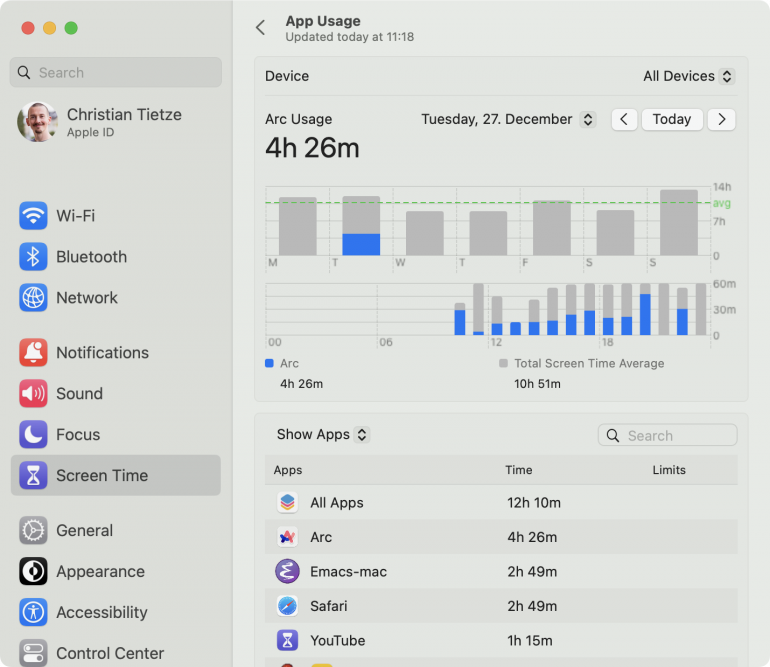
Screen Time looks slightly different on Mac; it is available in your System Settings, along with all the data and limits you’ve come to expect from using Screen Time on iPhone and iPad. It also divides your device usage into apps and categories, and shows you how much time you’ve spent on each. We also have a dedicated article on Screen Time for macOS if you’d like to learn more.
Screen Time vs. Timing—A Better Alternative?
While Screen Time can help you see where all those minutes (and hours) are going, it won’t necessarily help you work productively. The information—particularly on Mac—simply isn’t detailed enough. Time spent on Google Chrome, for example, could be used finding recipes for parmesan-roasted potatoes, rather than researching a potential new client. Screen Time doesn’t distinguish between the two.
So, while Screen Time and Timing have the same basic goal of helping you to be more efficient, aware and productive, Screen Time passes the baton to us when it comes time to give detailed insights into how you spend your working hours. Here’s what sets them apart:
- Detailed tracking: Timing automatically tracks your time on your Mac, including the apps you use, the documents you edit, and the websites you visit.
- Screen Time import: Timing is the only time-tracking app that can import your Screen Time data (Expert+ tiers), giving you a complete cross-device picture of your work time. View your iPhone and iPad usage right inside Timing, categorize it into projects, and include it in reports.
- AI summaries and call tracking: Timing uses AI to generate plain-language summaries of your work day, and automatically detects audio and video calls in Zoom, Slack, Microsoft Teams, Google Meet, WhatsApp and FaceTime—so meetings are tracked without lifting a finger.
- Fully customizable: By allowing you to create a hierarchy of projects that make sense for you, set up custom rules to categorize and file chunks of time, and assign productivity scores, Timing gives you a near-endless range of possibilities for tracking and organizing your time.
- Enter data manually: You can also manually enter time spent off your Mac — such as on phone calls or during in-person meetings. This seamless control helps you to account for every minute of your day.
- Reporting and invoicing: And you can use Timing for easy tracking and to export data to your invoicing solution, which Screen Time doesn’t allow.
If you aren’t a Timing user yet, you can try our 30-day trial for free, with no credit card required. Of course, if you’re an avid Timing user, you’ve been ahead of the curve for a while. You already know how helpful and transformative it is to be able to review your minutes and hours, and see where your priorities lie.
Screen Time for Family
Finally, for parents who want to monitor and limit device usage for their children, Screen Time offers a feature called “Screen Time for Family.”
Screen Time for Family allows you to see where and how children under the age of 18 are spending time on their devices. You can adjust settings, such as downtime or app limits, from your own device provided you’re the designated family organizer. You can also add another family member as a parent or guardian.

Screen Time Alternatives
Screen Time is a solid starting point, but if you’re looking for more control over your digital habits—or more detailed tracking for work—there are several third-party options worth considering:
- Opal ($99/year premium) — A premium app-blocking tool for iPhone and Mac with deep Focus modes that can be made irreversible, plus a Focus Score to track your progress over time. Best for people who want strict, no-compromise blocking.
- ScreenZen (completely free) — Instead of hard blocks, ScreenZen adds customizable friction before you open distracting apps—like a delay timer or a reminder of your daily limit. The fact that it’s entirely free makes it easy to try.
- one sec (paid) — Takes a breathing-pause approach: when you try to open a distracting app, one sec makes you pause and take a breath first. Research backed by the Max Planck Institute found this reduces app openings by 57%.
- Freedom (paid subscription) — The go-to choice for blocking distractions across multiple devices simultaneously—iPhone, Mac, Windows and Chrome. Useful if your digital life spans more than just Apple devices.
All of these apps focus on reducing your screen time. But if you’re a professional who needs to understand how productively you use your time, that’s a different problem. Unlike blockers, Timing is a professional productivity tool—it imports your Screen Time data and shows you how productively you use your time across all devices, with automatic tracking of every app, document, and website on your Mac.
Conclusion: Getting the Most Out of Screen Time on iPhone
If you have questions about how you can use Screen Time alongside Timing, feel free to reach out to us! You can also read more about Timing by checking out our features, or reading through our FAQs.
Frequently Asked Questions: Screen Time on iPhone
Still have more questions about how Screen Time works? Let’s look at a few of your FAQs:
How do I check Screen Time on my iPhone?
To check Screen Time on your iPhone, open the “Settings” app, then scroll down to “Screen Time”. There, you can enable Screen Time or view your phone activity stats. If you would like to learn more about how Screen Time works, make sure to read the rest of this article.
Does Screen Time include phone calls?
Screen Time doesn’t capture individual phone calls, but it will show you how much time you spent on the phone in total. Also, you can check your iPhone’s “Phone” app for a history of all your calls, including their lengths. In addition, our app Timing has a call tracking feature that automatically detects when you start and end an audio or video call in a variety of popular meeting apps, including Zoom, Slack, Microsoft Teams and Google Meet.
What does Apple Screen Time include?
Screen Time includes information on the apps you use on your phone, and for how long. It also shows how often you pick up your phone, and how many notifications you receive from each of your apps.
Does Screen Time count apps running in the background?
Screen Time only monitors apps that you’re actively using, rather than those that are updating in the background or those that you have moved away from but not closed completely. If you find that this is not the case, and suspect that your Screen Time data might be wrong, there are a few ways you can solve this. You can also try an alternative automatic time tracking solution such as Timing.
How is Screen Time calculated?
Screen Time adds up how much time you spend actively using your device. It also counts the time you actively spend in each app, so it won’t count time when you are using a different app or not using your device. If you think that your Screen Time is wrong, you can try a different automatic time tracking app such as Timing.
What is healthy screen time on iPhone?
Outside of work, it’s a good idea to try and limit your screen time to less than two hours per day. A 2025 randomized controlled trial confirmed that reducing smartphone use to under two hours daily improved mood, stress levels and sleep quality within just three weeks.
How do I set up Screen Time for my child?
Go to Settings > Screen Time > Family, then tap your child’s name (they need to be part of your Apple Family Sharing group). From there, you can set Downtime schedules, App Limits, Communication Limits, and Content & Privacy Restrictions—all remotely from your own device. With iOS 26, setting up a child account is significantly easier, and you can manage contacts and permissions from your phone without touching theirs.
Why is my Screen Time wrong or inaccurate?
Screen Time accuracy issues are a common complaint, especially after major iOS updates. iOS 18, for example, caused widespread reports of inflated usage numbers—showing 10 or even 21+ hours of daily use when the phone was idle. If your data looks off, try restarting your device, toggling Screen Time off and back on, or updating to the latest iOS version (many accuracy bugs get fixed in point releases).
Can Screen Time be bypassed?
Unfortunately, yes—tech-savvy kids have found several workarounds over the years, from reinstalling apps to reset limits (fixed in macOS Sequoia) to using in-app browsers during Downtime (fixed in iOS 26). Apple has been steadily closing these loopholes: iOS 26 now requires the Screen Time PIN to revoke permissions, and in-app browsers are blocked during Downtime. No system is completely bypass-proof, but it’s getting harder.
What is Screen Distance on iPhone?
Screen Distance is a feature introduced in iOS 17 that uses the TrueDepth camera to detect when you’re holding your device closer than 12 inches for an extended period. It then prompts you to move the device farther away. It’s designed to reduce eye strain and help prevent myopia, and it’s enabled by default for children under 13. You can find it under Settings > Screen Time > Screen Distance.
How do I reset my Screen Time passcode?
If you’ve forgotten your Screen Time passcode, go to Settings > Screen Time and tap “Change Screen Time Passcode,” then tap “Forgot Passcode?” You’ll be prompted to authenticate with your Apple ID—the same one you used when setting up the passcode. If you’re resetting a child’s passcode, you can do it from your own device through Family Sharing. Note that if you never set an Apple ID for recovery, you may need to erase the device and set it up as new.
Is there a way to track Mac screen time in more detail?
Screen Time on Mac only shows which apps and categories you used and for how long—it doesn’t distinguish between different websites, documents, or projects within the same app. For professionals who need that level of detail, Timing is purpose-built for Mac: it automatically tracks every app, document and website you work with, lets you assign time to projects, and can even import your iPhone and iPad Screen Time data for a complete cross-device picture. You can try it free for 30 days.